
Infrastructure Requirement :
1 DC SERVER (Mecm2) *We will configure Group policy and set up network share here
A Client PC running Windows 10 (CLIENT-10) *To test if user’s folder gets redirects to the network share on MECM2
Lets get started.
A – Create a Shared Folder
1 – On MECM2, on the taskbar, click the File Explorer icon, In the navigation pane, click This PC.
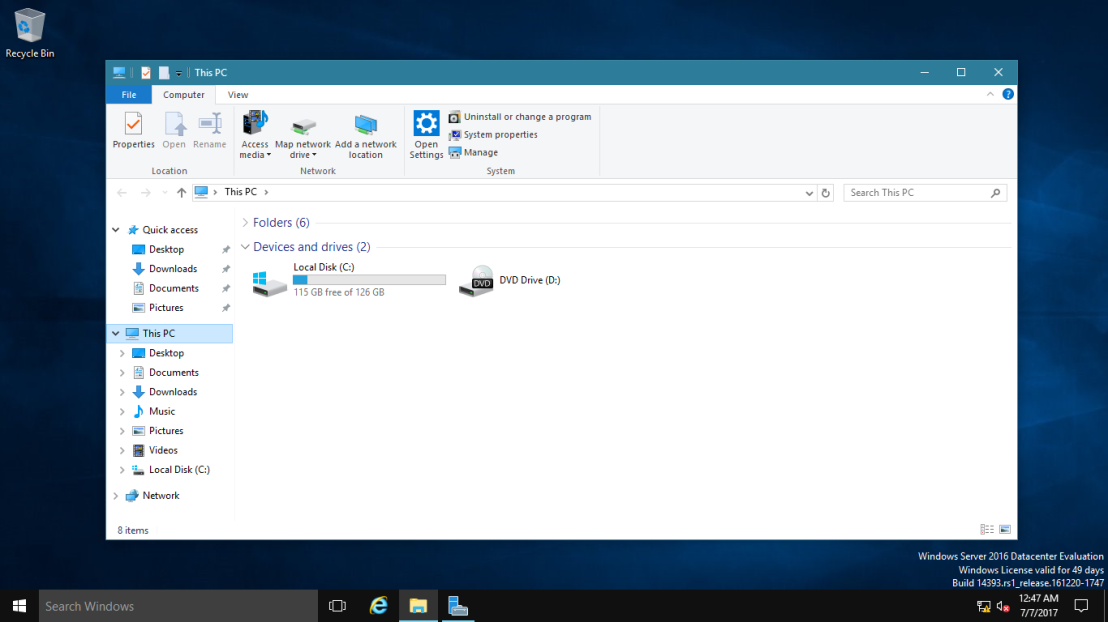
2 – In the details pane, double-click Local Disk (C:), and then on the Home tab, click New folder.
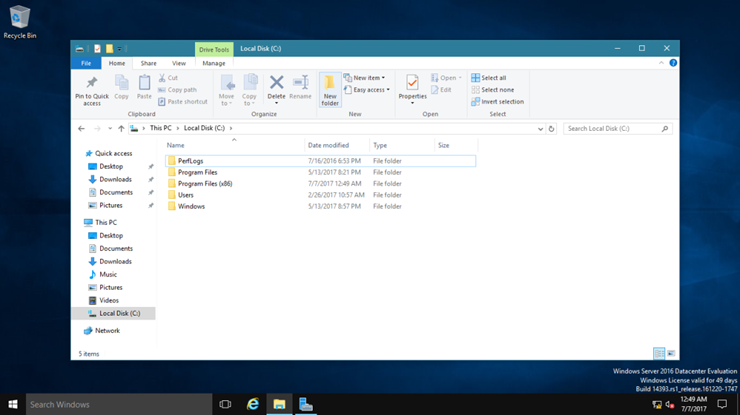
3 – In the Name text box, type FolderRedirect-Userdata, and then press Enter.
4 – Right-click on the folder, click Share with, and then click Specific people.

5 – In the File Sharing dialog box, click the drop-down arrow, select Everyone, and then click Add.
6 – For the Everyone group, click the Permission Level drop-down arrow, and then click Read/Write.

7 – Click Share, and then click Done.
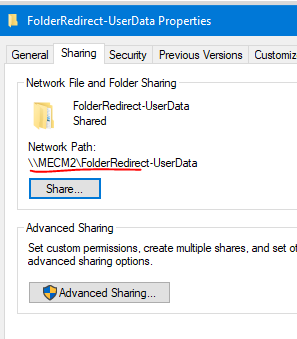
Close the Local Disk (C:) window
B – Create a GPO to redirect the Documents folder
1– In the Group Policy Management Editor window, under User Configuration, expand Policies,expand Windows Settings, and then expand Folder Redirection.
2 – Right-click Documents, and then click Properties. You can configure additional folders [Desktop, Documents, pictures, music, etc…] just the same as how Documents is configured.
3 – In the Document Properties dialog box, on the Target tab, click the Setting drop-down arrow, and then select Basic-Redirect everyone’s folder to the same location.

4 – Ensure that the Target folder location box is set to Create a folder for each user under the root path.
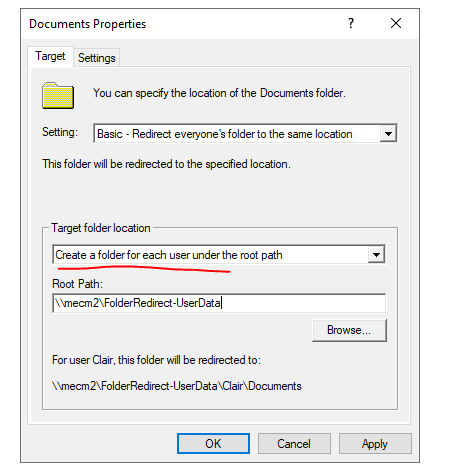
5 – In the Root Path text box, type \\mecm2\FolderRedirect-UserData and then click OK.
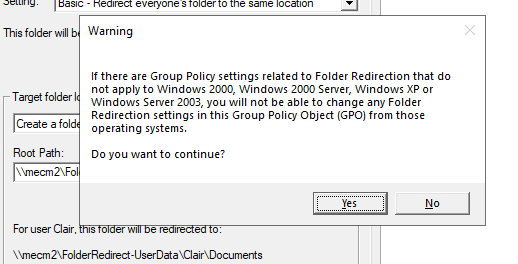
6 – In the Warning dialog box, click Yes.
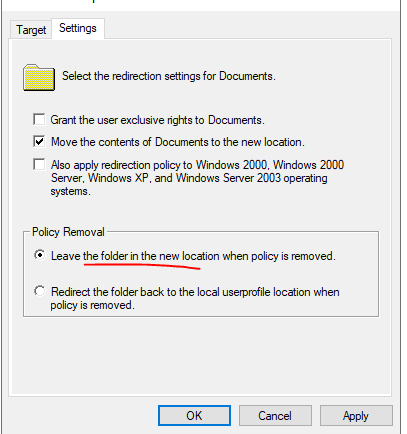
7 – Under the settings tab, it is recommended the leave the folder in network share if policy is removed.
The reason is, if the selection [Redirect folder back to local user profile location] is on and the user does not have the policy applied, the files will only copy itself back to the first machines that the user logged into. If they are logged into a second machine, the files will not copy over. There is also a chance that not all folders will get copied over and risk of data loss is possible.
Close the Group Policy Management Editor
C – Test Folder Redirection
1 – Sign in to CLIENT-10 as domain user.
2 – Right-click Start, and then click Command Prompt.
3 – In the Command Prompt window, type the following command, and then press Enter:
Gpupdate /force
4 – Sign out and log back in.
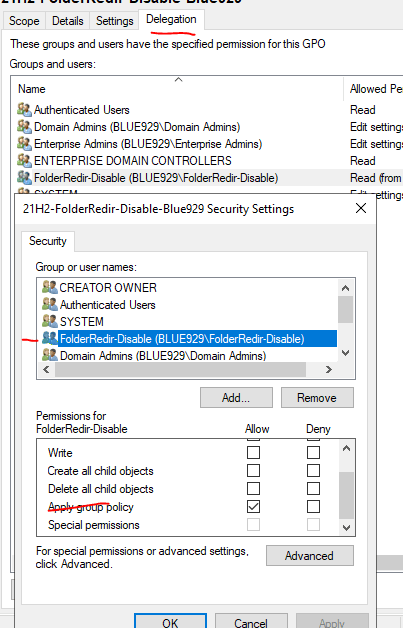
**If folder redirection does NOT get applied, double check if the security filtering is getting applied correctly (Does the group have permission to read GP?) This applies if you are deploying the policy to test it on a test group.

The network share folder must allow everyone full read/write access


5 – Verify that on the General tab, the Location field has a value of \\Mecm2-FolderRedirect-UserData\[user]
**If organization seeks to modify the process in order to revert the users redirected share to local user profile when policy is NOT applied, I highly recommend taking users out of the folder redirect AD group then rebuild their user profile either the same machine or different one.
There are alternatives where a new policy is created to redirect the folder location back to user local policy, but I have found this to be very inconsistent as some folders get moved properly and there is a risk of possible data loss.
Source:
 Steven’s Knowledge Base