
Manually executing new-item cmdlet to create new config file is repetitive and requires lot of time. Loops does work but does not capture the changes properly while it just loops. A function can be looped and custom parameters can be inserted or pipelined into the function.
What is a function?
Function is a block of code designed to perform a specific task or set of tasks. Functions allow you to organize your code into reusable and modular segments. They can take input parameters, execute logic, and return values, helping to keep your scripts clean and maintainable.
# Goal is utilize functions in order pass the new-item cmdlet over and not loop it over again.


Function Test-ScriptCmdlet
{
[CmdletBinding(SupportsShouldProcess=$True)]
    Param ($Parameter1)
    begin{}
    process{}
    end{}
}
# 1.Create the function with: "Function name {}""

function MyConfiguration {
    Write-Output "Testing function"
}

#2. Type in function to execute process. This outputs string "Testing function". This function has no parameters "-" declared.

MyConfiguration
Example – Create function to output the string created by user input for cmdlet “myconfig” with parameter “-name”
# function name - myconfig.
# Declare parameters to get name of the config file.

function myconfig {
    [CmdletBinding()]   #Provides additional parameters (Verbose, Debug, ErrorAction, Warningaction,etc..)
    param(   #create new parameters for the function created
        [parameter(mandatory)]  #User must use this parameter when typing in the function "myconfig"
        [String]$name  #Parameter name is $name. It is a string
    )
        Write-Output "The configuration file name is: $name"
}

# Test function "myconfig". The parameter should show up "-name"

myconfig -name "Steven"

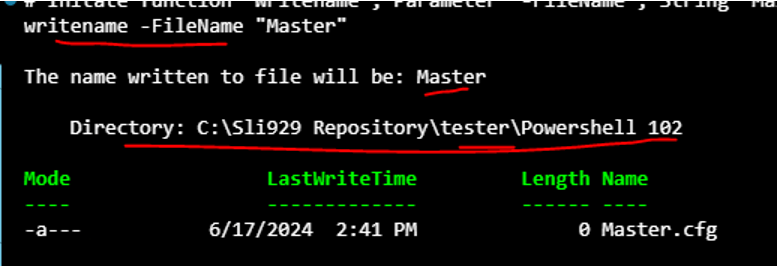
Example – Create function [WriteName] that creates a file from the parameter “-Filename”
$configpath = "C:\Sli929 Repository\tester\Powershell 102\"
function writename {
    [CmdletBinding()]
        param (
            [parameter()]       #optional paramter
            [String]$FileName   #string variable
        )
        Write-Output "The name written to file will be: $Filename"

        New-Item -Path $configpath -Name "$($Filename).cfg" -ItemType File

}

# Initate function "Writename", Parameter "-FileName", String "Master"

writename -FileName "Master"
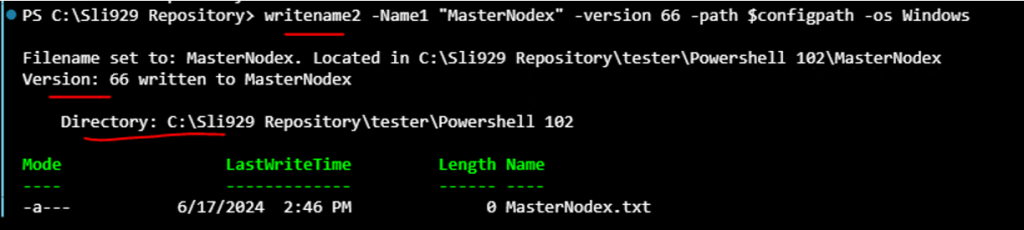
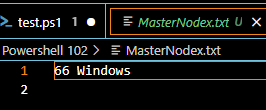
Example – Create “WriteName2” function that creates a new file “$Name1” then appends “$Version” and “$OS” onto the file. Also accepts Pipeline.
$configpath = "C:\Sli929 Repository\tester\Powershell 102\"
function WriteName2 {
    [CmdletBinding()]
        param (
            [Parameter(Mandatory, ValueFromPipeline)]
            [String]$Name1,
            [Parameter()]
            [String]$version = "5.5.0",
            [Parameter(Mandatory)]
            [String]$path,
            [Parameter()]
            [ValidateSet("Linux","Windows")]
            [String]$OS
        )
    process{
        Write-Host
        "Filename set to: $name1. Located in $path$name1"
        "Version: $Version written to $name1"
        new-item -Path $path -Name "$Name1.txt" -ItemType File -ErrorAction SilentlyContinue

        $version+" "+$OS | Out-File -FilePath "$path$name1.txt" -Append -Force
    }
}

# Executing function to create file then write the version and OS onto the file
writename2 -Name1 "MasterNodex" -version 66 -path $configpath -os Windows
Example – Create function that ONLY accept certain values. Uses “ValidateSet” properties.
Function ValidateFunctionTest{
    [CmdletBinding()]
        param (
            [Parameter(Mandatory)]
            [ValidateSet("Kat","John")] #The parameter "NameX" will only accept string Kat or John
            [String]$NameX
        )
        Write-Output "The name can only be: $namex"
    }
    ValidateFunctionTest -namex John  # if parameter is different than Kat or John then it will error with  "Cannot validate argument on parameter"

If executing [ValidateTest -nameX "gg"] (It will error since "gg" is not part of the validate set)

Example – Create function that accepts pipeline by inserting “ValueFromPipeline” properties in the parameter.
Function Pipeline-Test {
    [CmdletBinding()]
        param (
            [Parameter(Mandatory, ValueFromPipeline)] # Value from Pipeline = accepts pipeline for parameter.
            [String]$NameX
        )
        Write-Output "The name can only be: $namex"
    }
    Pipeline-Test # Will error out as there is no argument to parameter or pipeline

    "John" | Pipeline-Test # Pipe in "John" into $Namex

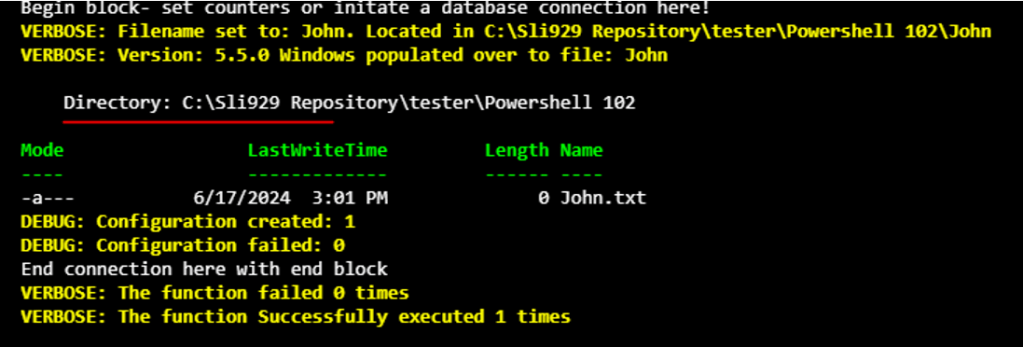
Example – Create function that has [BEGIN, PROCESS, END block] with [TRY CATCH] error handling with [counters]. Includes [Pipeline] and [validateSet] properties. Output result with [write-verbose]
$configpath = "C:\Sli929 Repository\tester\Powershell 102\"
function WriteName3 {     #first comes parameter
    [CmdletBinding()]     #second comes additional parameter options
        param (           # DECLARE  your parameter properties
            [Parameter(Mandatory, ValueFromPipeline)] #Parmeter 1: $name1 is mandatory string. Will also accept pipeline
            [String]$Name1,
            [Parameter()]  #Parameter 2: $version is optional string. If no value is declared, it will default to "5.5.0"
            [String]$version = "5.5.0",
            [Parameter(Mandatory)]
            [String]$path, # Parameter 3: Give option to put a file to where file can be written to
            [Parameter()]
            [ValidateSet("Linux","Windows")] #Only take Linux or windows as parameter inputs.
            [String]$OS
        )
     Begin {   # DECLARE BEGIN; set counters or initate a database connection
        Write-Host "Begin block- set counters or initate a database connection here!" #Write-Verbose to get more info
            $Counterpassed = 0  # Declare variables to see how many times the output passed
            $Counterfailed = 0  # Declare variables to see how many times the output failed
        }
    process{    # DECLARE PROCESS BLOCK.; store all actions
        try {
            Write-Verbose "Filename set to: $name1. Located in $path$name1"
            write-verbose  "Version: $Version $os populated over to file: $name1"
            new-item -Path $path -Name "$Name1.txt" -ItemType File -ErrorAction SilentlyContinue  #Creates a new txt file ($name1), If the file already exist, silently continue without displaying error

            $version+" "+$OS | Out-File -FilePath "$path$name1.txt" -Append -Force   #Input $version and $OS  onto the Txt file ($name1). Always put the EXACT NAME and EXTENSION for -FilePath

            $Counterpassed++  } #Increment $counterpassed if scriptblock executes successfully

             catch{Write-verbose $_.exception.message
                    $Counterfailed ++}   #Increment $counterfailed if script block fails and catches an error.
                Write-Debug "Configuration created: $counterpassed"  #Output debug
                Write-Debug "Configuration failed: $counterfailed"
     }
    End {            #DECLARE END BLOCK
        Write-Host "End connection here with end block"
        Write-Verbose "The function failed $counterfailed times"
        Write-Verbose "The function Successfully executed $counterpassed times"
    }
}
Verify the function is working
WriteName3 -Name1 “John” -path $configpath -OS Windows -Verbose -Debug
ValueFromPipelineByPropertyName attempts to fill a parameter from the property of an object in the input pipeline. When filling a value by property name, the name and type of the property is important, but not the object that implements the property.
# With [ValuefromPipelineByPropertyName], a separate variable with multiple objects and parameters can be used to have it pipeline into a single function (like $name, $version, $path, $OS)

function sample {
        [CmdletBinding()]
        param(
        [parameter(Mandatory, ValueFromPipelineByPropertyName)] # Value by property name
        [string] $test
        )
}
Example – Pass the array into the “WriteName3” function to have the files generates using name from array.
$configpath = "C:\Sli929 Repository\tester\Powershell 102\"
$arrayX=@("Tom","Ben","Jerry", 5, 6)
$arrayx | WriteName3 -path $configpath -OS Linux -Verbose -Debug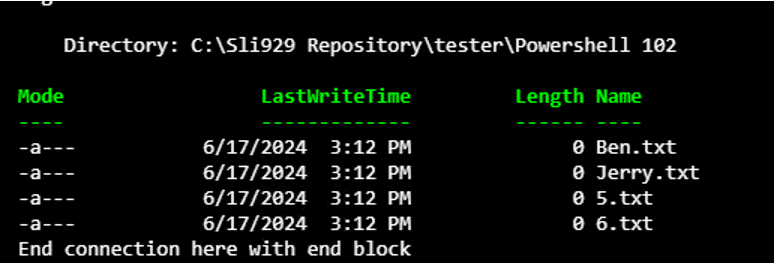
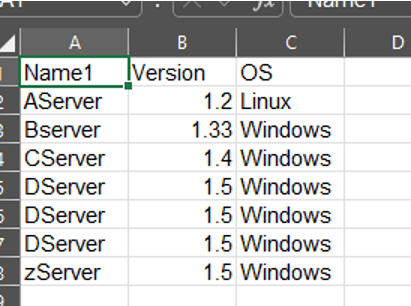
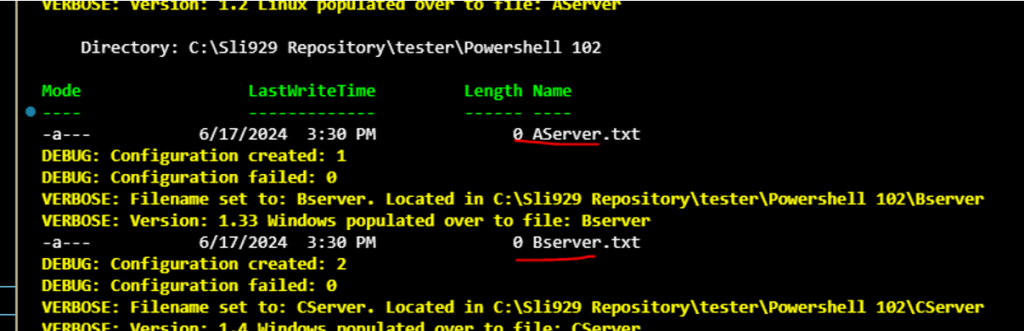
Example – Create CSV file. Then pipeline the CSV file onto the function to create text file. Use cmdlet “Import-CSV” to imports data as array
$serverlist = Import-Csv -Path “C:\Sli929 Repository\tester\Servers.csv” -Delimiter ‘,’
$serverlist | WriteName3 -path $configpath -Verbose -Debug
Example – pass input of “Get-input” onto “Get-Data”
function Get-Input
{
    [CmdletBinding()]
    param
    (
        [Parameter(
            Mandatory = $true,
            ValueFromPipelineByPropertyName = $true
        )]
        [string]$ComputerName
    )
process
    { Write-Output $(New-Object psobject -Property @{ComputerName = $ComputerName}) }
}
function Get-Data {
    [CmdletBinding()]
    Param(
        [Parameter(
            Mandatory = $true,
            ValueFromPipelineByPropertyName = $true
        )]
        [string]$ComputerName
    )
Process { Write-Output -InputObject "Value passed from Get-Input: $($ComputerName)." }
}
Get-Input -ComputerName ‘PC-01’ |Get-Data
“PC-01” string will be piped into “Get-Data” function to be displayed


