
Goal – deploy shortcuts to users workstation. Includes certain apps or power settings that users may find useful.
Requirement– DC (domain controller) server with Group policy management role installed
1 – Open Group policy management
2- Right click and edit the policy
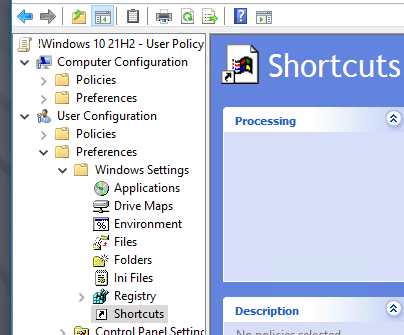
3- Navigate to user configuration > preferences > shortcuts. Right click and select new shortcuts
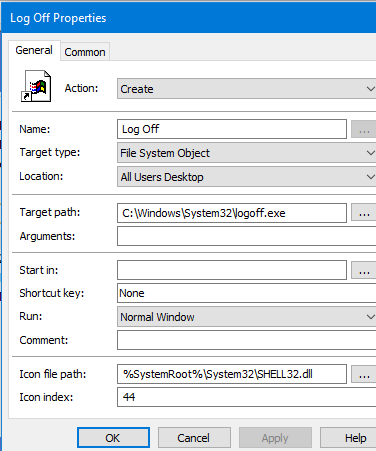
4 – To create a log off button, fill out the target path to where the logoff.exe path is located on every windows machine.
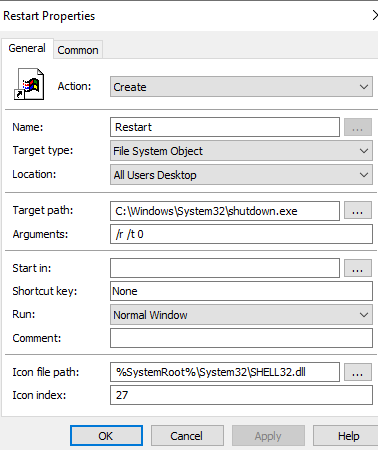
5 – Here is the setting to deploy a restart button
6 – User should see a icon “Restart” or “Log off” after they sign back into workstation
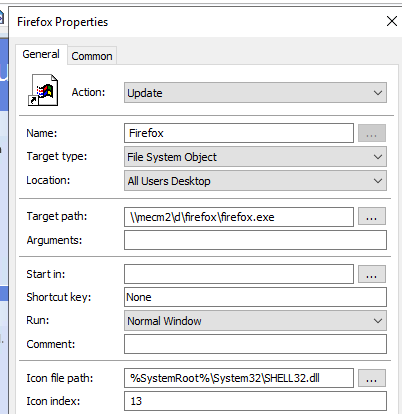
** I don’t recommend calling popular application like firefox from a network share because this causes unnecessary network traffic. Deploy applications locally to workstations instead.
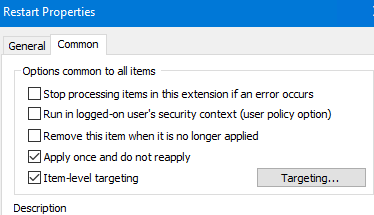
** I recommend an apply once and do not reapply as it is not necessary to reapply it after every user log in. Item level targeting can be configured if you would like to target specific groups.
**The location can be set to Desktop, which targets the %userprofile%.
or
All users desktop, which targets %public% folder. Selecting All users desktop is preferable in the long term if company move towards Onedrive KFM. This prevents Onedrive from making a duplicate copy of the shortcut since it does not upload anything that in the %public folder%. Users also cannot delete shortcuts in the %public% folder without admin privilege.
Onedrive does upload a copy of shortcuts located in %userprofile%, so if a user logs into multiple devices with onedrive configured, multiple copies of the shortcut will carry over.
***** What if you want set an icon from %userprofile%\desktop (Desktop) and move it to %public%\desktop (All users desktop) folder?
1. Copy and paste the original update/create action and replace it with a delete.
2. If the original folder shortcut is located in %userprofile%\desktop (Desktop). Create a DELETE action and run it under User Context.
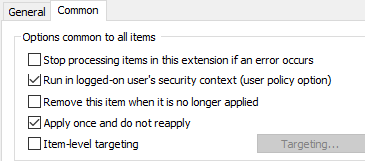
3. Once the icon is deleted from %userprofile%\desktop (Desktop). Create a update action and target the %public%\desktop (All users desktop). Run it under System Context
 Steven’s Knowledge Base