
Creating firewall exception are necessary when windows defender block legitimate applications from running.
Goal – create exception rules for certain apps. In this scenario,an exception to the Ringcentral Meetings app will be added to be excluded from being flagged. Once the changes are made, there should be no more windows alert when users want to run the application.
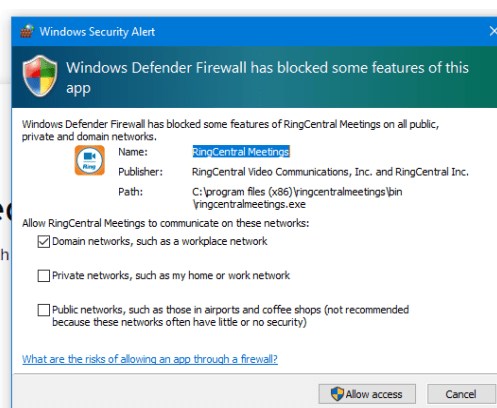
1.To create inbound/outbound rules and allow apps to run the necessary protocols from the installed path without interruption.
2. Edit group policy
3. Computer configuration > Policies > windows setting > security setting > windows firewall with advanced security
4. There are many options such as allowing a program or port.
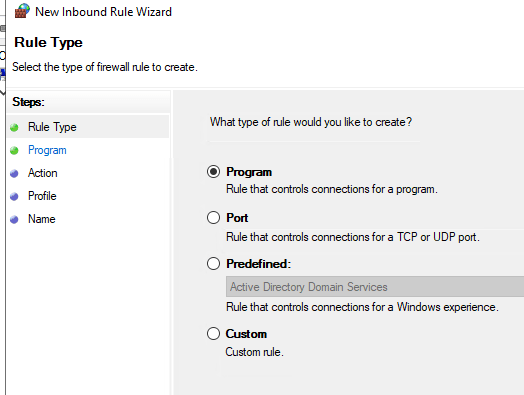
5. For this scenario, we will allow program [Ringcentral meeting] to run.
6. Next step, type in the path where the program is installed.
7. Select allow all connections for actions
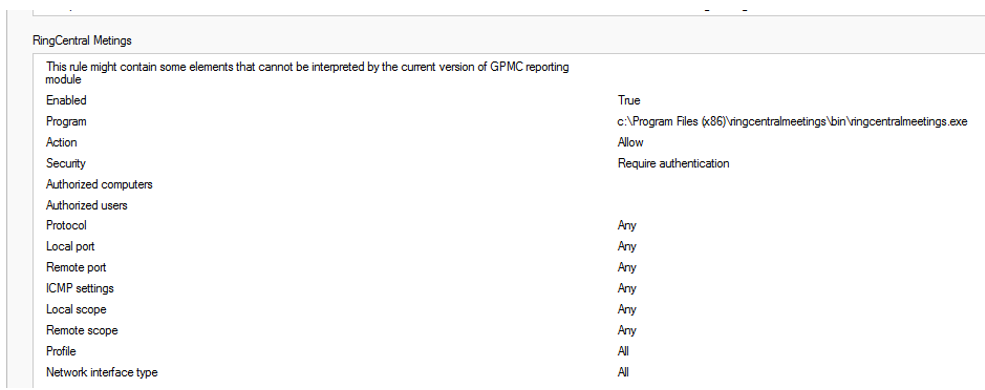
8. The results should look like this. User will not get the security pop up anymore and there should be no interruption when it comes to using the app.
**
To disable firewall temporarily for troubleshooting

1. Make sure you are not connected to the Windows Domain
2. Open the Registry Editor
3. Navigate to the following key:
HKEY_LOCAL_MACHINE\SOFTWARE\Policies\Microsoft\WindowsFirewall
4. Remove the key WindowsFirewall
5. Reboot your computer (necessary for Windows to re-apply the policies stored in the registry)
Source:
https://www.vanstechelman.eu/windows/how_to_bypass_domain_policy_firewall_settings
 Steven’s Knowledge Base