
Goal– Apply group policy only to certain test group instead of the default authenticated users group, which impacts all users.
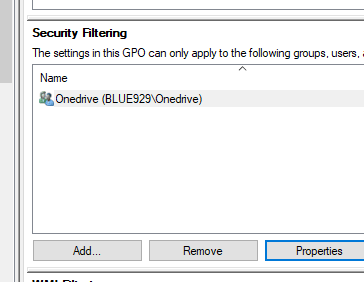
1. If I want the [Onedrive-Dev] policy to only apply to group [Onedrive] instead of all users.

Click “Add” button below security filtering and type in the group name.

2. By adding the group this way, it has permission to read the group policy.
3. To verify permission -Select Delegation tab
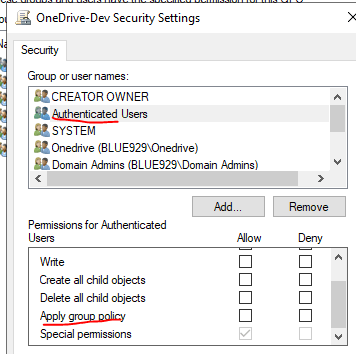
4. Select the [Onedrive] group and select advanced option
5. If “Apply group policy” is selected, then it has the appropriate permission. This will enable the group to inherit the policy.

6. I recommend unchecking “Apply group policy” for authenticate user since the goal is to apply the policy for certain a group. The policy should not apply to all users since that defeats the point of the whole objective.
** Keep in mind that the Authenticated users group also contains all computer accounts (and not only user accounts).
** Domain policy that targets user configuration does not impact local accounts on workstation but computer configuration does. Scenarios include conference laptops with company image.
** But what if I wish to implement policy adjustments for all users, except for a specific AD group, which is the complete opposite of what this guide suggests? How would an IT administrator go about accomplishing that?
In order to accomplish that, Admin would just need to reverse the changes made in this guide.
- Checking “Apply group policy” for authenticate user
- Check Deny “Apply group policy” for the AD group

 Steven’s Knowledge Base