
For domain joined machine that has already been re imaged and requires a certain file type to be opened with a specific application, utilizing group policy to force those changes will be needed.
Goal: Generate an xml with the correct settings and deploy it through a group policy setting called [Set a default associations configuration file] that modifies the file type to be opened with. In this scenario, I only want .PDF to be opened with SmallPDF application. This guide for for workstations already joined to domain and NOT for re imaging process.
1. Open a text file
2. Copy the text and save as FileAssociation.xml. Put this xml in a network share so users can access it.
<?xml version="1.0" encoding="UTF-8"?>

-<DefaultAssociations>

<Association Identifier=".pdf" ProgId="SmallpdfDocument" ApplicationName="Smallpdf" />

</DefaultAssociations>
In order to get the necessary info to add to the text file that will get deployed with GP:
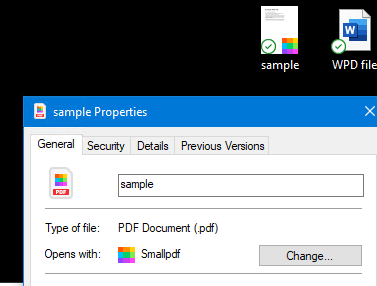
A) Configure file association on a test machine. For example, set a PDF to open by SmallPdf application then trigger:
Dism /Online /Export-DefaultAppAssociations:”c:\temp\AppAssociations.xml”
B) Find “pdf” and gather the ProgID and AppName from the AppAssociations.xml. Use the information here to fill out the text file.

Extension: is the file type(s) you want to modify or set. You can either specify a single extension or multiple extensions, separated by comma (i.e. “.avi,.mp4,.mpeg”).

ProgID: is the path to the application’s ProgId registry key without HKEY_CLASSES_ROOT. Most times this is the path to the open handler in the registry, relative from HKEY_CLASSES_ROOT to the key name before Shell\Open\Command. An Example: The open handler for “notepad.exe” can be found in

HKEY_CLASSES_ROOT\Applications\notepad.exe\shell\open\command. The ProgID for Notepad would be Applications\notepad.exe.

**finding ProgID** Not all apps are under \Applications\(app) some are outside of \application\ key

AppName: is the file description property of the corresponding EXE file. However, this value does not affect the file type association, but it must be set.
3. Once the FileAssociation.xml has the customized association put in, now is time to deploy it using group policy.
4. Configure the following policy > enable Set a default associations configuration file located in Computer\Policies\Administrative Templates\Windows Components\File Explorer
Point it to FileAssociation.xml that is stored in a network share
The path below is \\mecm2\d\AppAssoc\FileAssociation.xml
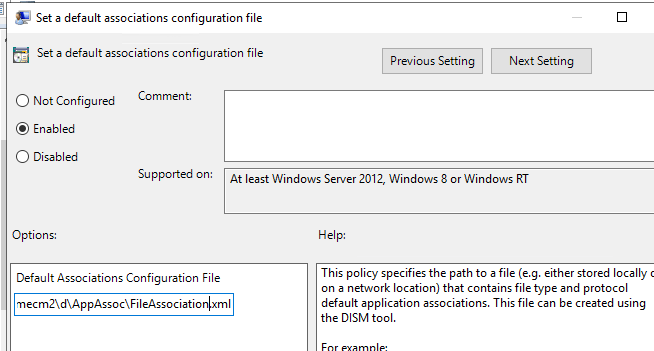
5. Check if policy is applied correctly by opening cmd, type in the following to check.
Gpresult /h c:\temp\comp2.html /scope computer

6. Force Gpupdate on a machine and verify the changes made in registry. May have to sign out and sign back in for changes to apply.
Computer\HKEY_CURRENT_USER\SOFTWARE\Microsoft\Windows\CurrentVersion\Explorer\FileExts\.pdf\OpenWithProgids
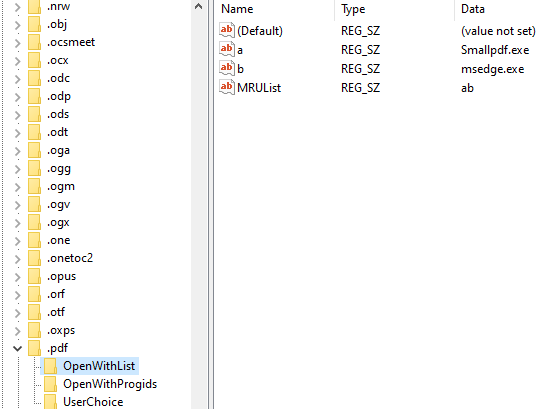

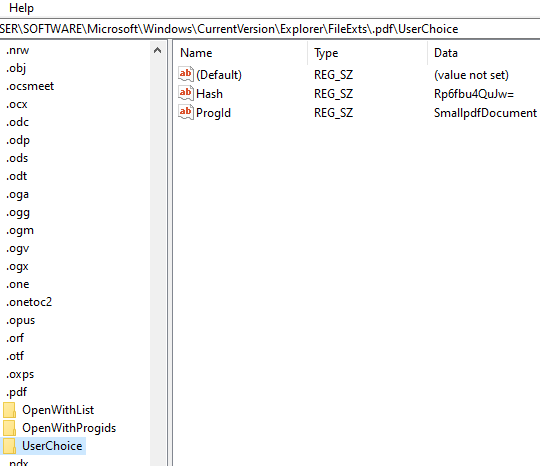
7. Verify the changes in event viewer
Expand Applications and Services Logs → Microsoft → Windows → Shell-Core → AppDefaults
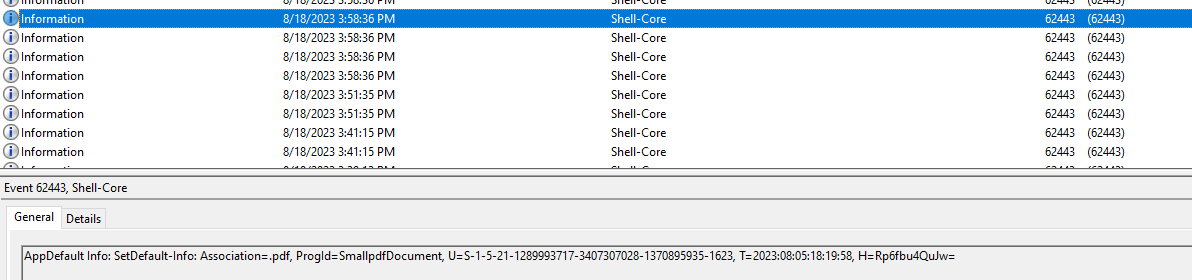
**
Since the group policy changes impact existing users. What happens if I log in with a new profile?
The user will get the \Windows\System32\OEMDefaultAssociations.xml (from image deployment) along with the FileAssocation.xml (from Group policy) customized changes applied during log in.
File Association xml example:

Source:
https://www.thewindowsclub.com/reset-export-import-default-app-associations
https://learn.microsoft.com/en-us/windows-hardware/manufacture/desktop/export-or-import-default-application-associations?view=windows-11
 Steven’s Knowledge Base