
For organizations that implements extended features to outlook with third-party apps, ensuring the continuous operation of these add-ins is of paramount importance. Among the significant add-ins in use are those for document management systems and others that demand a constant connection to external databases.
For this scenario, we will look into forcing the PDF add-in to maintain continuous availability within Outlook 365. There are also scenarios, which requires an add-in to be disabled. The following will look into both cases.
Goal: To prevent company add-in from being modified or auto-disabled by other Office programs. In the end, we will also revert what is done and disable the add-in.
1. To enable resiliency for an add-in so it cannot be disabled by users, edit the following GP
User configuration > Policies > Administrative template > Microsoft outlook 2016 > Miscellaneous > List of managed add in > enable
A ProgID must be used for the application.

A) To obtain the ProgID for an add-in, use Registry Editor on the client computer where the application is installed to locate key names. The location of the ProgID can be found here:
HKEY_LOCAL_MACHINE\SOFTWARE\Microsoft\Office\Outlook\Addins\
Or
HKEY_CURRENT_USER\SOFTWARE\Microsoft\Office\Outlook\Addins\

For this example, we will look for the kofax ProgID under the outlook registry hive.

The progID for the kofax application is "NPDFOutlookAddin.NPDFOutlook.1"

B) We will then add the "NPDFOutlookAddin.NPDFOutlook.1" value to GP and provide a value of "1".  The value of "1" means it is forced to stay enabled.

Specify the value as follows:

0 = always disabled (blocked)
1 = always enabled
2 = configurable by the user and not blocked by the Block all unmanaged add-ins policy setting when enabled.
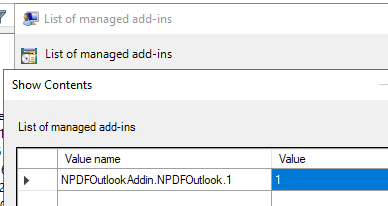
2. Now that the add in is enforced by GP, update and verify the changes on workstation. The add-in should now be enabled by system administrator and cannot be disabled by user.
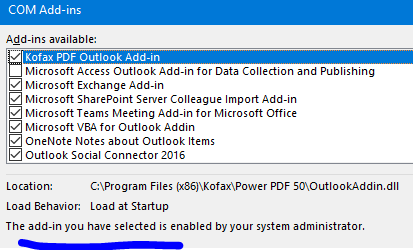
Verify the registry key is in place:
HKEY_CURRENT_USER\Software\Policies\Microsoft\Office\16.0\Outlook\Resiliency\AddinList\NPDFOutlookAddin.NPDFOutlook.1
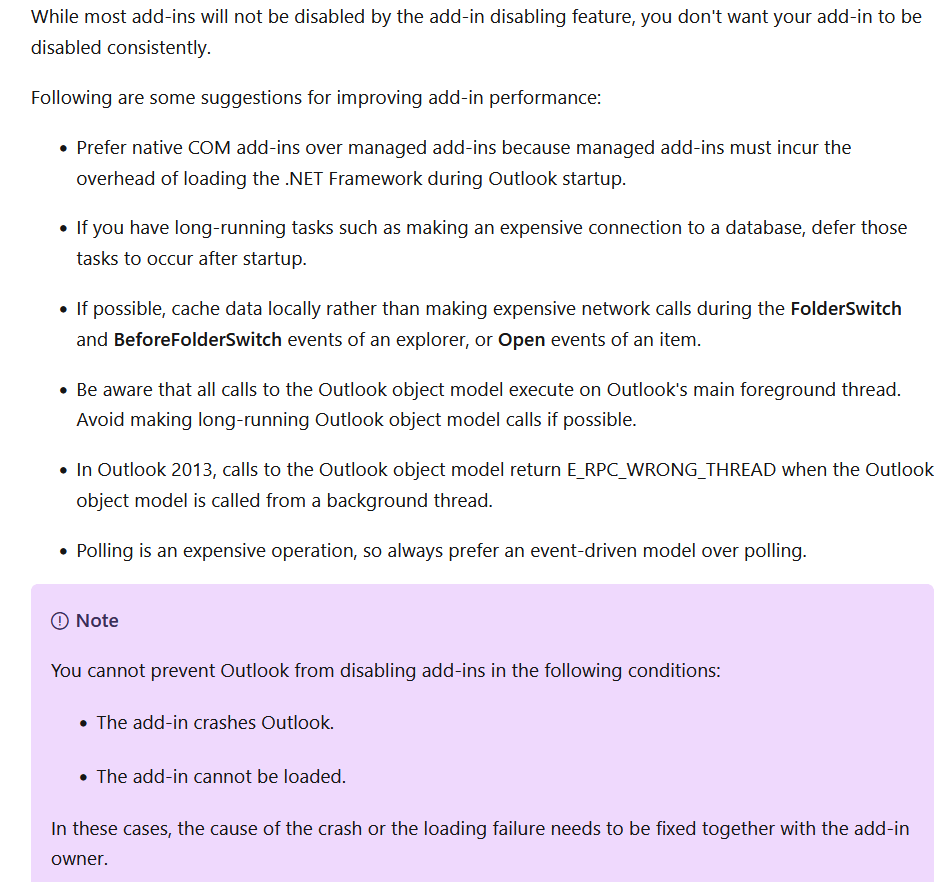
3. Now that should enforce the add-in to be enabled, preventing USER interference. However, it can still be disabled by Outlook’s add-in disabling feature.
> Tips for improving add-in performance. Outlook can still disable add-in if the add-in crashes Outlook.
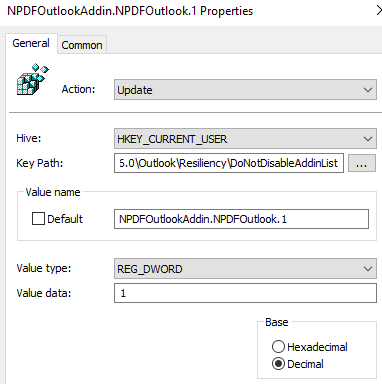
4. In order to lock this down and prevent users AND outlook from disabling the add-in, deploy the following registry key by going into:
User configuration > preferences > windows setting > Registry
Hive- HKEY_CURRENT_USER
Key Path- SOFTWARE\Microsoft\Office\16.0\Outlook\Resiliency\DoNotDisableAddinList
Value name - NPDFOutlookAddin.NPDFOutlook.1
Value data - 1 (Reg_Dword)


7. Done! After applying a group policy and adding registry key, the add-in should be enabled at all times*.
*Outlook can still disable add-in if the add-in crashes Outlook.
*The registry value, DoNotDisableAddinList must be added to word, excel, and power point if the add-in functionality extends to all office products.
Disable resiliency and block the add-in from running
1. To block the add in from running, reverse the steps above by modifying the value in registry key and in group policy.
A) Edit Group policy User configuration > Policies > Administrative template > Microsoft outlook 2016 > Miscellaneous > List of managed add in.
Next to “NPDFOutlookAddin.NPDFOutlook.1”, insert a value of “0”
0 = always disabled (blocked)
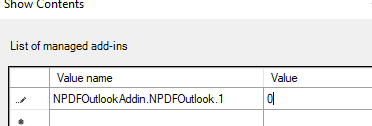
B) Go ahead and DISABLE the original registry item [Update – NPDFOutlookAddin.NPDFOutlook.1]
Then copy the original update registry item and put a DELETE action to remove any remaining keys. In the end, there should be two registry item, the first one is update, which is disabled and second one is delete action, which deletes registry value from
SOFTWARE\Microsoft\Office\16.0\Outlook\Resiliency\DoNotDisableAddinList

Result:


Computer\HKEY_CURRENT_USER\SOFTWARE\Policies\Microsoft\office\16.0\outlook\resiliency\addinlist\

Source:
 Steven’s Knowledge Base