
In order to run scripts to complete certain task in windows environment, immediate task or scheduled task can accomplish that goal.
Goal: Deploy immediate task to workstation to disable power button with a powershell script that modifies the registry value in HKLM if computer is part of [Disable_PowerButton] group. Create another task to enable the power button again if computer is NOT part of the AD group [Disable_PowerButton]
Immediate task differs from scheduled task because a schedule cannot be set for it and there is no schedule created for immediate task. The only times it will run are group policy refresh or gpupdate/force. There is an option to apply once and do not reapply again under common tab.

On the other hand, scheduled task has triggers option that allow more flexibility of when it can run. For example, daily, weekly, or every few hours. The task will stick to the workstation under Task scheduler app. This is more of a persistent task that you want to rerun upon the schedules given
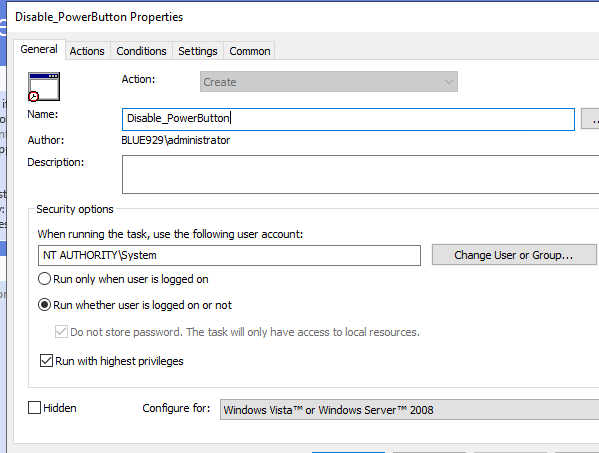
1. Create the task under computer configuration > preferences > scheduled task. If task involves computer objects, put the immediate task under Computer configuration.


2. General setting, run the task using NT Authority\System. To run a powershell script using group policy using the NT Authority\System service account – I highly suggest utilizing immediate task to do this. This is running from system context and NOT from user context.
3. Action setting: [Double check the quotation marks**]
Program/script (calls for powershell.exe to execute) -
c:\windows\system32\windowspowershell\v1.0\powershell.exe or
c:\windows\syswow64\WindowsPowershell\v1.0\powershell.exe

Add arguments-

-ExecutionPolicy Bypass -noprofile -command " & \\dc2\SYSVOL\blue929.com\scripts\disable_PowerButton.ps1"

The script [No_PowerButton] will deploy the following registry value, which will hide the power button:
New-ItemProperty -Path HKLM:\Software\Microsoft\Windows\CurrentVersion\Policies\Explorer -name “HidePowerOptions” -Value 1 -PropertyType DWORD -force;
4. Conditions and settings tab are optional.
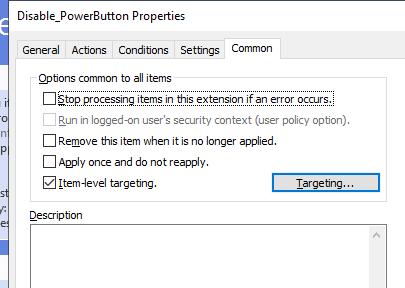
5. Under common tab, to make sure it only runs once and not every policy refresh, check [apply once and do not reapply]
Or set up item level targeting to target specific group.
In this example, the computers I put in the [Disable_Powerbutton] group are the only ones impacted by this task. The computer must also not have an existing reg value that hides the power button.

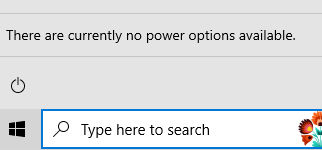
Result: The computers in the AD group should inherit the changes once user logs off and log back in. The task executes and deletes itself. It does not stick unless it’s a scheduled task.
Verify powershell event via
Event Viewer under Applications and Services Logs -> Windows PowerShell


How do we reverse the changes if the computer is taken out of the [Disable_PowerButton] group. What if a user wants the power button back?
1. Create a second immediate task (at least window 7) that will reverse the registry changes made from the first task. Most of the settings are the same except where to point the script and item level targeting.

2. Action setting is the same except for the name of the script. Just edit disable_Powerbutton > Enable_Powerbutton and provide a new script to enable the power button.
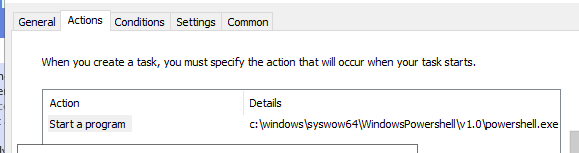
Program: c:\windows\syswow64\WindowsPowershell\v1.0\powershell.exe
Argument: -ExecutionPolicy Bypass -noprofile -command ” & \\dc2\SYSVOL\blue929.com\scripts\Enable_PowerButton.ps1“
3. It will only apply the script if the computer is NOT a member of the group and the registry value exist.

This is the script [Enable_PowerButton] it applies, it will undo the script to hide the power button. When it runs, the power button will reappear.
remove-ItemProperty -Path HKLM:\Software\Microsoft\Windows\CurrentVersion\Policies\Explorer -Name HidePowerOptions -Force
Verify:

*** Troubleshooting and Tips***
> Delete the task from the registry hive if it does not run:

HKLM\Software\Microsoft\Windows NT\CurrentVersion\Schedule\Taskcache\Tasks

HKLM\Software\Microsoft\Windows NT\CurrentVersion\Schedule\Taskcache\Tree

Remove task from these location so it can re run if "Apply once and do not reapply is selected" under common tab:

HKCU\Software\Microsoft\Group Policy\Client\RunOnce [for User Configuration policy]
HKLM\Software\Microsoft\Group Policy\Client\RunOnce [for Computer Configuration policy]
C:\Windows\System32\Tasks
> If the immediate task does not execute, double check the permission of the share that the script is in. Are users able to access it if its set to start as logged on user? Is the local system account NT Authority\System able to access it if its set to run in highest privilege?
>Try to run the script on a machine first and see if there is any error.
>Run c:\windows\system32\windowspowershell\v1.0\powershell.exe -ExecutionPolicy Bypass -noprofile -command ” & \\dc2\SYSVOL\blue929.com\scripts\disable_PowerButton.ps1” in powershell ISE and see if it executes.
>Note that NT Authority\System is a LOCAL account and not a domain account. It may not have access to certain network shares. If it is unable to access a network share or you get permission denied, use GPP to copy the files to the workstations local c:\temp\ folder then modify the argument to read the script locally.
-ExecutionPolicy Bypass -noprofile -command ” & \\dc2\SYSVOL\blue929.com\scripts\disable_PowerButton.ps1 c:\temp\script.ps1
> Make sure the task is under the computer configuration section of the GPO and make sure the GPO is applied to OU(s) holding computer objects.
>Also note, if the user account is NOT an admin, you won’t see the task under scheduled tasks. You need to launch task scheduler as an admin or login as an admin to check. As mentioned, check gpresult. From an elevated cmd prompt, do gpresult /r /scope computer
>If running script under user context, create scheduled task under User configuration instead
>Do not enable the “Run in logged-on user’s security context (user policy option)” Common option when configuring user GPP Scheduled Tasks items to avoid access denied error 0x80070057.
>Make sure the task scheduler service is running on workstation so immediate task and schedule task can run without issue
>Immediate task only action is “Create”, it does not have replace, update or delete because it creates the task and deletes itself after executing.
> If the task only needs to run at logon for every user, alternative method is to use Group Policy Management Editor, navigate to User Configuration > Policies > Windows Settings > Scripts (Logon/Logoff), then double-click Logon in the right pane.
Source:
https://4sysops.com/archives/run-powershell-scripts-as-immediate-scheduled-tasks-with-group-policy/
windows – How to find the location of the Scheduled Tasks folder – Stack Overflow
 Steven’s Knowledge Base