
The post will review the deployment of powershell script using scheduled task instead of immediate task. The script establishes a task that triggers at every user log on and it sticks to the machine that we selectivity put in the AD group called [Webview]. The task will appear in task scheduler and remains persistent unless we create a delete action to remove it. Immediate task does not create a task under task scheduler.
Goal: Deploy powershell script to establish itself as a scheduled task inside task scheduler and run it at every use log on. The script contains webview2 rollback for workstations. This task can be modified to run at every log on, daily per specific hours, weekly, etc…
> Script “115” (Click to view script)
## 1.Download the 115.0.1901.203 x64bit version installation (.cab) file from Microsoft: https://developer.microsoft.com/en-us/microsoft-edge/webview2/#download-section
    ##stored in \\dc\e\webview-115\Webview-115.0.1901.203.x64.cab

## 2.Create a new folder on the C: drive called "WebView2Rollback".

 md c:\WebView2Rollback

<##3.Paste the .cab file in the WebView2Rollback folder and extract the contents there.
This should result in a newly created folder "Microsoft.WebView2.FixedVersionRuntime.versionNumber.x64" that contains everything from the .cab file.##>

Copy-Item -path '\\dc\e\webview-115\Webview-115.0.1901.203.x64.cab' -destination 'c:\WebView2Rollback\' -Force -verbose
cd c:\WebView2Rollback\
cmd.exe /c "C:\Windows\System32\expand.exe -F:* Webview-115.0.1901.203.x64.cab c:\WebView2Rollback"

<## Create the following registry key: HKEY_LOCAL_MACHINE\SOFTWARE\Policies\Microsoft\Edge\WebView2\BrowserExecutableFolder
String Name: *
String Value: <path where the contents of the .cab were extracted
For this example, the string value would be: C:\WebView2Rollback\Webview-115.0.1901.203.x64.cab ##>

cd c:\
New-Item -Path HKLM:\Software\Policies\Microsoft\Edge\WebView2\BrowserExecutableFolder -force
New-ItemProperty -name * -PropertyType String -Value C:\WebView2Rollback\Webview-115.0.1901.203.x64.cab -Path HKLM:\Software\Policies\Microsoft\Edge\WebView2\BrowserExecutableFolder

##cleanup
Remove-Item 'C:\WebView2Rollback\Webview-115.0.1901.203.x64.cab' -Recurse

echo "Done, current Webview-115.0.1901.203.x64.cab"
start-sleep -seconds 5
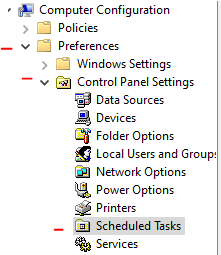
1. To start. located computer configuration > preferences > control panel setting > scheduled task.
The reason why it is computer configuration is because we will be running the task using NT AUTHORITY\SYSTEM. The script requires modification to HK local machine and this cannot be done with user account.
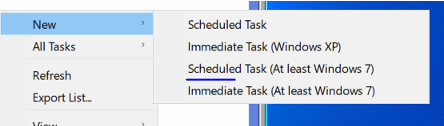
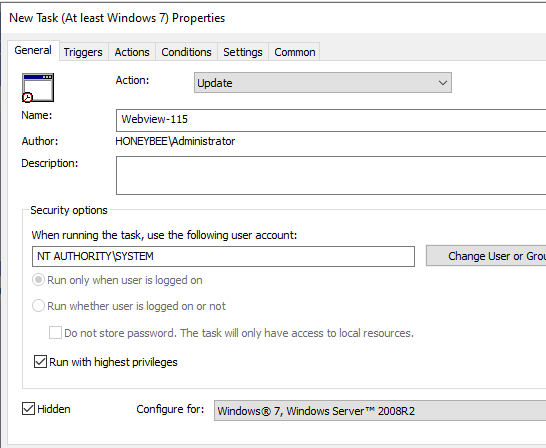
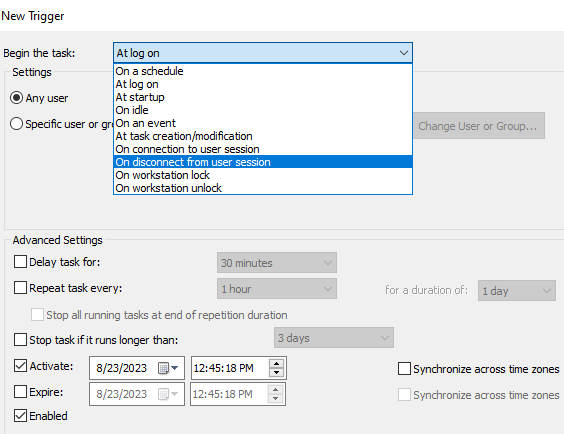
2. Under Trigger tab is where scheduled task differs from immediate task. The task can begin depending on various condition listed below. At log on, at start up, on workstation lock, each hour ,etc… For this example, I will use “At log on”
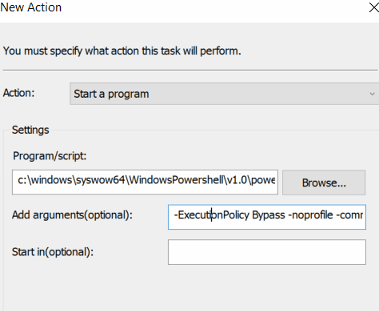
3. Under Actions >
Program/script (calls for powershell.exe to execute):
c:\windows\syswow64\WindowsPowershell\v1.0\powershell.exe
Argument: -ExecutionPolicy Bypass -noprofile -command ” & \dc\SYSVOL\honeybee.ad\scripts\webview-115.ps1″
4. Set conditions and settings [optional]
5. Under common tab > Apply once DOES NOT WORK. Utilize GPP immediate task instead.
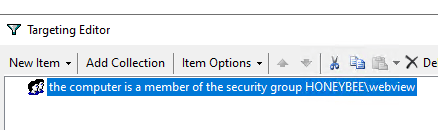
5A) Since we are testing the rollback of webview2 115, I would prefer to only rollback the computers listed in the AD group, webview.
Results:
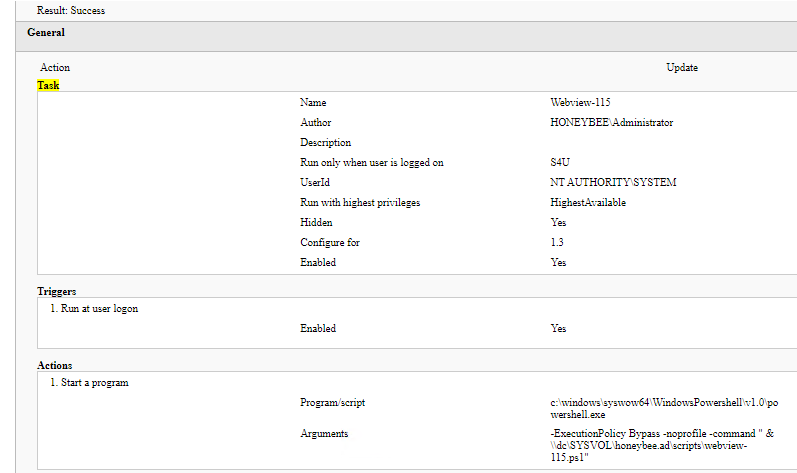
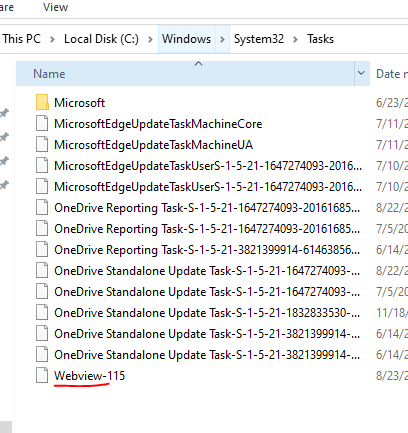
The task triggered after user logged in. The WebView2Rollback folder appeared under C:\ and registry changes were made by the script. It ran successfully!

Verify:


***Troubleshoot & Tips***
> Delete the task from the registry hive if it does not run:

HKLM\Software\Microsoft\Windows NT\CurrentVersion\Schedule\Taskcache\Tasks

HKLM\Software\Microsoft\Windows NT\CurrentVersion\Schedule\Taskcache\Tree

Remove it from here if necessary:[C:\Windows\System32\Tasks]

Remove task from these location so it can re run if "Apply once and do not reapply is selected" under common tab:

HKCU\Software\Microsoft\Group Policy\Client\RunOnce [for User Configuration policy]
HKLM\Software\Microsoft\Group Policy\Client\RunOnce [for Computer Configuration policy]
> If the immediate task does not execute, double check the permission of the share that the script is in. Are users able to access it if its set to start as logged on user? Is the local system account NT Authority\System able to access it if its set to run in highest privilege?
>Try to run the script on a machine first and see if there is any error.
>Run c:\windows\system32\windowspowershell\v1.0\powershell.exe -ExecutionPolicy Bypass -noprofile -command ” & \\dc2\SYSVOL\blue929.com\scripts\disable_PowerButton.ps1” in powershell ISE and see if it executes.
>Note that NT Authority\System is a LOCAL account and not a domain account. It may not have access to certain network shares. If it is unable to access a network share or you get permission denied, use GPP to copy the files to the workstations local c:\temp\ folder then modify the argument to read the script locally.
-ExecutionPolicy Bypass -noprofile -command ” & \\dc2\SYSVOL\blue929.com\scripts\disable_PowerButton.ps1 c:\temp\script.ps1
> Make sure the task is under the computer configuration section of the GPO and make sure the GPO is applied to OU(s) holding computer objects.
>Also note, if the user account is NOT an admin, you won’t see the task under scheduled tasks. You need to launch task scheduler as an admin or login as an admin to check. As mentioned, check gpresult. From an elevated cmd prompt, do gpresult /r /scope computer
>If running script under user context, create scheduled task under User configuration instead
>Do not enable the “Run in logged-on user’s security context (user policy option)” Common option when configuring user GPP Scheduled Tasks items to avoid access denied error 0x80070057.
>Make sure the task scheduler service is running on workstation so immediate task and schedule task can run without issue
> If the task only needs to run at logon for every user and does not need group filtering, alternative method is to use Group Policy Management Editor, navigate to User Configuration > Policies > Windows Settings > Scripts (Logon/Logoff), then double-click Logon in the right pane.
Source:
https://community.spiceworks.com/topic/2463521-gpo-scheduled-task-to-run-powershell-script
 Steven’s Knowledge Base