
Policy Analyzer is a streamlined tool designed to assess and contrast collections of Group Policy Objects (GPOs). It can identify instances where a group of Group Policies contains duplicated configurations or internal discrepancies and can also highlight disparities between various versions or collections of Group Policies.
In this article, I will provide a concise introduction to Policy Analyzer, where we’ll examine all the settings within a policy, including values, registry key configurations, and policy settings.
Goal: Review a set of GPO related to computer settings
1. Navigate to Download Security Compliance Toolkit and Baselines from Official Microsoft Download Center
2. Download Policy analyzer

3. Extract the content to a folder.
4. Once the policy analyzer app is in place. Select one GPO and make a backup of it and store it in a folder.
5. Open policy analyzer > Click “ADD” > File > Add files from GPO
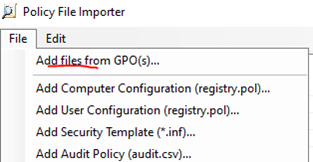
6. Target the folder where you stored the backed-up GPO
7. Select the GPO root folder
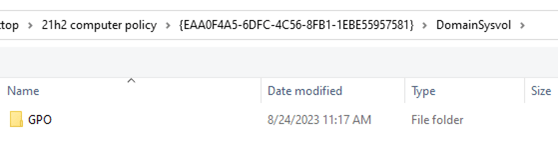
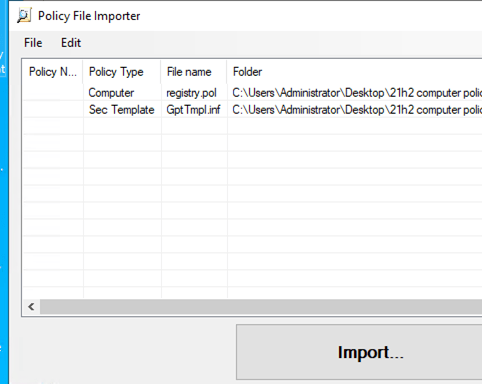
8. Name your policy rules file. DO NOT SELECT ANY LOCATION. The policy rules file is read from the Documents folder.

9. Select your policy rule to view all the registry key it deploys when the policy is set. It only shows REG KEYS OR POLICY LOCATIONS. Not both


For example- AllowCortana policy setting. It lists the policy path but not the registry key for this option. It also list the value.

In this setting for windows feeds, it has the registry key that it modified but doesn’t show the policy path.

More info:
Source:
 Steven’s Knowledge Base