
In the Microsoft Office suite software, there exists an auto recover feature for Word, Excel, and PowerPoint that periodically saves a copy of the document. Should an unexpected event like a crash, power failure, or application shutdown occur, an auto-recovery process activates, displaying previous document edits when the user reopens the application.
By default, AutoRecover saves a recovery file every 10 minutes under [%userprofile%\AppData\Roaming\Microsoft\xxx].
*Xxx = word/excel/powerpoint

** Autorecover is NOT the same as Autosave, which only appears in office 365. It is a button on top right hand corner that automatically saves your work to onedrive.
Given the importance of AutoRecover, some organizations may opt to change the default save location to a network share. This decision helps mitigate the risk of users losing their backed-up documents entirely. Instead of both copies disappearing in the event of a hard drive crash, it makes sense to place the AutoRecover copy in a network share.
This may sound ideal, splitting the copy in two location. However, since office autosaves a copy every 5 or 10 minutes when its opened, users sometimes suffer network latency and massive wait time when doing manual save of the original document.
From my experience, I have also gotten tickets on users experiencing a major delay in the middle of typing up a document. This happens often on large documents when 20k+ words are present.
In this post, we will revert back the autorecover save location from a network share to default location under %appdata% user profile.
Goal: The auto save file path should switch from network shares to local. Deploy registry changes to meet this requirement.
1. For the lab, the autorecover location is directed to network shared folder [\\mecm2\d\Autorecover] for word, excel and power point.
UPDATE autorecover location ONLY if users ARE NOT in [Autosave] AD group.
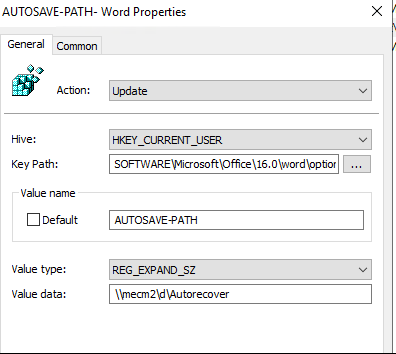

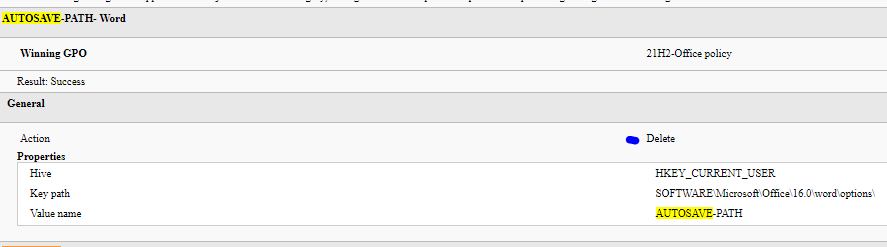
2. We will initiate a DELETE action to clear the update registry key that contains the network share location across the three applications. This DELETE action will ONLY trigger for certain groups. As with any changes in group policy, I always prefer testing on a smaller group before rolling it out firm wide.
The Delete command only triggers if the user is
- Part of [autosave] group AND
- The reg key AUTO-SAVE PATH DOES NOT contain value: [%userprofile%\appdata\Roaming\microsoft\word]
- Once we put the user in the [autosave] group, this will Delete the current reg key that enables the user to autosave to \\mecm2\d\Autorecover and WILL NOT trigger again upon policy refresh
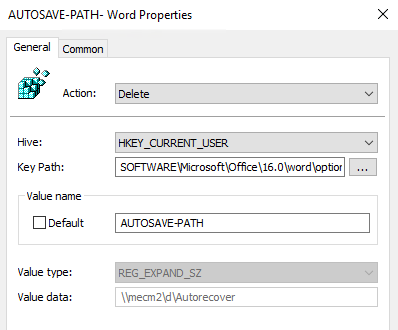

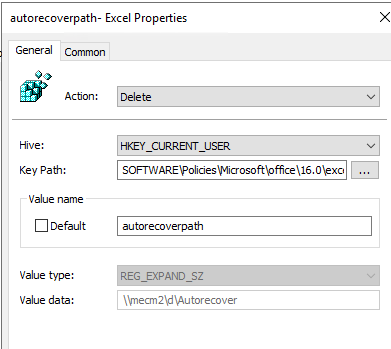

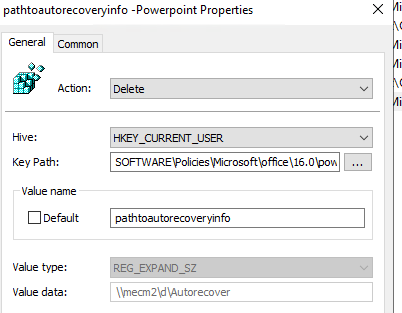

3. Once the autorecover path has been deleted, office will revert the autosave location to its default location, %userprofile%\AppData\Roaming\Microsoft.
Results:
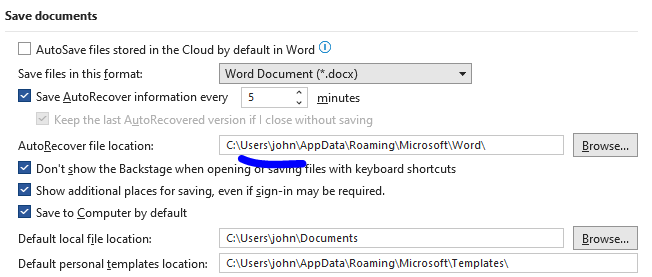
4. What if users are taken out of the AD group [Autosave] and they want the old location back?
The auto recover location will revert back to network share due to the UPDATE action.
5. If a different location besides %userprofile%\appdata is desired, simply create an UPDATE action to specific the location and filter it only to users in [AutoSave] group
**
Moving forward, I recommend users to save their files to OneDrive and have autosave feature turned on by default for documents stored in onedrive to minimize data loss.
As for the autorecover feature, I suggest leaving it to the default location that Microsoft has set, which is %userprofile%\AppData\Roaming\Microsoft\
Key Path:
SOFTWARE\Microsoft\Office\16.0\word\options\
value name:
AUTOSAVE-PATH
Value type:
Reg_expand sz
Value data:
%userprofile%\AppData\Roaming\Microsoft\Word

Key Path:
SOFTWARE\Policies\Microsoft\office\16.0\excel\options
value name:
AutoRecoverPath
Value type:
Reg_expand sz
Value data:
%userprofile%\AppData\Roaming\Microsoft\Excel

Key Path:
SOFTWARE\Policies\Microsoft\office\16.0\Powerpoint\options
value name:
pathtoautorecoveryinfo
Value type:
Reg_expand sz
Value data:
%userprofile%\AppData\Roaming\Microsoft\powerpoint
Source:
 Steven’s Knowledge Base