
For organization in a windows environment utilizing outlook as their primary email application, it is crucial to lock down the settings which could prevent outlook from not functioning properly. A scenario that can break outlook which can prevent users from receiving emails, freezing or outlook stops running at all is an OST file that has reached its 50GB limit.
OST [Outlook Offline Storage Table] files are generated from outlook email accounts configured with either IMAP (Internet Message Access Protocol) or MAPI (Messaging Application Programming Interface) protocol, enabling two-way synchronization between mail client and mail server. This protocol is modern approach to keeping consistency across user’s roaming of multiple devices.
- In the outlook client, there is an option called Outlook’s Cached Exchange Mode, this mode allows users to modify their mailbox while they are offline. Once the mail client is back online, changes will reflect under the IMAP/MAPI protocol and reflects on mail server. While cache exchange mode is on, OST files essentially becomes local cache for storing mailbox data
- The limitation of OST is that they are limited to 50GB size and its stored in %localappdata%\microsoft\outlook
- Users with mailbox that contains large attachments or data can exceed the retention period set on cached exchange mode, which can vary from 1 month, 6 months, 2 years or everything in the folder. Once the user is near the limit or met the limit of 50Gb, outlook mail client will most likely stop functioning. User may stop receiving new emails.
- Cached exchange mode downloads an offline copy of the mailbox to users client and is the de facto setting in terms of keep compatibility and performance issues to a minimum. I do not recommend using online mode for outlook as this requires constant synchronize and causes lot of unnecessary network bottleneck. Latency and crashing tend to happen more on mail clients with online mode.
Personal Storage Table (PST) files have notable distinctions. PST files are a result of the Post Office Protocol (POP) configuration, which supports one-way synchronization, meaning that any alterations made in the local mail client do not propagate to the mail server.
- This is precisely why PST files were developed, to accommodate the limitations of the POP protocol. PST files essentially serve as exports of mailbox data and are designed for exclusive access on a single machine at any given time. This unique attribute renders PST files particularly suitable for transferring email data to a new computer or generating backups that can be safely stored.
Outlook Group Storage File (.nst) stores group conversation and local groups data. This file is synchronized and not offline copy.
Goal: Now that we know the limitation of outlook cached mode and its benefits. The goal for this post is to enable the cache online exchange mode for all users in the organization. The default value will be to cache 2 years’ worth of data.
However, this option is NOT for EVERY user. For certain users, we will place them in a AD group [Unlock_CacheSync], that will sync only 6 months’ worth of data instead of 2 years. This is necessary as it will prevent users from experiencing issues receiving emails due to a bulky OST file.
1. Start with outlook settings for ALL users under User configuration > Policies > Administrative template > Microsoft outlook 2016 > Account setting > Exchange > Cached Exchange Mode
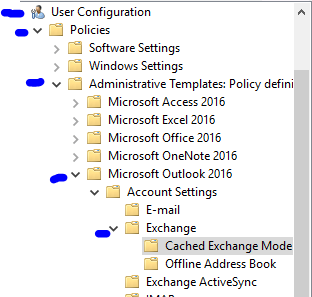
-Cache exchange mode sync settings [Not configured]. (Registry deployment will be used to configure this instead)

-Download Public Folder favorites [Disable] (to decrease OST size)

-Download Shared non-mail folder [Disabled] (to decrease OST size)

-Use cache exchange mode for new and existing outlook profile (Enabled)

2. Now that policy is done, lets enforce cache mode using registry value. Navigate to User config > preferences > windows setting > registry. There are two sets of registry key that must be deployed. They are syncwindowsettingdays and syncwindowsetting.
To enforce a 2-year cache time frame:
syncwindowsettingdays  = 0 (days)
Syncwindowsetting = 24 (months)
A) Create reg key in GPP to deploy to all users except users in AD group [Unlock_CacheSnyc]. The first set of key will be the syncwindowsettingdays. Since our setting requires 24 month and 0 days. This key will set it to 0 days.
| Registry Hive: | HKEY_CURRENT_USER |
| Key Path: | software\policies\microsoft\office\16.0\outlook\cached mode |
| Value Name | syncwindowsettingdays |
| Value Type | REG_DWORD |
| Value (Decimal) | 0 |
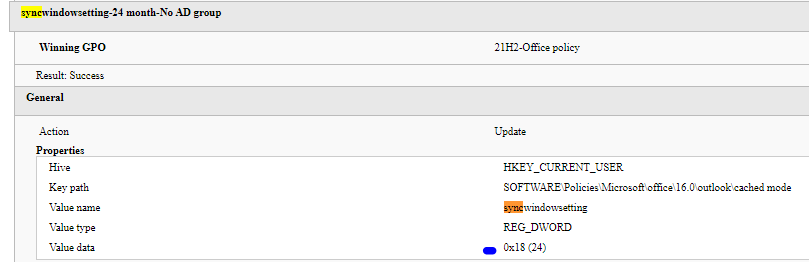
> SyncWindowSettingDays- 0 Days- No AD Group (Click to view)
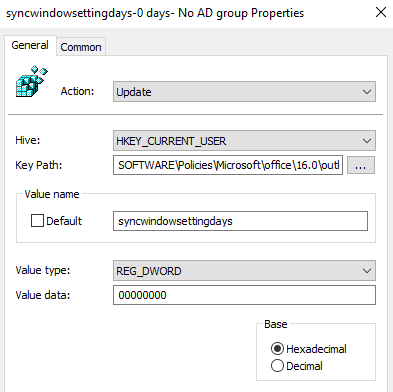
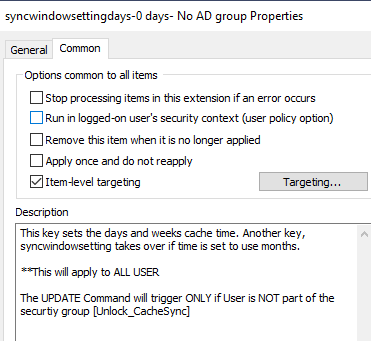

B) This second set of key forces it to 24-month sync on cache
| Registry Hive: | HKEY_CURRENT_USER |
| Key Path: | software\policies\microsoft\office\16.0\outlook\cached mode |
| Value Name | syncwindowsetting |
| Value Type | REG_DWORD |
| Value (Decimal) | 24 |
> SyncWindowSetting-24 Month- No AD group (Click to view)
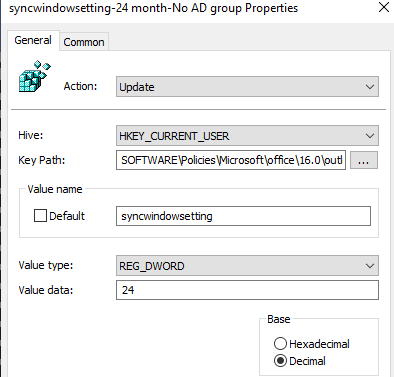


Results: The UPDATE will only apply to user NOT part of the [Unlock_CacheSync] and if syncwindowsettingday and syncwindowsetting key does NOT exist.
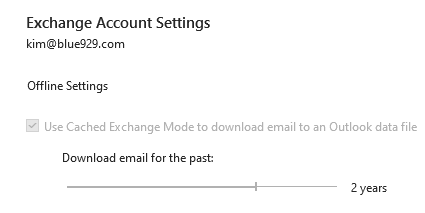
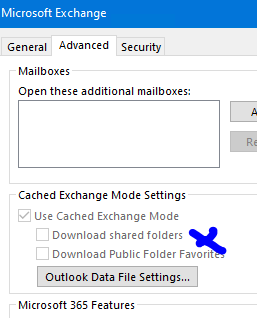
***********************************
1. Create AD group, [Unlock_CacheSync]. If the above registry enforces cache data retention, then we will need to create an action to delete those registry keys in order to lift the enforcement. (*This can be done with Replace action, but I prefer delete then update value instead.)
2. If the user is in AD group, syncwindowsetting reg key above will be deleted. Once the key is DELETED, user will be able to manipulate the time sync to any duration 1 month, 6 month, 1 year , or 2 year, which is what we want.
3. Delete the syncwindowsetting key if user is AD group member and SyncWindowSetting value = 24


4. We leave the syncwindowssettingdays key alone to 0 because that value is required to set the time for 6 months. Now that the syncwindowsetting value of 24 month is deleted, a new key of 6 take its place.
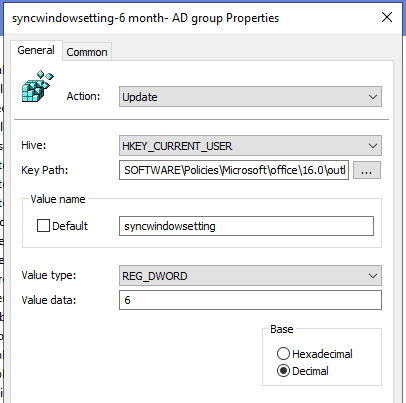

5. Now if a user is in group [Unlock_cachesync], the original syncwindowsetting value of 24 will be removed and updated with value of 6 months AND syncwindowssettingdays key will note be deleted.
However, this applies to user that already has outlook setup and registry deployed before they are part of the AD group.
What if the user logs into a new workstation while they are part of the AD group?
The outcome is, they will get syncwindowsetting of 6 but where is the syncwindowssettingdays value of 0 going to come in?
Create a new update to provide that value to user’s part of the AD group and the syncwindowssettingdays value DOES NOT exist (targets new workstation with new user profile).
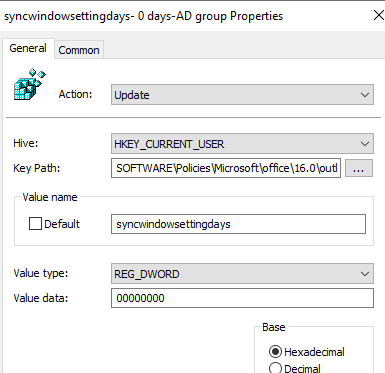

6. But wait! What if a user is placed in the AD group that gets its registry modified for 6 month cache GETS REMOVED from the AD group? Does the setting revert back to 24 months?
No, it will not because there is no action key to delete the 6-month value. Here is the 6th and last registry deployment.
It will delete the Syncwindowsetting key if User is NOT in group and there is an existing value of 6 on Syncwindowsetting. Once that gets deleted, it will revert back to 24-month cache time.
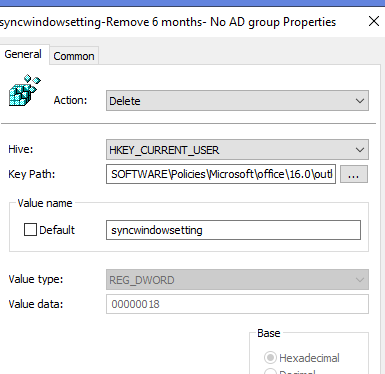

Results:
Scenarios:
A) All users logging into new workstation that are NOT in AD group [Unlock_CacheSync]- gets the default value of
Syncwindowsettingdays = 0 and syncwindowsetting = 24
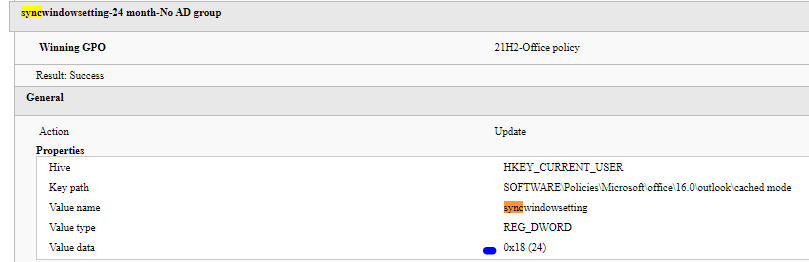
B) Users are added to AD Group [Unlock_ADSync] in the same workstation. Gets
Syncwindowsettingdays = 0 [not modified] and syncwindowsetting = 6 [deleted 24 and updated with 6]
Registry modified:
Computer\HKEY_CURRENT_USER\SOFTWARE\Policies\Microsoft\office\16.0\outlook\cached mode

Validate GP with "Gpresult /h c:\temp\user.html"

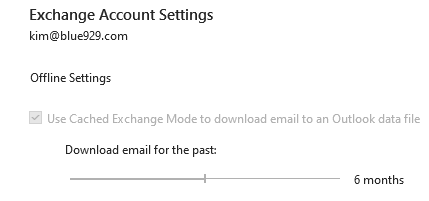
C) Users in AD group [Unlock_CacheSync] sign into a different workstation with new user profile- gets a value of Syncwindowsettingdays = 0 [Updated] and syncwindowsetting = 6 [Updated]
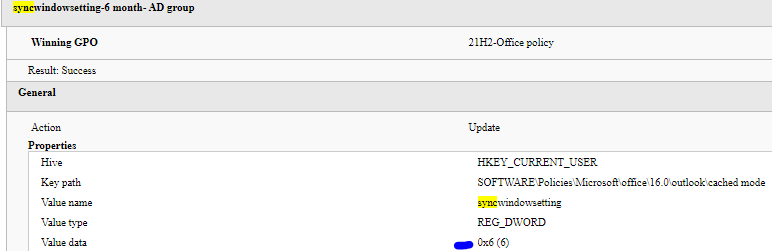
D) If a user gets removed from the AD group gets the default value of Syncwindowsettingdays = 0 and syncwindowsetting = 24
Total of 6 registry changes

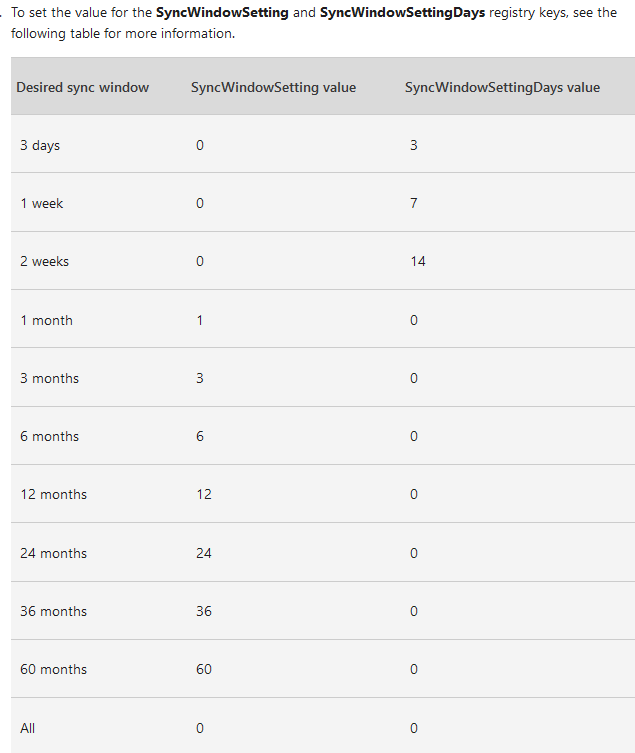
** Cache can be configured for 3 days, 1 week, 2 weeks, 1 month, 3 months, 6 months, 1 year, 2 years, 3 years, 5 years, and All.
Source:
https://www.msoutlook.info/question/large-exchange-mailboxes-and-the-ost-file-size-limit
 Steven’s Knowledge Base