
Let’s look into deploying apps into an iOS device once the device is enrolled. In order to deploy public applications from the Workspace ONE UEM console to devices with Workspace ONE UEM or the AirWatch Catalog, proceed with the following:
First step is to create assignment group. Once that is done, we will assign apps to this test group in the next step.
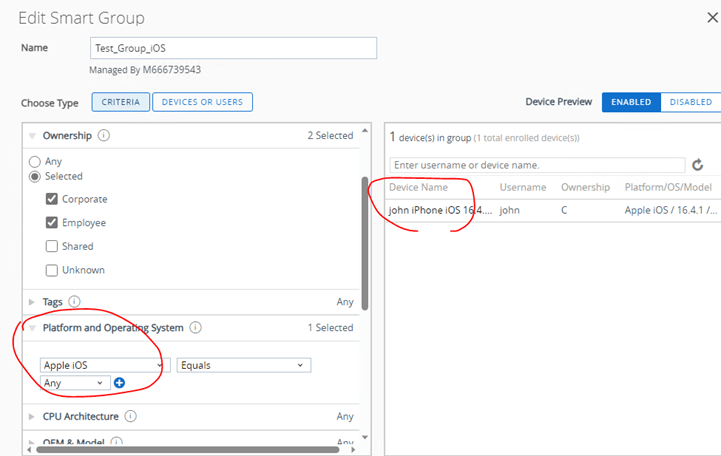
Create assignment group for testing [Groups & Setting > Assignment Groups > Add smart group]
Filter by platform and OS of the phone to match the app requirement to query all devices
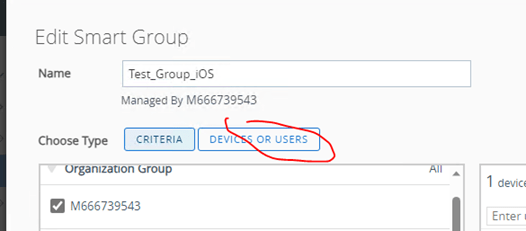
To manually add devices- use devices or users
Second step is to search for the app and add it to the airwatch console:
- Navigate to Resources > Apps > Native > Public and select Add Application.
- View the organization group from which the application uploads in Managed By.
- Select the Platform.
- Find the application in an app store by entering a search keyword in the Name text box.
- Select from where the system gets the application, either Search App Store or Enter URL.
Once the app is selected and details are filled out, proceed with assignment details: (This is where you assign the group created in the first step)
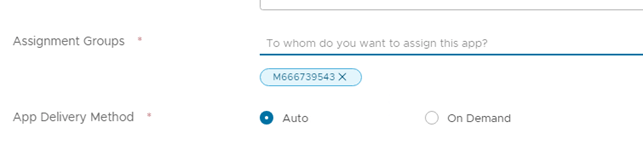
Deploy automatically (Auto)- If user is in the assignment group, app gets automatically installed to user’s phone.
Deploy On Demand (Manual) – User can download it from app catalog app store deployed by AirWatch
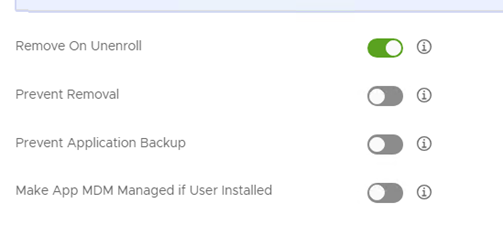
*My preference is to remove the app on a device Unenroll.
Result:
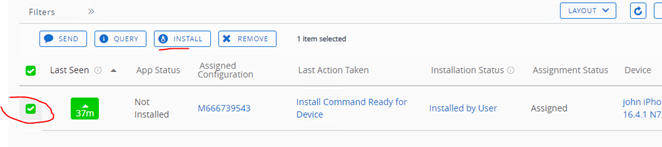
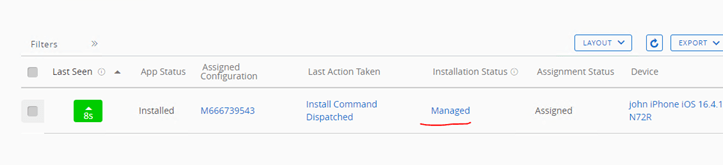
The app will get automatically deployed to the devices listed in the test group in step one. If user already has the app, installation will skip. If not, users will get a prompt that app will download using current app store ID because this setup does not have VPP configured.
**What happens if user already has the app installed?
It would skip installation

**What happens if I remove the app and try to reinstall:
It gets installed but user will encounter a prompt saying it install using the app store account.

Source:
 Steven’s Knowledge Base