
After successfully setting up and provisioning users with E3/E5 licenses, the next step is to configure Single Sign-On (SSO) for the on-premises environment. This process necessitates administrative access to a server where the Azure AD Connect application is installed.
Azure AD connect is what gets configured in order to change an on-premises environment into a hybrid environment. It becomes hybrid because AD objects are synced to/from azure tenant (Users, groups, computers, etc..). Additionally, it facilitates federation integration and introduces various authentication methods such as password hash and pass-through authentication for application access. For authentication, we will need to enable features like Single Sign-On (SSO) for a more seamless user experience when OneDrive gets installed.
Goal: Configure Azure AD connect user sign in setting so single sign on works for OneDrive. When users sign in, they should automatically get logged into OneDrive application without any manually input. The known folders [Desktop, Documents, Pictures and Downloads] should synchronize and get uploaded once that is done.
Connect to AD Connect server and configure either option for user authentication.
A) Seamless SSO Setup
Seamless SSO configuration works well if none of the endpoints are hybrid joined to azure and if workstations are Windows 7/8/10 devices, it’s recommended to use Seamless SSO. Seamless SSO needs the user’s device to be domain-joined.
**Seamless SSO is not applicable to Active Directory Federation Services (ADFS).
To set up a seamless SSO, proceed with the following:
> Double click on AD Connect app > Select change user sign-in, then Select Password hash sync or pass-through authentication and check enable Single Sign-ON
Select configure and done!
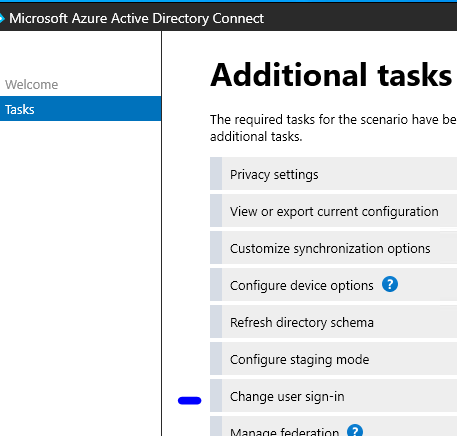


Password Hash Synchronization (Sync Onpremise password to azure one way; good security; salted hash when synced)

Pass-through Authentication (Authentication happens from on-premise --> azure ---> DC; enables azure to authenticate users using on premise identity infrastructure- works seamlessly with various applications and services that integrate with Azure AD like 3rd party MFA /hardware key/identity solution )
Verify Seamless SSO is enabled –
Azure AD Admin center > Azure AD connect > cloud sync

Navigate to https://myapps.microsoft.com. Be sure to either clear the browser cache or use a new private browser. The user does not need to enter a password to get in.
B) Hybrid Domain Joined Setup
Hybrid Domain join utilize PRT to single sign on to azure applications. Great option if you are ready to push all workstations to be hybrid joined.
PRT (Primary refresh token) -
It's important to note that the PRT is specific to Azure AD and is primarily used in Windows 10 and later versions, as well as in Azure AD-joined, hybrid Azure AD joined and Azure AD registered devices. It is an authentication token used for SSO and does NOT require a device to be domain-joined. One of the recommended ways to implement SSO is via using PRT.
To configure hybrid join for the environment with Azure AD Connect:
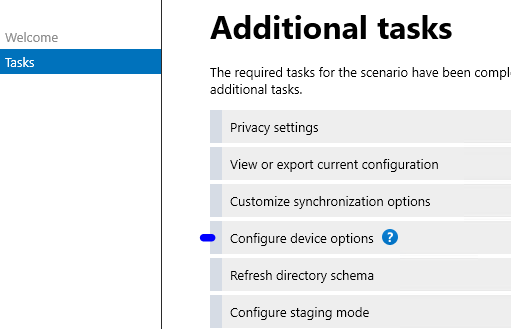
Task > configure device option > select Windows 10 Hybrid Join and SCP service account will be created to sync device from on premise to azure.
If device writeback is configured, computers in azure will sync back to on premise.
Click configure and Done!


Verify:
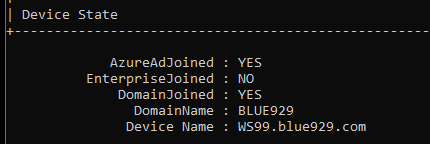
Under Azure AD blade > devices > Join Type. The Join type should be Hybrid Azure AD Joined

From the workstation, open cmd, type in dsregcmd/status


Navigate to https://myapps.microsoft.com. Be sure to either clear the browser cache or use a new private browser. The user does not need to enter a password to get in.
**** Longer PRT lifetimes can provide a better user experience, but they also come with security implications, while shorter lifetimes may require users to reauthenticate more frequently but provide enhanced security. This can be controlled via conditional access policy session control since PRT is tied to users session on a device.
Bottom line get SSO working for OneDrive-
- If environment has workstations windows 7/8/10 are only authenticating on premise- then the first option of Seamless SSO setup will get it working.
- If IT Admin is planning on integrating more azure services like Intune in the future, I suggest triggering the hybrid domain join solution, sync computer objects to azure and let PRT take over SSO.
- When in doubt, configure both. PRT + seamless SSO works fine together and does not cause any issues as far as my experience with this in production environment. Do note that PRT will take precedence over Seamless SSO when windows 10 endpoint and higher devices are joined as Hybrid joined.
 Steven’s Knowledge Base