
To deploy OneDrive to user, use Intune MDM to push out the application. Since group policy is already setup to configure OneDrive for KFM+SSO, we will not be deploying CSP or configuration profiles from Intune.
Intune deployment ONLY works for devices enrolled into Intune endpoint management or Co-Managed. Device must either be Azure AD Registered, Hybrid Microsoft Entra Joined (Hybrid Azure AD joined), Microsoft Entra Joined (Azure AD joined).
This lab is configured for hybrid joined workstations which talks to both on premise AD and Azure AD so group policy can be configured for a silent log into OneDrive.
*If the environment has only domain joined devices: [Deploy OneDrive using SCCM or UEM tools] [Use group policy to configured KFM+SSO]
*If the environment has hybrid joined devices: [Deploy OneDrive using SCCM or Intune] [Use Group policy or CSP to configure KFM+SSO]
*If the environment has Azure AD joined devices: [Deploy via Intune] [CSP to configure KFM+SSO]
Goal: Deploy OneDrive application via Intune for Hybrid Azure Ad Joined device. The installation will be machine-based install with /allusers command.
Generate .IntuneWin file
- To start you will need a copy of the latest Onedrive Client.
- Save this in a location like “C:\temp\OneDrive\”
- You will also need to download the IntuneWinAppUtil.exe from Github
- Run IntuneWinAppUtil.exe and fill in the source location, setup file and output location like so, hit enter and wait for the wizard to complete. It should generate a .intunewin file after its done.


From Intune navigate to Apps > Add App > Windows App (Win32) and select the OnedriveSetup.intunewin file from your c:\temp in step 1. Fill in the required details as you see fit.
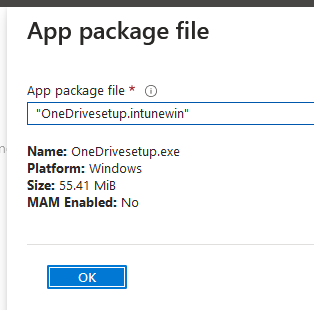
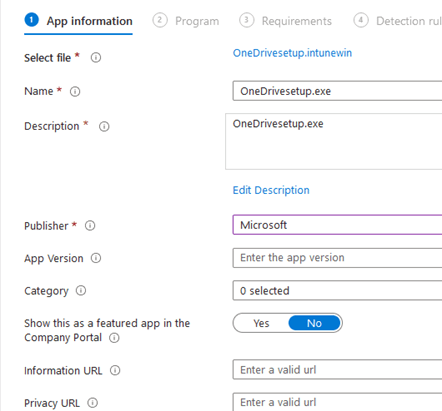
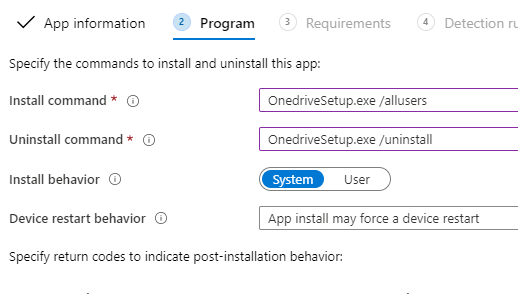
Under Program
Install Command: OnedriveSetup.exe /allusers
Uninstall Command: OnedriveSetup.exe /uninstall
Install Behavior: System
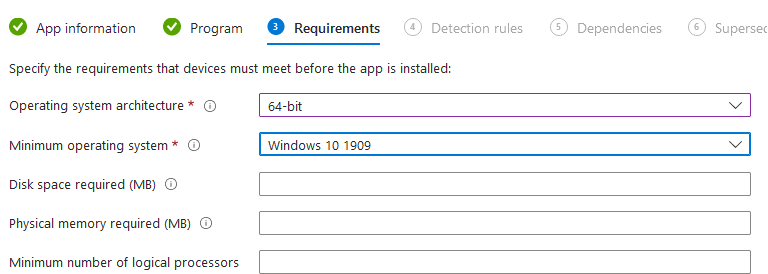
Under Requirements
Set the requirement of the app so it works after installation.
Under Detection Rules
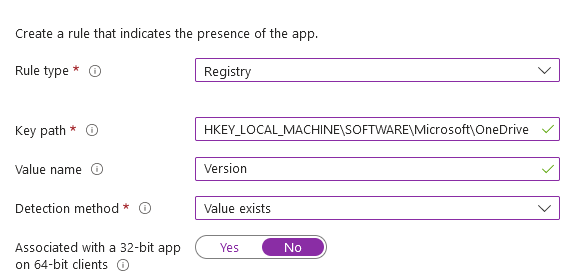
set the rule format to Manually Configure Detection Rules and change the Rule Type to Registry and enter the following.
Key Path: HKEY_LOCAL_MACHINE\SOFTWARE\Microsoft\OneDrive
Value Name: Version
Detection Method: Value Exists
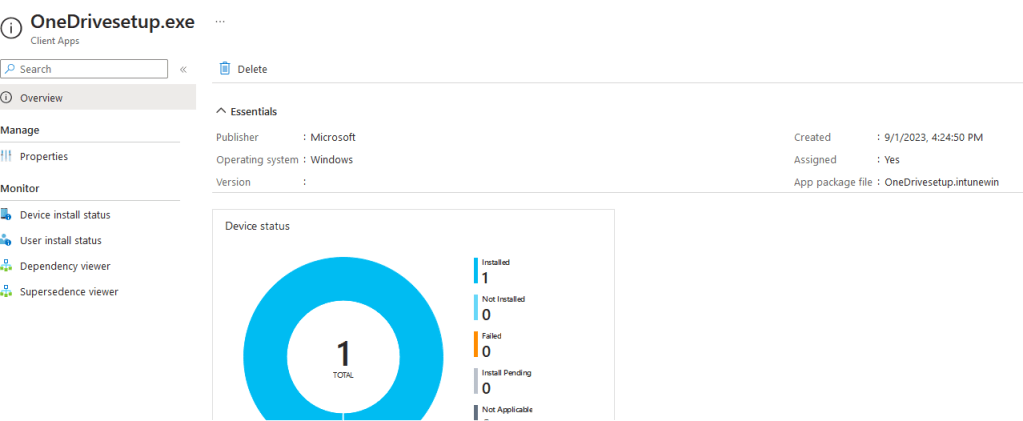
Configure the remaining options to suit your organization and deploy accordingly. In my case I am requiring users in an azure group to install the app.

Users in the group signed into WS99 will get the app deployed.

**
Guide for OneDrive KFM + SSO CSP
Onedrive configuration policy for Azure AD joined devices or Hybrid Ad joined devices.

We will not be using configuration policies deployed by Intune since group policy is already set up for OneDrive KFM. However, it doesn’t hurt to know that it can also be configured from Intune as well.

Device > configuration profile > administrative template >
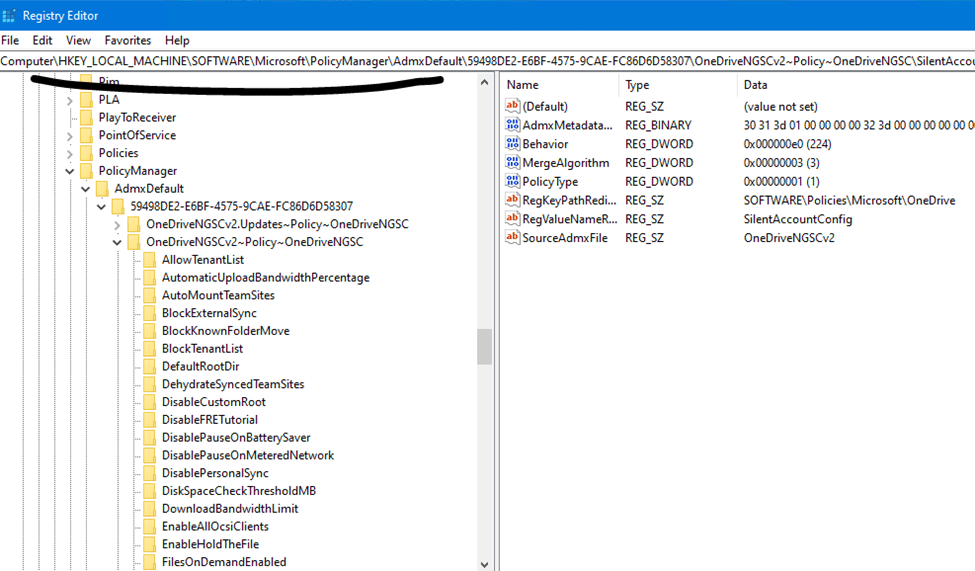
Policy located in
Computer\HKEY_LOCAL_MACHINE\SOFTWARE\Microsoft\PolicyManager
**Azure AD is renamed Entra ID. Microsoft will be using Entra in place of Azure from now on.
Source:
https://liam-robinson.co.uk/enable-onedrive-for-business-per-machine-in-intune/
 Steven’s Knowledge Base