
Upon the successful deployment of the OneDrive application, we have the capability to impose limitations on how users can access the cloud storage platform. By default, OneDrive functions seamlessly, allowing users to access company data from any device they log into. However, when dealing with sensitive data, it becomes imperative to confine access exclusively to company-approved laptops and mobile devices that adhere to compliance standards. Allowing users to work with company data on potentially infected or compromised devices poses a significant security risk.
To achieve this, a conditional access policy will be configured. It revolves around setting specific conditions or criteria that must be met before granting access to users or devices. These conditions can include factors such as user identity, device health, location, and the security posture of the requesting entity.
Goal – In this guide, we implement basic restrictions regarding location using conditional access policy. Creating named location is required beforehand.
The policy block access to SharePoint application from any foreign country. Action involves blocking access from any foreign IP addresses.
- Start by Creating named locations under conditional access > Named Locations.
- Click + Countries Location
- Name the location and select ALL countries except the U.S. The selected countries will be the one that we will block. This named location will be “All Countries Except U.S”
- The second location will be “Home”, which is IP of the company.
- Select “+ IP Range location”, select mark as trusted location and input company public IP address.
- It is also a good idea to configure MFA trusted IP if you will implement MFA in the policy.
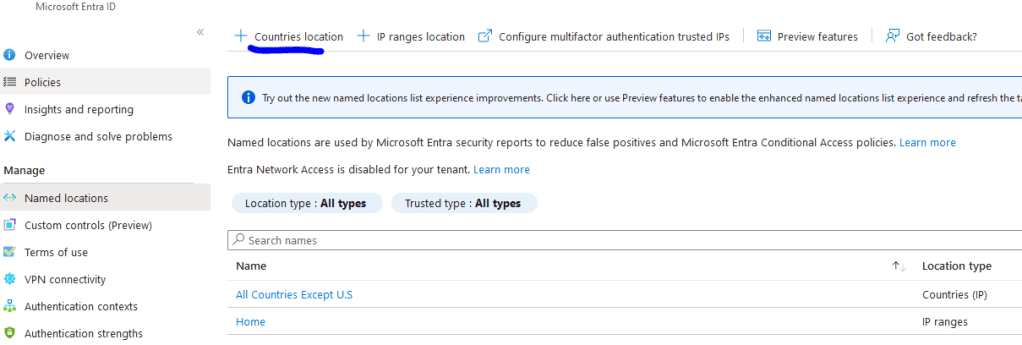
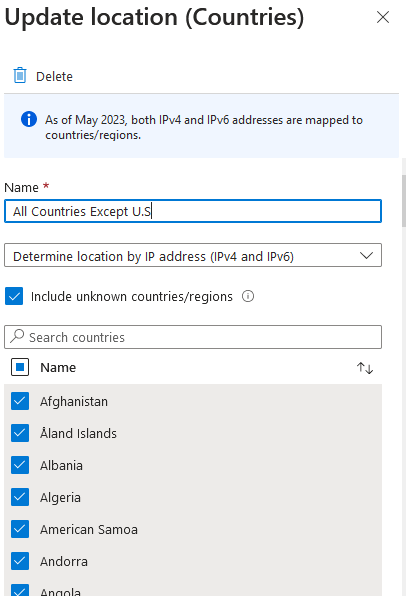
First Policy – Block foreign countries except United states.
Once the named locations are set, navigate to Intune Admin center > Devices > Conditional access > policies.
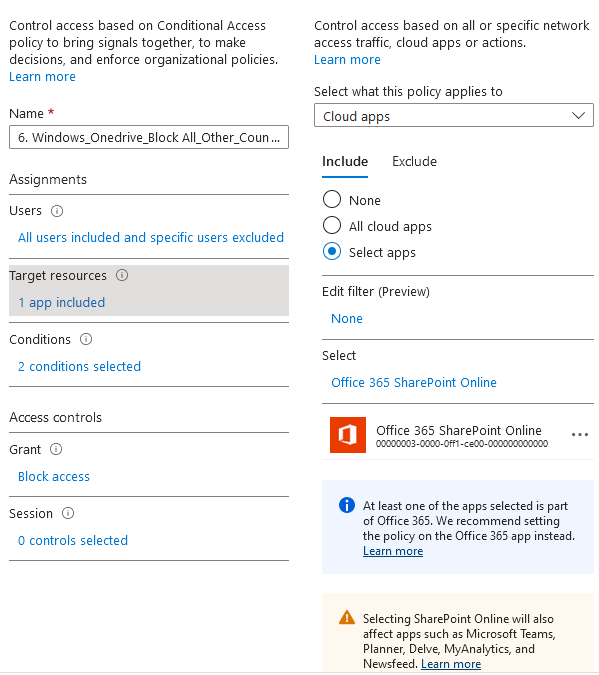
Select “new policy “, enter the name. I suggest putting what platform and user it targets.
Under Assignment:
Users:

Include: All users *In production, it is better to target specific groups first before selecting all users

Exclude: Select admin group or user role. It is up to user preference*
Target Resources:

Include: Select apps > Office 365 SharePoint Online

The following services will be impacted:
Microsoft Classroom
Microsoft Teams
Power Apps
Microsoft Forms
Outlook Group
OneDrive
Planner
Delve
MyAnalytics
Newsfeed

**This also impacts services under SharePoint. Highly recommend testing all the service that users commonly use when policy is turned on.
***For example, Microsoft Teams can provide access to resources in SharePoint Online. So, when you access Microsoft Teams in our current scenario, you're also subject to the SharePoint policy.
Under Conditions:

Device platform: Any Device

Locations:
Include: Selected locations > select the location that was configured > "All Countries Except U.S"
Exclude: All Trusted location (This will be the "Home", the location we set up earlier marking company public IP as trusted)
Access Controls:
Grant: Block Access (Require one of the selected controls)
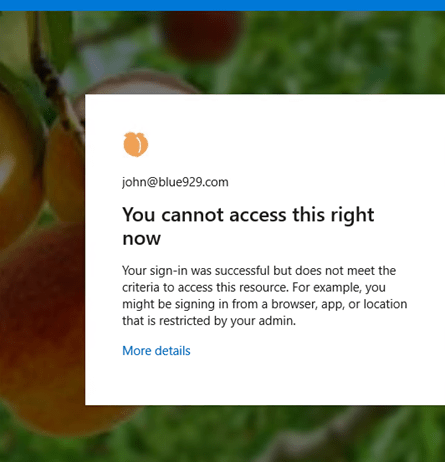
Result: When trying to log in from foreign IP, user will get this pop up preventing access.
**If the organization requires a more stringent policy. IT admin can puts restriction on blocking access from any location outside of our company’s trusted network boundaries.
The only changes are in location
Include: Any Location (Blocks all location)
Exclude: All trusted location
Optional:
There is also a way to block place IP restriction under share point admin portal, but it is not as flexible as Conditional access.
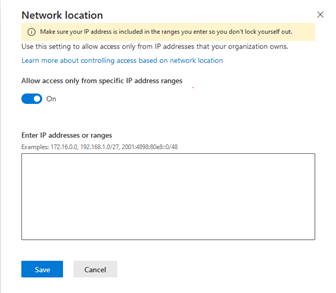
SharePoint Policies:
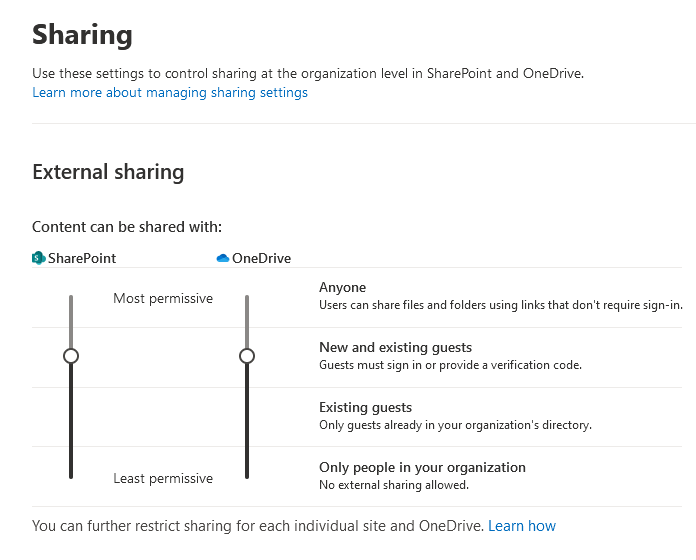
Under SharePoint admin center > policies > access. Adjust the setting depending on organizations needs. For example, I do not want any sharing of files with external users (anyone). So the bar must be dragged down a level from most permissive to least permissive.
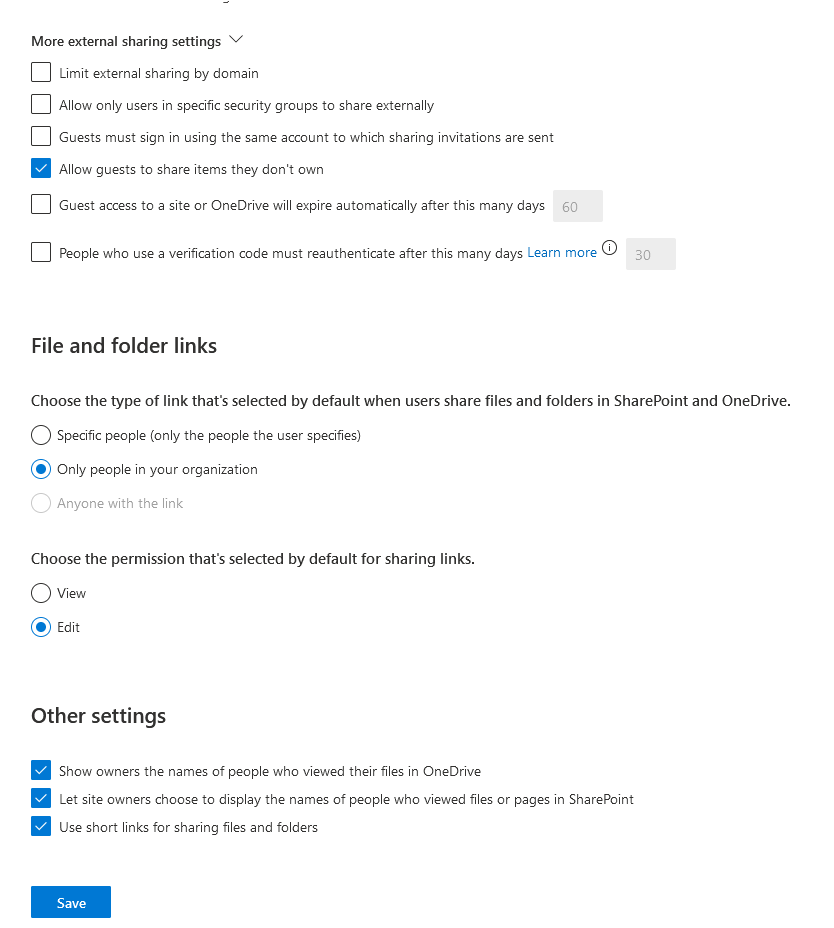
Results:
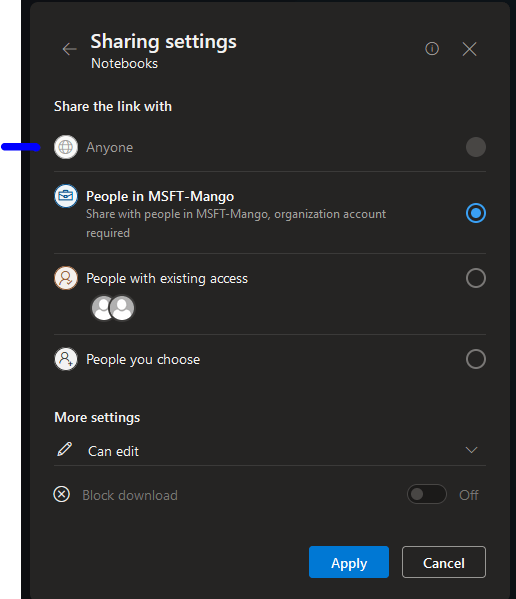
The anyone section cannot be selected.
Additional control under Access control.
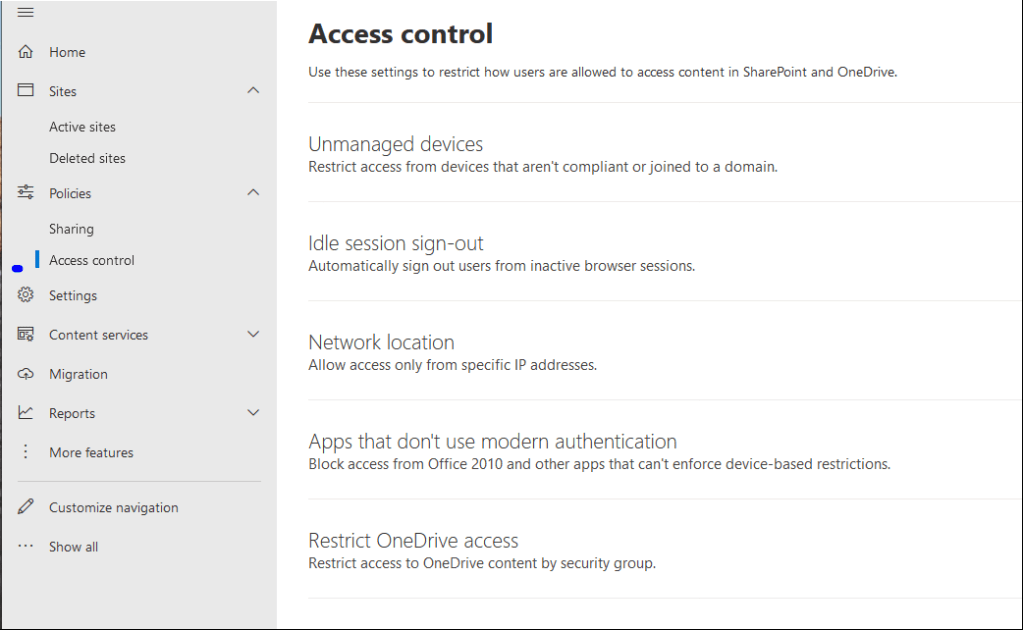
Allow sync only for domain joined devices: (Recommend only if devices are domain/hybrid joined)
If devices are azure ad joined, then Conditional access policy must be used. The following will only allow OneDrive to sync if devices are domain joined.
Settings are under SharePoint > settings > OneDrive sync.
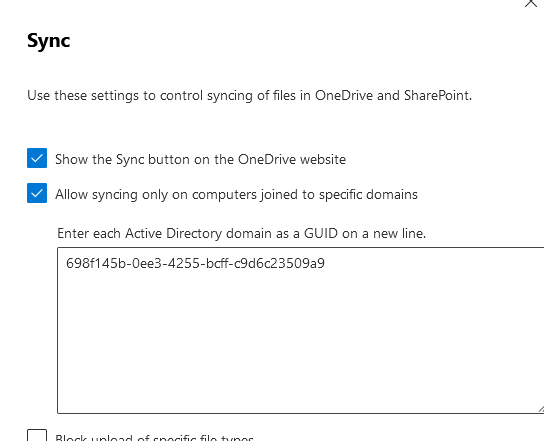
Since my DC is named DC2, the command to find GUID of a domain controller is [repadmin /showreps DC2] under DSA objet GUID or run [Get-ADDomain] under ObjectGUID

Source:
https://learn.microsoft.com/en-us/azure/active-directory/conditional-access/service-dependencies
https://learn.microsoft.com/en-us/azure/active-directory/conditional-access/location-condition
 Steven’s Knowledge Base