
In order to utilize Intune’s capability for provisioning various types of devices, including Windows, iOS, macOS, and Android devices, certain prerequisites must be configured. This guide will review the settings required before we start the actual enrollment.
Goal: Configure Intune Admin center of any settings that may be required before enrolling mobile and windows devices.
Make sure you are a Intune administrator or Global administrator role before configurating Intune
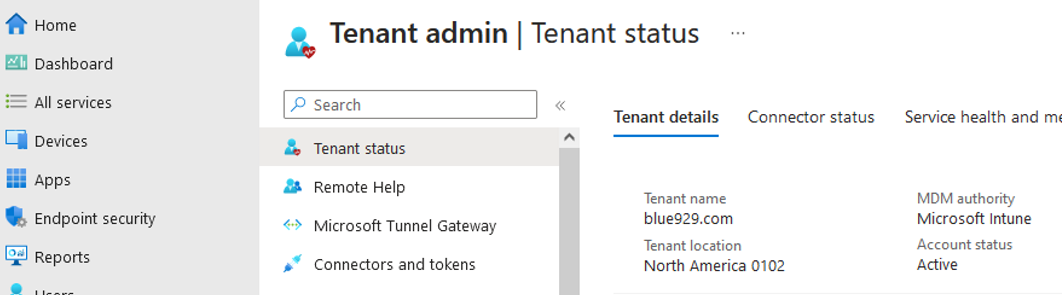
Make sure MDM Authority is Intune before starting any enrollment:
Navigate to Intune Admin center > Tenant administration
MDM Authority must be set to Microsoft Intune. The enrolled device must not be provisioned under a another MDM even if its sccm/mecm with co-management setup. The user accessing the admin center must be global administrator or Intune Service Administrator to set up enrollment.
*Unenroll device from original MDM before enrolling into Intune. If device has trouble enrolling into Intune, a factory reset may be needed.
Verify the device is up to date with the following OS:
More info here: https://learn.microsoft.com/en-us/mem/intune/fundamentals/supported-devices-browsers
Apple:
○ Apple iOS 14.0 and later
○ Apple iPadOS 14.0 and later
○ macOS 11.0 and later

Android:
○ Android 8.0 and later (including Samsung KNOX Standard 3.0 and higher)

Windows:
○ Windows 10/11 (Home, S, Pro, Education, Enterprise, and IoT Enterprise editions)
Microsoft 365 License for Intune features:
Review the current license structure of the organization and make sure there is enough E3/E5 licenses. Below is a list of license that provides access to Intune features.
To gain access to conditional access policy, I highly recommend that the tenant posses Azure premier plan 1 as well.
Other licenses that provides the plan 1 feature.
- Microsoft 365 E5
- Microsoft 365 E3
- Enterprise Mobility + Security E5
- Enterprise Mobility + Security E3
- Microsoft 365 Business Premium
- Microsoft 365 F1
- Microsoft 365 F3
- Microsoft 365 Government G5
- Microsoft 365 Government G3
- Microsoft Intune for Education
Configure Enrollment device limit restrictions:
This setting is under Device enrollment > Enrollment device limit restrictions

Depending on organization’s policy, I choose the default setting on limiting 15 devices per user. That means a user can only enroll up to 15 devices into Intune. If IT Admin wants only one device per user, a new restriction must be created targeting the user group.

Configure Enrollment Device Platform Restrictions:
Navigate to Device enrollment > Enrollment device limit restrictions> click on the restriction profile > select “All users” > properties > platform setting > edit
This lab is configured to allow all users to enroll their personal Android, iOS/iPadOS and windows devices. Create restriction and assigned it to specific groups if desired.
***Block Android device administrator as Android Enterprise has superseded it.
***I recommend blocking personal windows devices as they are either “Personal” devices that were accidentally or intentionally enrolled in Microsoft Intune by the user and certain conditional access policy will not apply to them.

Configure Device Enrollment Manager:
To bypass device limit, a DEM (device enrollment manager) role can be assigned to a user and that can enable them to enroll up to 1000 device while a regular users can enroll 15.
The settings is under Device enrollment > Device enrollment manager
- A device enrollment manager (DEM) is a non-administrator user who can enroll devices in Intune.
- Device enrollment managers are useful to have when you need to enroll and prepare many devices for distribution.
- Global Administrators and Intune Service Administrators can add and manage device enrollment managers in the Microsoft Intune admin center.
Device Categories (optional):
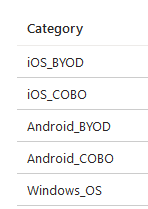
Create device categories that users can manually select to put the enrolled device in. The device category selection list appears during the latter stages of the enrollment process within the company portal, allowing users to specify the category to which their device should be assigned. Alternatively, it can be configured to remain hidden during enrollment
Settings are located under Microsoft Intune admin center > devices > Other > device categories
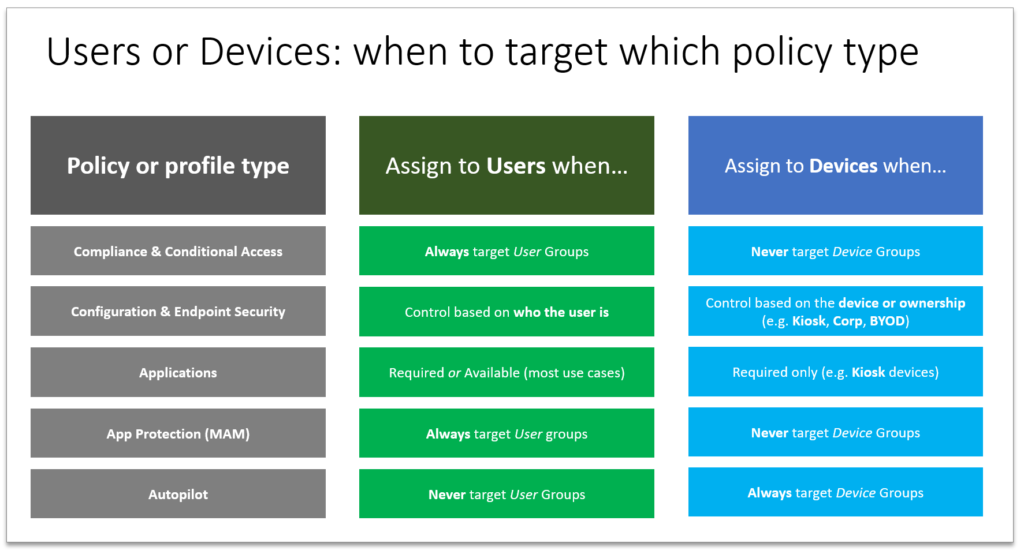
Profile/Policy Assignment Best Practices
Source:
https://learn.microsoft.com/en-us/mem/intune/enrollment/device-enrollment-manager-enroll
https://learn.microsoft.com/en-us/mem/intune/fundamentals/licenses
https://learn.microsoft.com/en-us/mem/intune/fundamentals/supported-devices-browsers
https://learn.microsoft.com/en-us/mem/intune/enrollment/device-group-mapping
 Steven’s Knowledge Base
4 thoughts on “General Intune UEM Prerequisite”