
The guide will delve into iOS enrollment methods for Intune, including device enrollment and user enrollment. These two approaches have distinct differences.
Device enrollment is designed to establish security for the entire device, Intune classify it as “Personal” ownership post enrollment. However, this easily misunderstood as the process is primarily intended for corporate devices. While it is possible for personal devices to undergo device enrollment, it is not advisable

• You can deploy certificates that apply to the whole device.
• Users must install updates. Only devices enrolled using Automated Device Enrollment (ADE) can receive updates using MDM policies or profiles.
• A user must be associated with the device. This user can be a device enrollment manager (DEM) account.
• Since the device is company owned, Admin can trigger device wipe for personal device (Don't Recommend)

PRO: Simple and fast way to enroll personal iOS/iPadOS devices into Intune under Corporate ownership without configuring:
• Apple Business manager (ABM)
• Federated authentication and directory sync
• System for Cross-domain Identity Management (SCIM)
• Deal with any sync issues between azure AD and ABM

CON:
• No volume purchase program (VPP).
• Option to completely wipe a personal devices if enrolled via device enrollment. (Do not recommend enrolling personal devices using device enrollment)
• Lack of features compared to the capabilities available in 'supervised' mode. Since its not enrolled with Apple Business Manager which allows it to be “supervised“, Device enrollment loses additional functionality like GPS tracking when the device is entered into “lost mode”.
Goal: Enroll an iOS device using device enrollment into Intune. Assign the appropriate policies and apps. This guide assumes that the general Intune prerequisite settings are already configured (General Intune UEM Prerequisite)
Prerequisites
Before enrolling a corporate apple device via device enrollment, the following must be configured, with some being optional but strongly recommended:

• Security Groups (assigned and dynamic)
• Configure Apple MDM Push Certificate
• Configure Enrollment Type Profile
• Compliance Policy (Custom and Default) (optional)
• Compliance policy Notifications (Optional)
• Application deployment (Optional)
• App protection Policies (Optional)
• App Configuration Policies (Optional)
• Conditional access policy (Optional)
Create Security Groups (Assigned and Dynamic)
Establish security groups within Entra (Azure AD) and allocate E3/E5 licenses to these groups. Then, incorporate any user into the group to grant them access to Intune.
Whether you choose to automate user inclusion in the group or manually assign them is a matter of personal preference; however, it is essential that the groups containing users have licenses assigned to them
I recommend assigning license based on USER and not devices. To assign license to a group, select the group, click on license and select the appropriate assignment. **User should NOT be a member of both BYOD and COBO group
Below are the following groups created for this lab.
Assigned group (Assigned groups requires IT Admin to manually add users):
iOS_COBO_Assigned – (Users here can enroll iOS/iPadOS Corporate devices. *COBO- corporate only business only device*)
**I prefer the Corporate-Owned, Business-Only (COBO) approach and implement a significant number of restrictions on the device. The choice between a structured COBO or Corporate-Owned, Personally-Enabled (COPE) route for corporate devices depends on the organization’s specific requirements
Dynamic Device Groups -*Optional* (Automatically provides a list of devices based on query provided, I suggest validating rule for the query to test that it works correctly):
Dynamic groups automatically filters device based on a query provided. This group is not required for enrollment but good to have when Admin need to review all personal or corporate devices .
iOS_COBO_Dynamic – The Dynamic query here looks for company owned iPad or iPhone by OS type.

Configure Apple MDM Push Certificate
Navigate to Intune Admin center > Devices > Enroll devices > Apple enrollment > Apple MDM push certificate

A. Check the agreement
B. Select Download your CSR to download and save the request file locally. The file is used to request a trust relationship certificate from the Apple Push Certificates Portal.

C. Create an Apple MDM push certificate

•Select Create your MDM push Certificate to go to the Apple Push Certificates Portal.
•Sign in with your company Apple ID or a spare ID.
•Select Create a Certificate.
•Read and agree to the terms and conditions. Then select Accept.
•Select Choose File and then select the CSR file you downloaded in Intune.
•Select Upload.
•On the confirmation page, select Download. The certificate file (.pem) downloads to your device. Save this file for later.


D. Enter the Apple ID used for logging into apple MDM push portal
E. Upload the .pem generated from Apple MDM push portal into Intune.
F. Apple push certificate is now done. This certificate is only valid for 365 days. Once it expires, there is a 30 days grace period.
**The steps are similar when renewing the push certification. First, download the CSR file from Intune and upload it to Apple push certificate portal. Apple will then provide you with certificate file after. Upload this to Intune and that’s all!
Configure Enrollment Type Profile
By default, Intune will use device enrollment profile instead of user enrollment profile. For this scenario, we will assign the iOS_COBO_Assigned group to enroll with device enrollment profile.
Navigate to Devices > enroll devices > under apple enrollment > Enrollment Types > select Create profile > Select Device enrollment with company portal.
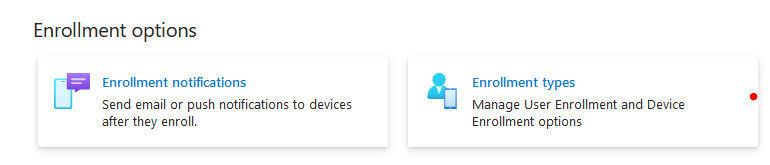


**Profile priority: If a conflict occurs because a user is assigned more than one profile, Intune applies the profile with the higher priority. To change the order in which they’re applied:
- Go back to Enrollment types to view your profiles.
- To the left of the numbers under priority, hover over it and three separate dots will appear. Hold and drag the dots to move the profiles. Dragging anywhere else besides the dot will not work.

Device enrollment- provision and controls the entire device and has the ability to wipe the device. Users with personal device might want to avoid this option-
User Enrollment - provision and control company work profile. Admin does not have the ability to wipe device.
Determine based on user choice- lets assigned users select the enrollment type during enrollment. Their options:
• I own this device: As a follow-up, the user must select whether they want to secure the entire device or only secure work-related apps and data.
• (Company) owns this device: The device enrolls via Apple Device Enrollment.
Compliance Policy (Review Default compliance policy + creating a customized policy)
Review Default compliance policy:
For any device enrolling under a MDM, it must meet a security baseline requirement and has to be secured in order to access company data. Note that there is Default Device compliance policy in place that Intune applies to all devices regardless of whether a compliance policy is created or not. This default policy is a base minimum so we must create an additional custom policy to enforce to all devices.
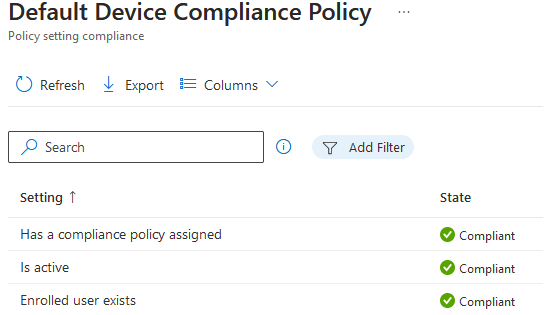
Has compliance Policy assigned- The setting is tied to "Mark device with no compliance policy assigned as" - Not compliant so it checks if there is a custom compliance policy assigned to device. If it finds one, state is green.

Is active - relies on the default 30 days grace validity period. The device must check into Intune within 30 days, check in refresh every 8 hours. Check in depends if devices has internet connection and not whether the primary user is logged in or not. For shared devices with multiple users, the device just have to connect to internet.

Enrolled User exists- Checks if the primary user exist with a valid license for the enrolled device. For shared devices or devices enrolled under a DEM (Device Enrollment Manager), I suggest changing the primary user. I do not recommend deleting any users from Entra ID (Azure AD).
Creating a custom policy:
Navigate to Intune admin center > Endpoint Security > Device Compliance > compliance policy setting > toggle “Not Compliant”
This will mark all devices with no manually assigned compliance policy as not compliant. So we must create an compliance policy for every type of OS, which is highly recommended.
Compliance status validity period– The device must check into Intune within 30 days, check in refresh every 8 hours. After 30 days past and there is no active sync, device is marked non-compliant. This is tied to “Is Active” setting under default device compliancy policy.

Navigate back to Policies > Create policy > edit the properties to meet company requirement.
My compliance policy for personal and corporate is to block jailbroken device, require a minimum OS version and block simple password, minimum password length set to 4.

If device is not compliant, user will get an email and push notification and the device will be marked non-compliant. (IT Admin can put a grace period of days that settings can be fixed to become compliant. The default value is 0, which immediately marks the device as non-compliant if restrictions are not met)

Actions for noncompliance - Each device compliance policy includes one or more actions for noncompliance. These actions are rules that get applied to devices that don’t meet the conditions you set in the policy. Examples of actions include:

Sending email alerts to users and groups with details about the non compliant device. You might configure the policy to send an email immediately upon being marked as non compliant, and then again, periodically, until the device becomes compliant.
Remotely lock devices that have been non compliant for some time.
Retire devices after they’ve been non compliant for some time. This action marks a qualifying device as ready to be retired. An admin can then view a list of devices marked for retirement and must take an explicit action to retire one or more devices. Retiring a device removes the device from Intune management and removes all company data from the device.
Compliance policy Notifications: (*Optional- Email user if device is non-compliant)
Create a notification message template
To send email to your users, create a notification message template. When a device is noncompliant, the details you enter in the template is shown in the email sent to your users.
- In the Intune admin center, select Devices > Compliance policies > Notifications > Create notification.
- Enter the following information for the Basics step:
- Name: Contoso Admin
- Email header – Include company logo: Set to Enabled to show your organization’s logo.
- Email footer – Include company name: Set to Enabled to show your organization’s name.
- Email footer – Include contact information: Set to Enabled to show your organization’s contact information.
- Company Portal Website Link: Set to Disabled.
Deploy Apps
Before enrollment starts, we will assigned required/non required apps to the device so users can immediately get to work once they are enrolled.
*If the device enrolling already has the required application installed, it will NOT be reinstalled. Instead, no action will be triggered. App protection policy will apply to it after enrollment.
Navigate to > Apps > iOS/iPadOS > select “Add” > select ios store
Select Microsoft Outlook and Microsoft 365 (Office). Then proceed to configure the appropriate assignments.

I recommend modifying Yes to [Uninstall on device removal] and [Prevent iCloud app Backup]. If user removes the app, it will get reinstall as soon as device syncs, so I am not worried if [Install as removable] is turned on.

Assignments:

Required- apps must be installed even if user removes it

Available for enrolled device- targeted for User group and makes app available on Company portal. User has option to install the app there.

Available with or without enrollment - targeted for User group and makes app available on Company portal even if device is not enrolled.

Uninstall- user group in this assignment will have application get removed
> In a scenario where the company opts to use native apple mail client app instead (highly discouraged due to lack of provision and ability to control flow data leaks). Click to show configuration <
Device > iOS/iPadOS > Configuration Profiles > create profile > platform type: templates > Email
*Must enable modern authentication (OAuth) or native client will keep prompting for password. Create app configuration policies in order to sync contacts and calendar from outlook app to native app if desired.

Deploy App protection Policies (highly recommend)
To apply restrictions and DLP rules to outlook app that gets deployed:
Navigate to Apps > App Protection policies > create policies > select iOS.
Target Policy to selected apps > Microsoft Outlook. Modify it depending on preference. The settings below are just some and not all of the DLP settings that can be applied.
**Pin for access setting requires a pin specifically used only to access the outlook app. This pin is different from the Phone pin.


App Configuration Policies
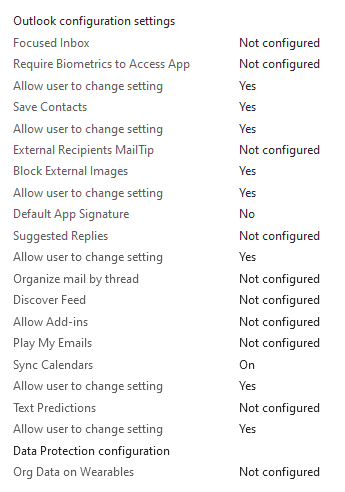
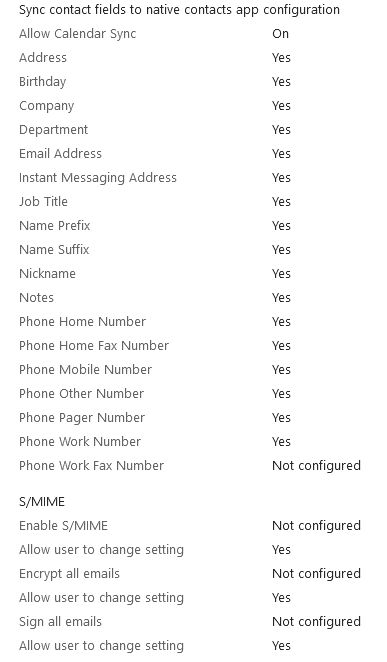
Additional DLP settings can be found under app configuration policies targeting Outlook.
Navigate to Apps > App configuration policies > add > managed apps > target Outlook app > assign to BYOD or COBO group
Conditional access policy (Highly recommend)
Given that compliance policy is a passive approach to devices that are not compliant with company policy, we will need to deploy conditional access policy to enforce compliance. Unlike a custom compliance policy that takes actions [Lock, retire or email user] for the device, conditional access provides more granular control such as blocking access to all Microsoft 365 apps, SharePoint or all cloud apps if device is not compliant.
Navigate to Intune admin center > endpoint security > conditional access > polices
In this policy, we will block access to office 365 apps if device is not compliant for iOS devices. Any attempt to access any of those apps will prompt users to correct their security settings. Recommend testing this only on test group first and filter by platforms. Troubleshoot conditional access policy logs by going to endpoint security > conditional access > Sign-in Logs.
List of office 365 apps blocked are listed here.
Assignments:
	Users:
	Include: iOS_COBO_Assigned
	Target resources:
	Include: Office 365
	Exclude: Microsoft Intune
	Conditions:
	Device Platforms: iOS

Access control:
	Grant: Requires device to be marked as compliant

Time to Enroll!
1. Download Intune company portal from app store
2. Install and sign in. Make sure user is in the iOS_COBO_Assigned group and has the appropriate license.
3. Begin the set up by reviewing privacy info
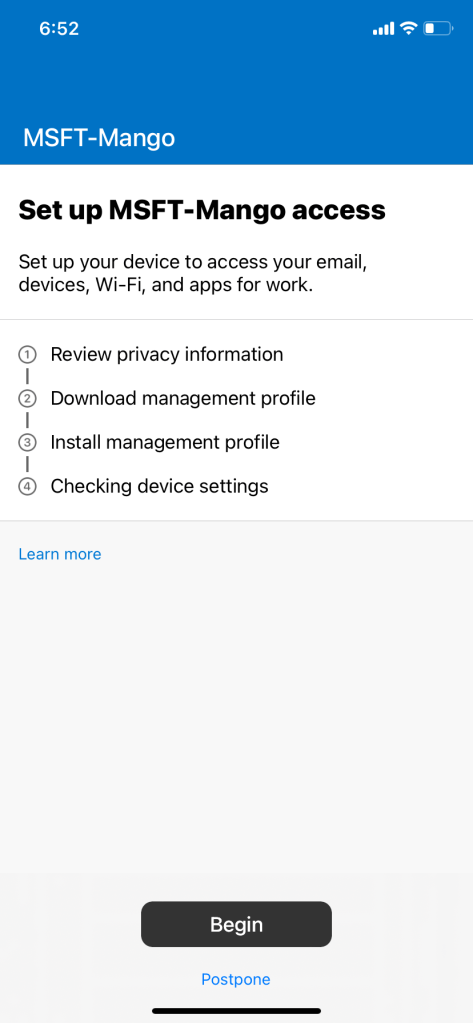
4. Download management profile and install it by going to settings


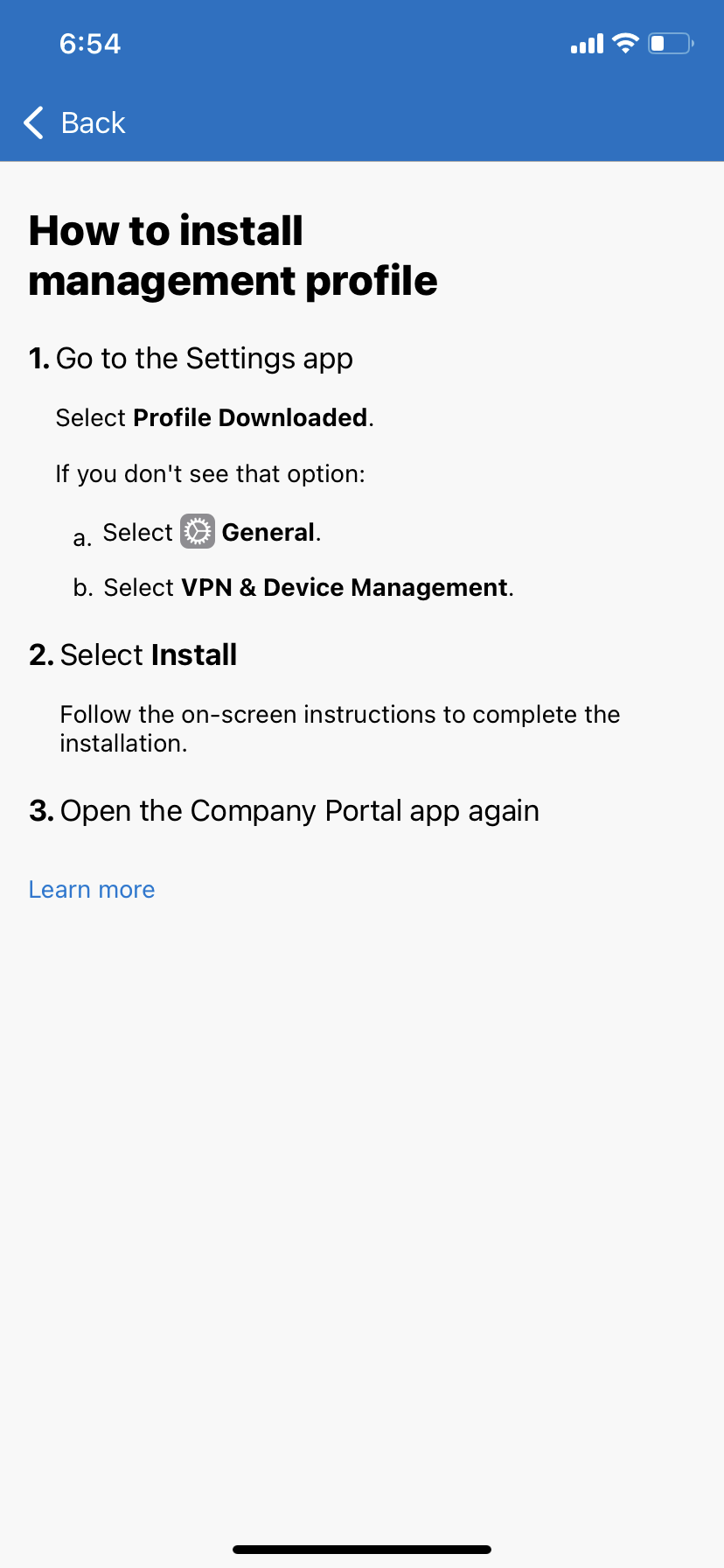
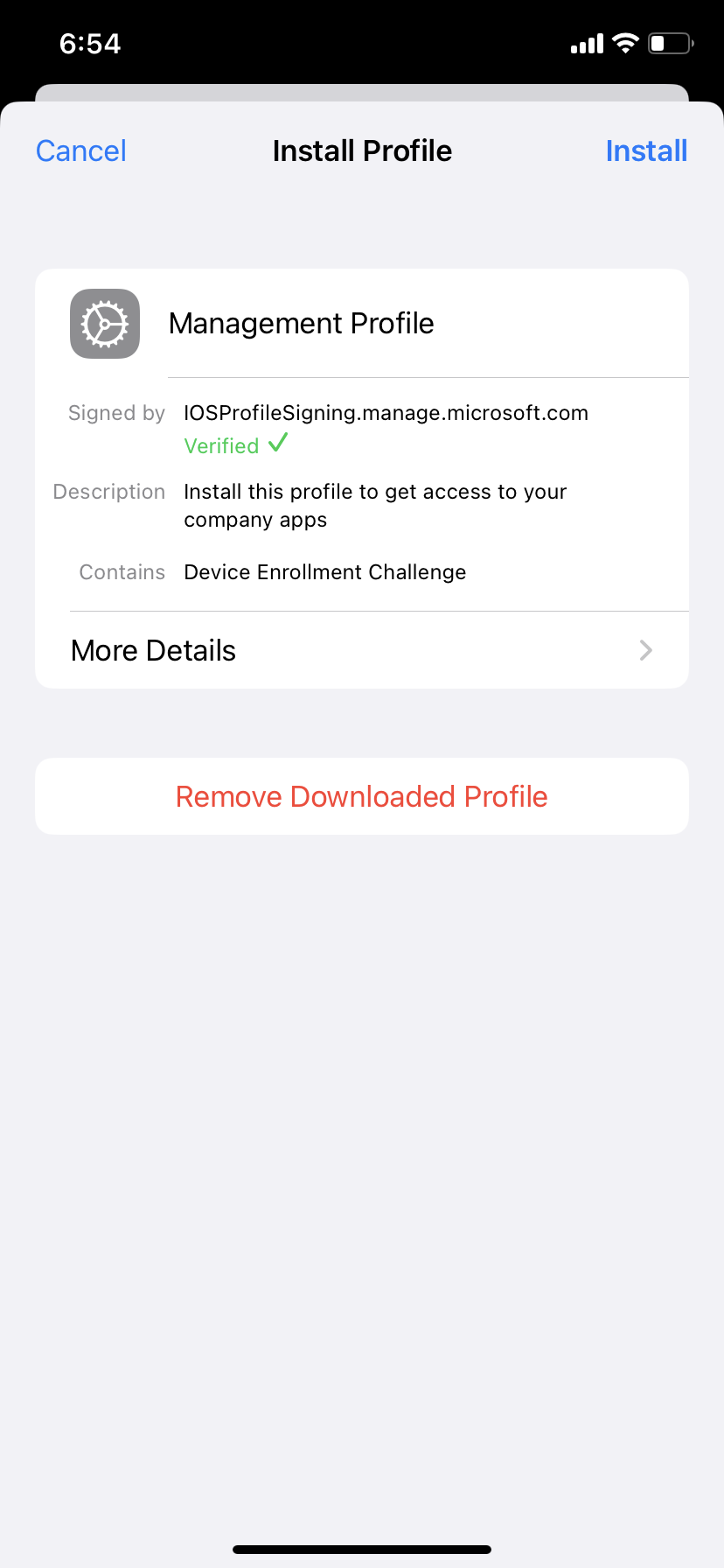

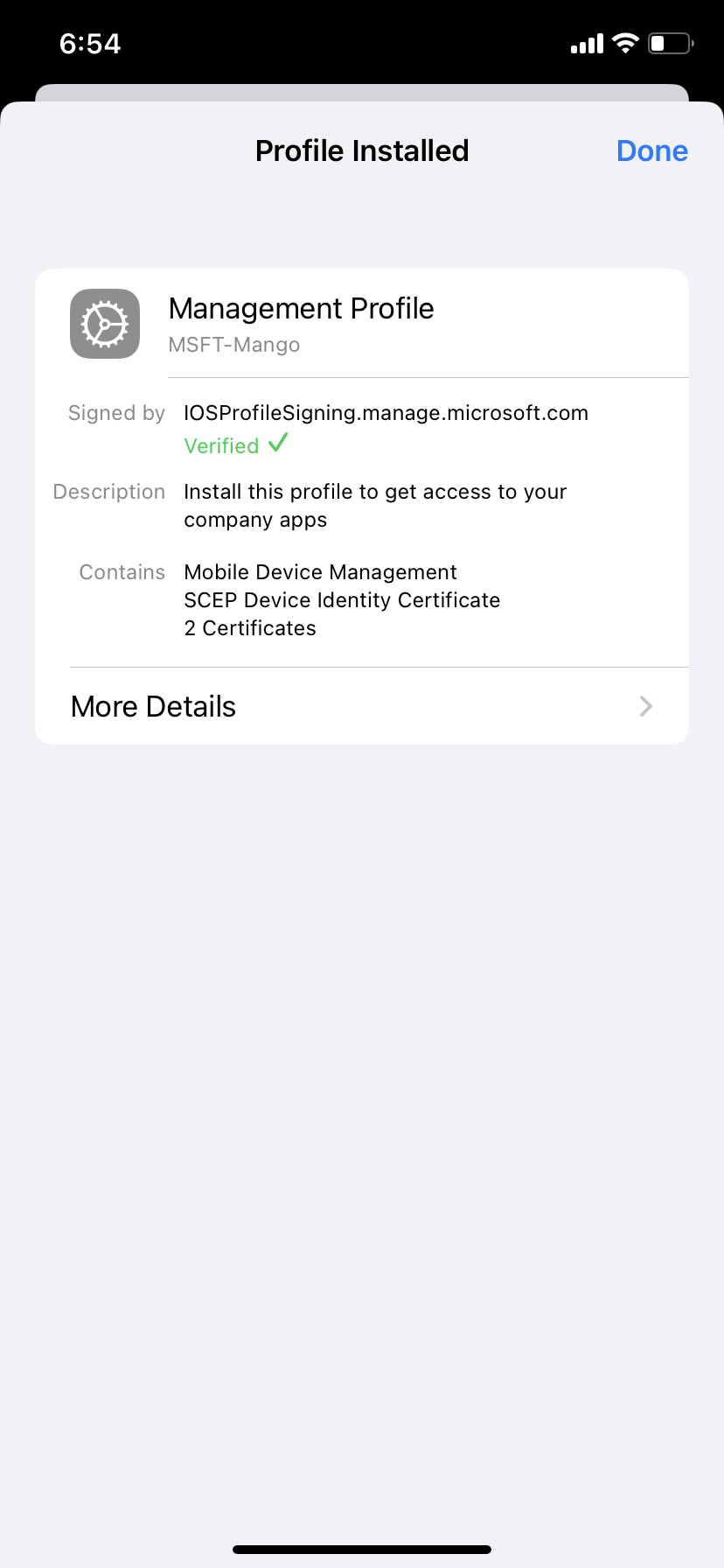
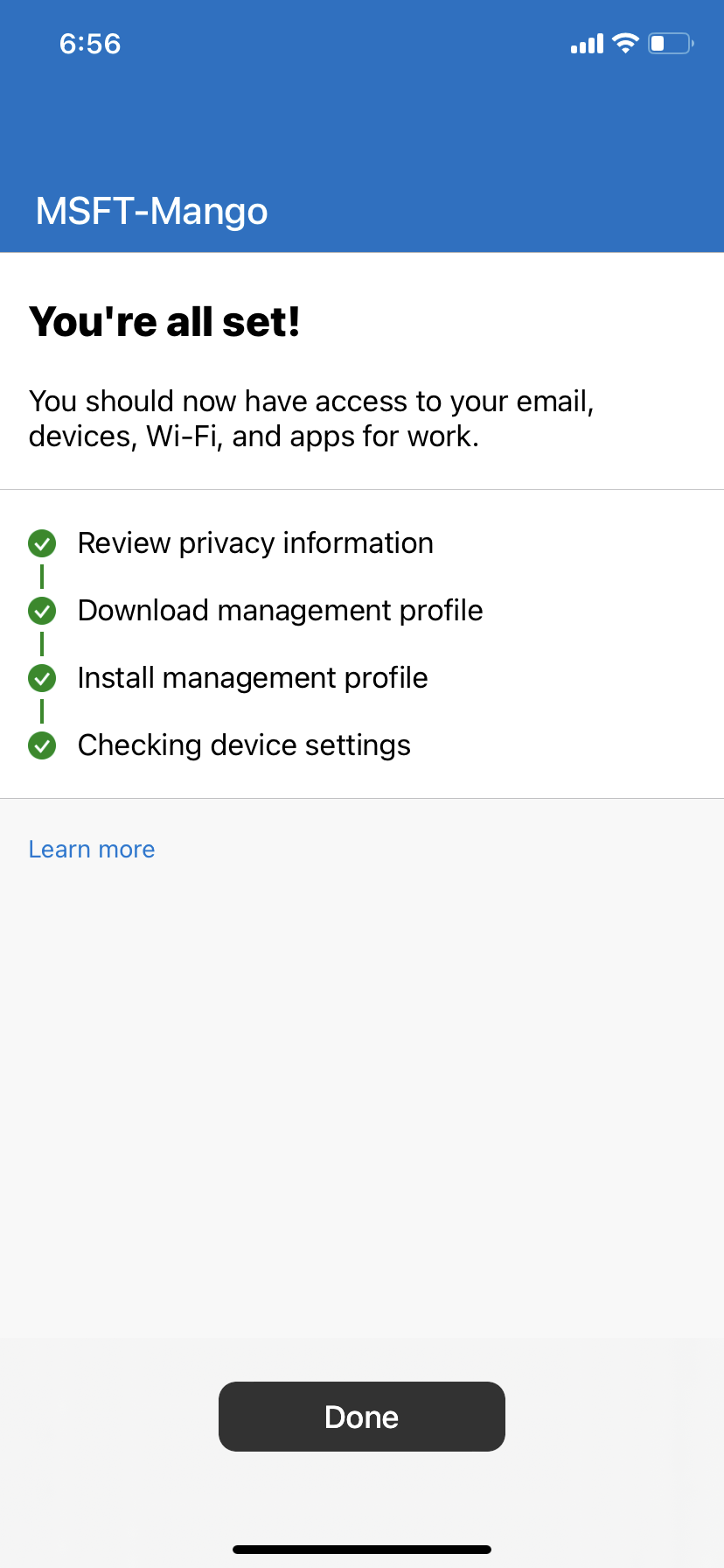

5. Select device category if one is configured
6. Once that’s done, the requires apps will be installed and app protection policy will be deployed to it.


**If native email app is configure to allow sync, a prompt will require user to reenter their passwords
Results:
***Note that the ownership is personal. I suggest changing this to corporate ownership since device enrollment is made for corporate ownership. It is not listed as corporate because in order to be classified as corporate-owned, an iOS/iPadOS device must fulfill one of the following conditions:
- Registered with a serial number or IMEI.
- Enrolled by using Automated Device Enrollment (formerly Device Enrollment Program).
Now that it’s under device enrollment, Admin can actually wipe the device clean. (Not recommended for BYOD)

***If the device is NOT compliant, it will NOT be able to access any Office 365 apps due to conditional access policy. Company portal will flag the device.


Under conditional access > sign in logs > the login is denied due to conditional access. User tries to sign into teams and office 365 apps, both attempts failed.

Troubleshooting and Tips
- If a conditional access policy is enabled that only allows compliant device to access resources, I recommend adding a grace period to the schedule (days after noncompliance) so devices do not immediately get blocked if restrictions are not met. The grace period can be modified under policy > actions for noncompliance section.
- If a compliance policy evaluates against the same setting in another compliance policy, then the most restrictive compliance policy setting applies.
- Best practice- use compliance policy- (target user group) and create notification template-
- Remember- noncompliant device are DETECTION (they are PASSIVE), there is no action taken to block any resources unless a conditional access policy is configured to only grant access for compliant devices.
- If device is NOT marked compliant even if user has all the requirements, try to reenroll
- If you deploy a conditional access policy requiring the device to be compliant, and the device is not enrolled in Intune, the user will be forced to install the company portal app and enroll the device.
- The device must also resolve compliancy check first (assuming one exist) IF app protection policy is in place. App protection policy needs device to be in compliant and no issue with intune portal app in order to allow user access to its app.- App protection Policy also needs company portal app to be installed.
- Be aware that when assigning a compliance policy to a device group, when a user is signed in it will cause two compliance evaluations: one for the user and the one for the System account. In this scenario, the System Account evaluation could fail, causing the device to be “Not compliant”. To prevent this behavior:
- For devices with a user signed in – assign the compliance policy to a User group.
- For devices without a user signed in – assign the compliance policy to a Device group (kiosk)
- Wait until compliance check is complete from company portal before checking native mail app** or else native mail app will NOT work. (Only valid if native mail app configuration is setup)
- Changes to config profile related to native app may cause users to be signed out
Sources:
https://learn.microsoft.com/en-us/mem/intune/fundamentals/deployment-guide-enrollment-ios-ipados
https://learn.microsoft.com/en-us/mem/intune/enrollment/apple-user-enrollment-with-company-portal
https://learn.microsoft.com/en-us/mem/intune/fundamentals/licenses
https://www.cloudtekspace.com/post/different-types-of-ios-ipados-enrollment-in-intune
https://learn.microsoft.com/en-us/mem/intune/protect/device-compliance-get-started
https://call4cloud.nl/2021/06/blood-sweat-and-built-in-compliance-policies/#part1
 Steven’s Knowledge Base
One thought on “iOS/iPadOS-COBO-Device Enrollment (Non-Supervised)”