
This guide will review integrating Apple Business Manager and configuring federated Authentication with Apple Business Manager. We will also configure directory sync, SCIM (System for Cross-domain Identity Management) in order to generate managed apple ID which users will use to login with for User enrollment for Intune.
Federated authentication or federated identity management comes into play when users connect Apple Business Manager to Microsoft Azure Active Directory. Through this integration, users gain the capability to utilize their Azure AD credentials (username and password) as their Managed Apple ID credentials. This authentication process leverages the SAML protocol. The primary advantage of this integration is that users can now employ a single set of credentials to access both Apple and Microsoft devices, as well as the services provided by both platforms
The fundamental distinction between SSO and FIM lies in their respective purposes. SSO is primarily designed to authenticate a single credential across multiple systems within a single organization, whereas federated identity management (FIM) systems provide single access to numerous applications spanning multiple enterprises, allowing granular usage among different vendors and domains.
Prerequisites
Before enrolling apple device, the following must be configured:
• Access to Apple Business Manager portal or Apple School Manager portal.
• Set up Federated Authentication/FIM with Apple Business Manager
• Configure Directory Sync (SCIM)
Access to Apple Business Manager portal or Apple School Manager portal.
1. To obtain an Apple Business Manager account, you need to start by acquiring a DUN (Dun & Bradstreet) number for your organization. Apple mandates that the applying company be a bona fide entity with a DUN number. This nine-digit identifier for businesses is linked to a business’s Live Business Identity, which can be instrumental in assessing potential partners and pursuing new contracts. During the enrollment process, you may also be asked to provide tax information for your company.
- If the company already has one, look it up here : https://www.dnb.com/duns-number/lookup.html
- Apply for a DUN number here: https://www.dnb.com/duns/get-a-duns.html
- When enrolling, try not to miss the call from DUN representative as this may result in your application getting denied. Give them a call back right away to resolve any issues.
2. Once you have the DUN number, apply for apple business manager account here: https://support.apple.com/guide/apple-business-manager/sign-up-axm402206497/web
- ABM will need two login- one for administrator and one for authorized manager. I suggest using a service account and not a regular company email. Call apple to expedite the process if it takes too long.
3. Create user’s managed apple ID with your custom domain. The default admin account will be a randomly generated domain like @na4.appleid.com (DO NOT CHANGE or REMOVE this account). Create a second administrator account with service account as backup.
- If using azure ad federation service to sync to apple business manager with AD account, Azure AD will be identity provider when signing into apple services using the account from ABM and there must be no other account name in used with the same domain as Azure.
- This means that NO ONE IN THE COMPANY SHOULD SIGN UP FOR APPLE ID USING COMPANY DOMAIN. COMPANY USERS SHOULD NOT SIGN UP FOR ANY APPLE SERVICE USING COMPANY DOMAIN NAME.
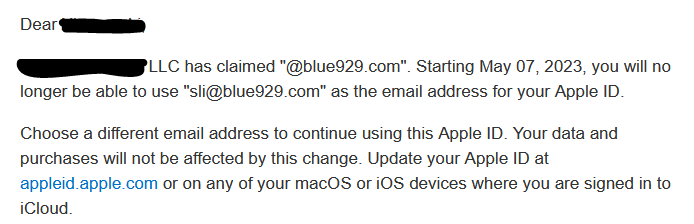
- If there is an existing apple ID account attached the company domain, admin will get this email:

Set up Federated Authentication with Apple Business Manager
I strongly recommend setting up federated authentication and Azure AD sync in Apple Business Manager instead of manually generating managed Apple IDs for user enrollment. With federated authentication, Managed Apple ID accounts are established through Azure Active Directory as the Identity Provider. When attempting to log in with an account associated with the federated domain, you will be redirected to Azure for authentication. It’s worth noting that we won’t be configuring Just-In-Time (JIT) provisioning, as any user removed from Azure won’t be automatically removed from Apple Business Manager.
The method of federated authentication that will get configured is called SCIM (System for Cross-domain Identity Management). SCIM syncs accounts from Azure to ABM, so any accounts removed from Azure will also reflect on ABM as they get deactivated. This removes a lot of manual process that may be involved as far as account provisioning from both Azure and ABM.
Important:
• Don’t reuse a user name for 30 days in the Apple Business Manager Azure AD app.
• When a user is copied from Azure AD using SCIM to Apple Business Manager, the default role is Staff. After the sync is complete, only the Roles user attribute can be edited. This attribute is stored with the user account in Apple Business Manager and isn’t written back to Azure AD.
• Cannot federate multiple Azure tenants with single ABM account. It is possible to configure multiple domains as long as they are under one azure tenant.
• If you’re planning on connecting to Azure AD using SCIM, you should wait to turn on federated authentication until after the SCIM connection is successful.
• Users with the role of Administrator or People Manager can’t sign in using federated authentication; they can only manage the federation process.
• In order to sync users from Azure to ABM successfully, user last name must also be present along with the first name.
OS requirement:
Federated authentication with Microsoft Azure AD
iOS 11.3
iPadOS 13.1
macOS 10.13.4
1. Verify your domain
Under Apple business Manager > Select your organization > preferences > accounts.
Select verify next to your domain (Since my domain is already verified, it doesn’t show here).
Copy the TXT record generated in ABM to your DNS registrar (If domain was purchased via Google Domain, paste it in the DNS settings there).
Once the verification process is done, there will be a green circle next to the domain.

2. Federate Authenticate with Azure AD
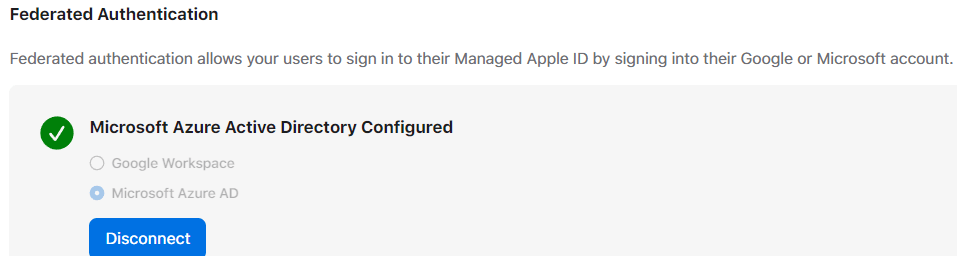
Turn on federated authentication and connect with our administrator azure account. That will enable ABM to authenticate against Azure and sign in and read user profile.
Under Preferences > Accounts > Federated Authentication > Connect to Azure AD > Sign in with Global Admin account > Accept to registry ABM as an enterprise application under Azure tenant.

Configure Directory Sync (SCIM)
To enable creation of managed Apple ID, directory sync must be configured.
System for Cross-domain Identity Management (SCIM) – any deleted accounts in azure ad will also sync with ABM. Usage includes- Provisioning will automatically create new accounts as new people join your organization (sourced from your IdP). De-provisioning will deactivate those accounts as users are removed from your organization
Navigate to preferences > Directory Sync > Generate Token

The token generates random value. Copy these values somewhere.
Log in to Azure AD > Enterprise applications > select Apple business manager > provisioning > select provisioning
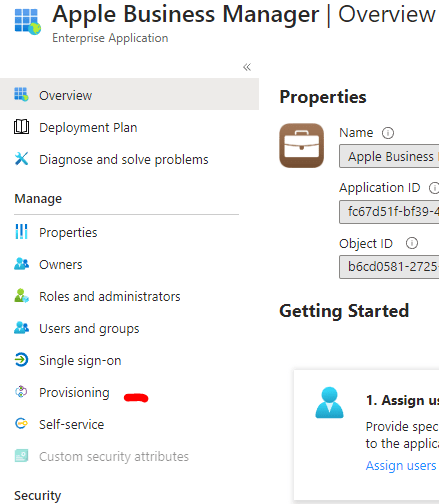

Set provisioning mode > automatic > paste the token in the secret Token field and test connection.

If successful, there will be green mark.

Provisioning status set to toggle on and then hit save. Directory Sync is complete!

Reminder (*Optional*)

I highly recommend scoping the sync for specific users or groups and setting up email notification when failure occurs.

Under provisioning > settings > scope >  Set to sync only assigned users and groups.
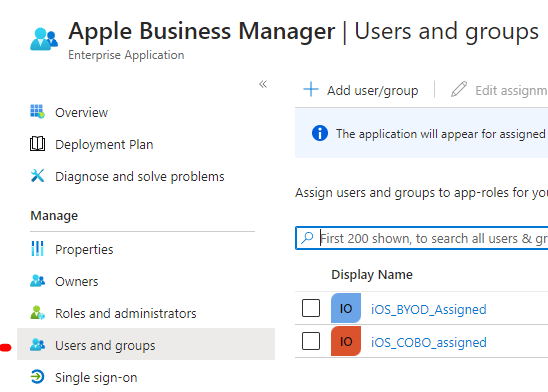
Add the group under Enterprise application > ABM > Users and groups

Important:
• If you change the provisioning scope, you must clear the current state and restart synchronization.
• If the scope is set to groups, do not use nested group
The following attributes are synced from Azure to ABM. Do not modify user attributes during provisioning as this can also break SCIM.
**In order to sync users from Azure to ABM successfully, user’s first name, last name, UPN must be present.

Verify directory sync on ABM:

Enable Federation: The final step is to enable federation under preferences > Account > Domains > toggle enable

If there are unresolved errors, such as an existing apple ID using the same azure domain listed in ABM, this means that a user has signed up for apple ID using company email address.
Federation cannot be enabled unless the errors are resolved.
Those users in that group and IT admin will get the following notification to change their Apple ID. I suggest users change their apple ID and use their personal email instead of company email.
Verify under provisioning logs:
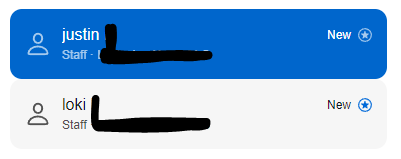
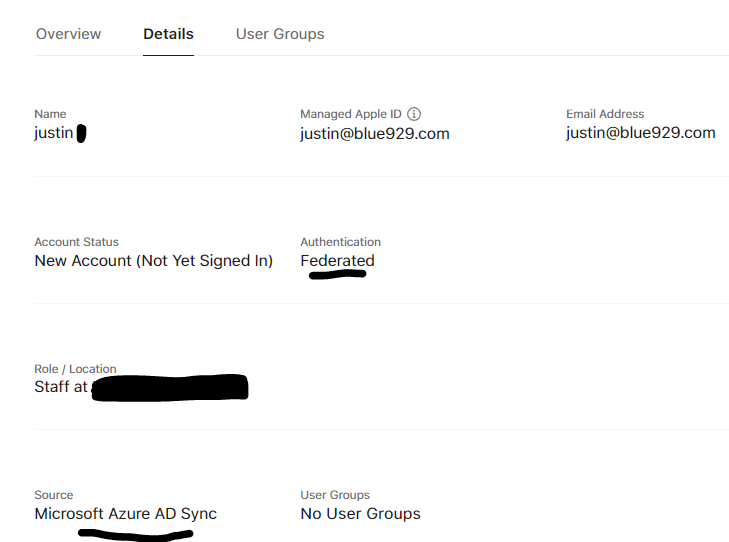
I just added two users to the BYOD group, Justin and loki. The users will get created in ABM.

Check on ABM to see if user appears:
How long does it take for accounts to get created in ABM?
Provisioning is set to every 40 minutes so the accounts should show up within that timeframe. Make sure that the user in Azure has first name, last name, UPN present or SCIM user mapping will fail and the managed apple ID’s will not get created.

Federated authentication and SCIM is now configured for ABM!
Source:
https://support.apple.com/guide/apple-business-manager/azure-ad-sync-requirements-axmd88331cd6/web
https://support.apple.com/guide/apple-business-manager/sync-users-from-azure-ad-axm3ec7b95ad/web
https://hmaslowski.com/home/f/ios-user-enrollment-byod-in-microsoft-endpoint-manager-intune
https://learn.microsoft.com/en-us/azure/active-directory/architecture/sync-scim
 Steven’s Knowledge Base