
After ensuring that Apple Configurator 2 is fully configured, proceed to connect the Apple device. This step constitutes part 2 of the process, with the assumption that all prerequisites from part 1, as outlined in the preceding guide, have been met
Apple Configurator 2 Enrollment:
1. Connect apple device to Macbook or any device with Apple configurator installed. The device must be unlocked.
2. Right click on the device in Apple Configurator and select ‘Prepare‘
3. choose the following options (leaving the rest unchecked)- Manual configuration- Add to Device Enrollment Program


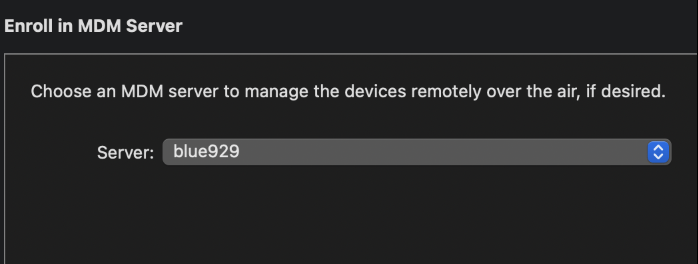
4. Follow through the steps to prepare the device, choosing the MDM server and organization configured previously
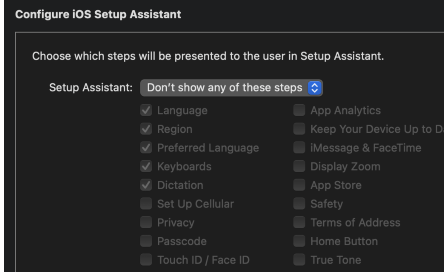
5. Select the wifi profile that was created in part 1

6. Select erase and prepare. The device will get factory reset.

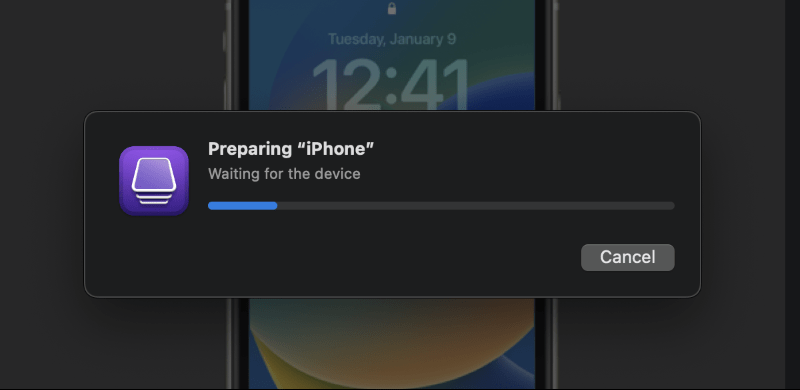
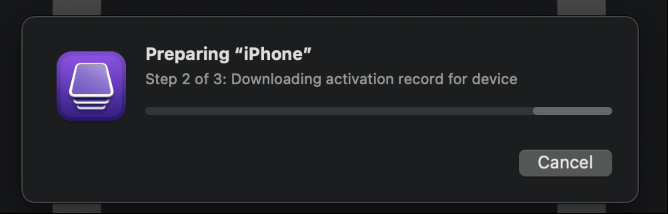

***Wait for preparation to complete. Once the prep is complete, DO NOT SET UP THE DEVICE YET!
Add device to company MDM- Apple Business Manager
1. From ABM portal, check recent device assignments. You should see the iPad/iphone you just prepared being assigned to the default MDM server which is sourced from ‘Apple Configurator’. What we need to do is to modify the location and add the device to Blue929 MDM server.
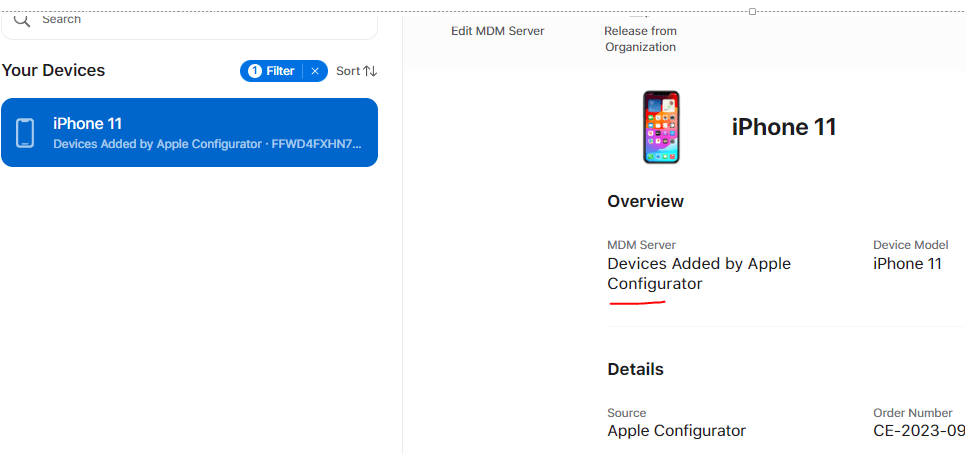
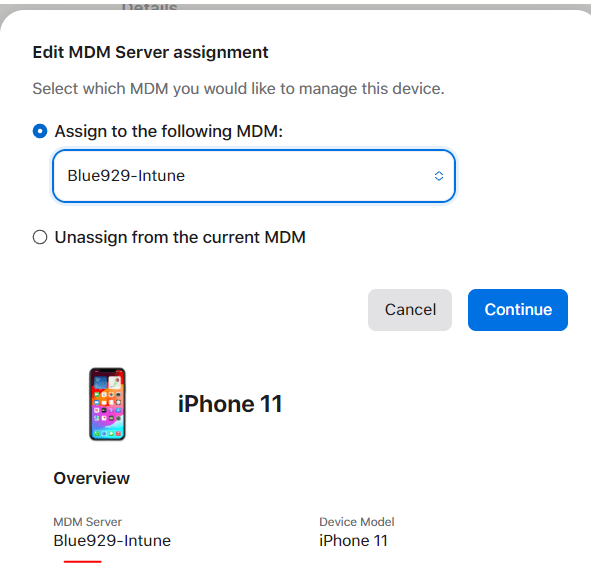
2. Reassign the device to the Intune MDM server in ABM. Select the device and click on edit MDM server. Assign it to company MDM server.
Assign apple enrollment profile in Intune
Go to Intune enrollment token profile. (Intune portal > Device > Enroll Devices > Apple Enrollment > Enrollment Program Token > Select the Token > Devices )
Assign the created profile. Press sync if the device is not listed.

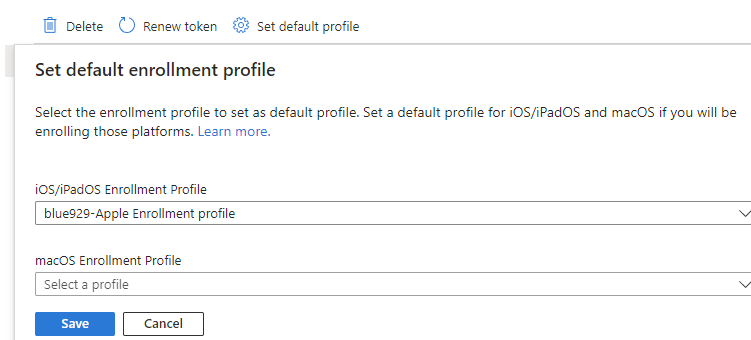
To avoid having to manually assign profile every time an device gets enrolled, I highly recommend setting a default profile so it gets automatically assigned.
Set up the device
1. Disconnect phone from macbook, proceed with setup and connect to wifi.
2. You will see a Remote Management page, proceed with installing the management profile.
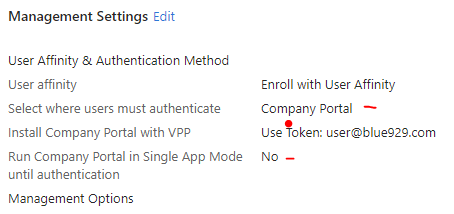
3. Sign into company portal since the profile is set to authenticate user is via the company portal. Sign into Microsoft Authenticator as well since that is identity broker for app protection policies and SSO.
4. Once compliance check is done, the apps will get deployed by VPP.
Verify:

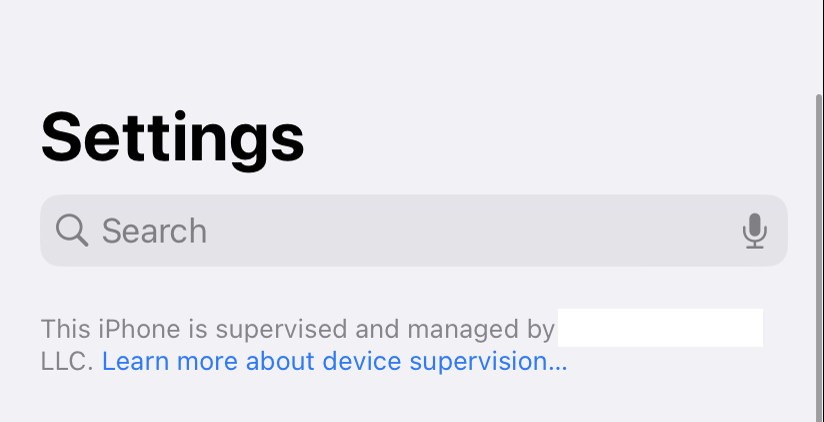
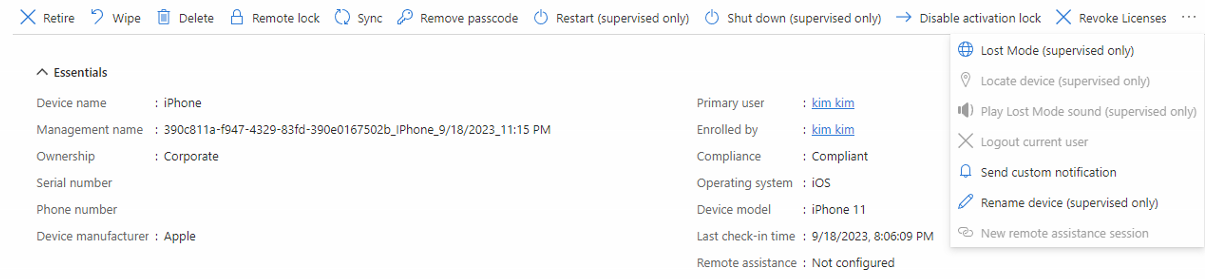
There are a lot more options for supervised devices (Restart/shutdown/lost mode/rename). It also opens up devices to update policies by Intune.
Note:
• Feel free to create a custom home screen layout/wallpaper/lock screen message under devices > configuration profile > new profile > templates > device features [This is locked and user cannot edit]

• If device would NOT properly pick up the profile configured in Enrollment Program Tokens, trigger a erase all content and settings' in Apple Configurator

• To avoid issues enrolling, release the device from ABM and then remove the organization from apple configurator 2. To set up AC2 again, use the same existing supervisor identity as before or create a new one ONLY if there's no device.

• There is a grace period 30 days during which users can remove the device from supervision (locked enrollment). There's currently way to prevent and lock this setting immediately.

• To re-enroll a supervised device:
o Wipe the device in the Microsoft Intune admin center.
o Retire the device in the admin center, and then reset the device to factory settings using the Settings app, Apple Configurator 2, or iTunes.

• If MFA is setup for the user and they do not have a second device to authenticate against, set a one-time bypass for the user.
Source:
https://learn.microsoft.com/en-us/mem/intune/remote-actions/device-lost-mode
https://configmgrblog.com/2017/09/29/manage-apple-configurator-configured-ios-devices-with-intune/
 Steven’s Knowledge Base