
A Corporate-Owned, Fully managed user device (COBO) device is designated for work-related tasks, not personal use, and is associated with a single user. As an administrator in Intune, you possess the capability to comprehensively manage the entire device and enforce policy controls that go beyond the capabilities of Android Enterprise work profiles.

Pro:
· Allowing app installations exclusively from Managed Google Play.
· Disabling the removal of managed apps by users.
· Implementing measures to prevent users from performing factory resets on their devices.
· Device is wiped when removed from Intune.
· Block uninstallation of managed apps
· Prevent users from factory resetting devices.
· Microsoft Launcher
· Business Only (No separate layer for personal storage or profile.)- Single work profile

Con:
· User may find it too restrictive if certain policies are deployed to block apps like google play store, SMS, phone settings etc..
Goal: Enroll a corporate-owned fully managed android device into Intune. Then assign the appropriate policies and apps. This guide assumes that the general Intune prerequisite settings are already configured (General Intune UEM Prerequisite)
Prerequisites
- The device must have Android 8.0 and later, including devices secured by Samsung KNOX Standard 2.4 and later with GSM (Google Mobile Services)
- Create Security Groups (assigned and dynamic)
- Configure General notification (optional)
- Link managed google play store account
- Configure Enrollment Type Profile
- Compliance Policy (Custom Policy, Default policy and Notifications) (optional)
- Device configuration profiles (Optional)
- Configuration Profile (Device) (Optional)
- Application deployment (Optional)
- App protection Policies (Optional)
- App Configuration Policies (Optional)
- Conditional access policy (Optional)
Create Security Groups (assigned and dynamic)
Once the license are in place, create security groups in Entra (Azure AD), assign E3/E5 license to those groups. Dynamic Groups do not need license in this lab. I recommend assigning license based on USER and not devices. **User should NOT be a member of both BYOD and COBO group
Below are the following groups created for this lab.
Assigned group (Assigned groups requires IT Admin to manually add users):
Android_COBO_Assigned – (Users here can enroll corporate owned Android devices)
Dynamic Device Groups (Automatically provides a list of devices):
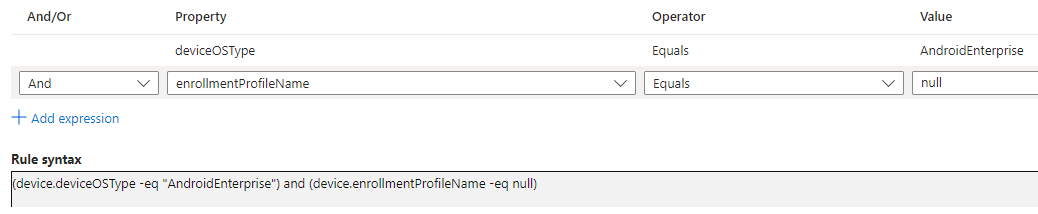
To create a dynamic group > select new group > membership type (Dynamic User or Dynamic Device) > Add Dynamic Query. (I suggest validating rule for the query to test that it works correctly)
(dynamic groups automatically filters device based on a query provided. This group is not required for enrollment but good to have when Admin need to review all personal or corporate devices *optional).
Android_Device_COBO_Dynamic – Looks for corporate devices
Configure General notification (optional)
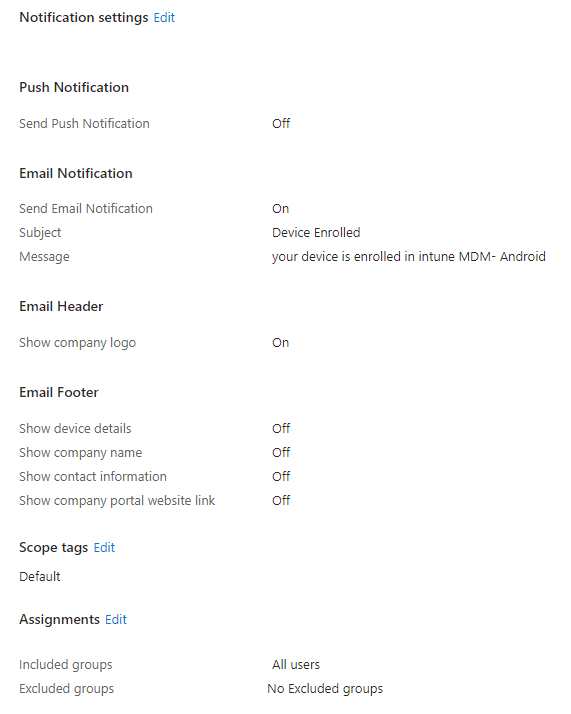
Configure email and push notifications to be sent to users after they enroll. Notifications improve security by notifying users if someone enrolls a device with their credentials. IT admins can also use enrollment notifications to send users a welcome email or onboarding information following enrollment.
Navigate to Intune admin center > devices > android > android enrollment > Enrollment notifications
Under Android Enterprise Notification > create new notification
Configure depending on organization needs. For example, I have it configure to send email notification on devices enrolled and the target is all users.
Link a Managed google play to Intune first
In order to deploy apps and manage enterprise devices, a spare Gmail account must be used to sign into the play store and have it link to Intune. Do not use a personal account, instead, create a company gmail account that can be used. The account cannot be associated with G-suite domain.
1. Navigate to Intune admin center > devices > android > android enrollment > managed Google Play
2. Choose “Launch Google to Connect now.”
3. Input your company’s name and the name of your Enterprise Mobility Management (EMM) provider, ensuring that Microsoft Intune is correctly displayed. Proceed and click confirm.
*Microsoft company portal, Microsoft Authenticator, Intune, managed home screen will be available in admin center once the process is done.

Set up enrollment profile
In order to enroll corporate devices, an enrollment profile must be created. Various method can be used to enroll once the profile has been created.
Create profile:
1. Navigate to Intune portal > Devices > Android > Android enrollment and select Corporate-Owned, fully managed user device
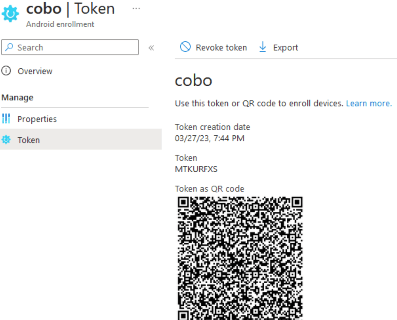
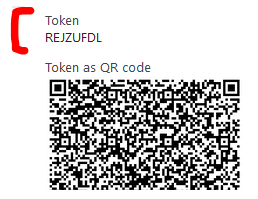
2. Select create profile > input name and select create. This will generate an token that will be used to enroll devices.
3. select the profile and click on token to view it.
Compliance Policy (Custom Policy, Default policy and Notifications) (optional)
Review Default compliance policy:
For any device enrolling under a MDM, it must meet a security baseline requirement and has to be secured in order to access company data. Note that there is Default Device compliance policy in place that Intune applies to all devices regardless of whether a compliance policy is created or not. This default policy is a base minimum so we must create an additional custom policy to enforce to all devices.

Has compliance Policy assigned- The setting is tied to "Mark device with no compliance policy assigned as" - Not compliant so it checks if there is a custom compliance policy assigned to device. If it finds one, state is green.
Is active - relies on the default 30 days grace validity period. The device must check into Intune within 30 days, check in refresh every 8 hours. Check in depends if devices has internet connection and not whether the primary user is logged in or not. For shared devices with multiple users, the device just have to connect to internet.
Enrolled User exists- Checks if the primary user exist with a valid license for the enrolled device. For shared devices or devices enrolled under a DEM (Device Enrollment Manager), I suggest changing the primary user. I do not recommend deleting any users from Entra ID (Azure AD).
Creating a custom policy:
Navigate to Intune admin center > Endpoint Security > Device Compliance > compliance policy setting > toggle “Not Compliant”
This will mark all devices with no manually assigned compliance policy as not compliant. So we must create an compliance policy for every type of OS, which is highly recommended.
Compliance status validity period– The device must check into Intune within 30 days, check in refresh every 8 hours. After 30 days past and there is no active sync, device is marked non-compliant. This is tied to “Is Active” setting under default device compliancy policy.

Navigate back to Policies > Create policy > edit the properties to meet company requirement.
My compliance policy for corporate android device is to block rooted device, require a minimum OS version, and in order to access company resources, a password is required.
The assigned user group will be Android_COBO_Assigned.

If device is not compliant, user will get an email and push notification and the device will be marked non-compliant. (IT Admin can put a grace period of days that settings can be fixed to become compliant. The default value is 0, which immediately marks the device as non-compliant if restrictions are not met)

Actions for noncompliance - Each device compliance policy includes one or more actions for noncompliance. These actions are rules that get applied to devices that don’t meet the conditions you set in the policy.

Examples of actions include:
• Sending email alerts to users and groups with details about the noncompliant device. You might configure the policy to send an email immediately upon being marked as noncompliant, and then again, periodically, until the device becomes compliant.
• Remotely lock devices that have been noncompliant for some time.
• Retire devices after they’ve been noncompliant for some time. This action marks a qualifying device as ready to be retired. An admin can then view a list of devices marked for retirement and must take an explicit action to retire one or more devices. Retiring a device removes the device from Intune management and removes all company data from the device.
Compliance policy Notifications: (*Optional- Email user if device is non-compliant)
Create a notification message template
To send email to your users, create a notification message template. When a device is noncompliant, the details you enter in the template is shown in the email sent to your users.
- In the Intune admin center, select Devices > Compliance policies > Notifications > Create notification.
- Enter the following information for the Basics step:
- Name: Contoso Admin
- Email header – Include company logo: Set to Enabled to show your organization’s logo.
- Email footer – Include company name: Set to Enabled to show your organization’s name.
- Email footer – Include contact information: Set to Enabled to show your organization’s contact information.
- Company Portal Website Link: Set to Disabled.
Configuration Profile (Device)
To lock down device settings like screen capture, power settings, passwords, block personal accounts, vpn connectivity, etc..
A device restriction profile must be created:
Navigate to Device > configuration profile > create new profile >
Platform: Android enterprise
Profile Type: Fully managed > device restrictions
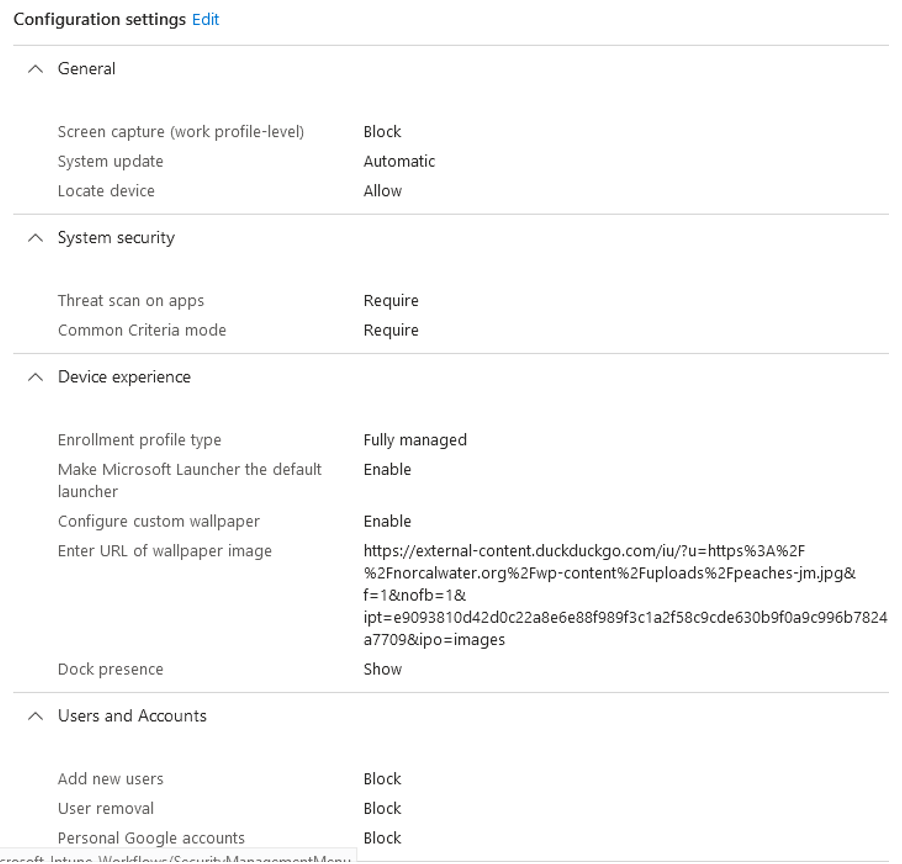
Furthermore, the fully managed work profile offers various settings beyond device restrictions shown below. This allows for additional customization and strengthening of the device’s security

Deploy Apps
Before enrollment starts, we will assigned required/non required apps to the device so users can immediately get to work once they are enrolled.
**The application will install itself on single work profile, if device is retired from Intune, everything gets wiped.
Select the app to deploy:
Navigate to > Apps > Android > select “Add” > select managed google play app
Select Microsoft Outlook and Microsoft 365 (Office). Then proceed to configure the appropriate assignments.
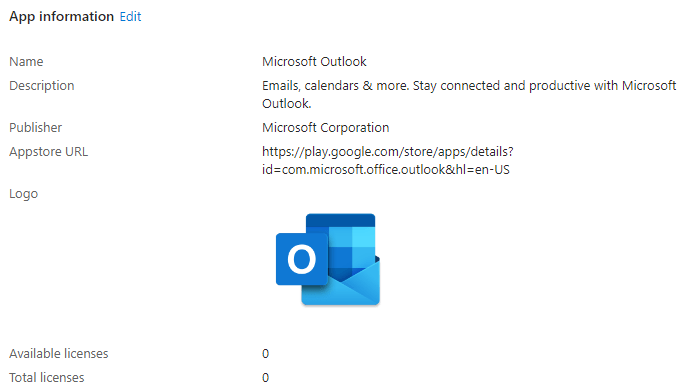
The required app will get installed once the device is enrolled and updates are only downloaded once it’s on wifi and not in use.

Update priority:
Default: Updates app if device is charging, connected to wifi, in idle state with no other updates running in the background
High Priority: Push updates as soon as new release regardless of idle, wifi or charging status
Postponed: postpone updates for up to 90 days.
Deploy App protection Policies (highly recommend)
App protection policies (APP) are rules that ensure an organization’s data remains safe or contained in a managed app. Works regardless if device is enrolled or not.
Since identity broker is company portal, user must sign into company portal app to inherit app protection policy.
To apply restrictions and DLP rules to outlook app that gets deployed:
Navigate to Apps > App Protection policies > create policies > select Android. Target Policy to selected apps > Microsoft Outlook.
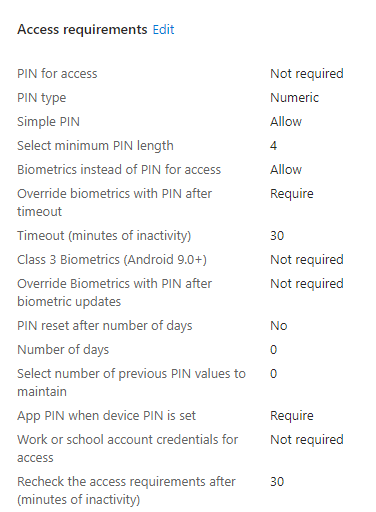
Modify it depending on preference. The settings below are just some and not all of the DLP settings that can be applied. Assign the policy to user group – Android_COBO_Assigned
**Pin for access setting requires a Pin specifically used only to access the outlook app. This pin is different from the Phone pin.



App Configuration Policies (Optional)
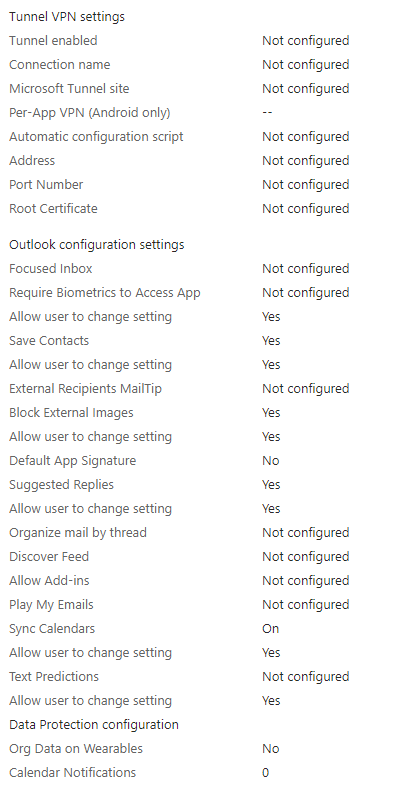
Additional DLP settings can be found under app configuration policies targeting Outlook such as VPN, S/MIME and outlook app features.
App configuration policies can also help you eliminate app setup problems by letting you assign configuration settings to a policy that is assigned to end-users before they run the app
Under app configuration policy enrollment type:
Managed app(Targets users): Delivered via through the Mobile Application Management (MAM) channel. [requires Android 9.0 or higher ]
Managed device (User or device): Delivered via mobile device management (MDM) OS channel [Intune requires Android 8.0 or higher]
Navigate to Apps > App configuration policies > add > managed apps > target Outlook app > assign to BYOD or COBO group
Conditional access policy (Highly recommend)
Given that compliance policy is a passive approach to devices that are not compliant with company policy, we will need to deploy conditional access policy to enforce compliance. Unlike a custom compliance policy that takes actions [Lock, retire or email user] for the device, conditional access provides more granular control such as blocking access to all Microsoft 365 apps, SharePoint or all cloud apps if device is not compliant.
Navigate to Intune admin center > endpoint security > conditional access > polices
In this policy, we will block access to office 365 apps if device is not compliant for android devices. Any attempt to access any of those apps will prompt users to correct their security settings. Recommend testing this only on test group first and filter by platforms. Troubleshoot conditional access policy logs by going to endpoint security > conditional access > Sign-in Logs.
List of office 365 apps blocked are listed here.
Assignments:
Users:
Include: Android_COBO_Assigned

Target resources:
Include: Office 365
Exclude: Microsoft Intune

Conditions:
Device Platforms: Android

Access control:
Grant: Requires device to be marked as compliant

Enrollment
Open up the token profile created in the enrollment profile steps earlier. There are various ways to enroll corporate android devices:
Scan QR:
Scan the QR code from the enrollment profile to enroll devices running Android 8.0 and later.

1. Factory reset the device
2. Once the phone starts up, tap the first welcome screen repeatedly to launch the QR reader.
3. Use the QR reader to scan the enrollment profile QR code and then follow the on-screen prompts to enroll.
 **On devices running Android 8.0, you'll be prompted to install a QR reader. Devices running Android 9 and later are pre-installed with a QR reader.
4. Proceed to connect to wifi, follow the prompts then sign in with organization account.
5. Follow instructions for work checklist- set up lock screen, installed the required app and sign in again to register the device.
6. The lock screen should display a message indicating that this device is owned by the organization
Token Code:
Enter token code to enroll the device. Only supports Android 8 through 10. Android 11.0 or later are not supported

1. Wipe the device
2. On the Welcome screen, select your language.
3. Connect to your Wi-fi, and then choose NEXT.
4. Accept the Google Terms and conditions, and then choose NEXT.
5. On the Google sign-in screen, enter afw#setup instead of a Gmail account, and then choose NEXT.
6. Choose INSTALL for the Android Device Policy app.
7. Continue installation of this policy. Some devices may require additional terms acceptance.
8. On the Enroll this device screen, allow your device to scan the QR code. Or, choose to enter the token manually.
9. Follow the on-screen prompts to complete enrollment.
Enrollment link:
Enter enrollment link to enroll existing devices. Requires Android 5.1+
Note: This method requires Google Play Services to be up-to-date; if a device has just been reset, the user may need to update Play Services before trying to add a work profile.

1. Does not require factory reset.
2. Grab the Token code from android enrollment profile for corporate device.
3. Enter the code in the following format (replace it with your organizations)

https://enterprise.google.com/android/enroll?et=<REJZUFDL>

4. Provide this URL to IT admins, who can provide it to their end users. When an end user opens the link from their device, they will be guided through the work profile setup.


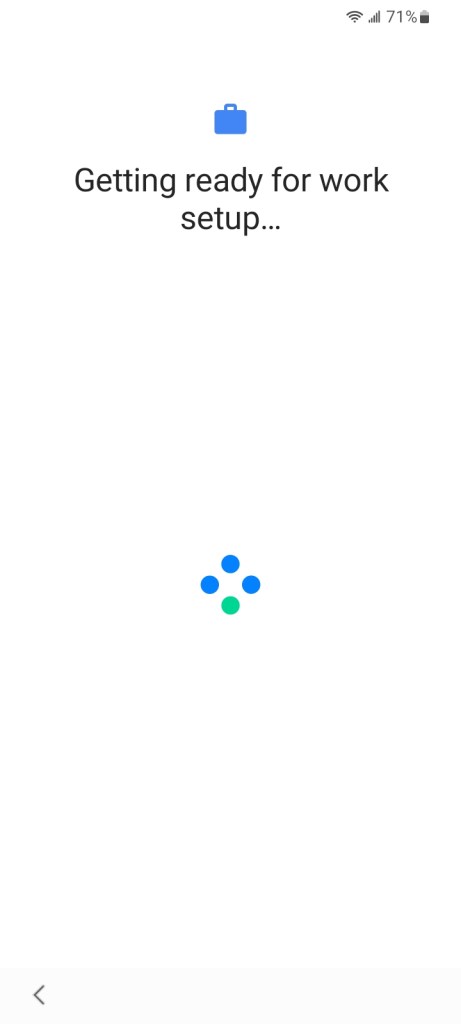
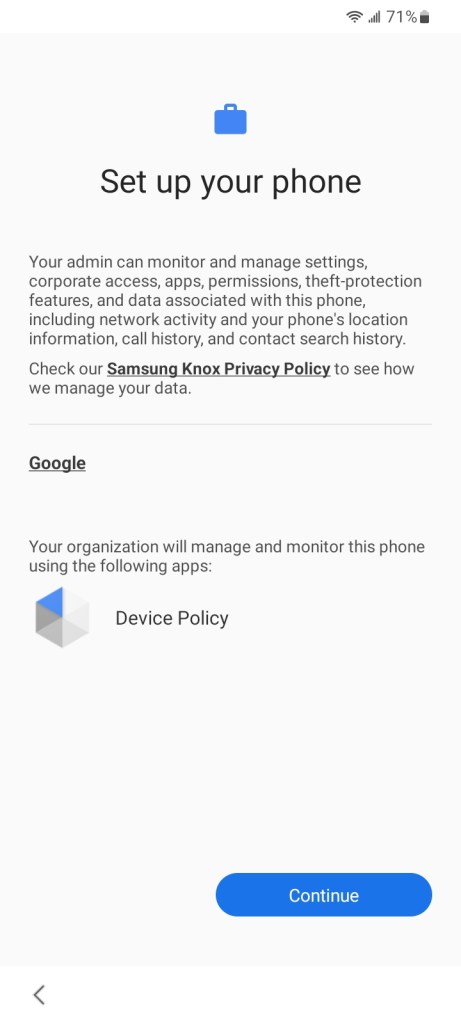

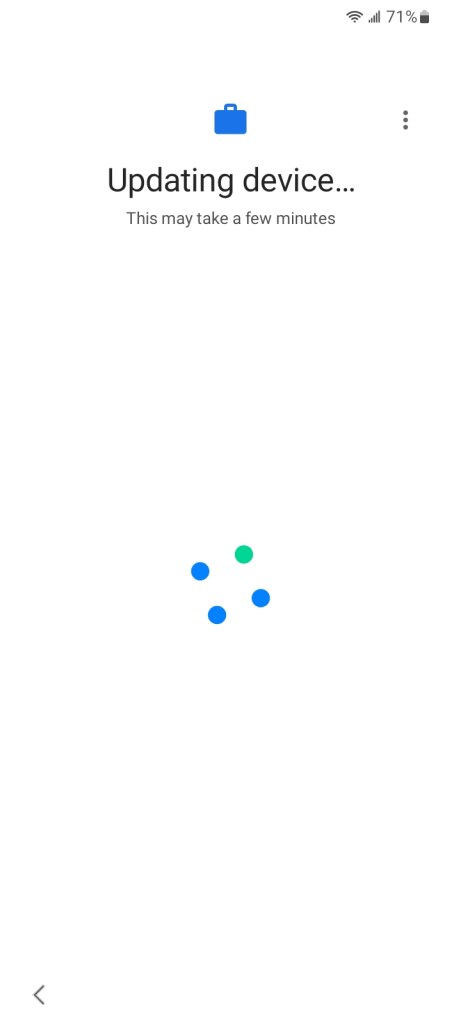


Verify: The corporate device offers more feature then BYOD. A device wipe and option to locate device is available.


Source:
https://learn.microsoft.com/en-us/mem/intune/enrollment/android-fully-managed-enroll
https://vmlabblog.com/2020/07/corporate-owned-fully-managed-user-devices-cobo-with-intune/
https://developers.google.com/android/management/provision-device#qr_code_method
 Steven’s Knowledge Base