
Intune goes beyond merely provisioning and safeguarding mobile devices, such as iOS or Android phones; it also possesses the capacity to manage Windows operating systems. This is critical in the remote workforce environment, which necessitates the ability to secure remote devices that users will use as their main workstation. My recommendation is for organizations to exclusively distribute and manage Windows devices through corporate enrollment.
This guide will show how to enroll corporate device into Intune MDM to have it fully managed.
Goal: Enroll and provision corporate windows devices to Intune.
Prerequisites
- The device must have Windows 10/11 (Pro, Education, Enterprise, and IoT Enterprise editions)
- Create Security Groups (assigned)
- Configure Compliance Policy
- Configuration policy
- Automatic Enrollment Setup
- Windows Hello For Business (Optional)
- Configure Notification (optional)
Create Security Groups (assigned)
Once the license are in place, create security groups in Entra (Azure AD), assign E3/E5 license to those groups. I recommend assigning license based on USER and not devices. Below are the following groups created for this lab.
Assigned group (Assigned groups requires IT Admin to manually add users):
Windows_MDM_Scope-COBO – (Users here can enroll corporate windows devices)
Compliance Policy (Custom Policy, Default policy and Notifications)
Review Default compliance policy:
For any device enrolling under a MDM, it must meet a security baseline requirement and has to be secured in order to access company data. Note that there is Default Device compliance policy in place that Intune applies to all devices regardless of whether a compliance policy is created or not. This default policy is a base minimum so we must create an additional custom policy to enforce to all devices.

Has compliance Policy assigned- The setting is tied to "Mark device with no compliance policy assigned as" - Not compliant so it checks if there is a custom compliance policy assigned to device. If it finds one, state is green.
Is active - relies on the default 30 days grace validity period. The device must check into Intune within 30 days, check in refresh every 8 hours. Check in depends if devices has internet connection and not whether the primary user is logged in or not. For shared devices with multiple users, the device just have to connect to internet.
Enrolled User exists- Checks if the primary user exist with a valid license for the enrolled device. For shared devices or devices enrolled under a DEM (Device Enrollment Manager), I suggest changing the primary user. I do not recommend deleting any users from Entra ID (Azure AD).
Creating a custom policy:
Navigate to Intune admin center > Endpoint Security > Device Compliance > compliance policy setting > toggle “Not Compliant”
This will mark all devices with no manually assigned compliance policy as not compliant. So we must create an compliance policy for every type of OS, which is highly recommended.
Compliance status validity period- The device must check into Intune within 30 days, check in refresh every 8 hours. After 30 days past and there is no active sync, device is marked non-compliant. This is tied to “Is Active” setting under default device compliance policy.

Navigate back to Policies > Create policy > edit the properties to meet company requirement.
My compliance policy for corporate and BYOD device is to require OS to be at least 20H1, password needs to be in place. My second compliance policy for COBO device requires encryption.
There are additional requirements like firewall and defender risk score level that can be customized as well. The assigned user group will be Windows_MDM_Scope-COBO.
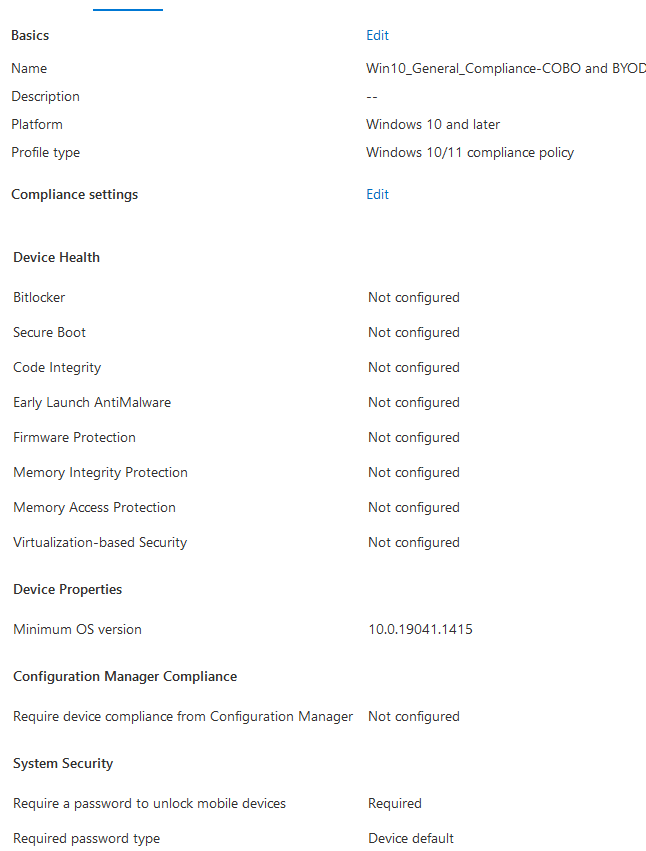

If device is not compliant, user will get an email and push notification and the device will be marked non-compliant. (IT Admin can put a grace period of days that settings can be fixed to become compliant. The default value is 0, which immediately marks the device as non-compliant if restrictions are not met)

Actions for noncompliance - Each device compliance policy includes one or more actions for noncompliance. These actions are rules that get applied to devices that don’t meet the conditions you set in the policy.
 Examples of actions include:
• Sending email alerts to users and groups with details about the noncompliant device. You might configure the policy to send an email immediately upon being marked as noncompliant, and then again, periodically, until the device becomes compliant.
• Remotely lock devices that have been noncompliant for some time.
• Retire devices after they’ve been noncompliant for some time. This action marks a qualifying device as ready to be retired. An admin can then view a list of devices marked for retirement and must take an explicit action to retire one or more devices. Retiring a device removes the device from Intune management and removes all company data from the device.
Compliance policy Notifications: (*Optional- Email user if device is non-compliant)
Create a notification message template
To send email to your users, create a notification message template. When a device is noncompliant, the details you enter in the template is shown in the email sent to your users.
- In the Intune admin center, select Devices > Compliance policies > Notifications > Create notification.
- Enter the following information for the Basics step:
- Name: Contoso Admin
- Email header – Include company logo: Set to Enabled to show your organization’s logo.
- Email footer – Include company name: Set to Enabled to show your organization’s name.
- Email footer – Include contact information: Set to Enabled to show your organization’s contact information.
- Company Portal Website Link: Set to Disabled.
Configuration Policy
Since Bitlocker is required for the device to be compliant-
A configuration policy must be configured to enable Bitlocker and also enable support for Non-Compatible TPM chips or you will see this error.

Navigate to device > configuration profile > create new profile > select Windows OS > templates > endpoint protection
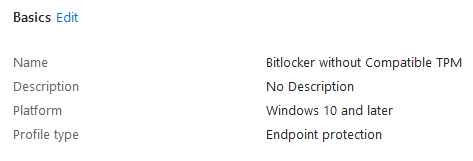

Once the user logs into the device, there should be a pop up requiring encryption. The user or Admin can manually encrypt it and save the key to the Users account.

Automatic Enrollment Setup
We will enroll the device under MDM user scope as some in order to manage both DEVICE and USER account. Configure the windows device enrollment by navigating to:
Devices > windows enrollment > Automatic enrollment > MDM user scope > select some > target Windows_MDM_Scope-COBO group.

The reason why MDM and MAM user scope is both toggled to [Some] is because the lab will test both BYOD and COBO deployment for specific group of users. (The MDM user scope targets the COBO group)
If the organization only requires windows devices to be corporate owned or personal device enrolled into Intune, enabling MDM for ALL and set MAM user scope to NONE should suffice.
MDM user scope: When set to Some or All, devices are joined to Azure AD, and devices are managed by Intune. It doesn’t matter who’s signed in to the device, or if devices are personal or BYOD. When set to None, devices aren’t joined to Azure AD, and aren’t managed by Intune.
Scenarios for MDM user scope:
• If you want to manage the device, then choose Some or All.
• If you don't want to manage the device, then choose None.
• If you want to only manage the organization account on the device, then choose None, and configure the MAM user scope.
• If you want to manage the device and manage the organization account on the device, then choose Some or All, and configure the MAM user scope.
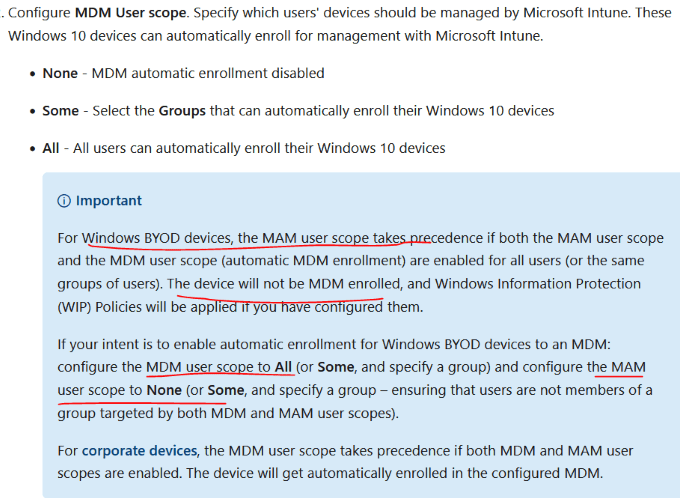
MAM/MDM Precedence:
Enrollment
For this lab, we will be joining the device to Azure AD in order to have it fully managed under Intune for the corporate device.
With User enrollment, you can "register" the devices with Azure AD or "join" the devices in Azure AD:

Register: When you register devices in Azure AD, the devices show as personal in the Intune admin center. Users get access to organization resources, such as email. This option is common for BYOD or personal devices.(Proceed to sign in with company email address under access work or school for BYOD)

Azure registered-(can sign in with Local account)
• SSO to cloud resources
• Conditional Access when enrolled into Intune
• Conditional Access via App protection policy
• Enables Phone sign in with Microsoft Authenticator app
Join: When you join devices in Azure AD, the devices are fully managed by Intune, and will receive any policies you create. This option is common for organization-owned devices. If users want their personal devices fully managed by Intune (and their organization IT), then they can join their personal devices.(Select the Join this device to AAD to have it fully managed for COBO)

Azure AD Join- (must sign in with domain account)
• SSO to both cloud and on-premises resources
• Conditional Access through MDM enrollment and MDM compliance evaluation
• Self-service Password Reset and Windows Hello PIN reset on lock screen
• Requiring storage to be encrypted
• Password complexity
• Software installation
• Software updates
Device Enrollment for workgroup computer:
*If device is in workgroup, it will be registered to Azure as Azure AD joined. It will not have access to on premise resources.
Navigate to the Settings > Accounts > Access school or work feature on the devices. I will opt to select connect > join this device to Azure AD.




Verify on Entra ID (Azure AD):
Since it is not managed by Intune, there is no option to restart, retire, wipe or lock the device.


Device Enrollment for domain joined computer:
*If device is domain joined and hybrid join is configured on AD Connect, the device show as hybrid joined and managed by Intune.
*If device is domain joined, managed under SCCM/MECM and co-management is configured, it will show as hybrid joined and managed by co-managed on Intune.
1) The recommended way to bulk enroll devices that are domain joined is to configure hybrid join using AD Connect. This requires setting up windows server with hybrid join configured.

Once all the on premise domain joined devices are joined to Azure AD (Hybrid joined), the device will have access to both on premise and on cloud resources.

The last step is to mass enroll the hybrid join devices and provision them under Intune, which can be done with group policy. I suggest starting with just test users in the group.

A. Create a Group Policy Object (GPO) and enable the Group Policy Computer Configuration > Administrative Templates > Windows Components > MDM > Enable automatic MDM enrollment using default Azure AD credentials.
B. Create a Security Group for the PCs.
C. Link the GPO.
D. Filter using Security Groups.
E. Put computers in that group. Users in the azure group (Windows_MDM_Scope-COBO) will sign into that device.
F. Once the user logs in, it will get enrolled under Intune since enrollment is based on default Azure AD credentials for the hybrid joined device
Note:
**The option will NOT be present if device is domain joined. Logging in as local admin will NOT work. There is no GUI to enroll a domain joined device to Intune.
**If device is windows 10 Home edition, there may be no option

2) Configure provision package and deploy it.
Automatically bulk enroll devices with the Windows Configuration Designer app
(For brand new device that are Company owned, apply the provisioning package via network share / usb / sharepoint link

After the package is created, double click on runtime process to trigger it.
*If provision package fails- check the steps
*If unable to get bulk token successfully- provide Intune admin role to the Azure AD sign in

Verify on Entra ID (Azure AD):
The state is co-manage because co-management is setup with SCCM in the lab environment. If it was not set up already, it will be managed by Intune.


Windows Hello For Business (Optional)
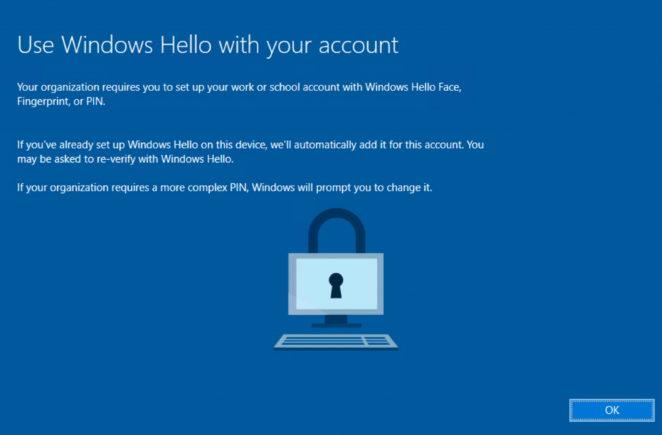
I suggest disabling windows hello for business if it’s not being used since users will keep getting prompt to set it up if its enabled.
Windows enrollment > windows hello for business > Toggle disabled.

Configure General notification (Optional)
Configure email and push notifications to be sent to users after they enroll. Notifications improve security by notifying users if someone enrolls a device with their credentials. IT admins can also use enrollment notifications to send users a welcome email or onboarding information following enrollment.
Navigate to Intune admin center > devices > Windows > Window enrollment > Enrollment notifications
Under Windows Notification > create new notification
Configure depending on organization needs. For example, I have it configure to send email notification on devices enrolled and the target is all users.
Notes:
**Under Intune panel- check device restriction if windows device are allowed to join.
**I suggest creating filters for devices to which policies can apply to. For example, different set of compliance and configuration policy for on premise device, remote devices with different models, and conference room devices.
**If a user has both Company and personal device, it is possible to have them in the same group as MAM and MDM, but MAM user scope will take over. If that’s the case, click [join this device to AAD for corp device under access work or school account setting]. Don’t recommend putting users in both MAM and MDM group.
**Azure registered – BYOD / Azure Join- for company device COBO
**It is recommended to NOT enroll workgroup workstation under company MDM unless the device is company owned. The devices will inherit compliance policy, windows update settings and device restrictions, and other profiles deployed by Intune. Put those device under Windows_MAM_Scope group instead.
**Fresh start- The Fresh Start device action removes any apps that are installed on a PC running Windows 10. Fresh Start helps remove pre-installed (OEM) apps that are typically installed with a new PC. Device loses MDM ownership. The Restart action may take some time if triggered– takes around 5 minutes for prompt to show.
*cmd > dsregcmd /status to view device state/ SSO state/ MDM state/ etc…

Source:
https://learn.microsoft.com/en-us/azure/active-directory/devices/troubleshoot-device-dsregcmd
https://learn.microsoft.com/en-us/mem/intune/fundamentals/deployment-guide-enrollment-windows
https://learn.microsoft.com/en-us/mem/intune/fundamentals/supported-devices-browsers
https://www.manishbangia.com/mdm-user-scope-vs-mam-user-scope/
https://learn.microsoft.com/en-us/azure/active-directory/devices/concept-azure-ad-register
https://techcommunity.microsoft.com/t5/microsoft-intune/bitlocker-with-non-compatible-tpm/m-p/798230
 Steven’s Knowledge Base