
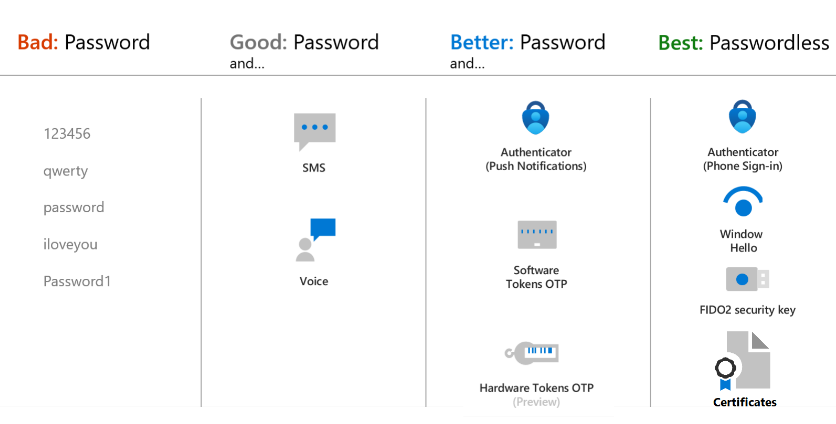
Microsoft Entra Multi-Factor Authentication is a robust security solution designed to enhance the authentication process and safeguard against unauthorized access to critical resources in the Microsoft Azure cloud ecosystem. This essential tool requires users to provide two or more forms of verification before granting access, significantly strengthening the security posture of organizations. Azure AD MFA adds an extra layer of protection against identity theft, phishing attacks, and other malicious activities by combining the following MFA approach:
Knowledge -what you know (security challenge questions or pin)
Inherence– what you are (Biometrics, fingerprint, voice, Retina)
Possession– what you have (Fido Key, Badge, Authenticator app, Token)
MFA should be the bare minimum when it comes to securing company data and mitigating attack vectors. Even if the users password is compromised, the seconproxyd method must also be met in order to access the resources. This guide will explore and implement a MFA in our tenant to secure our user’s accounts from unauthorized access.
Goal: Enable MFA in Entra tenant with passwordless sign in using Microsoft Authenticator. Enforce MFA using conditional access policy. Also configure optional setup like registration campaigns and combined registration to encourage users to register for MFA. *The guide will not be using legacy MFA policy as it will be deprecated on 2025.
Prerequisites:
- If company is hybrid, configure Azure AD connect and sync the users to Azure space.
- Entra/Azure ID P1 or P2 with E3 or E5 user license in order to take advantage of conditional access policy. Other subscriptions offers some form of MFA and that is fine. This lab will show case use of MFA plus CA policy.
- Disable security defaults
- Customize Multifactor Authentication
- Set Authentication Methods
- Configure Identity protection
- Configure legacy MFA
- Enable Password Reset/Combined Registration
- Create conditional access policy
- Enable phone sign in
Disable security defaults
Microsoft deploys a preconfigured security baseline onto your tenant with the following list of basic control:
- Requiring all users to register for multifactor authentication.
- Requiring administrators to do multifactor authentication.
- Requiring users to do multifactor authentication when necessary.
- Blocking legacy authentication protocols.
- Protecting privileged activities like access to the Azure portal.
This represents the absolute minimum requirement, and I strongly recommend disabling it specifically for this guide, as we will be focusing on implementing conditional access policies. Conditional access policies provide an elevated level of precise control for tenant administration. This guide will define security configurations customized to meet the organization’s specific needs, rather than following Microsoft’s default template.
To disable security default:

Sign in to the Microsoft Entra admin center as a Global Administrator.
• Browse to Identity > Overview > Properties.
• Select Manage security defaults.
• Set Security defaults to disable.
• Select Save.
Verify:

Multifactor Authentication
Configure the following MFA settings for this lab:
Navigate to Entra ID portal– https://entra.microsoft.com/#home
Navigate to protection > Multifactor Authentication. (Or search for it in search bar)
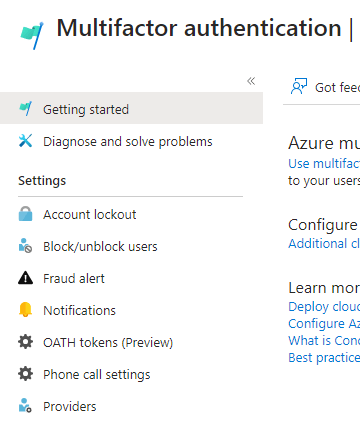
Account lockout: *skip*
Temporarily lock accounts from using Microsoft Entra multifactor authentication if there are too many denied authentication attempts in a row. This feature applies only to users who use MFA Server to enter a PIN to authenticate. *We will skip this since there is no MFA server for our environment and Microsoft stopped deployment of these servers in 2019.
Block/Unblock users:
Block specific users from being able to receive Microsoft Entra multifactor authentication requests. Any authentication attempts for blocked users are automatically denied. Users remain blocked for 90 days from the time that they’re blocked or until they’re manually unblocked.
Add users here if they lost their phone or their activity appears suspicious.
Fraud Alert:
Toggle to enable notification if user reports getting a mfa verification that wasn’t not initiate.
Administrators can use risk-based policies to limit access for these users, or enable self-service password reset (SSPR) for users to remediate problems on their own.
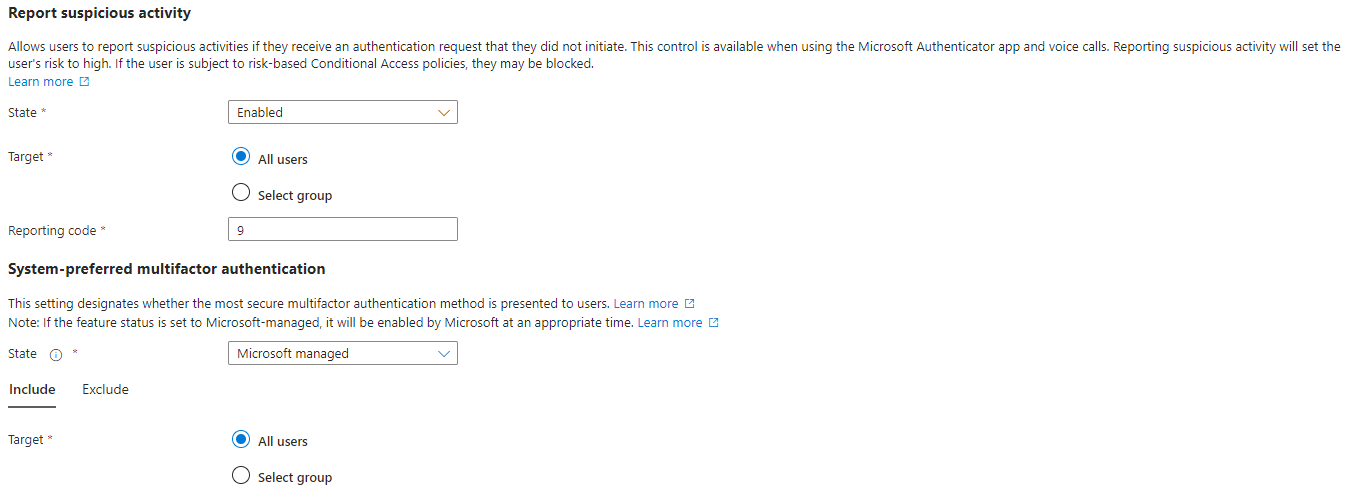
To set up Fraud alert for user, report suspicious activity must be enabled and fraud alert must be enabled.
1. Enable Suspicious Activity:
- Navigate to Entra ID portal > Protection > Authentication methods > Settings
- Enable for all users
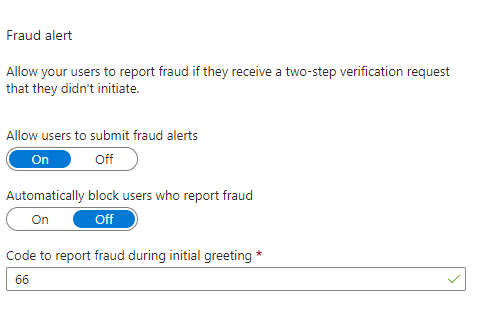
2. Enable Fraud Alert
- Toggle on to allow users to submit fraud alerts
- Toggle off to block users who report fraud. (Conditional access policy can block high risk users instead)
When a user reports a MFA prompt as suspicious, the event shows up in the Sign-ins report (as a sign-in that was rejected by the user), in the Audit logs, and in the Risk detections report. Review the logs:
- Risk detections report, select Microsoft Entra ID > Security > Identity Protection > Risk detection. The risk event is part of the standard Risk Detections report, and will appear as Detection Type User Reported Suspicious Activity, Risk level High, Source End user reported.
- Fraud reports in the Sign-ins report, select Microsoft Entra ID > Sign-in logs > Authentication Details. The fraud report is part of the standard Microsoft Entra Sign-ins report and appears in the Result Detail as MFA denied, Fraud Code Entered.
- Fraud reports in the Audit logs, select Microsoft Entra ID > Audit logs. The fraud report appears under Activity type Fraud reported – user is blocked for MFA or Fraud reported – no action taken based on the tenant-level settings for fraud report.
Notifications:
Enter IT Admin email in this section. When users report fraud alerts, these notifications are typically sent to identity administrators, because the user’s account credentials are likely compromised.
Oath Token: *skip*
Microsoft Entra ID supports the use of OATH TOTP SHA-1 tokens that refresh codes every 30 or 60 seconds. You can purchase these tokens from the vendor of your choice.
Configure if company uses hardware token key like SafeID. Upload the following to Azure’s Oath token section [Include the UPN, serial number, secret key, time interval, manufacturer, and model]. Once the information is uploaded, activate the token.
This method pushes OTP onto that hardware device, which users can then use as a second factor replacing Microsoft authenticator. We will skip this as Microsoft authenticator will suffice as our TOTP provider.
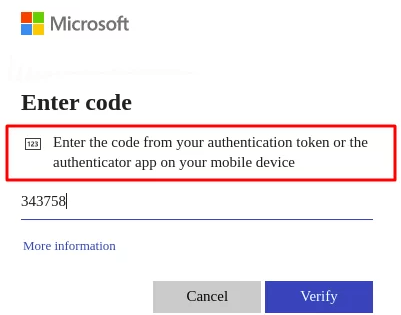
Phone call settings: *skip*
If users receive phone calls for MFA prompts, you can configure their experience, such as caller ID or the voice greeting they hear and number of allowed pins per call.
This lab will not utilize voice call as second factor so this can be skipped.
Providers: *skip*
This will show any existing authentication providers that you’ve associated with your account. Adding new providers is disabled as of September 1, 2018.
*Manage authentication server settings can be skipped as we do not use it.
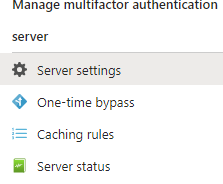
Authentication Methods
Navigate to Entra ID > Identity > protection > Authentication Method
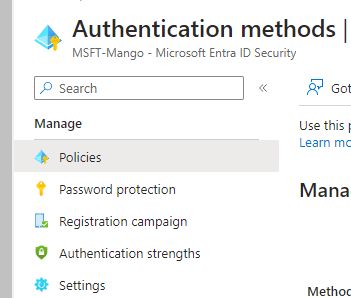
Policies:
Authentication method policies dictates which method is allowed for users/groups. We will only be using Microsoft Authenticator (Passwordless) and TAP for authentication method in the lab. Email OTP is enabled only for self password reset, which will get configured in this guide.
A) FIDO2 security key– Fast Identity online keys provides anti phishing password-less authentication, strongest type of authentication that can be used. Physical device purchased from third party vendor, users insert the usb key or use NFC in order to authenticate and sign in. There is no usage of password for this method. (Not for self service password reset)
B) Microsoft Authenticator– The Microsoft authenticator app that offers strong security with authenticating users with a physical device. Very flexible in terms of policies and configuration. It can be combined with password + push notification or use as passwordless authentication method. (works with self password reset)
Authentication method:
Any – Utilize both push and passwordless notification. Force a specific authentication such as push or passwordless via conditional access policy.
Push notification – this method requires users to input password, input the correct number from the app, then they will need to approve or deny the login process by tapping a button on their phone.
*sign-ins from unfamiliar locations no longer generate notifications.
*Microsoft made the change to enable number matching for all push notification in May 8th, 2023 to prevent MFA fatigue.
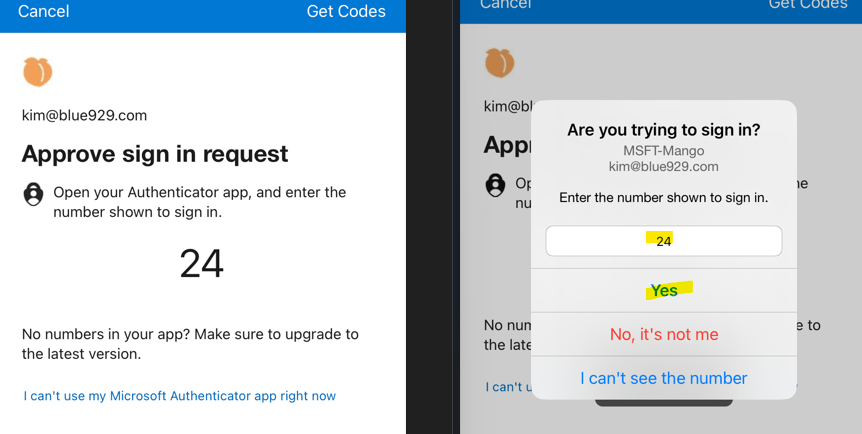
Passwordless notification –
Microsoft Authenticator uses key-based authentication to enable a user credential that is tied to a device, where the device uses a PIN or biometric which makes passwordless authentication possible.
User does not need to input ANY password, they only need to enter their username then proceed with number matching to sign in.
*For Android, the device that runs Microsoft Authenticator must be registered to an individual user. It does not support multiple accounts with different tenants.
*For iOS, supports multiple accounts under Microsoft Authenticator, the device must be registered with each tenant where it’s used to sign in. For example, the following device must be registered with Contoso and Wingtiptoys to allow all accounts to sign into contoso.com and @wingtiptoys.com.
Configure additional settings for passwordless authentication:
Require number matching for push notification – enabled for all users by default
Show application name in push and passwordless notifications – microsoft managed (let microsoft manage whether the feature is enables or not)
Show geographic location in push and passwordless notifications – microsoft managed
Microsoft Authenticator on companion applications – microsoft managed
C) SMS– Delivers a OTP text message to users device that’s valid for 3 minutes. User then inputs code in order to sign in. Weakest form of authentication out there as it opens up SIM swap, SMS intercept attacks and phone carrier as attack vector. SMS messages are also not encrypted.
OTP is not guarantee as this depends on signal strength on phone, limited volume of sms texts, blocked calls on phone, different number when international. (works with self password reset)
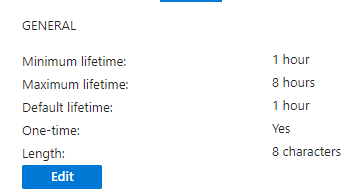
D) Temporary Access Pass-
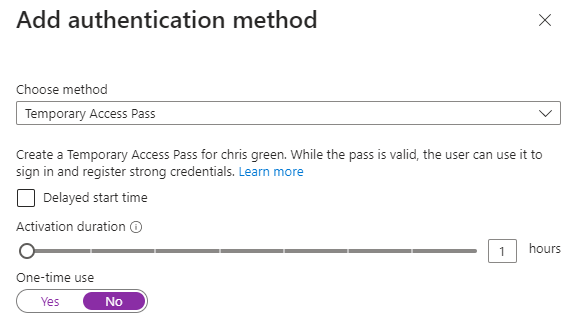
Temporary Access Pass, or TAP, is a time-limited or limited-use passcode that can be used by users for one time use of setting up newly enrolled devices, account recovery, or when other authentication methods are unavailable like a lost phone. TAP will satisfy MFA if its set to allow when using a custom authentication strength.
When it comes to new account setup, TAP is used to onboard other authentication methods including passwordless methods such as Microsoft Authenticator, FIDO2 or Windows Hello for Business
TAP is issuable only by administrators. (Not for Self Service Password Reset)
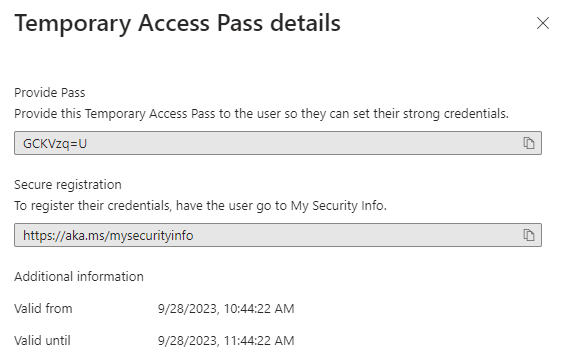
*User have 10 minute window to sign in with TAP and set up second factor.
*Assign TAP to user by going to user > authentication method > add authentication method > select TAP. If “Add authentication method” is not present, go to users from Azure AD and not Entra
E) Hardware Oath token-
Hardware OATH tokens are physical devices that use the OATH TOTP standard and a secret key to generate 6-digit codes used to authenticate. This policy control specifically manages the ability to register and use third party vendor Hardware OATH tokens. (Not for Self Service Password Reset)
F) Third-party software OATH tokens-
Software OATH tokens are applications that use the OATH TOTP standard and a secret key to generate 6-digit codes used to authenticate. This policy control specifically manages the ability to register and use non-Microsoft software OATH token. (Not for Self Service Password Reset)
G) Voice call-
Requires user to input the code that comes through from a voice call. Insecure and weakest form of authentication. (works with self password reset)
H) Email OTP-
Email OTP sends a code to a user’s email account which is then used to authenticate ONLY for Self-Service Password Recovery. Enable this if self password reset will get configured.
It may also be configured to be used for sign-in by guest user. (works with self password reset)
I) Certificate-based authentication-
Certificate-based authentication is a passwordless, phising-resistant authentication method that uses x.509 certificates and an enterprise public key infrastructure (PKI) for authentication. Strongest type of authentication. (Not for Self Service Password Reset)
Password Protection:
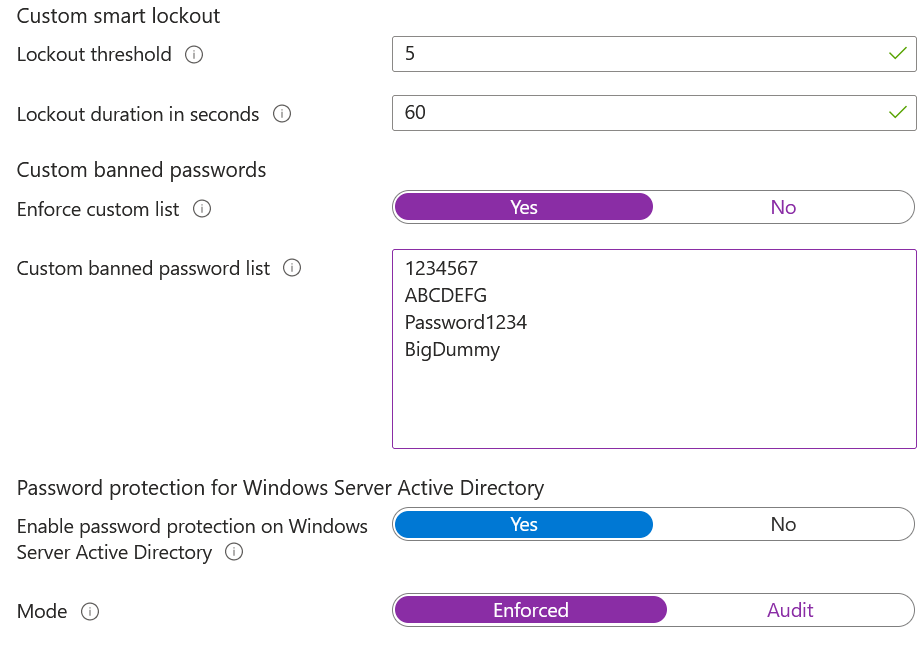
Configure failed login threshold before the user is locked. The settings will lock users for 60 seconds after 5 failed attempts to prevent brute force or password spray. Entra ID has a global list of weak passwords that’s banned by default and the list is not public. However, it is recommended to create a custom password list relating to company to limit the usage of weak passwords.
For hybrid environment, the password protection policy can integrate with on premise AD DS by installing two agents for password protection to prevent setting up weak passwords on premise. One agent on the domain controller and proxy agent on a separate server. The DC agent filters out weak passwords while the proxy agent retrieve password ban list from Entra.
Registration campaign:
Start a campaign to encourage user to protect their accounts with a second factor method after a successful login. Highly recommend to set this up if users are not using Microsoft authenticator yet.
You can also define how many days a user can postpone, or “snooze,” the nudge. If a user taps Skip for now to postpone the app setup, they get nudged again on the next MFA attempt after the snooze duration has elapsed.
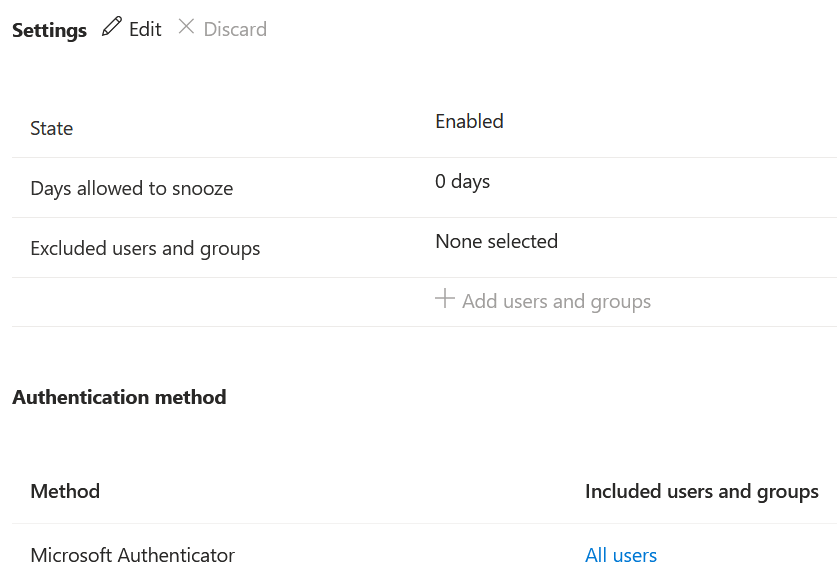
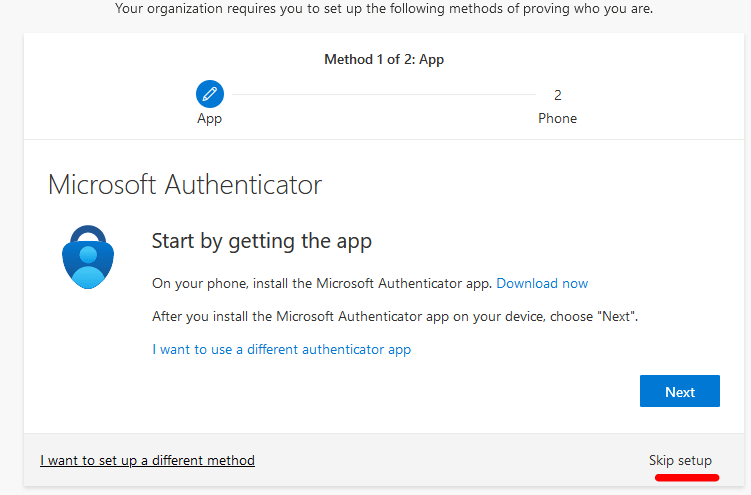
The user will see this prompt to setup authenticator app:
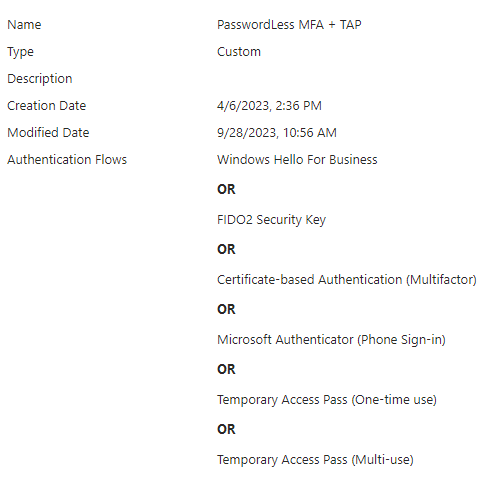
Authentication strength:
Customize and enforce the method that users can login in with. Authentication strength is used in conditional access policy to have a selective approach of authentication. Depending on preference, Admins can either set it to only one method where its only passwordless authentication or allow users to authenticate with numerous weaker methods like SMS.
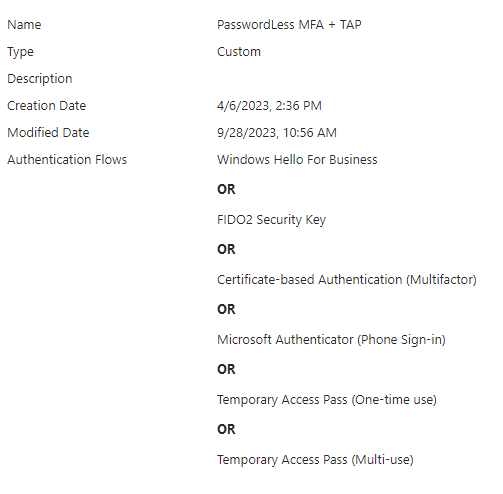
The Built-in Passwordless MFA authentication strength does not suffice in this lab as TAP (Temporary Access Pass) is enabled for all users. A new custom strength must be created to include TAP.
Settings:
Enable- Allows users to report suspicious activities if they receive an authentication request that they did not initiate. This control is available when using the Microsoft Authenticator app and voice calls.
Reporting suspicious activity will set the user’s risk to high. If the user is subject to risk-based Conditional Access policies, they may be blocked.
Enable- System-preferred multifactor authentication (MFA) prompts users to sign in by using the most secure method they registered. Administrators can enable system-preferred MFA to improve sign-in security and discourage less secure sign-in methods like SMS. If SMS and authenticator app is registered for user sign in, the authenticator app will take priority as second factor.
Identity protection
Entra ID > Protection > Identity protection > Multi factor authentication registration policy.
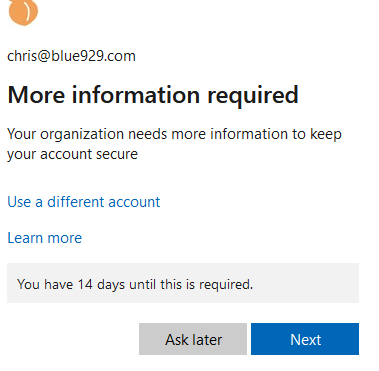
Microsoft Entra ID Protection will prompt your users to register the next time they sign in interactively and they’ll have 14 days to complete registration. During this 14-day period, they can bypass registration if MFA isn’t required as a condition, but at the end of the period they’ll be required to register before they can complete the sign-in process.
This approach is more aggressive then a registration campaign as it gives a deadline to register second factor. Target a test group of high risk users before rolling out to all users.
Policy enforcement- user is required to register immediately upon attempting to log in. (Adjust base on organization policy)
*User and sign in risk policy should be configured as conditional access policies
Configure legacy MFA
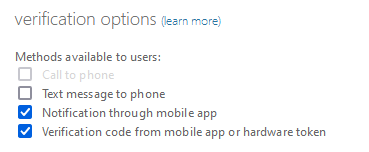
Disable voice/SMS verification in this lab as we will only use mobile app for authentication. Make sure to skip MFA in trusted location is enabled.
Entra Portal > Identity > users > all users > Per-use MFA> service setting > disable text message to phone.
Password Reset/Combined Registration
Once the policies enabling MFA are enforced, users themselves need clear instructions or prompts to install the authenticator app and establish methods for resetting their own passwords. This is where combined registration becomes invaluable, simplifying the process for remote workers to bolster their account security. Conditional access can also prevent registration from external company networks if configured as such.
While self-password reset may seem less significant in smaller organizations, it can significantly reduce the volume of helpdesk tickets and calls in larger user environments. There are various verification methods for password resets, including challenge questions, email, SMS, and the authenticator app. Employing this approach also mitigates social engineering attacks on internal/external helpdesk.
**Note the verification methods for password reset (SMS/Email/questions) CANNOT be used for sign in MFA. Only authentication method policies, authentication strength and conditional access dictates what users can use as second factor when authenticating.
Navigate to Entra ID > Identity > protection > password reset
Properties: enabled for all
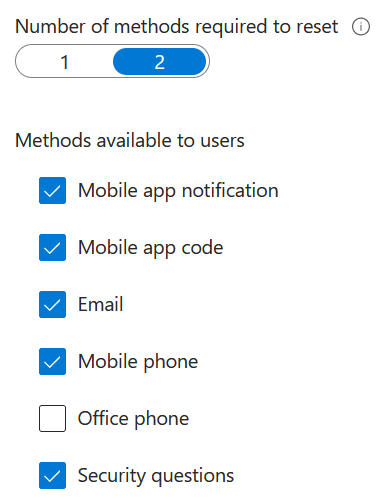
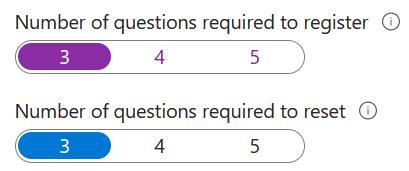
Number of methods required to reset: Recommend at least 2 methods and security questions for users. Select from predefined questions or create custom questions
Registration:
Require user to register when they sign in – Yes. Registration kicks in whenever a user try to sign in using their account from:
- Microsoft 365
- Microsoft Entra admin center
- Access Panel
- Federated applications
- Custom applications using Microsoft Entra ID
Notifications:
Notify users on password resets- Yes
Notify all admins when other admins reset their password- Yes
On premise integration- for hybrid environment, if password writeback is enable on AD connect tool for on-premise server, password resets for users will get synced from azure to on premise.
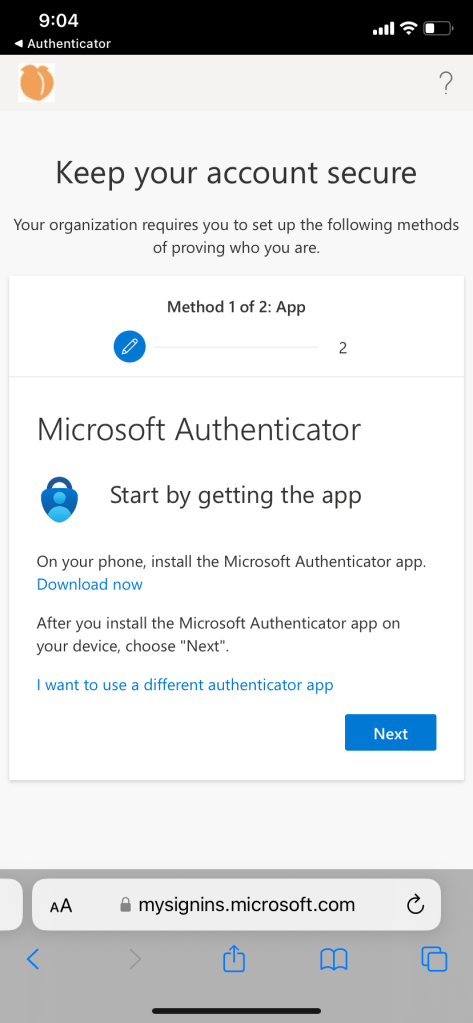
User experience if authenticator and password recovery method is not set up:
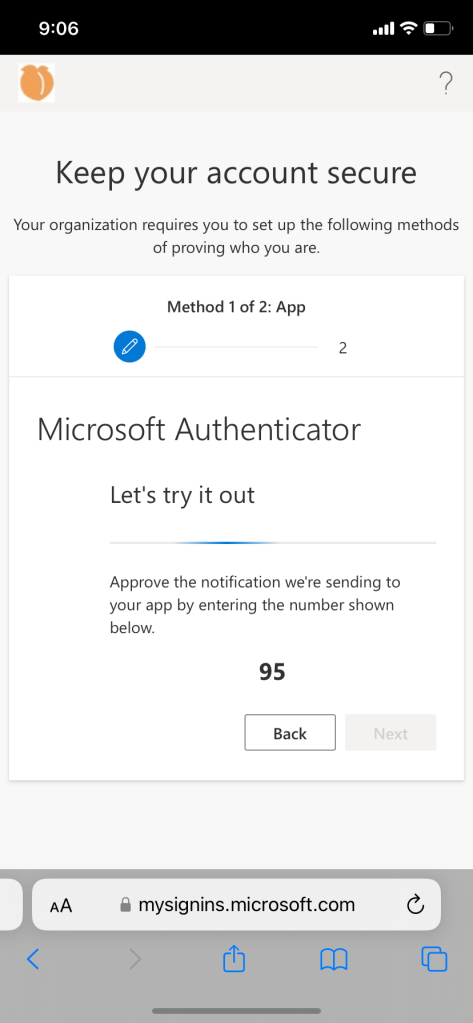
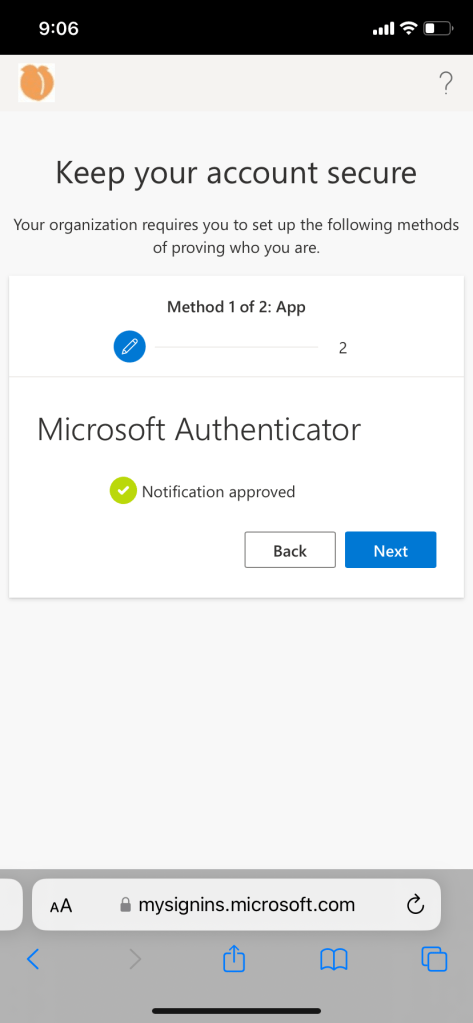
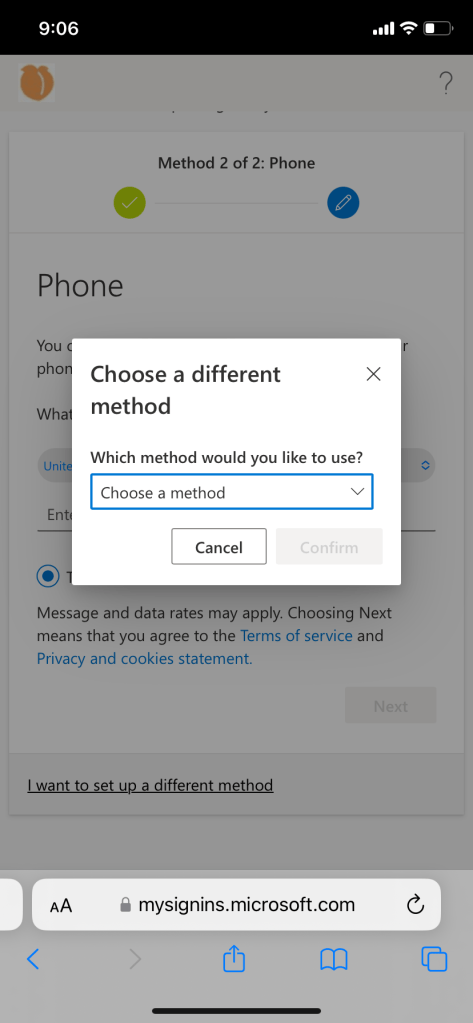
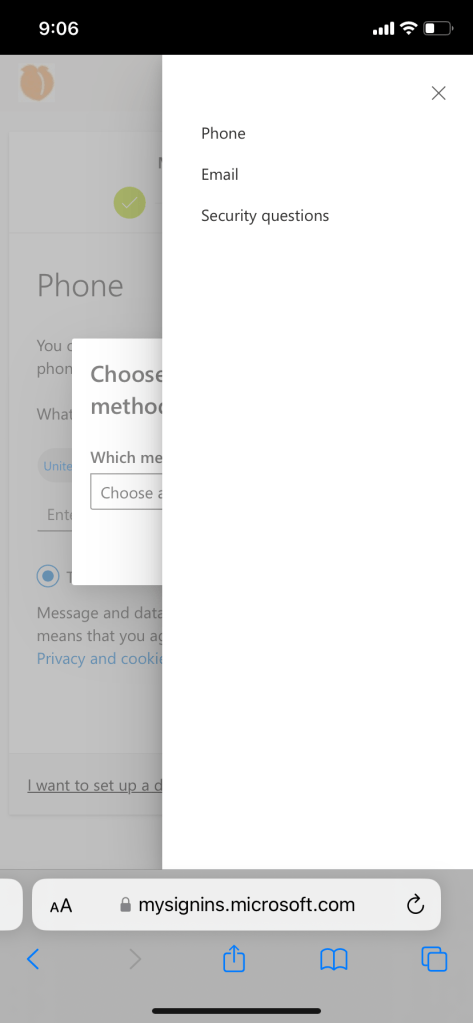
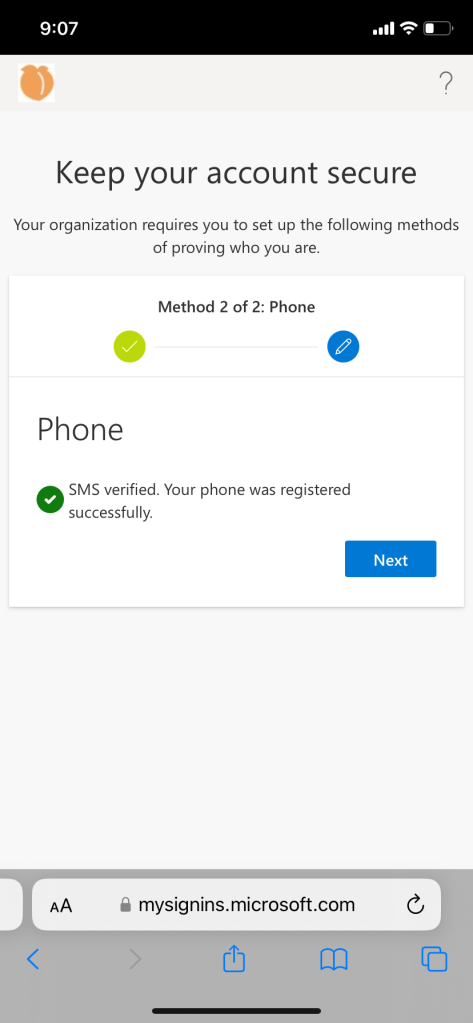
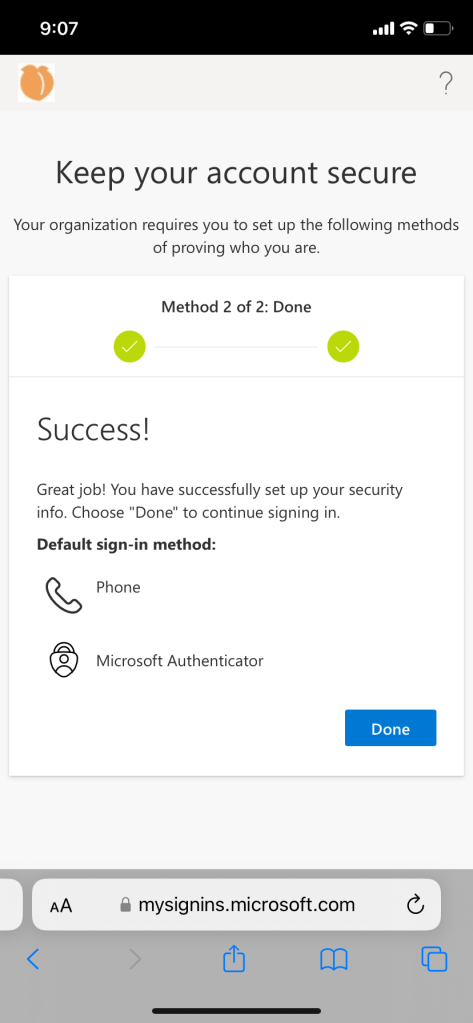
Conditional access policy
Once the users/groups are permitted to authenticate with the authenticator app with push or passwordless method, it is time to enforce those authentication methods on various company resources.
A conditional access policy must be configured to allow user access to office 365 based on certain criteria’s.
To set a conditional access policy, go to Entra ID > Protection > Conditional access > policies.
Go to named locations and make sure company public IP are listed as trusted locations. Also click on configure multifactor authentication trusted IPs to skip MFA on corporate network.
Example: require passwordless MFA method to access office 365 apps outside of the corporate network. If user tries to access a resource, they only have to authenticate through the app. No password input required. Full list of apps targets for Office 365- https://learn.microsoft.com/en-us/azure/active-directory/conditional-access/reference-office-365-application-contents
Title: Passwordless-MFA-iOS/Android_COBO-Target office 365 apps

Assignments:
Users:
Include: iOS_COBO_Assigned, Android_COBO_Assigned

Target resources:
Include: office 365 apps

Conditions:
Device Platforms: iOS, Android
Location: Exclude All trusted location

Access control:
Grant: Requires authentication strength - Passwordless MFA + TAP
Optional: second policy to control sign in frequency and browser session. Optimize reauthentication prompts- strike a balance between users having to reauthenticate too often to avoid mistakes of inputting credentials everywhere they go
Title: Session control- iOS/Android BYOD-COBO

Assignments:
Users:
Include: iOS_COBO_Assigned, Android_COBO_Assigned, iOS_BYOD_Assigned, Android_BYOD_Assigned

Target resources:
Include: All cloud apps

Conditions:
Device Platforms: iOS, Android
Location: Exclude All trusted location

Access control:
Session: Sign in frequency- periodic authentication - 90 days
Persistent browser session - always persistent
Sign-in frequency allows the administrator to choose sign-in frequency that applies for both first and second factor in both client and browser- for critical business applications. -adjusted for shorter period to reauthenticate for critical apps
The sign-in frequency setting works with apps that have implemented OAuth2 or OIDC protocols according to the standards. Most Microsoft native apps for Windows, Mac, and Mobile including the following web applications comply with the setting.
- Word, Excel, PowerPoint Online
- OneNote Online
- Office.com
- Microsoft 365 Admin portal
- Exchange Online
- SharePoint and OneDrive
- Teams web client
- Dynamics CRM Online
- Azure portal
Persistent browser session -If you use the Remain signed-in? option, I recommend you enable the Persistent browser session policy instead, this allow users to stay signed in for longer period of time. It allows users to stay signed in even after closing and reopening their browser. This policy is useful when applied to workstations/mobile.
Phone Sign-in
Enable phone sign-in in order to activate passwordless sign in for user.
After users registered themselves for the Microsoft Authenticator app, they need to enable phone sign-in:

1. In Microsoft Authenticator, select the account registered.
2. Select Enable phone sign-in.
3. Follow the instructions in the app to finish registering the account for passwordless phone sign-in
4. Once phone sign in is complete, there should be an option- disable phone sign in. This means it is enable.

**If there is no option to enable phone sign-in, remove the account and re-add it. If you encounter issues trying to register the device, close all tabs and clear cache from the browsers
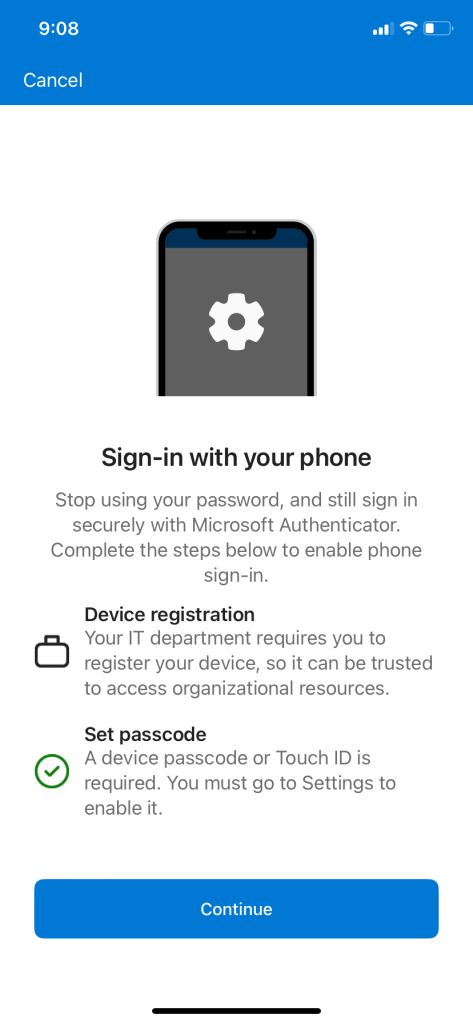
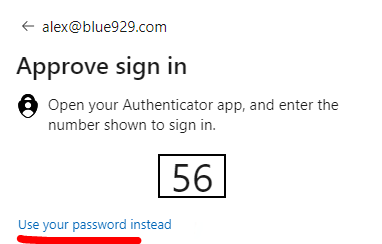
Users will encounter this prompt if phone sign in is not enabled
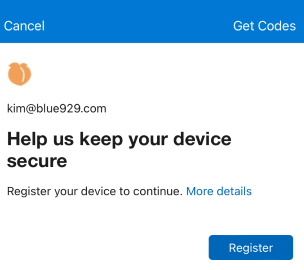
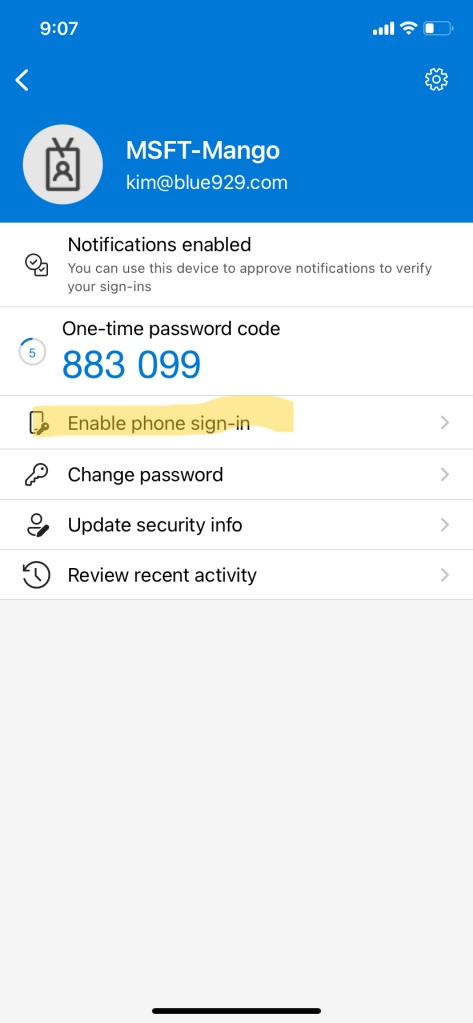
Activate phone sign-in without a password:
Users can register for passwordless phone sign-in directly within the Microsoft Authenticator app without the need to first registering Microsoft Authenticator with their account, all while never accruing a password. Here's how:

1. Acquire a Temporary Access Pass from your Admin or Organization.
2. Download and install the Microsoft Authenticator app on your mobile device.
3. Open Microsoft Authenticator and click Add account and then choose Work or school account.
4. Choose Sign in.
5. Follow the instructions to sign-in with your account using the Temporary Access Pass provided by your Admin or Organization.
6. Once signed-in, continue following the additional steps to set up phone sign-in.
Test MFA registration and authentication method
Once phone sign-in is enabled for user under Microsoft authenticator app, test it out by trying to access office 365 portal on a browser or app
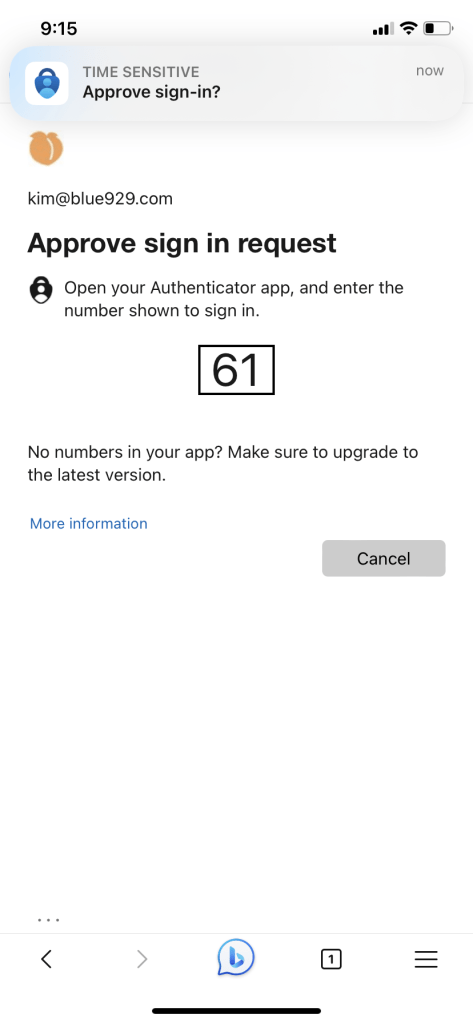
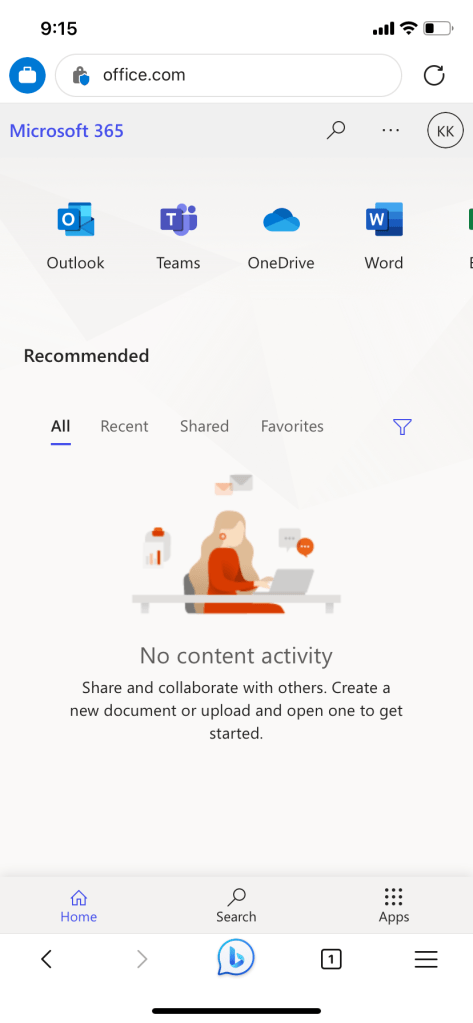
Verify: Conditional access > sign in logs
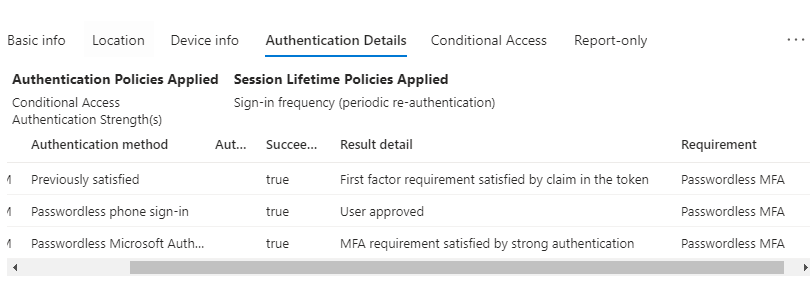
If there is NO MFA POLICY IN PLACE user have both the option to sign in using APP or PASSWORD, they both satisfy single factor authentication.
Tip & Troubleshooting
If CA policy targets all cloud apps, there may be issues of re-adding users account to Microsoft authenticator app since it also targets the azure directory home page. User may experience a loop where they get to the end and cannot reach their security info page (aka.ms/mysecurityinfo) without logging in with passwordless authentication. User may see the prompt below (1)
If user try to enable phone sign-in but keeps getting redirected to the prompt below(1), try to close all tabs and clear cache from the browser that it is opening from.
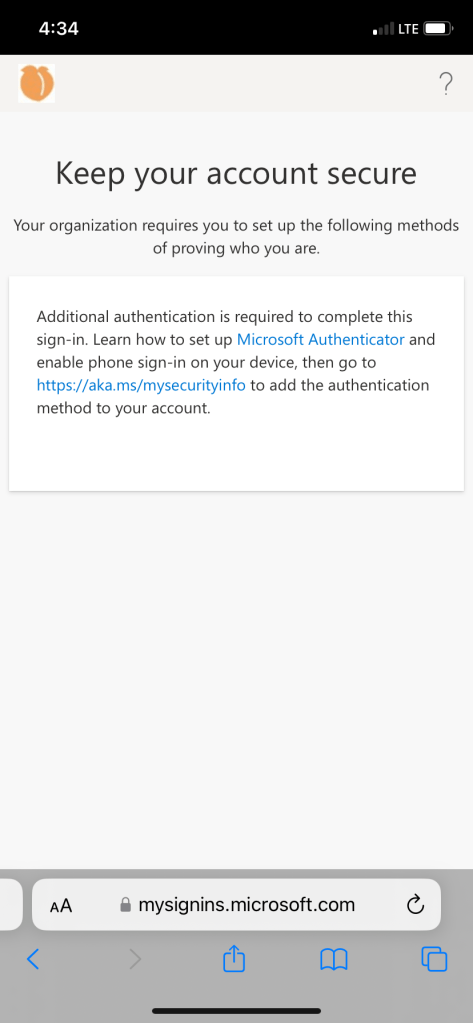
If you have trouble signing into apps after phone sign in is enabled, try to authenticate to company portal first.
If selecting the account on the app does not show any option, navigate back to any office 365 app, sign out and sign back in. Follow the steps and re register the device on securityinfo page. Then go back to authenticator app, enable phone sign in.
From the app, if there is no mfa prompt, review the setting to turn on notifications.
**To remove a greyed out account on the MS Authenticator app, you must delete the account on the smartphone.
What if user lost their phone?
IT Admin should navigate to users > authentication method > “require re-register multifactor authentication” and revoke mfa sessions to secure the old phone.
In the meantime, there are few things Admin might want to watch for. Assume that when user lost their phone, their account is compromised. In this scenario, verify that TAP (One time and Multi use) is allow to be used if authentication strength is used in Conditional access policy. Admin can exclude the user from any MFA conditional access policies so they can access the resources with password only, but the recommended approach would be to issue a TAP (Temporary Access Pass) that does not expire as another form of authentication method for the user.
Once they have the new device, then the user can set up Microsoft authenticator on it.
** Remember to remove lost devices from the user’s account. This is especially important for devices used for user authentication.
What if user wants to enroll multiple devices?
Multiple device can have Microsoft Authenticator running but only one accounts can authenticate those devices.
Why are my notifications in Authenticator always expired?
Authenticator requires your mobile device clock to accurately report your local time. If your device clock is set to manual, reconfigure your system clock to automatic.
What role do I assign to helpdesk if I want them to reset MFA for regular users?
Provide the authentication Administrator role to reset MFA for regular users.
If you want them to be able to perform actions against users with admin roles, use the Privileged Authentication Administrator role.
Source:
https://support.microsoft.com/en-gb/topic/what-is-multifactor-authentication-e5e39437-121c-be60-d123-eda06bddf661
https://aws.amazon.com/what-is/mfa/
https://learn.microsoft.com/en-us/azure/active-directory/authentication/howto-mfa-getstarted
https://learn.microsoft.com/en-us/azure/active-directory/authentication/howto-mfa-mfasettings#account-lockout-mfa-server-only
https://learn.microsoft.com/en-us/azure/active-directory/authentication/concept-authentication-methods-manage
https://azvise.com/2023/02/21/temporary-access-pass-sign-in-was-blocked-due-to-user-credential-policy/
https://learn.microsoft.com/en-us/azure/active-directory/identity-protection/howto-identity-protection-configure-mfa-policy
https://learn.microsoft.com/en-us/azure/active-directory/authentication/concept-password-ban-bad-on-premises
https://learn.microsoft.com/en-us/azure/active-directory/authentication/tutorial-enable-azure-mfa
https://learn.microsoft.com/en-us/azure/active-directory/authentication/concepts-azure-multi-factor-authentication-prompts-session-lifetime
https://support.microsoft.com/en-us/account-billing/common-questions-about-the-microsoft-authenticator-app-12d283d1-bcef-4875-9ae5-ac360e2945dd
https://community.spiceworks.com/topic/2294301-admin-role-for-managing-azure-multi-factor-authentication
https://www.itpromentor.com/mfa-all-the-way/
 Steven’s Knowledge Base