
Microsoft Entra Self Service Password Reset allows Azure AD users to reset their own passwords without contacting IT support, increasing productivity and reducing the burden on IT staff. Multiple verification methods, such as challenge questions, email, SMS, and the authenticator app are used to help protect against social engineering attacks. This is especially important for outsourced helpdesks, which may not be able to recognize users’ voices or know the company’s users as well as an internal helpdesk. This guide will enable SSPR for both cloud and on-premises hybrid environments.
Goal: Set up SSPR with on-premises integration allowing users to password reset their account and unlock their account for hybrid environment.
Prerequisites
- License
- Enable and customize password reset
- Enable On-premises integration
- Configure permission on service account for AD/Entra Connect
- Configure group policy
- Configure Password writeback on AD connect
- Enable password writeback for SSPR
License
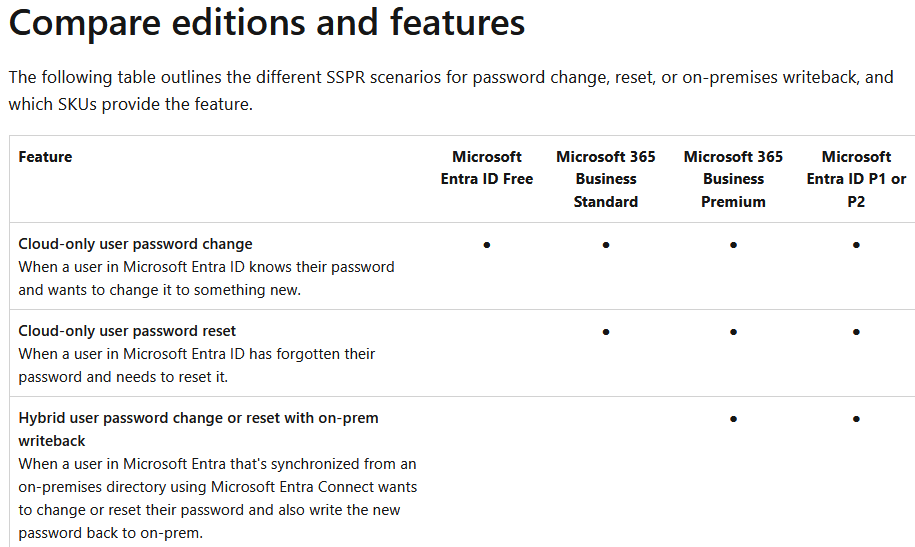
Enable and Customize Password Reset
Navigate to Entra ID > Identity > protection > password reset
Properties: enabled for all
Number of methods required to reset: Recommend at least 2 methods and security questions for users. Select from predefined questions or create custom questions.
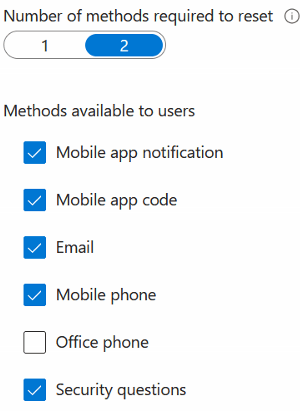

Registration:
Require user to register when they sign in – Yes.
Combined registration is a useful tool to have enabled with MFA. The verification methods that users register for will be the same methods used for password resets, unless specified in an authentication method policy. This means that these methods are not used as a second factor for logins, but only to verify password resets.
*MFA are enabled and enforce via authentication method policies and conditional access*
When users log into any of the following portal, registration kicks in:

○ Microsoft 365
○ Microsoft Entra admin center
○ Access Panel
○ Federated applications
○ Custom applications using Microsoft Entra ID
Registration user experience:
Requiring first method – user must install and set up Microsoft authenticator
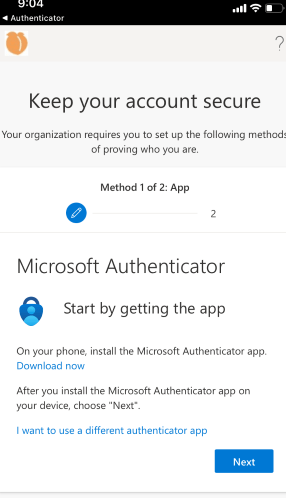
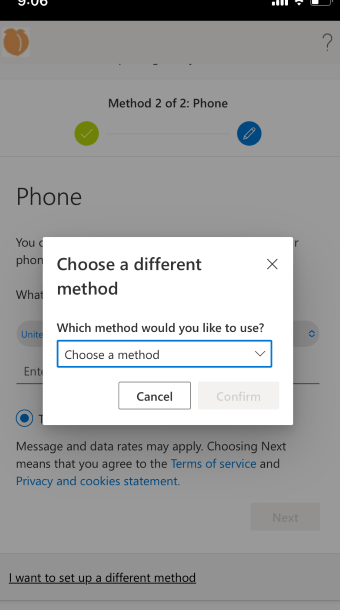
Requires Second method – user can select SMS, Email, or security challenge questions. If SMS was already submitted, user can choose to add additional verification like email or challenge questions under My Sign-Ins | Security Info | Microsoft.com. In total, user can acquire all methods use to verify their account (Email/SMS/Questions).

Notifications:
Notify users on password resets- Yes
Notify all admins when other admins reset their password- Yes
On premise integration- for hybrid environment, if password writeback is enable on AD connect tool for on-premises server, password resets for users will get synced from azure to on premise.
On premise integration
If the environment is hybrid, proceed with the following steps. If user accounts are created in Azure/Entra, then skip this part.
1) Configure permission on service account for AD/Entra Connect
To view which account needs the right permissions.
Go to AD connect- View current configuration option. The account that you need to add permissions to is listed under Synchronized Directories. The following permissions and options must be set on the account:

Navigate to AD Administrative Center > global search > type in “MSOL” > properties > scroll all the way down to extensions > security > click advanced > add > principal > type in the MSOL account.
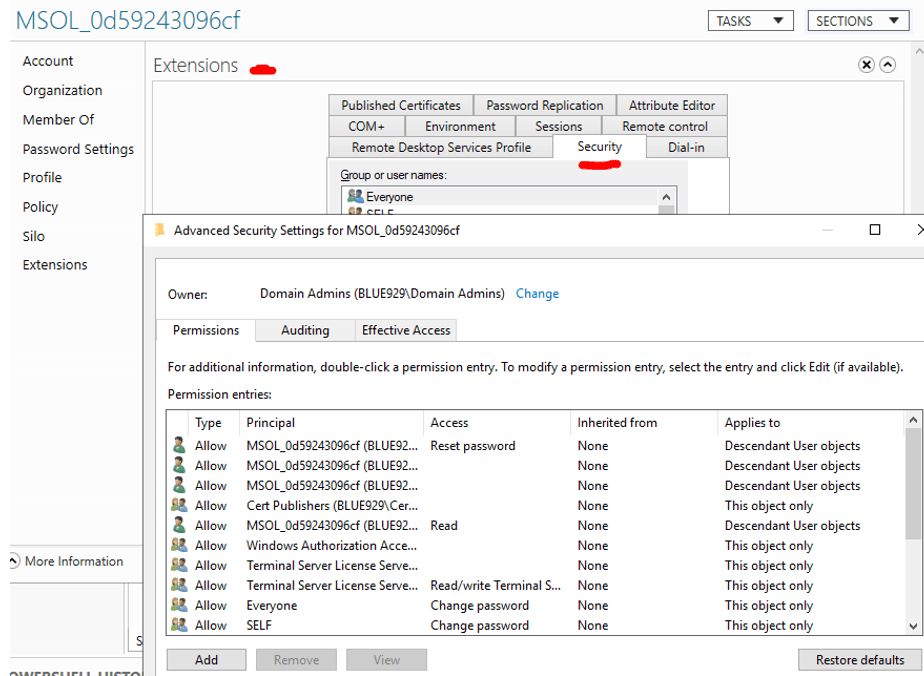
Proceed to add the following permissions for AD Connect service account:
Descendant user objects
Permissions: Reset password, Change password
Properties: Write lockoutTime, Write pwdLastSet

This object and all descendant objects
Extended rights for "Unexpire Password" on the root object of each domain in that forest, if not already set. (If unexpire password option is not present- skip it)

Verify:

2) Configure group policy
Password policies in the on-premises AD DS environment may prevent password resets from being correctly processed. For password writeback to work most efficiently, the group policy for Minimum password age must be set to 0. (Allow users to immediately change password without limits if value is 0.
If value is greater than 0 (days), it prevents user from cycling through old passwords. A value of 5 means password can only be changed after 5 days.)
This setting can be found under Computer Configuration > Policies > Windows Settings > Security Settings > Account Policies > password policy within group policy.

3) Configure Password writeback (Sync password from cloud to on premise)
- Sign in to your Microsoft Entra Connect server and start the Microsoft Entra Connect configuration wizard.
- On the Welcome page, select Configure.
- On the Additional tasks page, select Customize synchronization options, and then select Next.
- On the Connect to Microsoft Entra ID page, enter a Global Administrator credential for your Azure tenant, and then select Next.
- On the Connect directories and Domain/OU filtering pages, select Next.
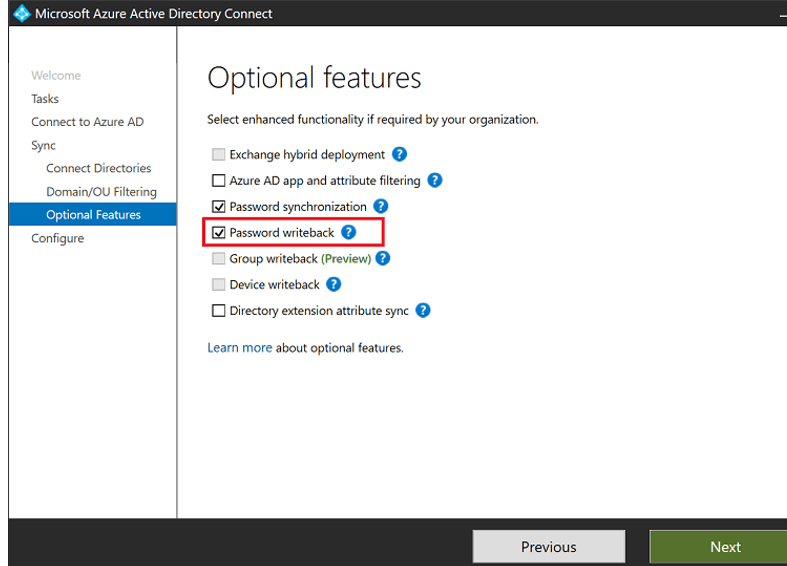
- On the Optional features page, select the box next to Password writeback and select Next.
- On the Directory extensions page, select Next.
- On the Ready to configure page, select Configure and wait for the process to finish.
- When you see the configuration finish, select Exit.
4) Enable password writeback for SSPR
Once password writeback is enable on AD connect application, the option to allow users to unlock and enable password write back for synced user should appear in Azure.
- Sign in to the Microsoft Entra admin center as Global Administrator.
- Browse to Protection > Password reset, then choose On-premises integration.
- Check the option for Write back passwords to your on-premises directory .
- (optional) If Microsoft Entra Connect provisioning agents are detected, you can additionally check the option for Write back passwords with Microsoft Entra Connect cloud sync.
- Check the option for Allow users to unlock accounts without resetting their password to Yes.
- When ready, select Save.

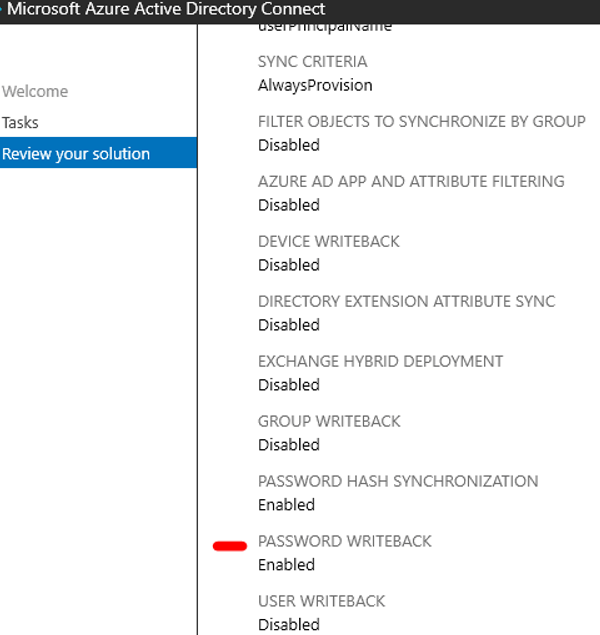
Verify:
AD connect > View current configuration.


User experience – password reset
If SMS was already submitted, user can choose to add additional verification like email or challenge questions under My Sign-Ins | Security Info | Microsoft.com. In total, user can acquire all methods used for verifying their account (Email/SMS/Questions).


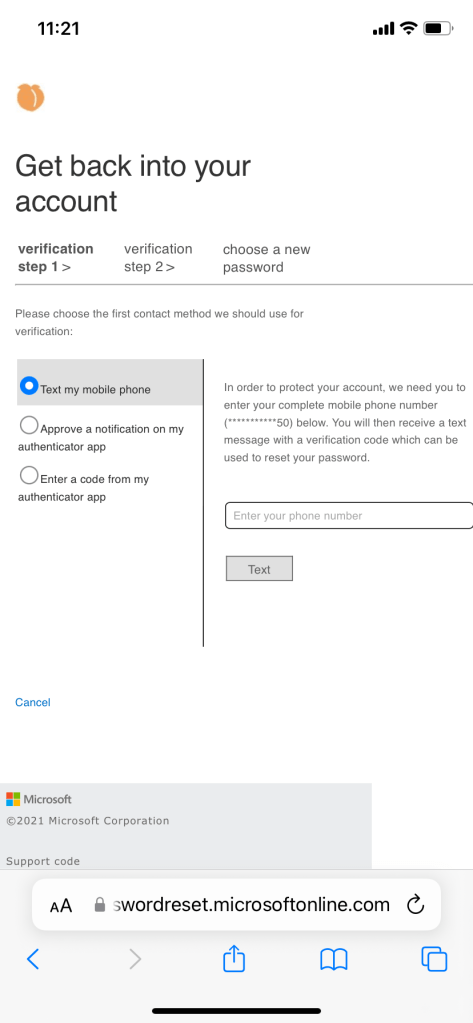


Once the password reset process is finished, user will sign in with new password on premise as well. The changes reflect relatively quick.
Allow users to unlock accounts without resetting their password (*Optional)
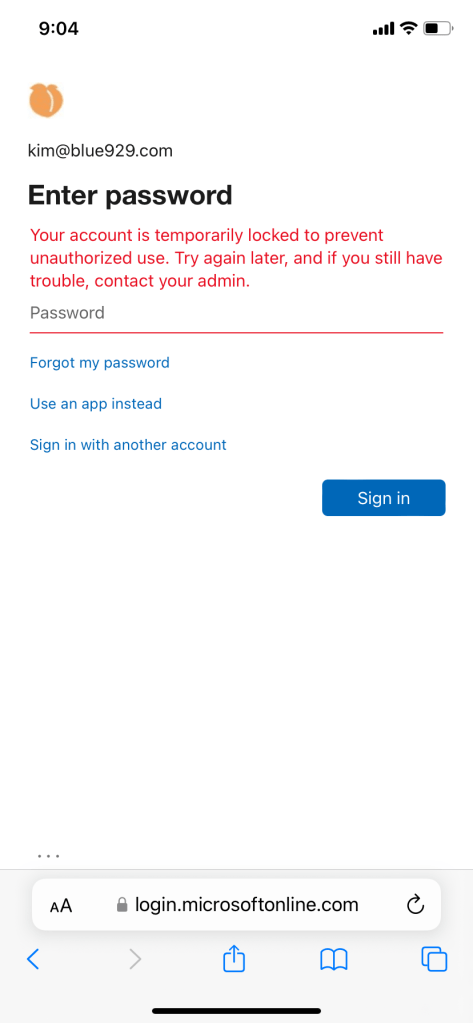
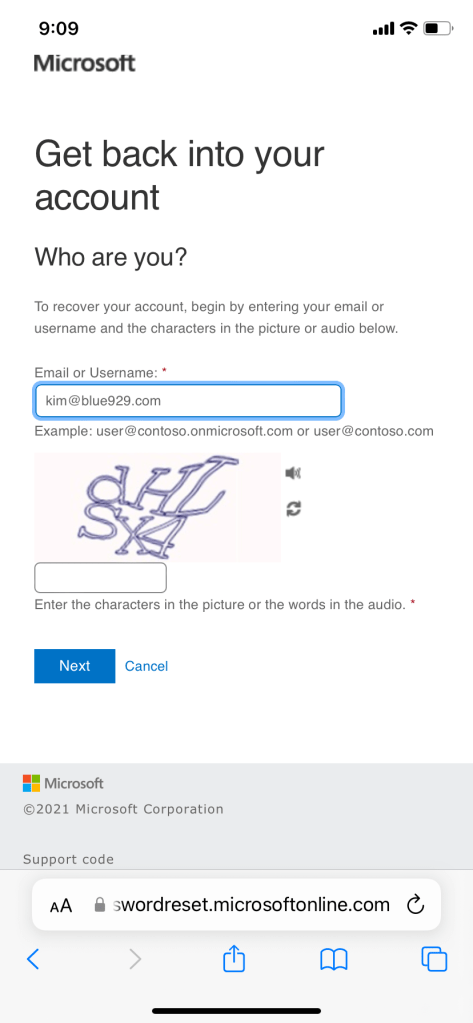
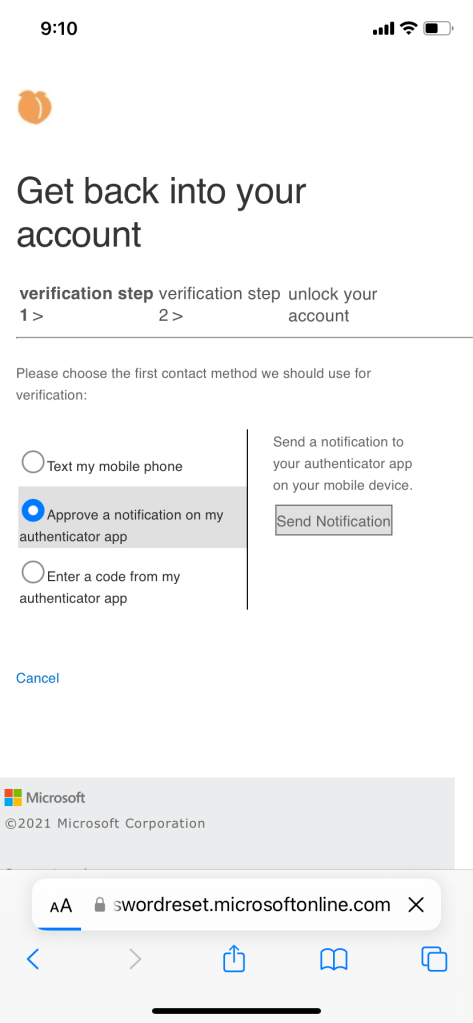
There might come a time where users will decide to use their passwords to log in and they get locked out from too many attempts. Instead of calling the helpdesk, users can unlock their own account. It will require two verification methods -sms and authenticator app.
Once user gets locked out, they must select forgot my password to start the unlock process.


Verify

Source:
https://learn.microsoft.com/en-us/azure/active-directory/authentication/concept-sspr-howitworks
 Steven’s Knowledge Base