
Microsoft Entra Password Protection is a cloud-based service that helps organizations protect passwords from common attacks in both cloud and on-premises environments. It is easy to set up and manage, and it provides the following benefits:
- Improved security posture and reduce risk of data breaches. Entra Password Protection helps to protect passwords from common attacks, such as password spraying and brute-force attacks by:
- Blocking users from setting weak or easily guessed passwords
- Preventing users from reusing old passwords
- Detecting and blocking known compromised passwords
- Enforcing password rotation policies
- Enforce strong password based on length and complexity
- Compliance– Entra Password Protection can help organizations to comply with industry regulations that require strong password policies.
Overall, Entra Password Protection is a valuable tool that can help organizations to improve their security posture and protect their data
Password protection enhances group policy and fine-grain password policies by providing a global banned password list based on Microsoft Entra security telemetry and analysis, as well as a custom password banned list configured by the tenant. This prevents users from setting weak passwords, a major advantage over password policy alone.
Goal: Implement Entra password protection for hybrid environment.
Prerequisites:
- License checklist
- On premise integration- Install Microsoft Entra Password Protection DC agent
- On premise Integration- Install Microsoft Entra Password Protection proxy service
- Entra ID- Enable Password Protection
Overview:

The proxy service running on the server acts as a middleman between the domain controller (DC) and Azure AD. It retrieves custom banned password policies from Azure.
Once the proxy server has the password policy, the password protection DC agent retrieves it from the proxy, storing the policy service stores it in a dedicated folder at the root of its domain SYSVOL folder share This allows the DC to read and reject any banned password from the custom and global lists. The proxy server does not store the password list and never caches it.
How does password protection work?
When a user changes or resets their password, the new password is checked for strength and complexity by validating it against the combined list of terms from the global and custom banned password lists. Even if a user’s password contains a banned password, the password may be accepted if the overall password contains enough unique characters in order be accepted.
Entra ID Password Protection filters out weak passwords through the following methods:
Normalization- When Normalization is applied to a password, it changes the following:
Uppercase to lowercase: Example. P@$$w0rD > p@$$w0rd
Character substitution: Example: P@$$w0rD > password
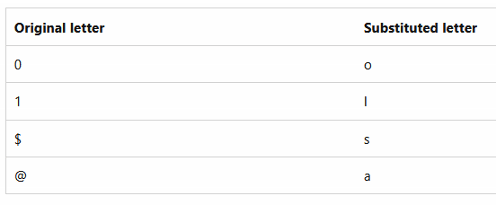
Once the password is normalized, it checks for the following:
Fuzzy matching- Checks if the word is on the banned list. If it is a banned word and it is slightly modified while still referencing to the original word, it will be banned. Similar word or phrase relating to banned password cannot be used.
Example: The password "abcdef" is banned.

A user tries to change their password to one of the following:
•'abcdeg' - last character changed from 'f' to 'g'
•'abcdefg' - 'g' appended to end
•'abcde' - trailing 'f' was deleted from end

Each of the above passwords doesn't specifically match the banned password "abcdef".
However, since each example is within an edit distance of 1 of the banned term 'abcdef', they're all considered as a match to "abcdef".
Substring matching- If there is a substring or partial word relating to user/tenant name in the passphrase, it will reject the entire password.  This is only enforced for users first and last name as well as tenant name.

Example: If user named "kim" want to set the password to "K1m0kams",
When its normalized, it becomes "kimokams", since it has "kim" in the passphrase, it will get rejected
Score calculation-
- Each ban word is worth 1 point
- Each Remaining unique character worth 1 point
- Score of 5 is needed to order for AD to accept the password change
Example: The word “blank” is in the global banned list.
If user try to set the password: “C0ntos0Blank12”
- After normalization, this password becomes “contosoblank12”.
- The matching process finds that this password contains two banned passwords: “contoso” and “blank”.
- This password is then given the following score:
[contoso] + [blank] + [1] + [2] = 4 points
- As this password is under five (5) points, it’s rejected.
If user try to set the password: “ContoS0Bl@nkf9!”
- After normalization, this password becomes “contosoblankf9!”.
- The matching process finds that this password contains two banned passwords: “contoso” and “blank”.
- This password is then given the following score:
[contoso] + [blank] + [f] + [9] + [!] = 5 points
- As this password is at least five (5) points, it’s accepted.
Implementation
License checklist:

On premise integration- Install Microsoft Entra Password Protection DC agent
- DC must have .NET 4.7.2 installed.
- Distributed File System Replication (DFSR) must be used for SYSVOL replication.
- Note that DC agent does not control which DC the password restrictions will apply to, so it is recommended to install the DC agent on all of the domain controllers so the entire tenant is covered and acquires the updated password protection policy.
- The Key Distribution Service must be enabled on all domain controllers in the domain that run Windows Server 2012 and later versions. By default, this service is enabled via manual trigger start.
- At least one DC (Domain Controller) must have internet connection in each domain. The proxy server also requires internet connection (do no install proxy service on a DC)
- Synchronize the new password policy by stopping and restarting the DC agent service.
1) Download installation package for DC Agent – https://www.microsoft.com/en-us/download/details.aspx?id=57071
2) Install the DC Agent on a Domain Controller: [*Requires a restart*]


Verify:
Verify status and health of DC agent:
Get-AzureADPasswordProtectionDCAgent
Test-AzureADPasswordProtectionDCAgentHealth -Testall
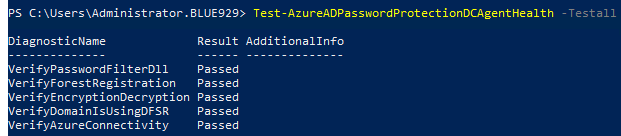
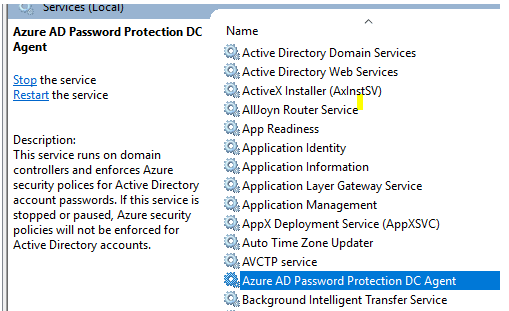
On premise Integration- Install Microsoft Entra Password Protection Proxy Service
Once installed, the Microsoft Entra Password Protection proxy service communicates with Microsoft Entra ID to maintain a copy of the global and customer banned password lists for your Microsoft Entra tenant. Note the following requirements and limitations:
- Must have .NET 4.7.2 installed.
- A Global Administrator account is required to register the Microsoft Entra Password Protection proxy service for the first time in a given tenant.
- All machines that host the Microsoft Entra Password Protection proxy service must be configured to allow outbound TLS 1.2 HTTP traffic.
- All machines that host the Microsoft Entra Password Protection proxy service must be configured to grant domain controllers the ability to log on to the proxy service. This ability is controlled via the “Access this computer from the network” privilege assignment.
- The service only provides password policies for a single forest.
- Proxy service does not support read-only domain controller
- It is not recommended to install Microsoft Entra Password Protection Proxy and Microsoft Entra application proxy on the same machine.
- Recommend installing the service in at least two separate servers for high availability.
- You can run the Microsoft Entra Password Protection proxy service on a domain controller for testing, but that domain controller then requires internet connectivity. This connectivity can be a security concern. Install the proxy service on a separate domain joined server.
- Windows firewall service must be running before executing setup – Password Protection Proxy installer automatically creates a Windows Firewall inbound rule that allows access to port 135.
- At least one DC (Domain Controller) must have internet connection in each domain. The proxy server also requires internet connection (do no install proxy service on a DC)
- The proxy server must have access to the following url:
| Endpoint | Purpose |
| https://login.microsoftonline.com | Authentication requests |
| https://enterpriseregistration.windows.net | Microsoft Entra Password Protection functionality |
| https://autoupdate.msappproxy.net | Microsoft Entra Password Protection auto-upgrade functionality |
1) Download installation package for proxy setup exe – https://www.microsoft.com/en-us/download/details.aspx?id=57071
2) Installation: Execute AzureADPasswordProtectionProxySetup.exe on the domain server. [*Does not require reboot*]
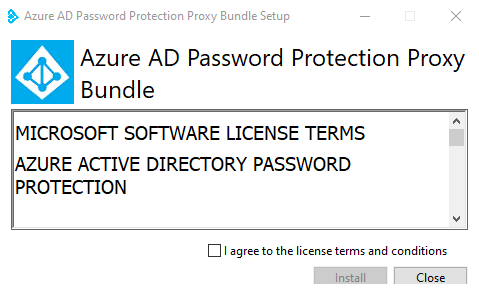

3) Once the setup is complete, import the password protection module. Only 64 bit of powershell should be used
Powershell x64 > Import-Module AzureADPasswordProtection
4) Register the Microsoft Entra Password Protection proxy server with Microsoft Entra ID.
Execute the following command in PowerShell and then proceed to sign in with global admin account:
Register-AzureADPasswordProtectionProxy -AccountUpn ‘globaladmin@yourdomain.com’
5) Register the forest on Azure AD
Execute the following command in PowerShell and then proceed to sign in with global admin account:
Register-AzureADPasswordProtectionForest -AccountUpn ‘globaladmin@yourdomain.com’
Verify:

Check status and health of proxy service-
Test-AzureADPasswordProtectionProxyHealth -TestAll
Get-AzureADPasswordProtectionProxy
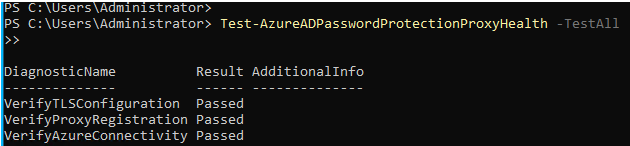
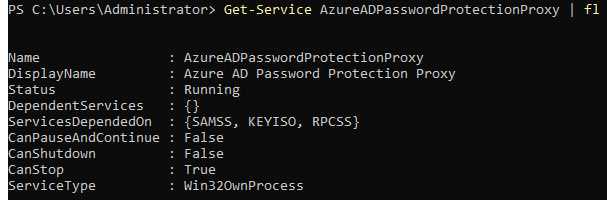
Check if service is on: Get-Service AzureADPasswordProtectionProxy | fl

**The proxy service will only automatically upgrade to a newer version when critical security patches are needed.
Entra ID- Enable Password Protection
Navigate to Entra portal > Protection > Authentication methods > Password Protection.
Enable password protection on windows server AD – YES
Mode- Enforced (If set to Audit, it will only log password deny or approval. If set to enforced, users are prevented from setting weak passwords)

Setting a user’s password from the banned list: (From AD DS – On premise)
View event log from DC: Event viewer > Applications and service Logs > Microsoft > AzureADPasswordProtection > DCAgent > Admin
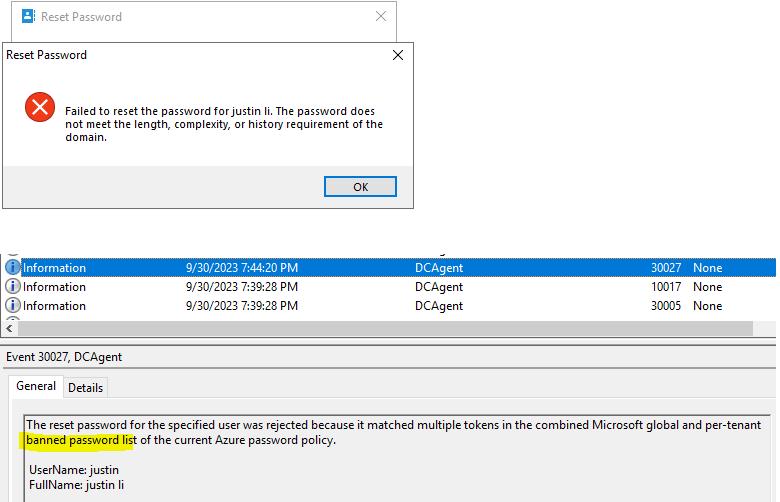
**If password protection did not reject the weak password after it was configured, force synchronize the new password policy by stopping and restarting the DC agent service.
net stop AzureADPasswordProtectionDCAgent && net start AzureADPasswordProtectionDCAgent

A successfully password reset:

Setting a user’s password from the banned list: (From password reset portal – Azure)
When a user attempts to reset or change a password to something that would be banned, one of the following error messages are displayed:
- “Unfortunately, your password contains a word, phrase, or pattern that is banned by your organization. Please try again with a different password.”


Tips & Troubleshooting
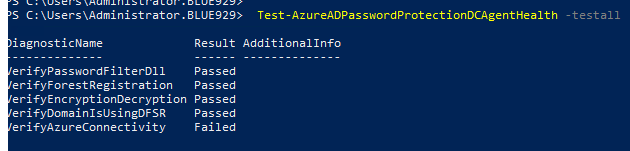
To troubleshoot this, verify the connectivity between a DC agent and a specific proxy
This test validates connectivity over the first communication leg from the DC agent to the proxy. It verifies that the proxy receives the call, however no communication with Azure is involved.
Execute this command from the DC with DC agent installed and target the proxy server (example: ad-connect.blue929.com):
Test-AzureADPasswordProtectionDCAgentHealth -VerifyProxyConnectivity ad-connect.blue929.com

Event log > Application and windows log > Microsoft > AzureADPasswordProtection > DCAgent > Operational. Error 50 – endpoint mapper port (135) on the server could not be reached.

Possible solution: The Microsoft Entra Password Protection Proxy installer automatically creates a Windows Firewall inbound rule that allows access to port 135. If this rule is later deleted or disabled, DC agents will be unable to communicate with the Proxy service. If the builtin Windows Firewall has been disabled in lieu of another firewall product, you must configure that firewall to allow access to port 135. Check the inbound rules and make sure the DC is able to ping the proxy server. Look into any possible DNS issues as well.

Verifying connectivity between a DC agent and Azure (using a specific proxy)
This test validates full end-to-end connectivity between a DC agent and Azure using a specific proxy. A successful run looks like this:
Test-AzureADPasswordProtectionDCAgentHealth -VerifyAzureConnectivityViaSpecificProxy ad-connect.blue929.com

- The banned password algorithm, along with the global banned password list, can and do change at any time in Azure based on ongoing security analysis and research.
- For the on-premises DC agent service in hybrid scenarios, updated algorithms only take effect after the DC agent software is upgraded.
- If password protection did not reject the weak password after it was configured, force synchronize the new password policy by stopping and restarting the DC agent service. Execute > net stop AzureADPasswordProtectionDCAgent && net start AzureADPasswordProtectionDCAgent
- For emergency remediation if users are not able to reset passwords or DC agent service is causing problem, turn off the service. Other option is to disable Password protection in the Entra portal.
- Domain controllers (DCs) never have to communicate directly with the internet.
- No new network ports are opened on DCs.
- No AD DS schema changes are required. The software uses the existing AD DS container and serviceConnectionPoint schema objects.
- Any supported AD DS domain or forest functional level can be used.
- The software doesn’t create or require accounts in the AD DS domains that it protects.
- User clear-text passwords never leave the domain controller, either during password validation operations or at any other time.
- The software isn’t dependent on other Microsoft Entra features. For example, Microsoft Entra password hash sync (PHS) isn’t related or required for Microsoft Entra Password Protection.
- Incremental deployment is supported; however, the password policy is only enforced where the Domain Controller Agent (DC Agent) is installed.
- Get-Command -Module AzureADPasswordProtection
CommandType Name Version Source
Function Get-AzureADPasswordProtectionSummaryReport 1.0.0.0 AzureADPasswordProtection
Cmdlet Get-AzureADPasswordProtectionDCAgent 1.0.0.0 AzureADPasswordProtection
Cmdlet Get-AzureADPasswordProtectionProxy 1.0.0.0 AzureADPasswordProtection
Cmdlet Get-AzureADPasswordProtectionProxyConfiguration 1.0.0.0 AzureADPasswordProtection
Cmdlet Register-AzureADPasswordProtectionForest 1.0.0.0 AzureADPasswordProtection
Cmdlet Register-AzureADPasswordProtectionProxy 1.0.0.0 AzureADPasswordProtection
Cmdlet Set-AzureADPasswordProtectionProxyConfiguration 1.0.0.0 AzureADPasswordProtection
Cmdlet Test-AzureADPasswordProtectionDCAgentHealth 1.0.0.0 AzureADPasswordProtection
Cmdlet Test-AzureADPasswordProtectionProxyHealth 1.0.0.0 AzureADPasswordProtection
Source:
https://learn.microsoft.com/en-us/azure/active-directory/authentication/concept-password-ban-bad
 Steven’s Knowledge Base