
Intune compliance policies allow you to define the rules and settings that users and managed devices must meet to be considered compliant. These policies can help you to protect your organization’s data and resources by ensuring that only trusted devices can access them.
Compliance policies can be used to enforce a variety of requirements for personal or corporate devices such as:
- Minimum OS version
- Maximum device age
- Encryption
- Antivirus protection
- Jailbreaking/rooting prevention
- Password complexity
- Device health attestation
You can also use compliance policies to configure actions that are taken when devices are non-compliant. For example, you could block access to corporate data, send an email to the user, or remotely lock the device. When combined with a conditional access policy, this is a powerful tool to secure and lock down access to resources such as Exchange or SharePoint, and to prevent man-in-the-middle attacks such as session cookie theft.
Goal: Create a compliance policy to secure corporate windows device.
Prerequisites
- E3 or E5 license
- Role of Global administrator or Intune Administrator
Review Default Compliance Policy (Compliance policy settings)-Tenant wide
When setting up a compliance policy for the first time, it is important to review the built-in policy. Microsoft calls this the “Compliance policy setting”, but I prefer to call it the “default policy”.
For any device enrolling under a MDM, it must meet a security baseline requirement and has to be secured in order to access company data. Note that there is Default Device compliance policy in place that Intune applies to all devices regardless of whether a compliance policy is created or not.
- This is a tenant-wide settings that are like a built-in compliance policy that every device receives.
- This default policy is a base minimum so we must create an additional custom policy to enforce to all devices.
One way to view the default device policy > Go to devices > select a device > device compliance > Default device compliance policy.
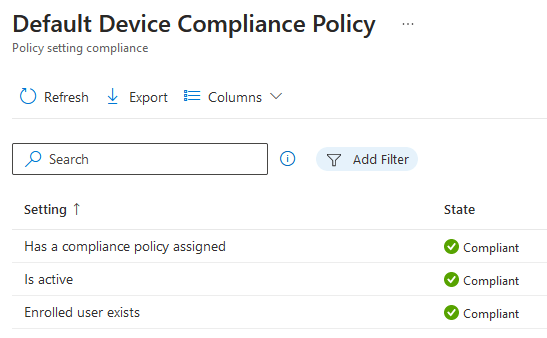
Has compliance Policy assigned- The setting is tied to "Mark device with no compliance policy assigned as" - Not compliant so it checks if there is a custom compliance policy assigned to device. If it finds one, state is green.

Is active - relies on the default 30 days grace validity period. The device must check into Intune within 30 days, check in refresh every 8 hours. Check in depends if devices has internet connection and not whether the primary user is logged in or not. For shared devices with multiple users, the device just have to connect to internet. If the device is not online after 30 days, it will be marked as non compliant.

Enrolled User exists- Checks if the primary user exist with a valid license for the enrolled device. For shared devices or devices enrolled under a DEM (Device Enrollment Manager), I suggest changing the primary user. I do not recommend deleting any users from Entra ID (Azure AD).
Creating a custom policy (Device compliance policy)
The default compliance policy is limited to only three criteria, it is highly recommended to create a custom policy for every type of device in order to evaluate compliance. To start, proceed with the following actions:
Navigate to Intune admin center > Endpoint Security > Device Compliance > compliance policy setting > toggle “Not Compliant”
This will mark all devices with no manually assigned compliance policy as not compliant. So we must create an compliance policy for every type of OS, which is highly recommended.
*If you use Conditional Access with your device compliance policies, changing this setting to Not compliant also ensures that only devices that are confirmed as compliant can access your resources.
Compliance status validity period– The device must check into Intune within 30 days, check in refresh every 8 hours. After 30 days past and there is no active sync, device is marked non-compliant. This is tied to “Is Active” setting under default device compliance policy.

Navigate back to Policies > Create policy > edit the properties to meet company requirement.
My compliance policy for personal and corporate is to require the OS to be at least 21H2 build and password required. If pin is set, must be at least 6 characters. There are many variable that can be configured in order to make the device complaint. This is one of the main reason why create a custom policy is much preferred than the default policy.
Recommend pushing out custom compliance policy targeting user group. Only target device group if the device is a kiosk and does not have any user log in.


Action for noncompliance:
If device is not compliant, user will get an email and push notification and the device will be marked non-compliant. (IT Admin can put a grace period of days that settings can be fixed to become compliant. The default value is 0, which immediately marks the device as non-compliant if restrictions are not met)


Actions for noncompliance - Each device compliance policy includes one or more actions for noncompliance. These actions are rules that get applied to devices that don’t meet the conditions you set in the policy.

Examples of actions include:
• Sending email alerts to users and groups with details about the non-compliant device. You might configure the policy to send an email immediately upon being marked as non-compliant, and then again, periodically, until the device becomes compliant.
• Send Push notification send notification to users phone
• Remotely lock devices that have been non-compliant for some time.
• Retire devices after they’ve been non-compliant for some time. This action marks a qualifying device as ready to be retired. An admin can then view a list of devices marked for retirement and must take an explicit action to retire one or more devices. Retiring a device removes the device from Intune management and removes all company data from the device.
Compliance policy Notifications: ( Email user if device is non-compliant)
Create a notification message template
To send email to your users, create a notification message template. When a device is noncompliant, the details you enter in the template is shown in the email sent to your users.
- In the Intune admin center, select Devices > Compliance policies > Notifications > Create notification.
- Enter the following information for the Basics step:
- Name: Contoso Admin
- Email header – Include company logo: Set to Enabled to show your organization’s logo.
- Email footer – Include company name: Set to Enabled to show your organization’s name.
- Email footer – Include contact information: Set to Enabled to show your organization’s contact information.
- Company Portal Website Link: Set to Disabled.
View reports, trends, non-compliance devices, etc..
Intune blade > Device compliance > report > device compliance or
Select Devices > Overview > Compliance status tab.

Policy refresh interval
Intune notifies the device to check in with the Intune service. The notification times vary, including immediately up to a few hours. These notification times also vary between platforms.
Intune retries up to three times to deliver a policy or profile to a device that does not check in after the first notification. Offline devices, such as those that are turned off or not connected to a network, may not receive the notifications. In this case, the device will receive the policy or profile on its next scheduled check-in with the Intune service.

Tips and Troubleshooting:
- Policy conflicts can occur when multiple Intune policies are applied to a device. If the policy settings overlap, Intune resolves any conflicts by using the following rules:
- If the conflict is between settings from an Intune configuration policy and a compliance policy, the settings in the compliance policy take precedence over the settings in the configuration policy. This result happens even if the settings in the configuration policy are more secure.
- If you have deployed multiple compliance policies, Intune uses the most secure of these policies.
- At times a device might send a compliance report back to Intune that shows System Account as the user principal name. This result can happen when a compliance policy targets a group of users or devices and is evaluated at a time when there’s no user is signed into the device.
- Similarly, when a compliance policy is assigned to a device group and evaluated while a user is signed in, there are two compliance evaluations: one for the user and the one for the devices System account. In this scenario, the System Account evaluation can fail, causing the device to be Not compliant. For best practices in order to prevent this behavior:
- For devices with a user signed in – assign the compliance policy to a User group.
- For devices without a user signed in – assign the compliance policy to a Device group.
- Similarly, when a compliance policy is assigned to a device group and evaluated while a user is signed in, there are two compliance evaluations: one for the user and the one for the devices System account. In this scenario, the System Account evaluation can fail, causing the device to be Not compliant. For best practices in order to prevent this behavior:
- If compliance checks takes too long to complete, force check by triggering this command:
Start-Process -FilePath “C:\Program Files (x86)\Microsoft Intune Management Extension\Microsoft.Management.Services.IntuneWindowsAgent.exe” -ArgumentList “intunemanagementextension://synccompliance”
- In the Intune company portal, the final stage of enrollment still checks for compliance, regardless of the conditional access policy.
- Under the properties of the compliance policy, you can set actions for non-compliance, such as marking the device non-compliant, sending an email or push notification, remotely locking the device, or retiring the device. These actions are mostly passive detection methods. Use a conditional access policy to block access to resources if the device is non-compliant.
- If the device is not marked compliant even though the user has met all the requirements, try re-enrolling the device.
- To prevent users from accessing all cloud apps using their company account on their personal phone, you can either set a conditional access policy to grant access to all cloud apps only under compliant devices, or set an app protection policy.
- The device must also meet compliance requirements if an app protection policy is in place. An app protection policy requires the device to be in compliance. An app protection policy also requires the company portal app to be installed.
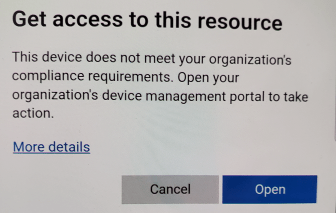
- If you deploy a conditional access policy requiring a mobile device to be compliant, and the device is not enrolled in Intune, the user will be forced to install the company portal app and enroll the device. Once the device is enrolled, the user must bring it into compliance. When this is done, the device will report its compliance status. The user will also see this prompt if they try to access an outlook that has app protection policy on it:

- If device does not meet compliance post enrollment:
Target assignment best practice:

Source:
https://learn.microsoft.com/en-us/mem/intune/protect/device-compliance-get-started
https://learn.microsoft.com/en-us/mem/intune/protect/create-compliance-policy
 Steven’s Knowledge Base