
Device compliance policy that requires Bitlocker enabled for Intune enrolled devices allows you to ensure that all Windows devices in your organization are encrypted with BitLocker. BitLocker uses the Trusted Platform Module (TPM) to help protect the Windows operating system and user data. It also helps confirm that a computer isn’t tampered with, even if its left unattended, lost, or stolen.
Devices that are not compliant with the policy will be reported as non-compliant in the Intune admin center and will be prompted to encrypt the device if bitlocker policy is not in place.
Here are some benefits of using BitLocker compliance policy in Intune:
- Improved data security: BitLocker encryption helps to protect your data from unauthorized access, even if the device is lost or stolen.
- Reduced compliance risk: BitLocker compliance policy can help you to ensure that all of your Windows devices are encrypted with BitLocker, which can help you to meet industry compliance requirements.
- Simplified management: BitLocker compliance policy can be centrally managed from the Intune admin center, which makes it easy to manage BitLocker encryption for all of your devices.
**Do note that even although BitLocker encryption may have completed, a reboot will be required in order for the device detect this and become compliant
Goal: We will create two compliance policies for Windows devices.
- The first policy will only target Dell devices and will require BitLocker encryption in order to access company resources.
- The second policy will target all non-Dell devices and will not require BitLocker. This policy is optional.
This guide only reviews compliance policy for devices. Further Bitlocker customization can be done by using a BitLocker profile from an endpoint security disk encryption policy, or the endpoint protection template from a device configuration policy.
Prerequisites
- E3 or E5 license
- Role of Global administrator or Intune Administrator
- Filters (Optional)
Create filters (optional)
I am looking to create a filter for only Dell devices. When using this filter, I can target the compliance policy to apply only for Dell devices regardless if its towers or laptops.
To create a filter: Intune portal > Devices > Other > filters > Select “Create” > managed devices > fill out name > select windows 10 platform
My requirements will be only devices from Dell and under corporate ownership.
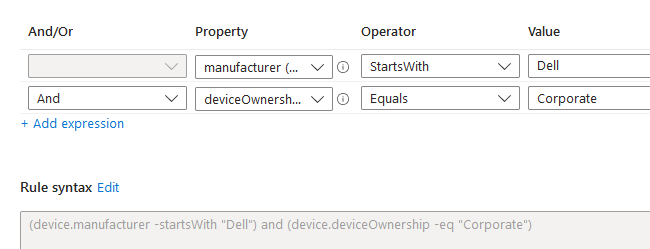
It can also be filtered by model number, category, and even OS SKU.
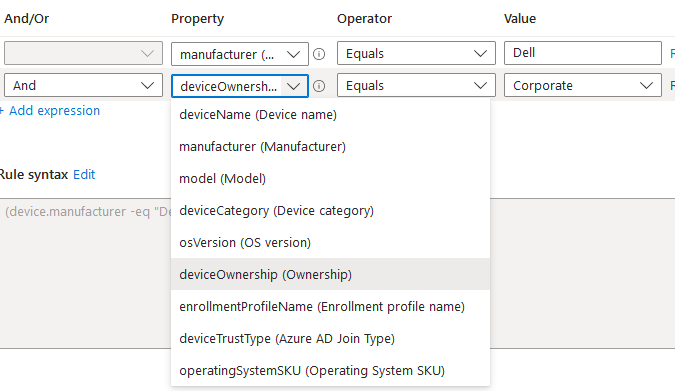
The second filter will be devices that are NOT dell. So if there is a second compliance policy, it can target non dell devices.
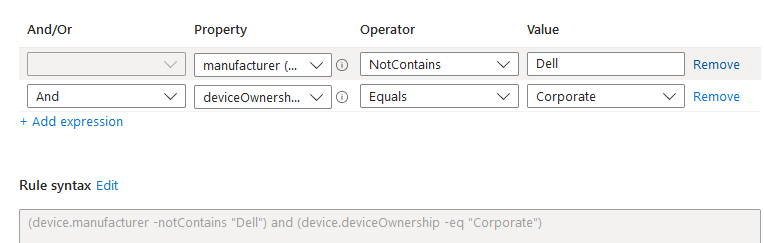
Results:

Create compliance policy
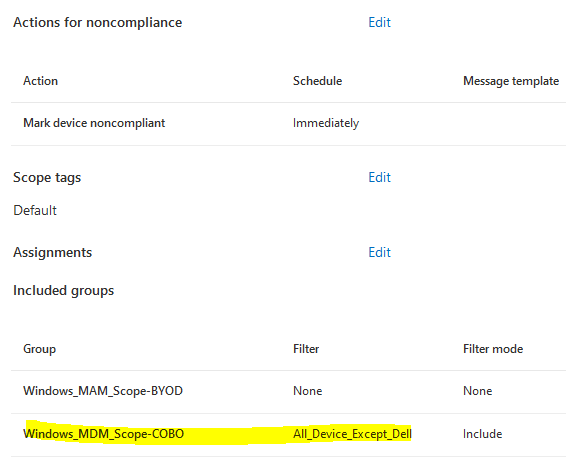
1. Create a general compliance policy for all windows 10 devices (Non-Dell devices):
Devices > compliance polices > create policy > platform > windows 10 or later
Requirement: 10.0.19041.1415 OS version (21h2)

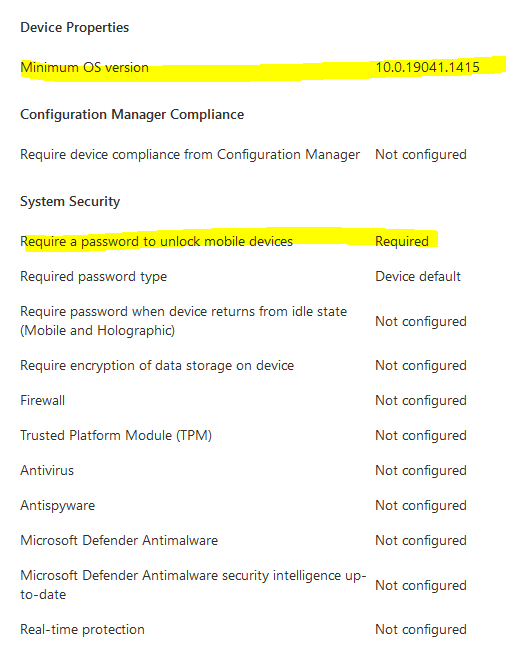
Under assignments > edit filter > select All_Devices_Except_Dell
2. Create a second compliance policy that will require certain settings on Dell devices.
Requirement: Bitlocker, firewall, antivirus, secure boot and minimum OS version.
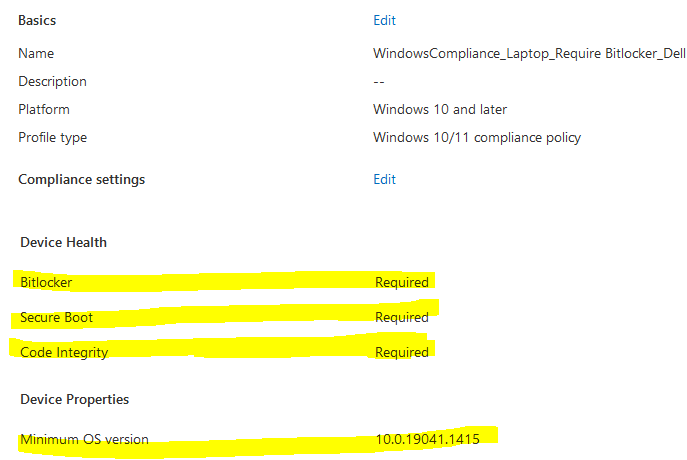
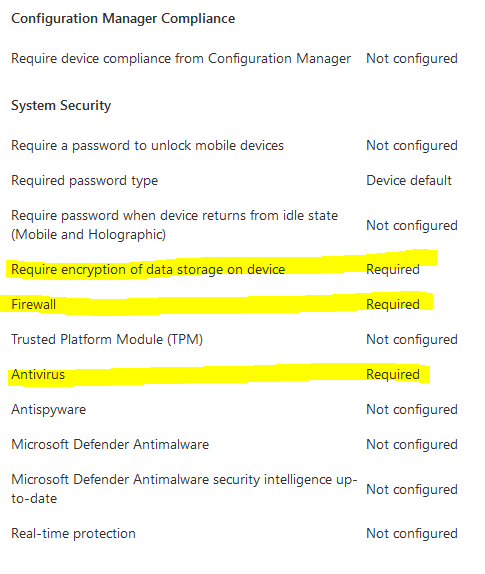
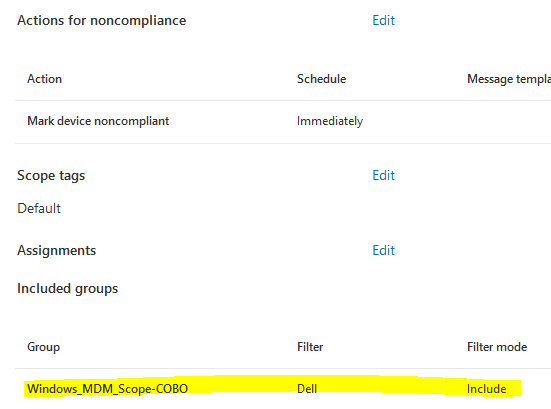
We have now configured a Bitlocker compliance policy for the group of users with Dell devices. This policy is more strict than the general compliance policy, as it is required for companies that are deploying Dell laptops to be used remotely.
The other group of users, who do not have Dell laptops and do not need BitLocker encryption enforced for whatever reason, can inherit the general compliance policy.
Allow Bitlocker without compatible TPM
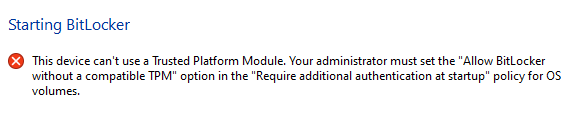
For older devices that cannot use TPM, an endpoint protection configuration profile must be configured to enable Bitlocker and also enable support for Non-Compatible TPM chips or you will see this error.
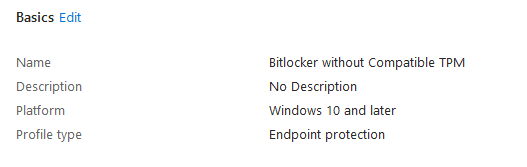
Navigate to device > configuration profile > create new profile > select Windows OS > templates > endpoint protection
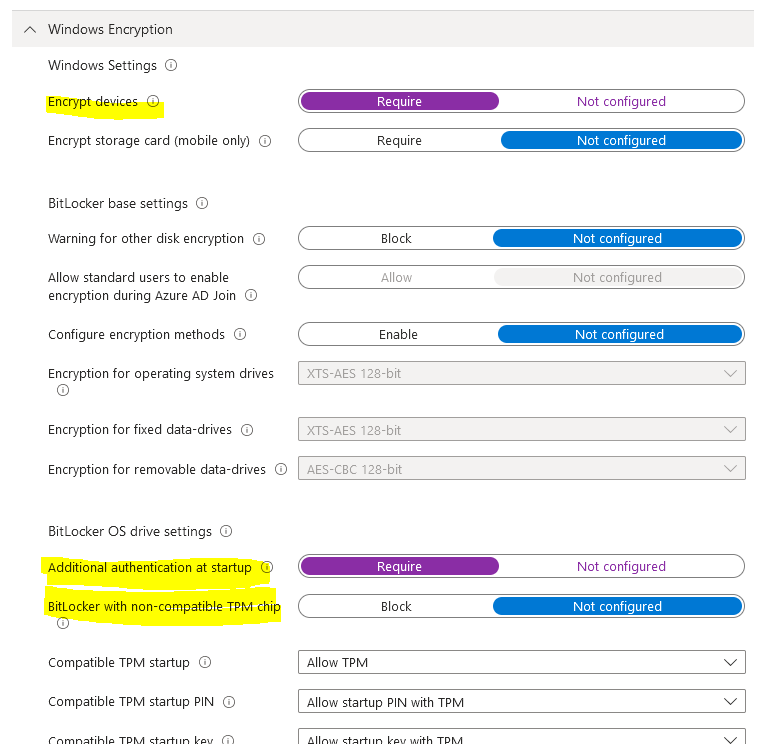
Once that is done -user will see this notification asking them to encrypt the device.

Tips and troubleshooting
1. -2016281112 (Remediation failed) error
Once a user under [windows_MDM_Scope_COBO] group signs into an device enrolled into Intune, it may take some time for compliant value to be green.
Under encryption of data storage on device- it MAY show a -2016281112 (Remediation failed) error even if Bitlocker is enabled.
The “Require Bitlocker” setting uses the Windows Health Attestation Service to evaluate Bitlocker compliance.  One of the advantages of this setting is that a device is evaluated as compliant whilst the drive is still being encrypted.  Requires reboot to check in for compliance.

The advantage of the “Require encryption of data storage on device” setting is that it does not require a reboot to evaluate Bitlocker compliance. However, the downside is that devices are not evaluated as compliant until the drive is fully encrypted.
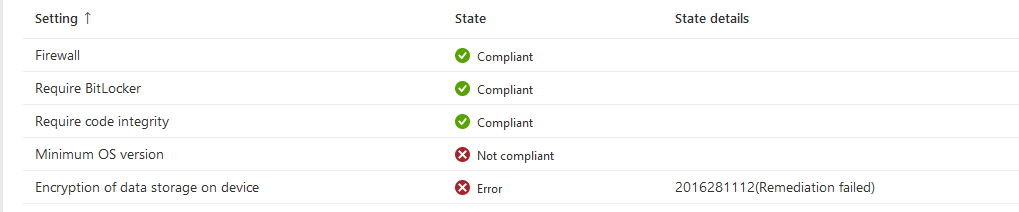
After bitlocker gets turned on: [It may require time and reboot to get it to be compliant]
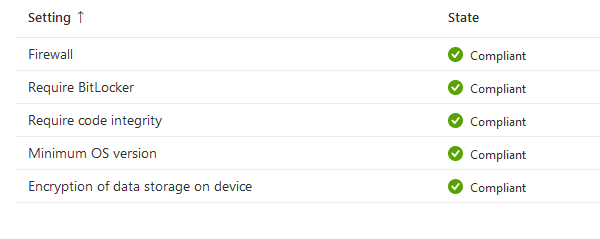
2. All hybrid joined devices failed compliance even if it meets compliance
Once the user logs back in and device reboots – it becomes compliant
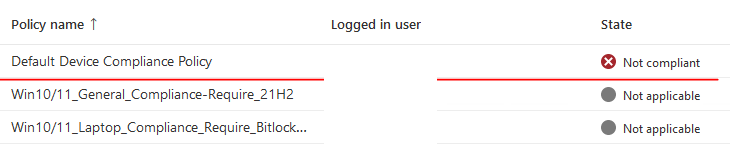
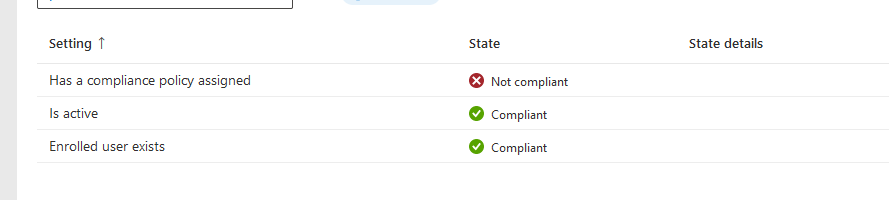
3. Create a powershell script and deploy it to all devices to force compliance check if compliance check is taking too long.
Start-Process -FilePath "C:\Program Files (x86)\Microsoft Intune Management Extension\Microsoft.Management.Services.IntuneWindowsAgent.exe" -ArgumentList "intunemanagementextension://synccompliance"
Agent logs on the client machine are typically in C:\ProgramData\Microsoft\IntuneManagementExtension\Logs
- End users aren’t required to sign in to the device to execute PowerShell scripts. [It will execute for compliant and NON compliant devices]
- The Intune management extension agent checks after every reboot for any new scripts or changes.
- After you assign the policy to the Azure AD groups, the PowerShell script runs, and the run results are reported. Once the script executes, it doesn’t execute again unless there’s a change in the script or policy
If script doesn’t run, reboot the device. Under Device > scripts > device/user status- Report will take a long time to update
4. Compliance policy targeting device will create a system account to check device compliance
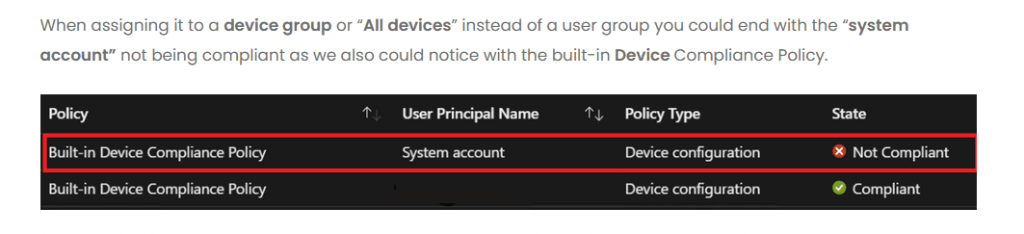
Similarly, when a compliance policy is assigned to a device group and evaluated while a user is signed in, there are two compliance evaluations: one for the user and the one for the devices System account. In this scenario, the System Account evaluation can fail, causing the device to be Not compliant. To prevent this behavior:
- For devices with a user signed in – assign the compliance policy to a User group.
- For devices without a user signed in – assign the compliance policy to a Device group.
Source:
https://joymalya.com/intune-compliance-evaluation-for-bitlocker/
https://learn.microsoft.com/en-us/mem/intune/protect/compliance-policy-create-windows
https://learn.microsoft.com/en-us/mem/intune/apps/intune-management-extension
https://www.anoopcnair.com/bitlocker-compliance-policy-using-intune
 Steven’s Knowledge Base