
Windows 10, version 1909 introduced new BitLocker Configuration Service Provider (CSP) settings to configure recovery password rotation. Key rotation helps improve device security by rotating the password once it has been used for recovery, preventing reuse of the same password. The setting that controls rotation when a recovery is triggered is [Configure client-driven recovery password rotation] under the endpoint protection template. This helps prevent malicious helpdesk users from using a permanent recovery key to gain access to users’ devices.
Goal: To prevent the reuse of recovery keys, configure BitLocker to rotate the key every time a user triggers BitLocker recovery for Azure AD Joined or Hybrid Joined devices. This guide will also show you how to enable BitLocker on non-compatible TPM devices, but this is only recommended for testing purposes and is not recommended for production use.
Endpoint security policy
Navigate to Endpoint security > Disk encryption > Select existing policy or make a new one.
Configure recovery password rotation – Refresh on for both Azure AD- joined and hybrid-joined devices
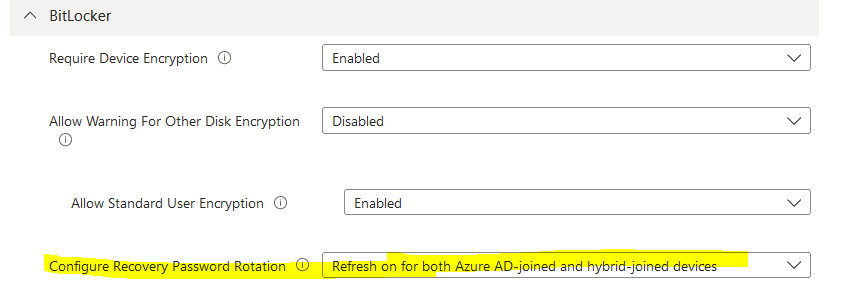
Endpoint Protection Template
Navigate to Devices > Configuration profile > create profile > Platform: Windows 10 and later > profile type: Templates > Select Endpoint protection.

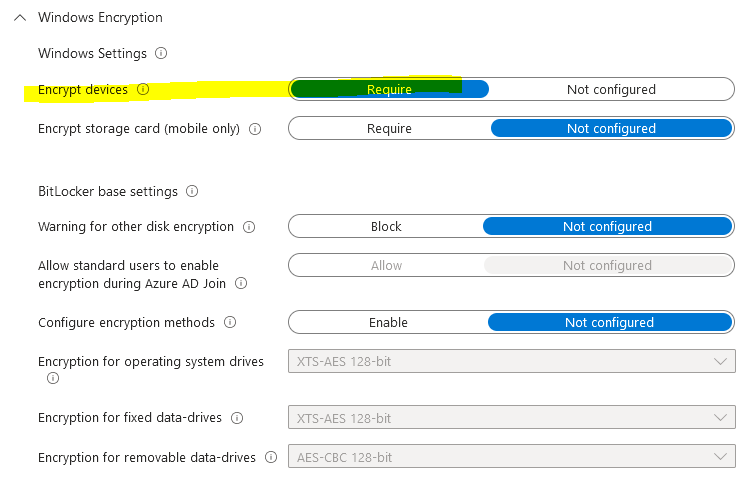
Under configuration settings > navigate to Windows Encryption and configure the following settings:
Windows Encryption:
Encrypt Device- Require
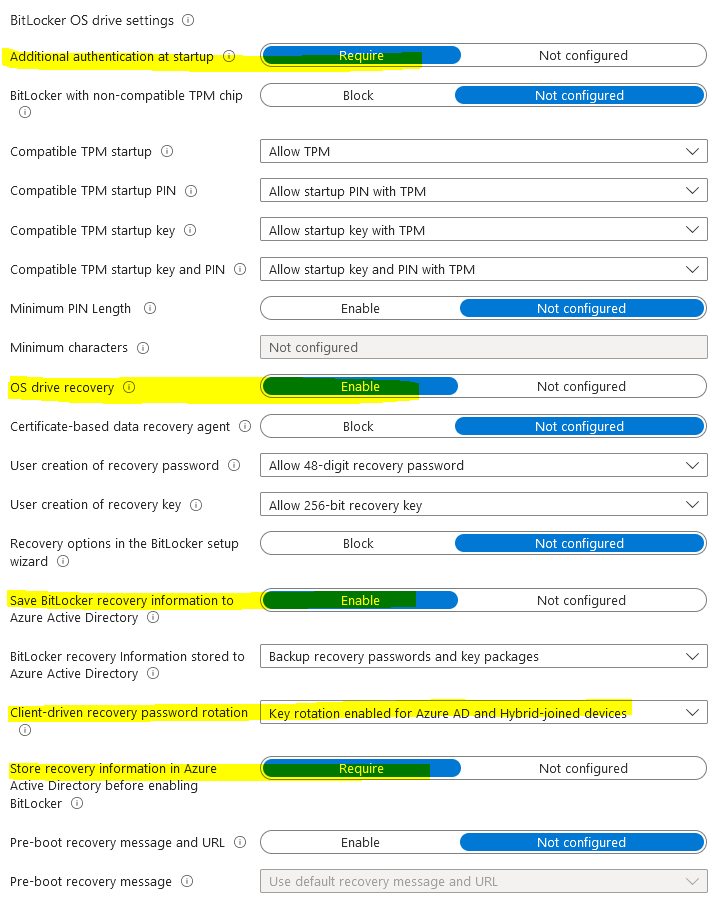
Bitlocker OS drive settings:
Additional authentication at startup- Require
Bitlocker with non-compatible TPM chip allows encryption for virtual machines and older machines. This requires enabling the option requires additional authentication at startup.

If you want to use BitLocker on a computer without a TPM, set Bitlocker with non-compatible TPM to Not configured. If you ONLY want compatible TPM chips to use Bitlocker, then set it to Block non-compatible chips.

In this mode, Bitlocker with non-compatible TPM to Not configured:
either a password or a USB drive is required for start-up and that involves user interaction.
When using a startup key, the key information used to encrypt the drive is stored on the USB drive, creating a USB key.
When the USB key is inserted the access to the drive is authenticated and the drive is accessible. If the USB key is lost or unavailable or if you have forgotten the password then you will need to use one of the BitLocker recovery options to access the drive.

On a computer with a compatible TPM, four types of authentication methods can be used at startup to provide added protection for encrypted data.
When the computer starts, it can use only the TPM for authentication,
OR it can also require insertion of a USB flash drive containing a startup key,
OR the entry of a 6-digit to 20-digit personal identification number (PIN),
OR both.
OS drive recovery- Enable
Save BitLocker recovery information to Azure Active Directory- Enable
Client-driven recovery password rotation- Key rotation enabled for Azure AD and Hybrid-joined devices
This setting initiates a client-driven recovery password rotation after an OS drive recovery (either by using bootmgr or WinRE).
Store recovery information in Azure Active Directory before enabling Bitlocker- Require
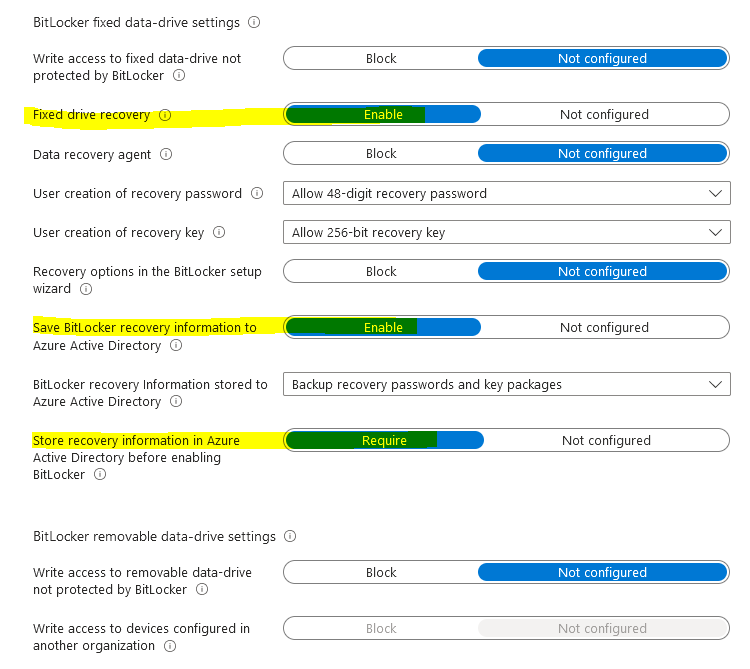
Bitlocker fixed data-drive settings:
Fixed drive recovery- Enable
Save Bitlocker recovery information to Azure Active Directory- Enable
Store recovery information in Azure Active Directory before enabling Bitlocker- Require
Verify the policy setting is applying to device:

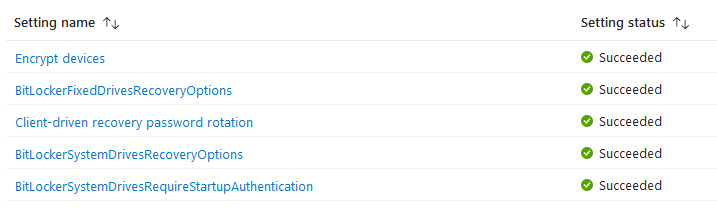
Test
For test machine > restart with PIN > press ESC to get into Bitlocker Recovery.

Enter the current recovery key:

A new recovery key is generated once the original key is used for recovery.
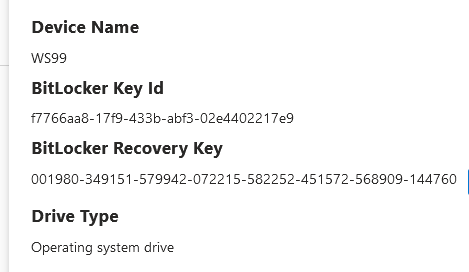
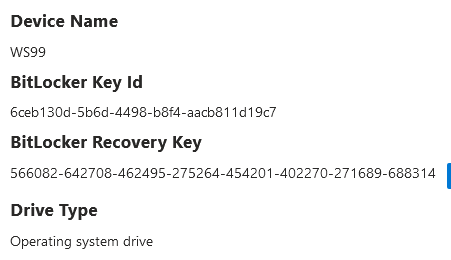
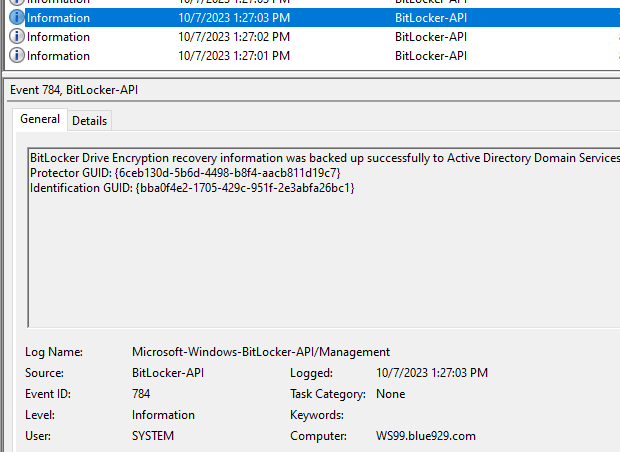
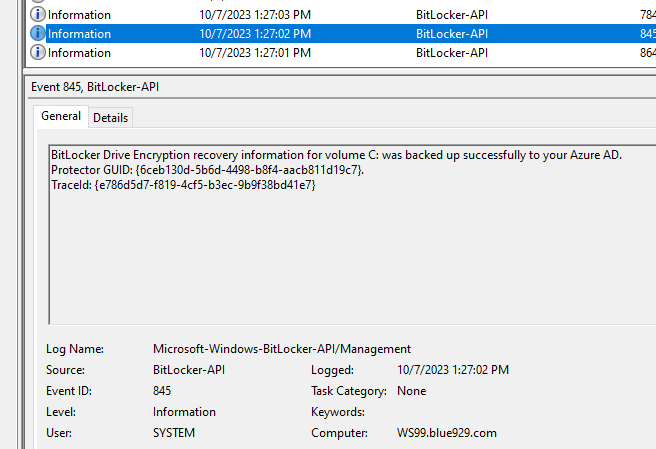
Viewing logs: (Recovery password rotation and AAD deletion request should trigger successfully)


Tips and Troubleshooting:
1. To allow devices with no TPM or non-compatible TPM chip to encrypt with Bitlocker, make sure the following settings are set:Additional authentication at startup- Require Bitlocker with non-compatible ships -not configured
2. User with local admin privilege can turn off bitlocker. Standard users cannot turn it off without admin creditnals
3. To force a recovery for the local computer:
- Select the Start button and type in cmd
- Right select on cmd.exe or Command Prompt and then select Run as administrator.
- At the command prompt, enter the following command:
manage-bde.exe -forcerecovery <BitLockerVolume>
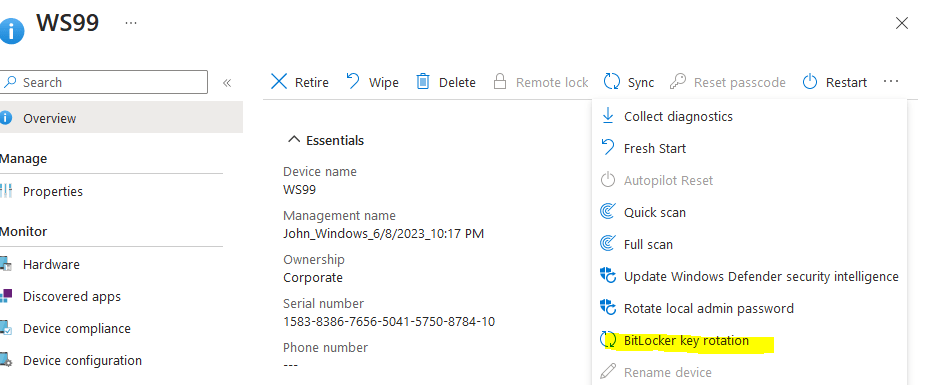
4. You can use an Intune device action to remotely rotate the BitLocker recovery key of a device that runs Windows 10 version 1909 or later, and Windows 11.
5. If there is multiple bitlocker profile, make sure there is no conflict between endpoint security disk encryption policy and endpoint protection template from device configuration policy.

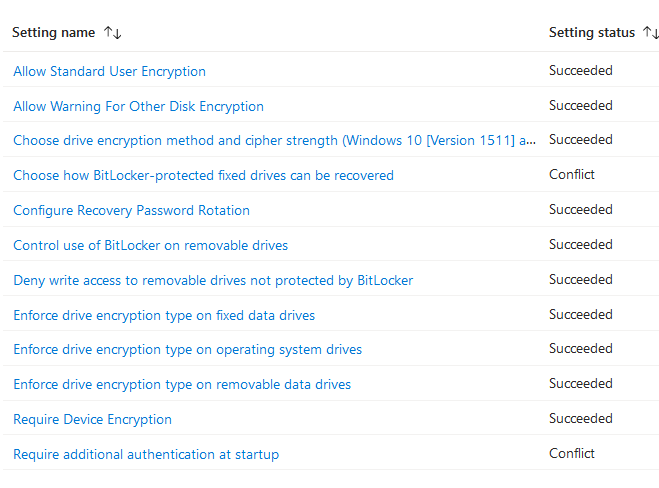
Turn off any setting that might overlap with each other should resolve any conflict
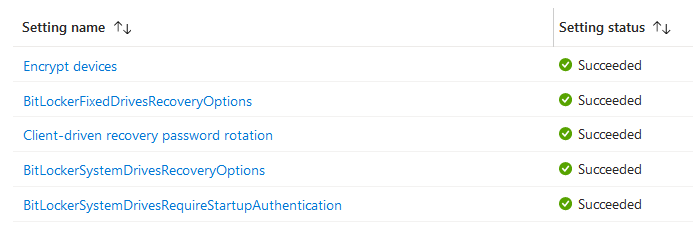
Result:
Bitlocker profile:

Device configuration profile:

Source:
https://learn.microsoft.com/en-us/mem/intune/protect/encrypt-devices
 Steven’s Knowledge Base