
The BitLocker Configuration Service Provider (CSP) is a Windows management protocol that allows administrators to configure BitLocker encryption settings on managed devices. The CSP can be used to configure a variety of settings, including:
- Whether BitLocker encryption is required
- The encryption method used
- The minimum password strength required for recovery keys
- Whether a Trusted Platform Module (TPM) is required for older machines or VM
- Whether a startup PIN is required
- Where recovery keys are stored
This guide will explain how to enable silent encryption on corporate devices without any user interaction by configuring a BitLocker profile from an endpoint security disk encryption policy. The specific setting that needs to be configured is [Allow Warning for Other Disk Encryption]. This will help to secure and lock down corporate devices to prevent tampering without any user setup. Another option to configure silent encryption is to create an endpoint protection template from a device configuration policy.
Goal: Use endpoint security disk encryption policy to enable silent encryption on corporate Windows devices and automatically back up BitLocker recovery keys to Entra (Azure). Encryption for fixed data drives, operating system drives as well as removable drives will be configured.
Prerequisites
- E3 or E5 license
- Role of Global administrator or Intune Administrator
- Configure Endpoint security disk encryption policy
- Windows corporate device must meet the following requirements for silent encryption:
- Windows edition [Pro, Enterprise, Education, Windows SE, IoT Enterprise / IoT Enterprise LTSC] Windows 10, version 1703 [10.0.15063] and later
- If end users sign in to the devices as Administrators, the device must run Windows 10 version 1803 or later, or Windows 11.
- If end users sign in to the devices as Standard Users, the device must run Windows 10 version 1809 or later, or Windows 11
- The device must be Azure AD Joined or Hybrid Azure AD Joined.
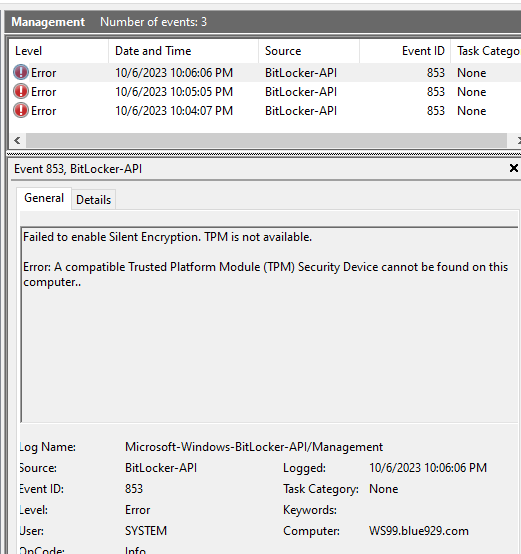
- Device must contain at least TPM (Trusted Platform Module) 1.2
- The BIOS mode must be set to Native UEFI only.
Configure Endpoint security disk encryption policy
Endpoint security disk encryption policy for BitLocker- The BitLocker profile in Endpoint security is a focused group of settings that is dedicated to configuring BitLocker. This contain most of the encryption settings for Bitlocker. MacOS file vault settings are also set here.
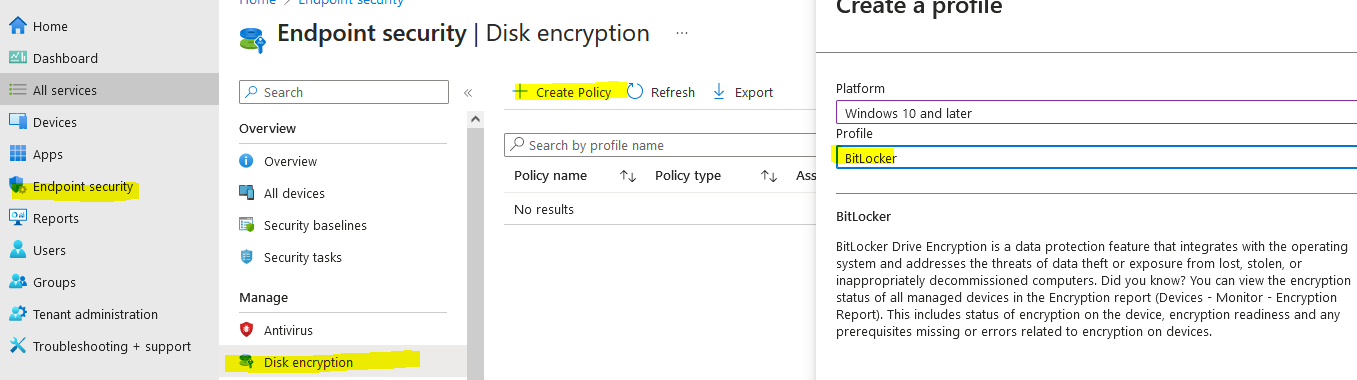
Navigate to Intune Portal > Endpoint Security > Disk encryption > Create policy > select windows 10 > profile: Bitlocker
Configure Administrative template:
Bitlocker on Removable data drives (External hard drives or USB flash drive) – This prevents data leakage for removable devices and unauthorized data access on lost or stolen removable data drives like corporate USB devices.
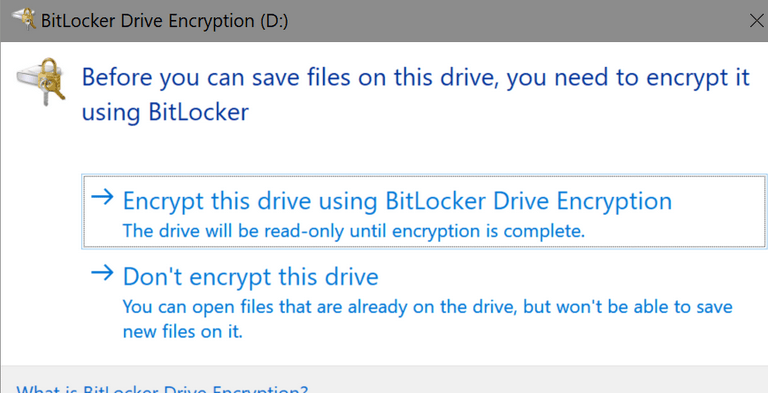
Any removable drives not encrypted by Bitlocker are denied write access. Windows doesn’t allow data to be written to removable drives that aren’t BitLocker protected. If an inserted removable drive isn’t encrypted, the user must complete the BitLocker setup wizard before write access is granted to drive. It may seem inconvenient for users, but it will save a lot of headaches if they ever lose a USB with sensitive corporate data.
The Used Space option encrypts all data that is already on the disk, as well as all future data that is written to the disk, great for new drives.
The Full Disk option encrypts everything on the disk, including the free space where no data is currently stored. This is useful if you have been using the drive for a while and have edited or deleted files, as encrypting the free space will make it harder to recover deleted files.

Users will see this when a removable drive is plugged into device:
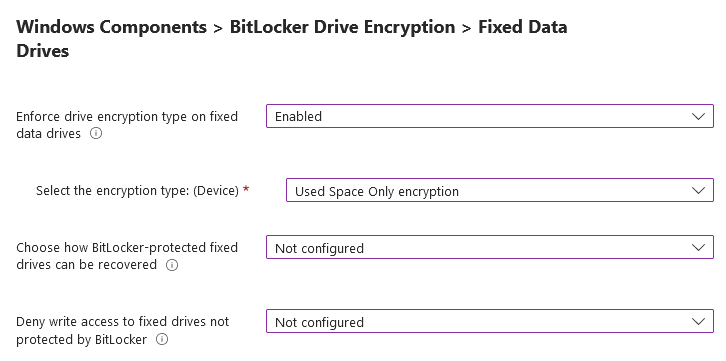
Bitlocker on Fixed Data Drives (Internal Hard Drives)– This policy setting is applied to internal hard drives that are mounted to the device. If the company inserts a secondary hard drive for storage expansion, that drive will get encrypted. We will utilize [Used space only encryption] for speed and because the drive is new and does not contain any existing data. Once it is encrypted, any new data on that drive will continue to get encrypted. Whether its full or used space only, the drive remains secured.
If the drive was encrypted before this policy applied, no extra action is taken. If the encryption method and options match that of this policy, configuration should return success. If an in-place BitLocker configuration option doesn't match this policy, configuration will likely return an error.
Bitlocker Operating System Drives (Windows installation Drive)– This policy setting is applied to the drive that windows is installed. The target will most likely be the C:\ drive where it has system boot manager partition.
Note, that silent encryption DOES NOT work for devices without a TPM because it needs either a USB or a password to decrypt the drive and that involves user interaction. If the device has no TPM or not compatible with Bitlocker but you still want to require users to encrypt it, then look into configuring the option [requires additional authentication at startup] using endpoint protection template from a device configuration policy.

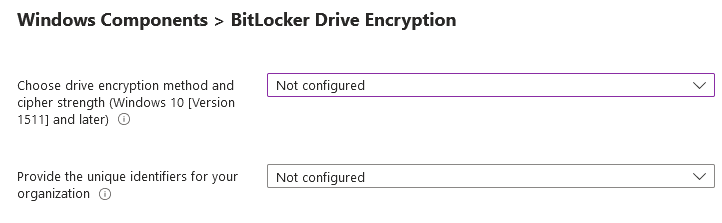
BitLocker Drive Encryption: skip, leave encryption method as default
Configure Bitlocker:
Here is the setting where silent encryption is enabled. These setting will enforce device encryption on devices. It also disables the warning prompt and encryption notification for other disk encryption. When warning is disabled, windows will attempt to silently enable BitLocker.
“RequireDeviceEncryption” policy will try to enable encryption on all fixed drives even if a current logged in user is standard user.
**When you disable the warning prompt, the OS drive’s recovery key will back up to the user’s Azure Active Directory account. When you allow the warning prompt, the user who receives the prompt can select where to back up the OS drive’s recovery key.
The endpoint for a fixed data drive’s backup is chosen in the following order:
- The user’s Windows Server Active Directory Domain Services account.
- The user’s Azure Active Directory account.
- The user’s personal OneDrive (MDM/MAM only).
Encryption will wait until one of these three locations backs up successfully.
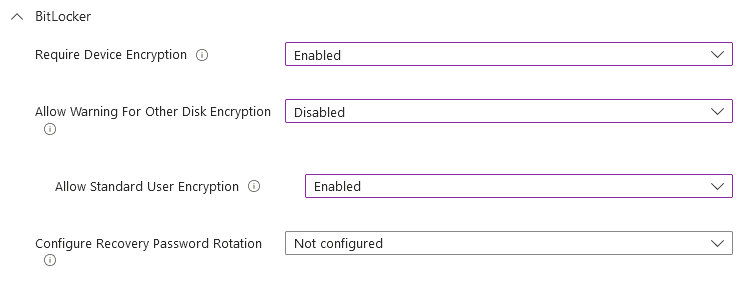
If BitLocker is enabled on a system that’s already encrypted by a third-party encryption product, it might render the device unusable. Data loss can occur and you might need to reinstall Windows. It’s highly suggested to never enable BitLocker on a device that has third-party encryption installed or enabled. Target only corporate devices.
The policy is now done- Target a test group first. Filter based on corporate enrollment, OS version, model of device, etc..

Result:
Silent encryption works well for machine with at least TPM 1.2 and UEFI system. The device had c: and d: volume and both were being encrypted the moment the user logged in.
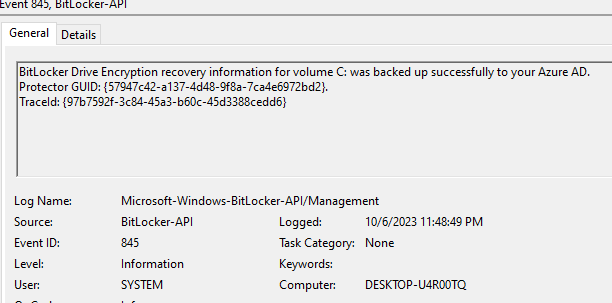

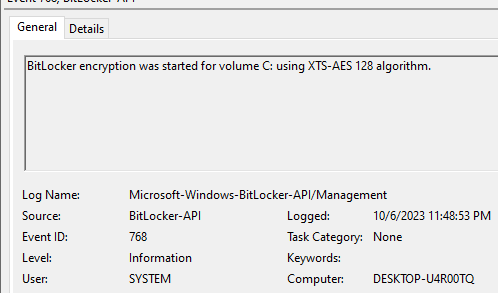

Select device > device configuration > select the configured profile


Recovery key:
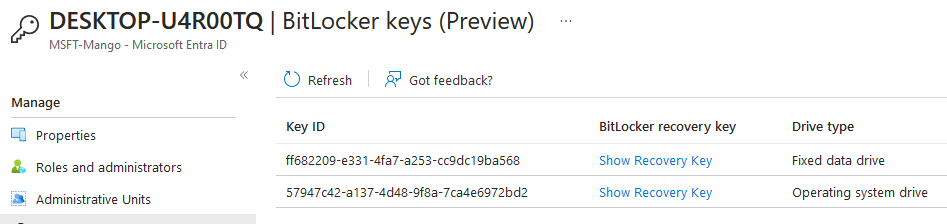
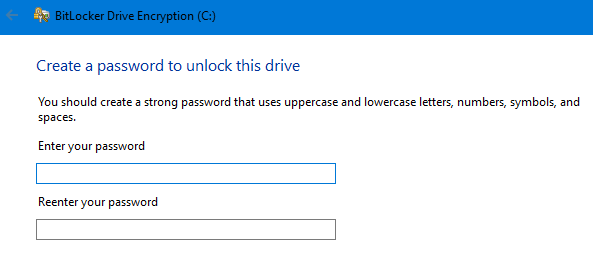
Machine without a TPM (virtual machine) will require password/Pin or other form of authentication.
Report/Logs
Devices > monitor > encryption report to review readiness of device to be encrypted– The readiness column reports whether or not a device meets the requirements to enable encryption
To view status of the encryption process: Select device > device configuration > select the configured profile
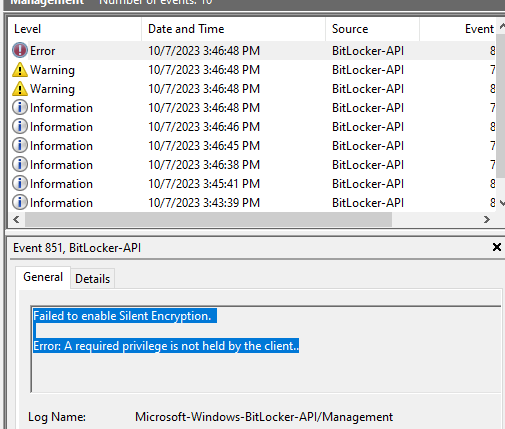
From device event log > Application and service logs > Microsoft > Windows > Bitlocker-API > Management
Tips and Troubleshooting
1. The role to rotate BitLocker Keys – Help Desk Operator.
2. For non-silent enablement of BitLocker, the user must be a local administrator to complete the BitLocker setup wizard.
3. When testing with Hyper V manager, don’t forget to turn on secure boot and enable TPM (2.0)
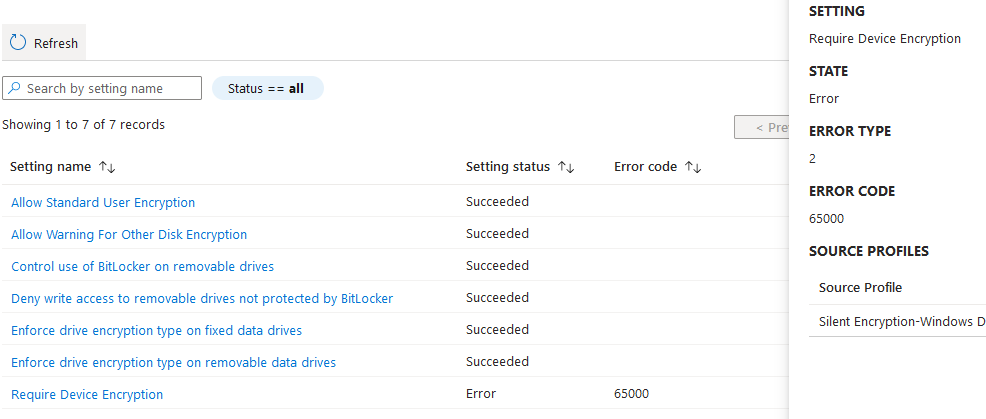
4. Error 65000 – this means the device did not meet the requirement for encryption, which requires TPM to be 1.2 and needs to be enabled.
From device event log > Application and service logs > Microsoft > Windows > Bitlocker-API > Management
5. Check TPM Version on device:
- Open Start.
- Search for tpm.msc and click the top result to open the Trusted Platform Module (TPM) Management console.
- Under the “Status” section, confirm “The TPM is ready for use” to confirm the device has a trusted platform module and it’s enabled.
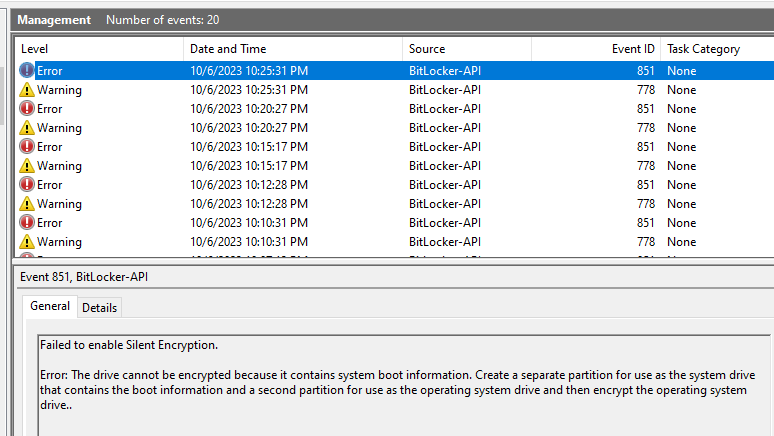
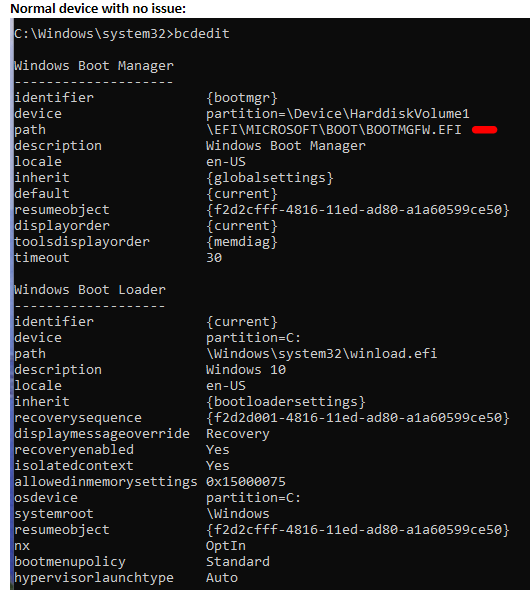
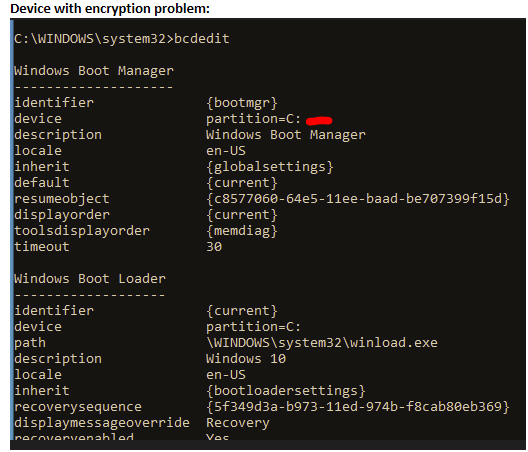
6. Failed to enable silent encryption because drive contains system boot information-Device cannot have dual boot on it or windows boot manager cannot be on the same partition as OS.
Normal partition scheme of C:\

Partition scheme of device that cannot be encrypted encountering error “cannot encrypt because it contains system boot information”

The bootmgr must be stored in a different partition.
Try the command with Powershell (admin) then try to set Bitlocker manually:
a) bcdedit /set ‘{bootmgr}’ path \EFI\refind\refind_x64.efi
b) bcdedit /set ‘{bootmgr}’ device partition=S:
S = drive letter for the system partition
7. If it cannot encrypt, try to clear the TPM: Run.exe > tpm.msc > clear TPM
8. Review the bitlocker policy and see if encrypting operating system drive is enforced
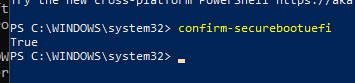
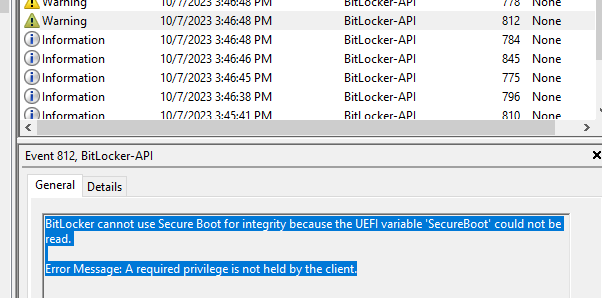
9. Cause of Error message: The UEFI variable ‘SecureBoot’ could not be read– A platform configuration register (PCR) is a memory location in the TPM. In particular, PCR 7 measures the state of secure boot. Silent BitLocker drive encryption requires the secure boot to be turned on.
Verify the PCR validation profile of the TPM in CMD:
Manage-bde.exe -protectors -get %systemdrive%

Verify secure boot state:
• Select Start, and enter msinfo32 in the Search box.
• Verify that the Secure Boot State setting is On

Powershell (Admin)
Confirm-SecureBootUEFI  (If the computer supports Secure Boot and Secure Boot is enabled, this cmdlet returns "True.")
10. If there is multiple bitlocker profile, make sure there is no conflict between endpoint security disk encryption policy and endpoint protection template from device configuration policy
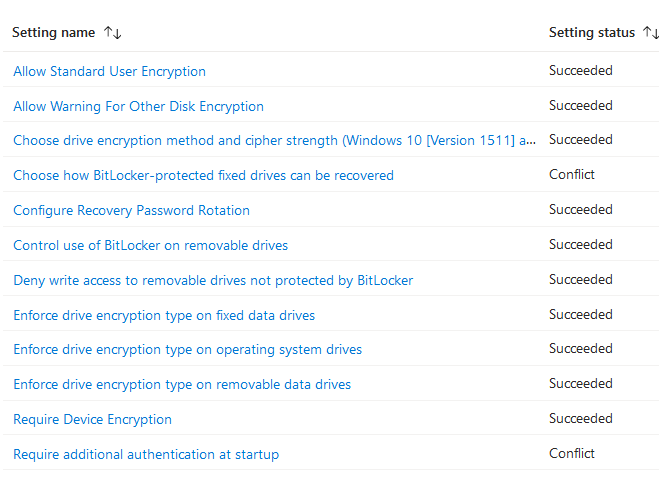

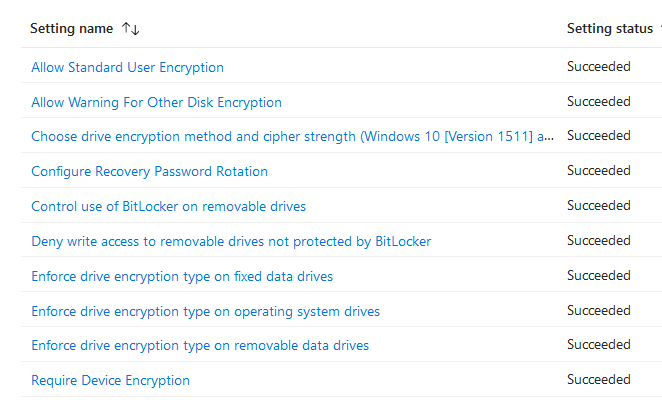
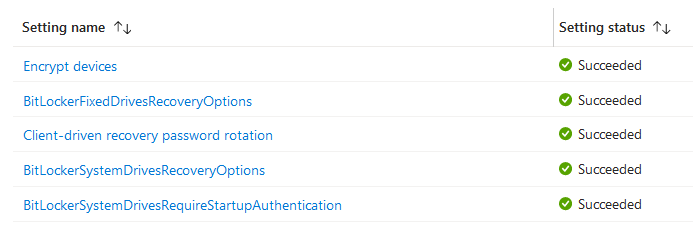
Turn off any setting that might overlap with each other should resolve any conflict
Results:
Bitlocker profile:
Device configuration profile:

11. If silent encryption does not work due to Event ID 854: WinRE is not configured
Verify if winPE/ windows recovery environment is enabled for the OS:
reagentc.exe /info

If the Windows RE status isn't Enabled, run the following command to enable it:
reagentc.exe /enable
12. If secure boot is turned off or changes in the bios are made, bitlocker will require a recovery key for start up.
Source
https://learn.microsoft.com/en-us/mem/intune/protect/endpoint-security-disk-encryption-policy
https://learn.microsoft.com/en-us/mem/intune/protect/encrypt-devices
https://superuser.com/questions/979695/windows-10-bcdedit-how-to-change-bootmgr-path
https://www.anoopcnair.com/intune-bitlocker-drive-encryption-part4/
 Steven’s Knowledge Base