
Local Administrator Password Solution (LAPS) is a feature in Entra that helps you manage and protect local administrator account passwords on your Microsoft Entra joined and Microsoft Entra hybrid joined devices. LAPS automatically rotates the passwords for these accounts and stores the new passwords in Entra. This helps to reduce the risk of compromised passwords and makes it easier for authorized administrators to reset passwords when needed. Windows devices that are Entra registered will not work with LAPS.
Why is LAPS important?
Every Windows device comes with a built-in local administrator account. This account is powerful and should be protected to mitigate pass-the-hash (PtH) and lateral traversal attacks. PtH attacks allow attackers to use a compromised user’s password hash to gain access to other devices on the network. Lateral traversal attacks allow attackers to move from one compromised device to another on the network.
LAPS helps to mitigate these attacks by rotating local administrator passwords on a regular basis. This makes it more difficult for attackers to use PtH attacks to gain access to other devices on the network. Additionally, LAPS makes it easier for authorized administrators to reset passwords when needed.
How does LAPS work?
When you enable LAPS, it will rotate the passwords for local administrator accounts on your devices depending on the time (days) set in policy. The new passwords are then stored in Entra. To retrieve a local administrator account password, you can use the Microsoft Graph API or the Intune management portals. You can also use the Windows LAPS PowerShell cmdlet (Get-LapsAADPassword).
Benefits of using LAPS
- Reduced risk of compromised passwords
- Improved security for local administrator accounts
- Easier password reset for authorized administrators
- Compliance with security regulations and standards
- Reduced workload on IT staff
- Improved security of organization data
Goal: Harden Intune-enrolled devices by configuring Windows LAPS
Prerequisites:
- LAPS is available to all customers with Microsoft Entra ID Free or higher licenses
- Required roles is Cloud device Administrator, Intune administrator or Global admin
- Hybrid joined or Entra (Azure AD) joined devices
- OS requirements:
- Windows 11 22H2 – April 11 2023 Update KB5025239 (OS Build 22621.1555)
- Windows 11 21H2 – April 11 2023 Update KB5025224 (OS Build 22000.1817)
- Windows 10 20H2, 21H2 and 22H2 – April 11 2023 Update KB5025221(OS Builds 19042.2846, 19044.2846, and 19045.2846)
- Windows Server 2022 – April 11 2023 Update —KB5025230(OS Build 20348.1668)
- Windows Server 2019 – April 11 2023 Update-KB5025229 (OS Build 17763.4252)
Enable LAPS for Tenant
Navigate to Entra portal > Identity > devices > all devices > device setting > Enable Microsoft Entra LAPS. Click save.

Configure LAPS policy- Configuration Profile
By default, the built in administrator account is disabled when created. We will enable two settings.
Once enables the administrator account and the second will have the account password managed.
To enable LAP admin account > device > configuration profile > new profile > settings catalog
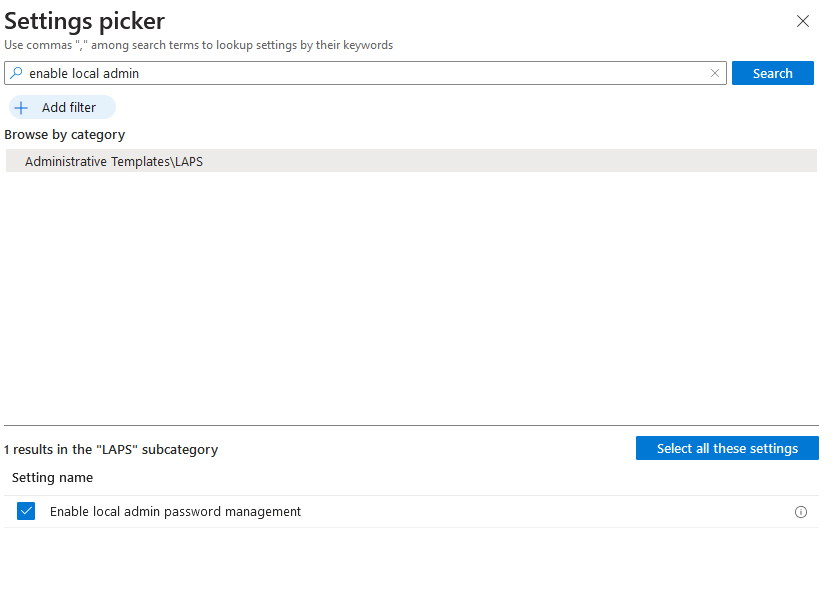
Under configuration settings > Add settings > search for the following:
Accounts Enable Administrator Account status  = Enable
Enable local admin password management = Enable

For Assignments, select the groups to receive this policy. I recommend assigning LAPS policy to device groups. Policies assigned to user groups follow a user from device to device. When the user of a device changes, a new policy might apply to the device and introduce inconsistent behavior, including which account the device backs up or when the managed accounts password is next rotated.
Configure LAPS policy- Account Protection Policy
Now that the built in administrator account is enabled and managed from the first policy. The second policy will dictate what kind of password to generate for the account, the age day, and the length.
Navigate to Intune portal > Endpoint security > Account protection > Policy > select Windows LAPS

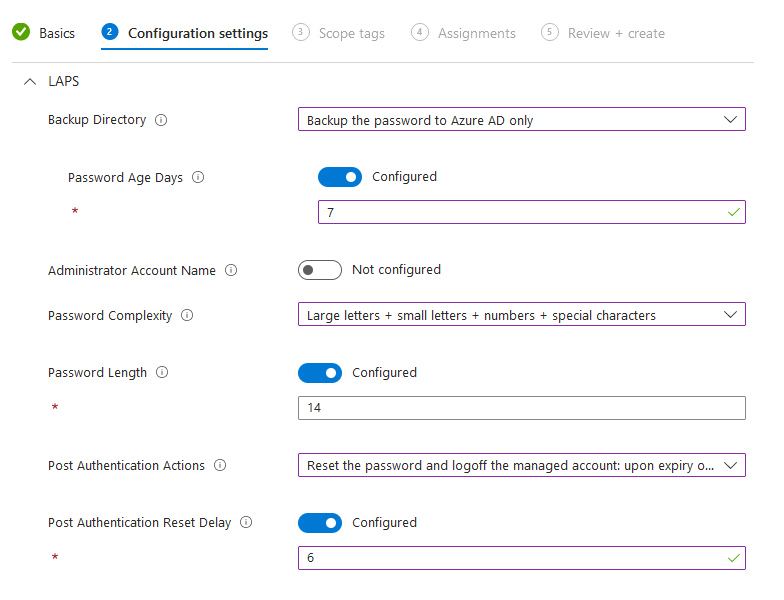

Backup Directory - Configure where to back up the password. Cannot back up to both azure and on premise.

Password Age Days - Default value of 30 days, minimum is 7 days for azure device until password rotates

Administrator Account name - If not configured, the password policy will apply to the built in administrator account that comes with every windows installation. If there is a custom local administrator account, specify it here. Note that if a custom local admin account is being used, it must be created first on all corporate devices either via script or policy.

Password complexity - I suggest  Large letters + small letters + numbers + special characters

Password length - Leave it to 14

Post authentication action - The listed actions will trigger after the password age days hits day 7. It will either log off or reboot the device.

Post authentication reset delay - configure a delay in hours before the authentication action sets off. If set to 6, it will only log out the admin after 6 hours post log in.
For Assignments, select the groups to receive this policy. I recommend assigning LAPS policy to device groups. Policies assigned to user groups follow a user from device to device. When the user of a device changes, a new policy might apply to the device and introduce inconsistent behavior, including which account the device backs up or when the managed accounts password is next rotated.
Test
After you configure the policy, it may take some time for the device to receive it. Once the device receives the policy, a 14-character password will be generated for the local administrator account. The password will rotate every 7 days, according to the policy. To log in, use the generated password with the username .\administrator.
Go to device > select device > local admin password to see the generated password.
Or navigate to view all devices that has LAP: Entra > Identity > Devices > Overview > Local administrator password recovery
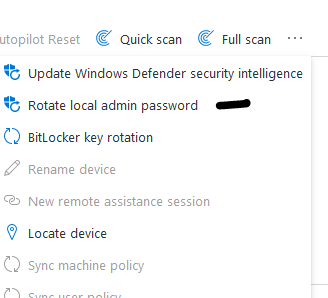
To manually rotate LAPS password: To rotate local admin password > select device > rotate local admin password. Use the new password once device restarts
Before manual rotation or password expiration date:

After manual rotation or password expiration date:

Report
To view all windows LAPS enable device
Entra > Identity > Devices > Overview > Local administrator password recovery
Auditing local administrator password update and recovery
To view audit events, you can browse to Identity > Devices > Overview > Audit logs, then use the Activity filter and search for Update device local administrator password or Recover device local administrator password to view the audit events.
Tips and Troubleshoot
1. Devices > LAPS to view password
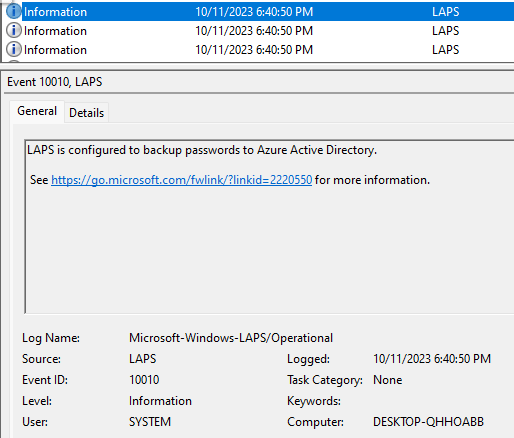
2. To troubleshoot LAPS policy from device, navigate to Event viewer logs > application and service > Microsoft > windows > LAPS (if LAPS if not present, that means the policy has not deployed to the device)



3. If the environment has an existing legacy LAPS , the new Entra cloud solutions LAPS will supersede the old LAPs integration on a hybrid device
4. The following built-in roles Microsoft Entra roles have permission to recover LAPS passwords: Global Administrator, Cloud Device Administrator, and Intune Administrator.
5. 65000 error when trying to enable admin account. (The account is currently disabled)
Solution- verify if the OS version of the enrolled device is supported. WS99 is currently not supported as the minimum is 19045.2846


Sources
https://learn.microsoft.com/en-us/azure/active-directory/devices/howto-manage-local-admin-passwords
https://techuisitive.com/manage-windows-local-administrator-password-with-intune-windows-laps/
https://learn.microsoft.com/en-us/mem/intune/protect/windows-laps-policy
 Steven’s Knowledge Base