
A conditional access policy is a rule that you can create to control how users access your organization’s resources. You can use conditional access policies to require users to meet certain conditions before they can access company resources. For example, you can require users to:
- Use multi-factor authentication (MFA)
- Be on a compliant device
- Be on a trusted network
- Be from a certain location
You can also use conditional access policies to block access to certain resources from certain devices or locations. For example, you can block access to your organization’s email from unmanaged devices or from outside of the United States. Conditional access policies can also help with security regulations and compliance.
Here are some examples of how you can use conditional access policies:
- Require MFA for all users who are accessing your organization’s email from outside of the United States.
- Block access to your organization’s customer database from unmanaged devices.
- Allow only users from certain groups to access your organization’s finance system.
- Require MFA for enrollment of mobile devices
- Only allow compliant company device to access company resources
Conditional access policies can be a powerful tool for improving the security of your organization’s resources. They can be used to enforce a variety of security controls, and they can be customized to meet the specific needs of your organization.
Goal: Review and understand the prerequisites needed to implement condition access policy in this lab.
Prerequisites:
- Disable security defaults
- License
- Roles
- Configure SSO for Chrome and Firefox
- Conditional access page
- Overview
- Policies
- Named location
- Terms of Use
- Configure the authentication strength
Disable security defaults
Microsoft deploys a pre-configured security baseline onto your tenant with the following list of basic control:
- Requiring all users to register for multi-factor authentication.
- Requiring administrators to do multi-factor authentication.
- Requiring users to do multi-factor authentication when necessary.
- Blocking legacy authentication protocols.
- Protecting privileged activities like access to the Azure portal.
This is the bare minimum and I highly suggest that for this guide, this needs to be disabled as we will be working with conditional access policy. CA policy provides more granular control of the tenant for Admin especially when it comes to user/app targeting. This guide will configure security settings depending on the needs of the organization rather than following default template from Microsoft.
Sign in to the Microsoft Entra admin center as a Global Administrator.
- Browse to Identity > Overview > Properties.
- Select Manage security defaults.
- Set Security defaults to disable.
- Select Save.

License
Microsoft Entra tenant with Microsoft Entra ID P1,P2 or trial licenses enabled. There is no need for individual user license assignment.
Configure SSO for Chrome and Firefox
When SSO is enabled, Microsoft Intune is able to assess the device’s compliance status. Without implementing SSO, conditional access will consider the device as non-compliant while working from a third-party browser. It is important for Intune to be able to trigger compliant check on third-party browser so conditional access that targets browser session can be applied correctly, especially when using device filters that targets compliant devices and non-compliant devices
Enable it with this guide: https://myronhelgering.com/quick-guide-enable-single-sign-on-for-chrome-and-firefox/
Without extension installed or SSO configured, compliance cannot be read for third party browsers:
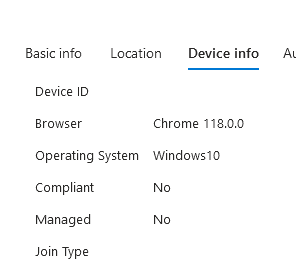
Configure SSO for Chrome with Windows account extension:
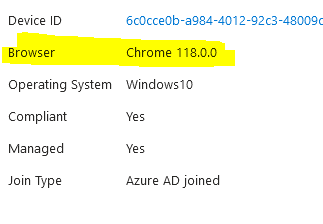
Configure SSO for firefox with custom configuration profile using OMA-URI or configure it manually on firefox menu:
Click Settings, select Privacy & Security on the left, go down to the Logins and Passwords section and check the box next to the Allow Windows single sign-on … setting.

Role
Read Conditional Access policies and configurations: Security Reader, Global Reader
Create or modify Conditional Access policies: Conditional Access Administrator, Security Administrator, Global Administrator
Conditional Access Page
Access the conditional access page by navigate to Intune portal > Endpoint security > conditional access
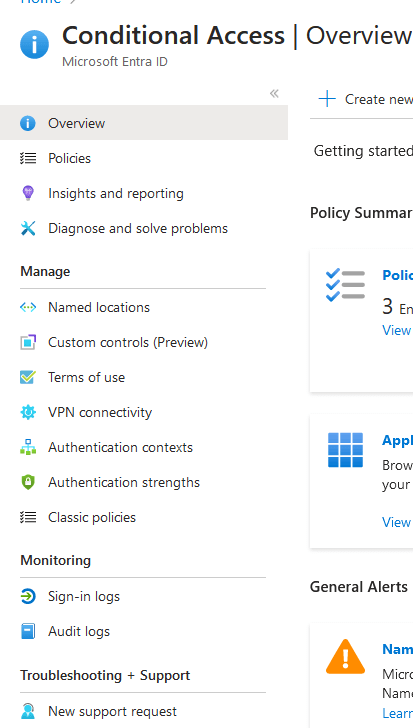
Overview:
The Conditional Access overview dashboard provides a summary of policy state, users, devices, applications, general alerts, and security alerts with suggestions.
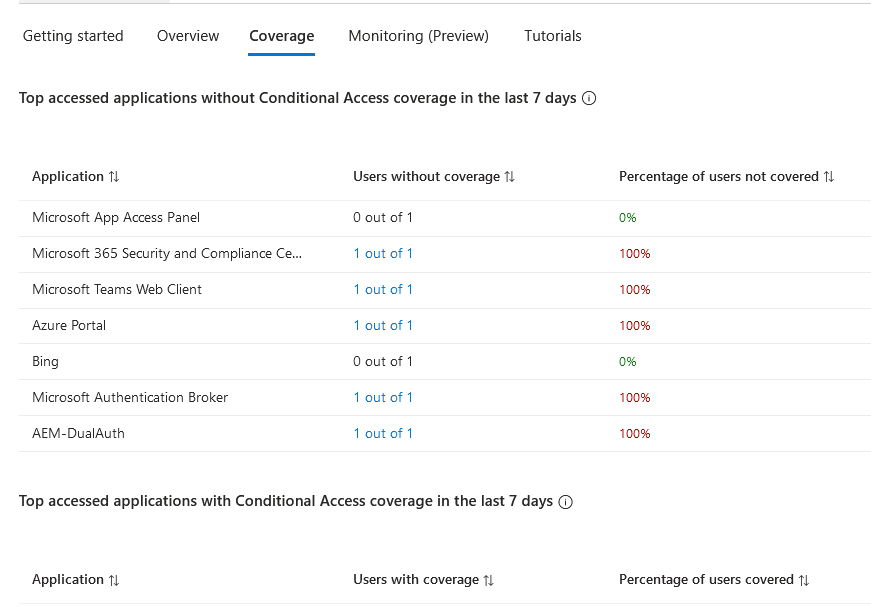
The Coverage page provides a synopsis of applications with and without Conditional Access policy coverage over the last seven days.
The Monitoring page allows administrators to view a graph of sign-ins that can be filtered to identify potential gaps in policy coverage.
Policies
This is where the conditional access policies will be created. There are also templates to choose from generated from Microsoft. Those are solid templates that should also be implemented in any environment.
**Note that Conditional Access does NOT require a device to be enrolled except when the grant requires a device to be compliant
- User and sign-in risk requires Azure P2 plan
- Report only mode audits the policy, it does not take effect unless it is turned on
- Highly recommend designating a break glass global administrator account in case other administrators get locked out. Only use for emergency situations. Exclude this account from conditional access
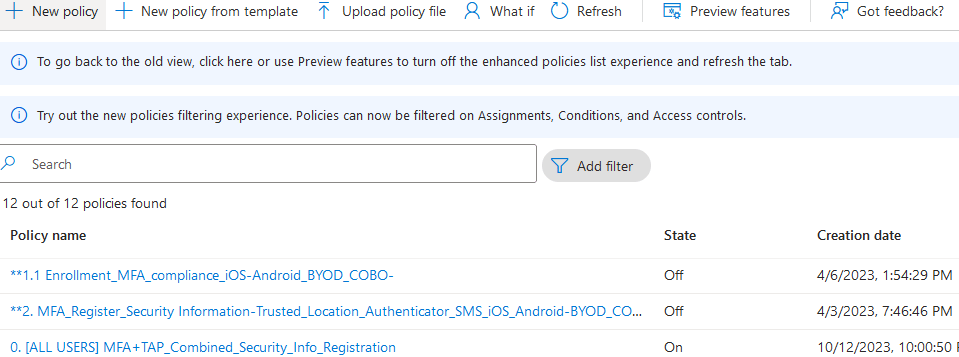
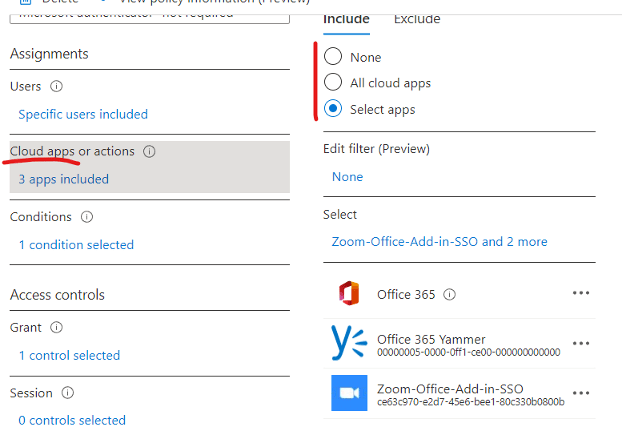
Assignments:
Users– This assignment can include all users, specific groups of users, directory roles, or external guest users. More info: https://learn.microsoft.com/en-us/azure/active-directory/conditional-access/concept-conditional-access-users-groups
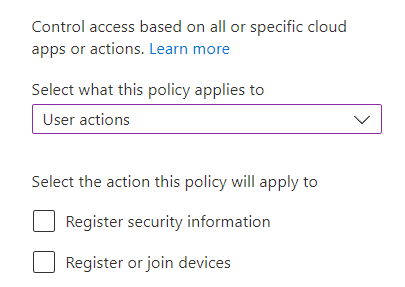
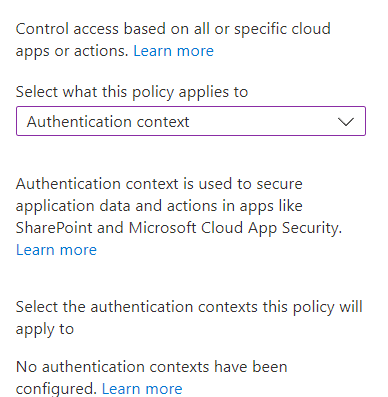
Target Resources- Apply to Cloud apps (All Cloud apps or selected apps), User action (Register security info or Register/Join device), or authentication context. More info: https://learn.microsoft.com/en-us/azure/active-directory/conditional-access/concept-conditional-access-cloud-apps
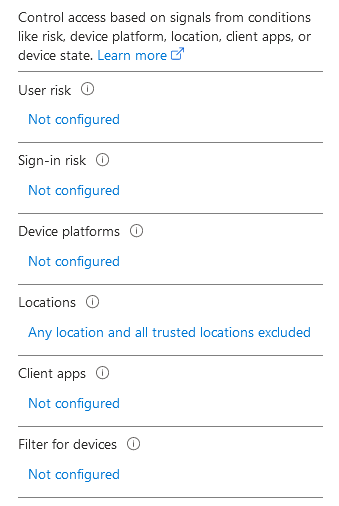
Condition– Select the conditions that must be met in order for policy to apply. More info here: https://learn.microsoft.com/en-us/azure/active-directory/conditional-access/concept-conditional-access-conditions
User and Sign-in risk requires Azure P2 license. Based on user location, sign in attempts from untrusted location and various other factors that might indicate a compromised account. This risk is evaluated in Identity protection portal.

Device platform - conditional access can be filtered to the following platforms. Recommend to create a policy to block unsupported platforms
○ Android
○ iOS
○ Windows
○ macOS
○ Linux

Locations - includes or exclude a location that the policy will apply to. If applying a block to all outside location other than corporate network, then select include all locations. Exclude all trusted locations.

Client apps - Control user access to target specific client applications not using modern authentication

Filter for devices - Configure a filter to apply policy to specific devices. If you only want policy to apply to Dell laptops, create a filter to identify dell laptops.
Access control:
Grant– set to grant or block access. Configured to require one or all of the selected requirements before internal resources is granted. More in depth information on grant access here: https://learn.microsoft.com/en-us/azure/active-directory/conditional-access/concept-conditional-access-grant

Sessions– Control access based on session controls to enable limited experiences within specific cloud applications. More info: https://learn.microsoft.com/en-us/azure/active-directory/conditional-access/concept-conditional-access-session
Session can create policy for specific apps (Blocking download for workday app if user is not using compliant device using conditional access app control)
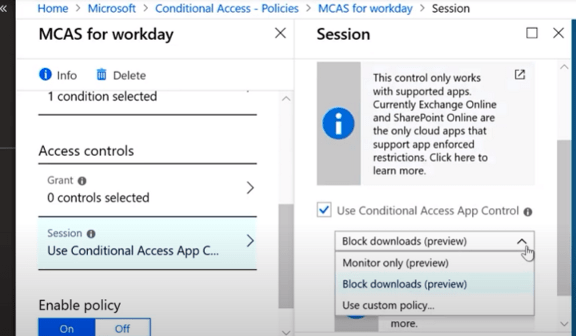
**Multiple policies can work together as they are combined together. All policies are applied. Like “AND” action
Named Location
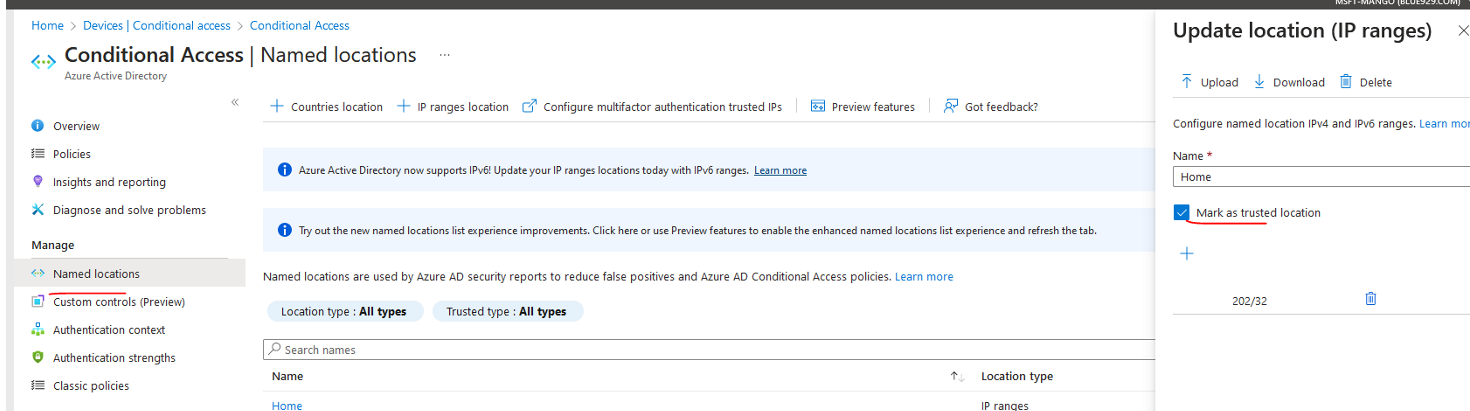
I highly suggest setting a trusted location for MFA and creating a location for corporate network.
1) Select configure multi-factor authentication trusted IP (skips MFA for users on internal network)
Verification option can be deselected for all if company uses the latest authentication method page located in Entra Admin center > Identity > protection > Authentication methods
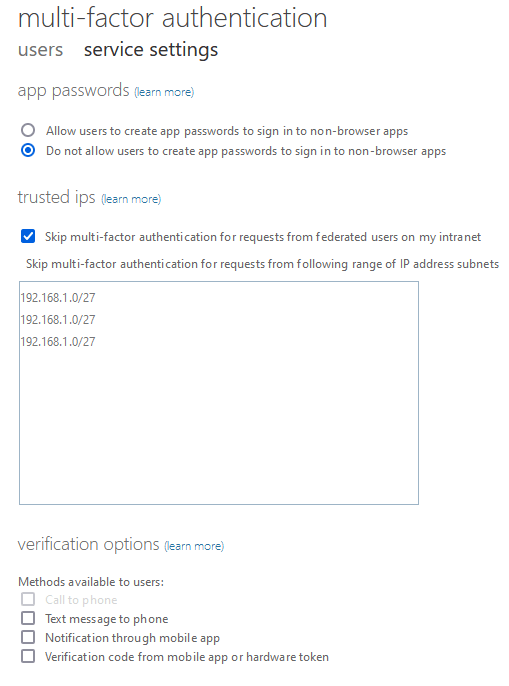
2) Create a trusted location by inputting public IP and mark it as trusted location. You can target a country location to be used in conditional access if preferred.
Terms of use
Microsoft Entra terms of use policies provide a simple method that organizations can use to present information to end users. This presentation ensures users see relevant disclaimers for legal or compliance requirements. To configure terms of use, navigate to device> conditional access> terms of use> new terms.
Name- Name the ToU
Term of use document- Upload the pdf document, tag it with language and set the display name of the Tou
Require user to expand ToU- On
Require User to consent on every device – Off
The Require users to consent on every device setting enables you to require end users to accept your terms of use policy on every device they’re accessing from. The end user’s device must be registered in Microsoft Entra ID. When the device is registered, the device ID is used to enforce the terms of use policy on each device
Expire consent– off
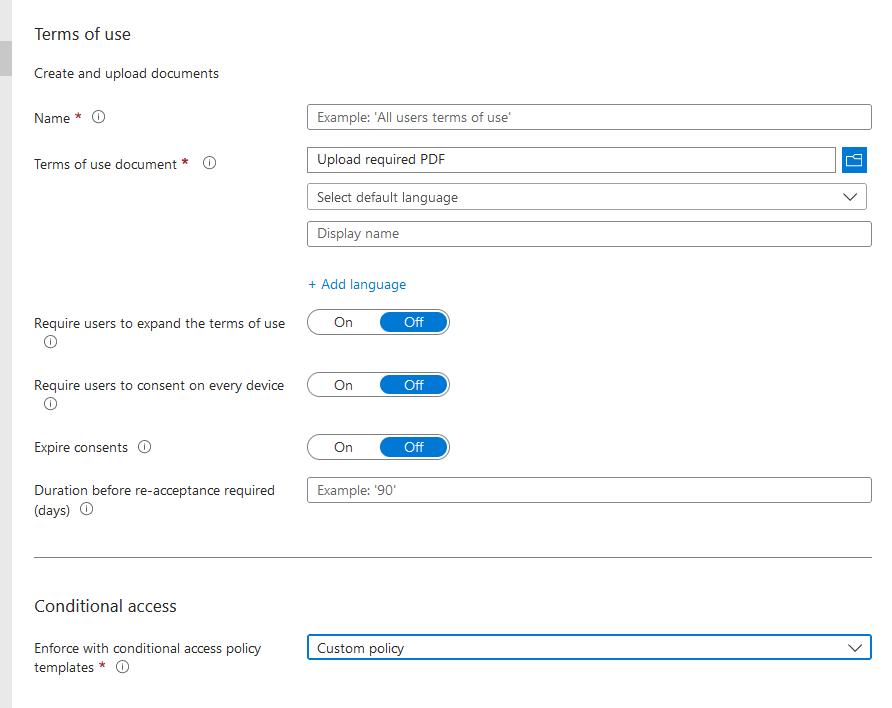
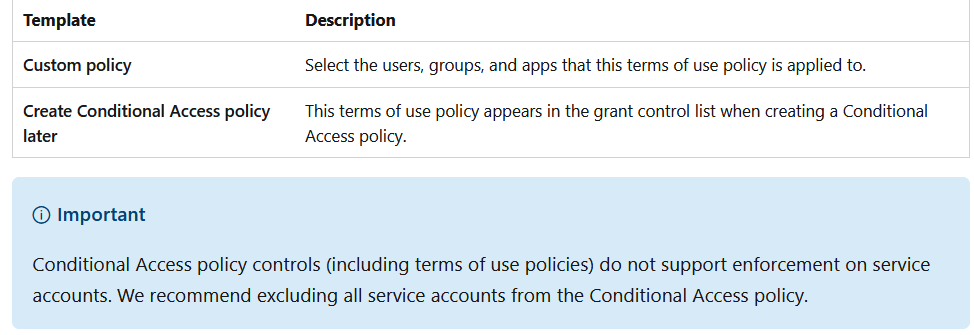
Enforce with Conditional access policy templates- create conditional access policy later (We will utilize conditional access to enforce ToU)
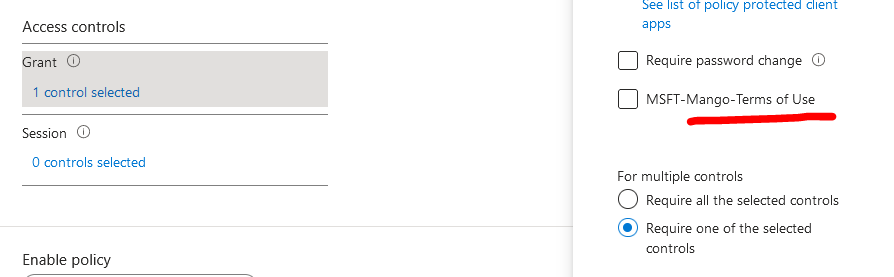
When creating a new conditional access policy, the ToU becomes one of the requirement that can be enforced in order to access company resources.
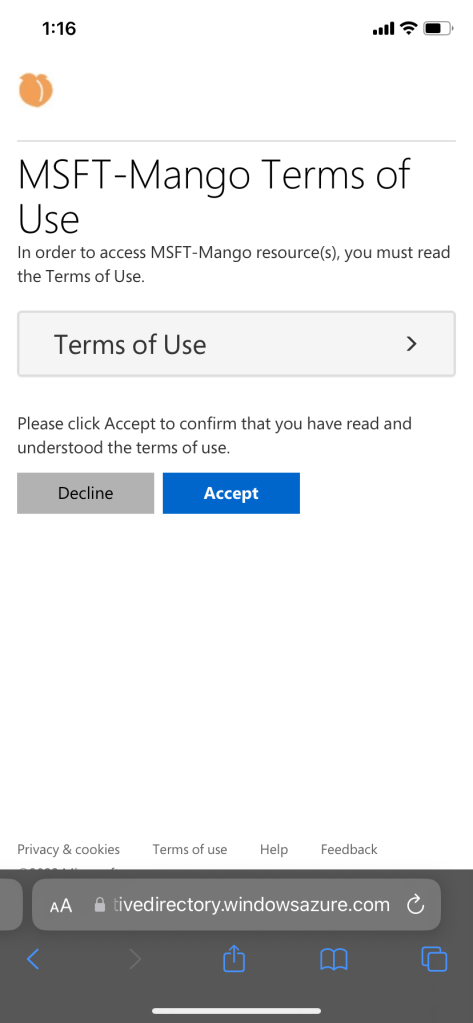
User experience:
To view who accepted or declined the policy: Go to terms of use > select the term created > click on users accepted

Configure the authentication strength (optional)
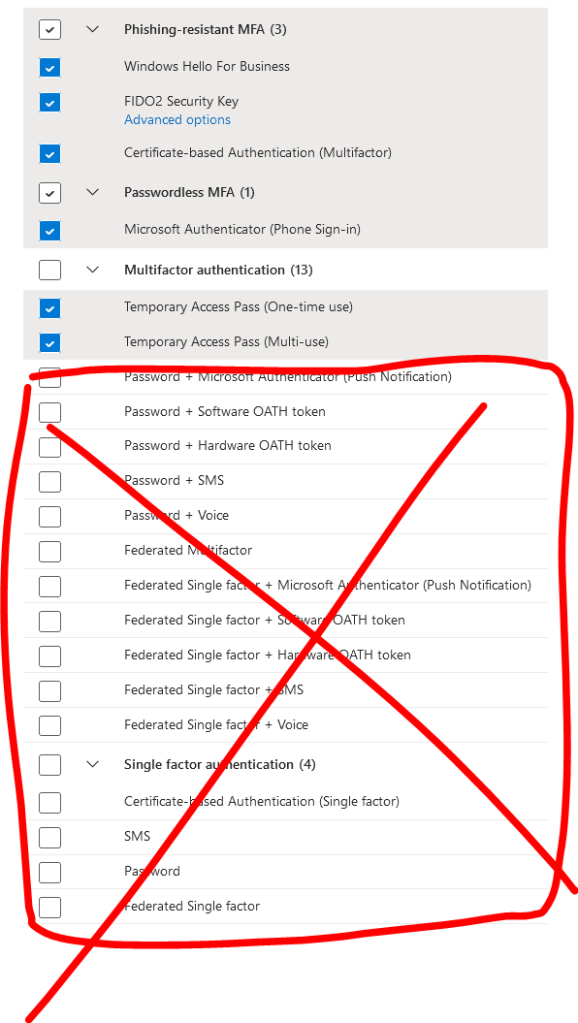
Go Intune portal > devices > conditional access > authentication strength. In here, either use the default strength or create one.
In this lab, I have created [Passwordless MFA + TAP], an customized authentication method that only allows passwordless authentication and TAP (temporary access pass) as an MFA requirement.
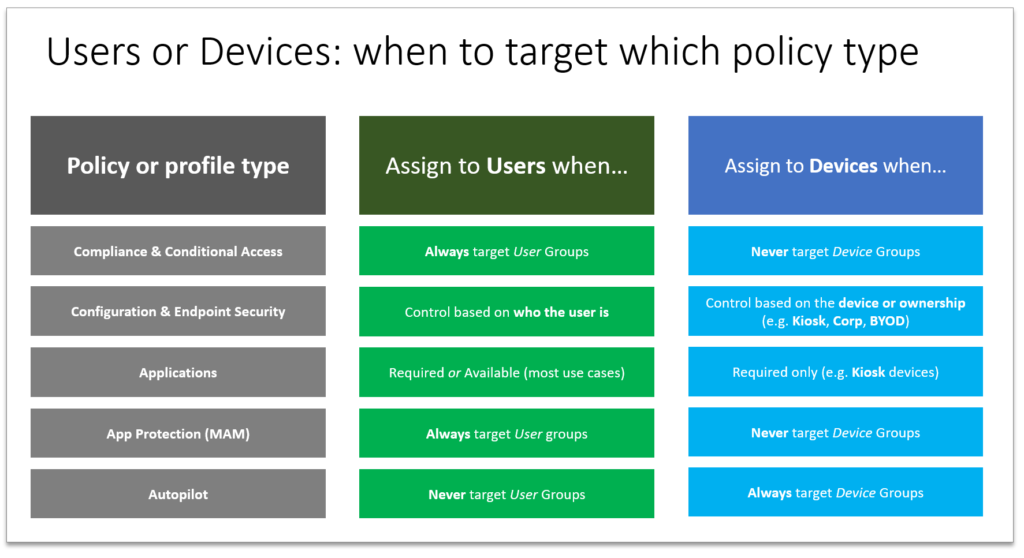
Target assignment best practice:
Baseline policies:
The following articles reviews common conditional access policies to implement that will target corporate users (high risk), guest, administrators and service accounts. I highly suggest referencing these article as a starting point when establishing security baseline for your tenant.
https://learn.microsoft.com/en-us/azure/active-directory/conditional-access/howto-conditional-access-policy-admin-mfa (Numerous examples of common conditional access policies from Microsoft)
https://learn.microsoft.com/en-us/azure/active-directory/conditional-access/overview
https://learn.microsoft.com/en-us/answers/questions/281031/conditional-access-licensing-requirement
https://learn.microsoft.com/en-us/azure/active-directory/conditional-access/plan-conditional-access
https://learn.microsoft.com/en-us/azure/active-directory/conditional-access/terms-of-use
 Steven’s Knowledge Base