
Microsoft Entra multifactor authentication (MFA) and self-service password reset (SSPR) combined registration are essential for securing user accounts. Conditional access policies can be used to prevent attackers from registering security information for employee accounts.
Without a conditional access policy, attackers could impersonate employees and bypass MFA measures.
Here are some reasons why you might want to configure a conditional access policy to require security information registration:
- To prevent unauthorized users from registering security information and gaining access to your organization’s resources.
- To ensure that security information is registered on trusted devices. This can help to prevent users from registering their security information on compromised devices, which could allow attackers to gain access to their accounts.
Goal: Create a conditional access policy to lock down where users can register their security information sign in methods.
Securing security info registration Policy
Navigate to Intune portal > devices > conditional access > new policy.
This policy requires users to be on the corporate network to register their security information for authentication. If users try to register security information outside of untrusted network, they will get blocked. Exclude glass break account or emergency account.
Name: 0. [ALL USERS] MFA+TAP_Combined_Security_Info_Registration
Assignments:
Users:
Include: All users
Exclude: Directory Role > Global Administrator

Target resources:
Include: User actions >  Register Security information

Conditions:
Location: Include Any location.
	  Exclude All trusted locations

Access control:
Grant: Require Authentication strength (passwordless MFA + TAP)
User experience from trusted location
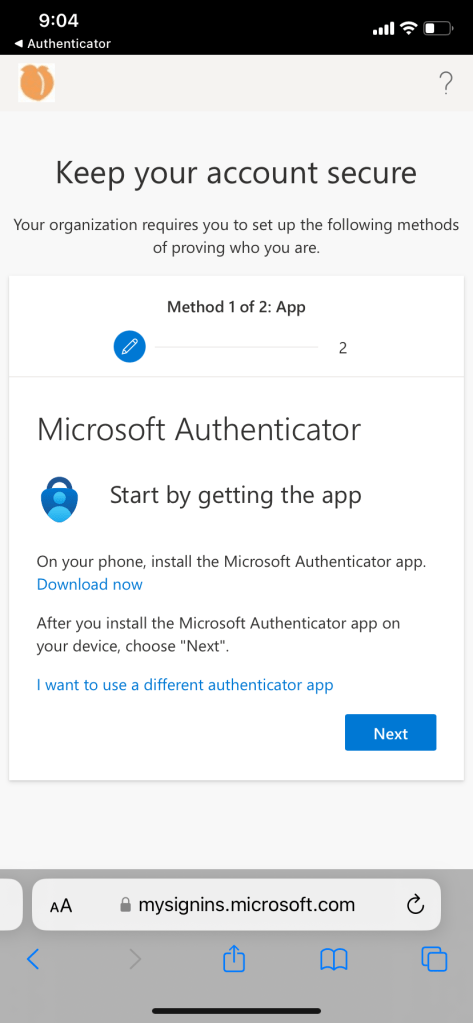
For a new user, the combined registration page triggers when a user signs into internal resource from a trusted location when there is no authentication method registered for the user.
The page takes user registration information needed for self-service password reset and MFA if authenticator app is used for MFA.
- User navigates to their office 365 account [mysignins.microsoft.com]
- User enter username and password.
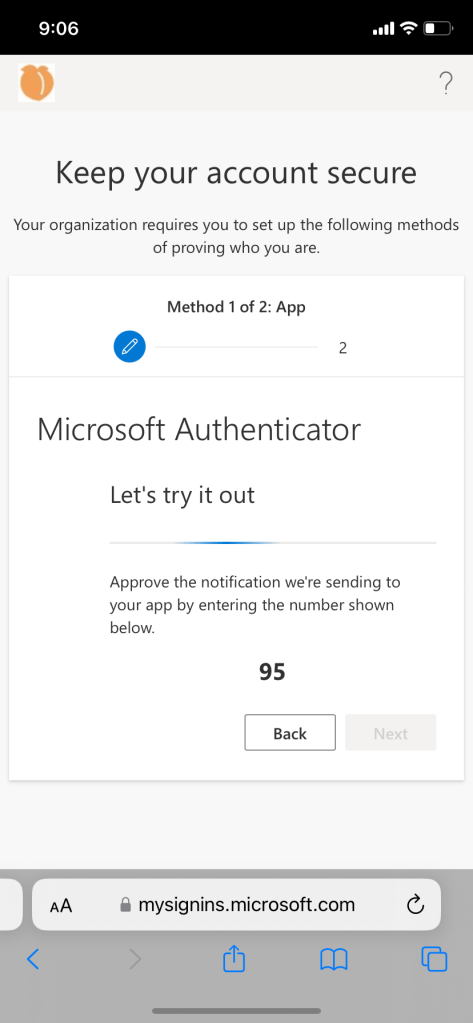
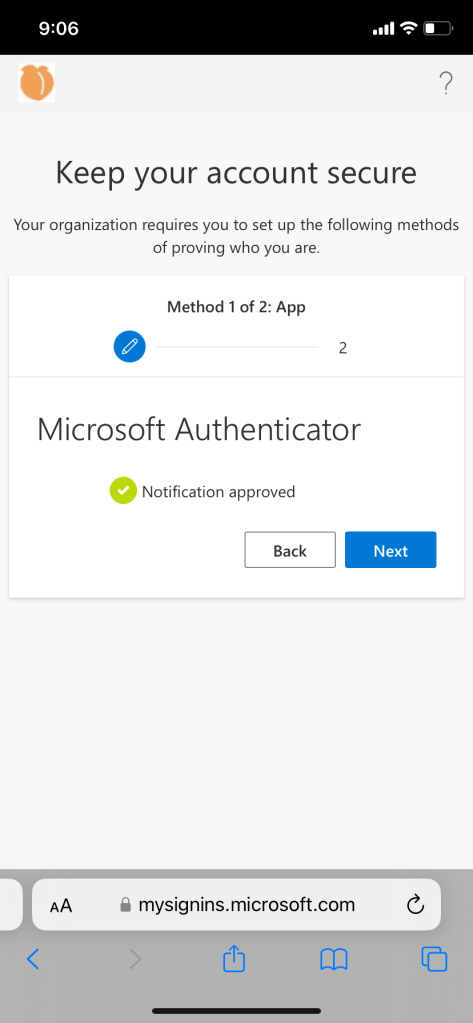
- The next prompt will suggest downloading the app and registering second sign in method (Combined Registration)
- If using passwordless authentication, enable phone sign in from authenticator app from corporate network. Enabling phone sign in outside of corporate network will get blocked.
- Once the sign in methods are registered, navigate to security registration page [mysignins.microsoft.com/security-info], the user will not see MFA challenge since policy excludes trusted locations
This is the most secure route to register security information for a new user or existing user.



User experience from Untrusted location
For a new user, the combined registration page DOES NOT SHOW when a user try to sign into home portal from a untrusted location
- User navigates to their office 365 account [mysignins.microsoft.com]
- If the user has not registered any sign in methods with combined registration, they immediately get blocked.
- If a user has registered their sign in methods from internal network, they will encounter MFA challenge when access security registration page [mysignins.microsoft.com/security-info] from outside corporate network.
If there is no sign in methods detected for account:
When a user try to sign in from untrusted location, there should be no option to register for any sign in methods.

If sign in methods is detected for the account:
When a user try to view [mysignins.microsoft.com/security-info] from untrusted location, there should be MFA challenge


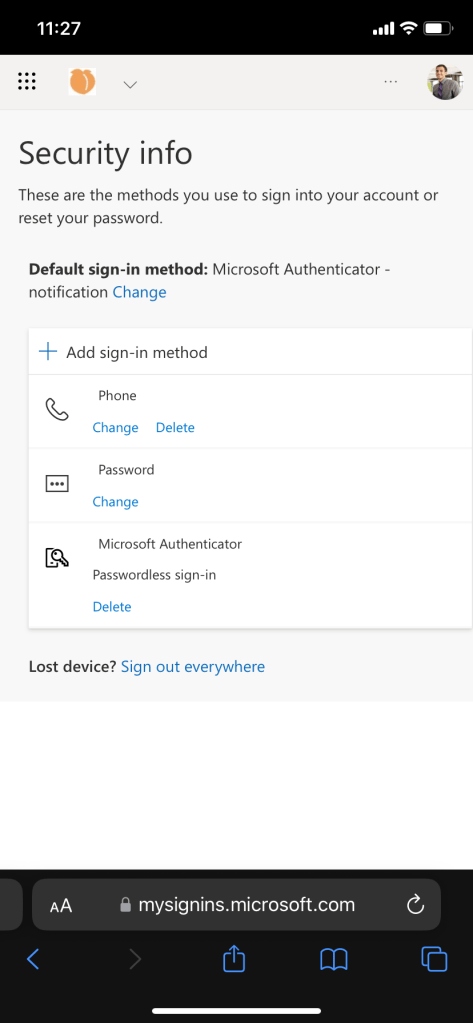
**Passwordless authentication with Microsoft authenticator or a TAP will suffice the grant control
**Since passwordless authentication is required, the device must be connected to trusted location in order to complete phone sign-in for Microsoft authenticator
Source
 Steven’s Knowledge Base