
Microsoft Entra terms of use policies provide a simple way for organizations to present information to end users, ensuring that they see relevant disclaimers for legal or compliance requirements.
There are a number of reasons why you might want to create a terms of use conditional access policy:
- To ensure that users agree to your terms of use before they can access your organization’s resources. This can help to protect your organization from legal liability and ensure that users are aware of the rules and expectations for using your resources.
- To educate users about your terms of use. By requiring users to agree to your terms of use before they can access your resources, you can help to ensure that they are aware of your policies and procedures.
- To comply with regulatory requirements. Some industries, such as healthcare and finance, have specific regulatory requirements that require organizations to obtain user consent before providing access to certain resources. A terms of use conditional access policy can help you to comply with these requirements.
Goal: Create a conditional access policy targeting all users and all cloud apps to require user to accept the Terms of Use before accessing company resources.
Set up Terms of Use
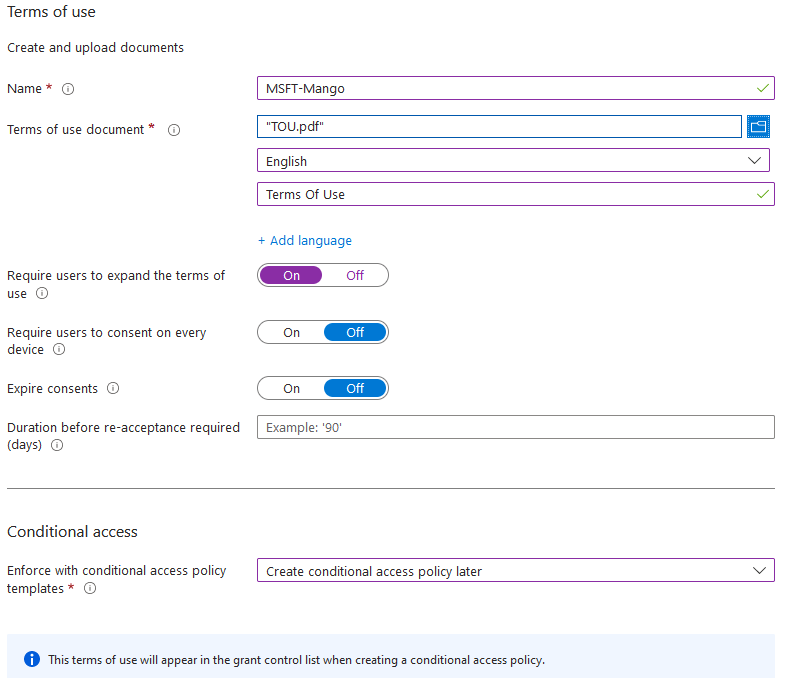
Navigate to Intune Portal > Devices > Conditional Access > Terms of Use > Select “New Terms”
Name- Name the ToU
Term of use document- Upload the pdf document, tag it with language and set the display name of the Tou
Require user to expand Tou- On
Require User to consent on every device – Off
The Require users to consent on every device setting enables you to require end users to accept your terms of use policy on every device they’re accessing from. The end user’s device must be registered in Microsoft Entra ID. When the device is registered, the device ID is used to enforce the terms of use policy on each device
Expire consent– off
Enforce with Conditional access policy templates- create conditional access policy later (We will utilize conditional access to enforce ToU)
The ToU becomes one of the requirement that can be enforced in order to access company resources.


Enforce Terms of Use using Conditional Access Policy
Navigate to Intune Portal > Devices > Conditional Access > New Policy

Name: 0. [All Users] MSFT-Mango- Terms of Use_All_Cloud_Apps
Assignments:
Users:
Include: All users
Exclude: Directory Role > Global Administrator

Target resources:
Include: All Cloud apps

Conditions:
Device Platform: Any Device

Access control:
Grant:  MSFT-Mango-Terms of Use
User Experience
User logs into office365 portal:
If the terms are accepted, the user is able to proceed to resources

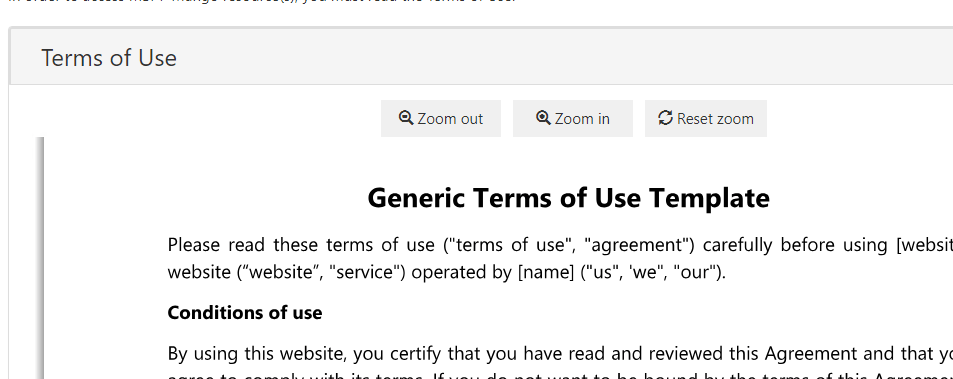
If user deny the terms, they will be denied from accessing resources

To view who accepted or declined the policy: Go to terms of use > select the term created > click on users accepted

Source
https://learn.microsoft.com/en-us/azure/active-directory/conditional-access/terms-of-use
 Steven’s Knowledge Base