
To prevent unauthorized devices from enrolling in Intune and accessing company resources, require users to use MFA before they can enroll their personal or corporate devices in the company Intune portal. This policy also requires compliant devices, which helps to ensure that only secure devices are enrolled in Intune.
Even if a user’s credentials are compromised, a secondary policy (Registering Security information) prevents unauthorized users from registering sign-in methods, as this policy only allows registration from the corporate network.
Goal: Prevent unauthorized users from registering devices with employee credentials by requiring multi-factor authentication (MFA) for Intune enrollment.
Require MFA for Intune Enrollment
**If there is an existing policy that only allows registering Security information in a trusted location, then the device enrollment MUST be done in corporate network.
This policy require multi-factor authentication for Intune device enrollments for personal and corporate iOS and Android devices.
Navigate to Intune portal > device > conditional access > policies > new policy.
Name: [iOS-Android_BYOD_COBO] Enrollment_Require_MFA
Assignments:
Users:
Include: iOS_BYOD_Assigned, Android_BYOD_Assigned, iOS_COBO_Assigned, Android_COBO_Assigned

Target resources:
Include: Microsoft Intune

Conditions:
Device Platforms: iOS, Android

Access control:
Grant:
Require Authentication strength (passwordless MFA + TAP)
Require device to be marked as compliant
User experience- Personal iOS device
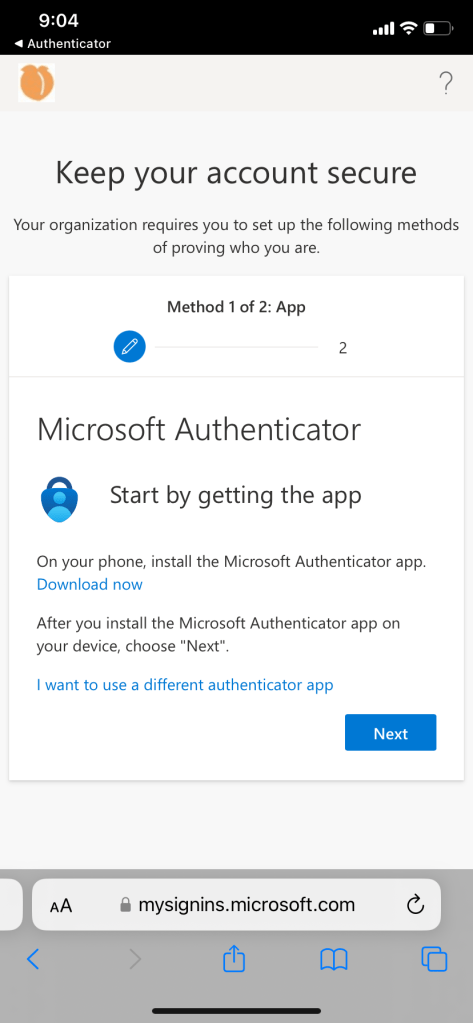
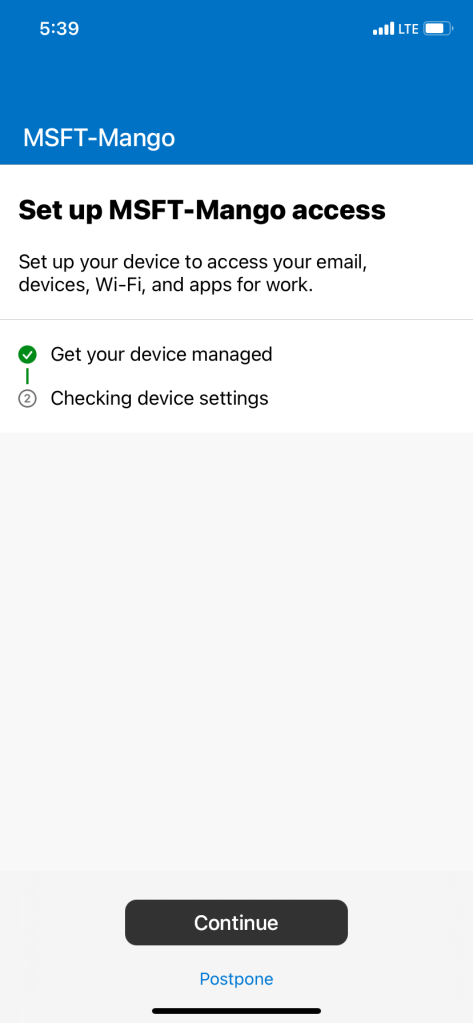
If user does not have any registered sign in method, they must go through combined registration when going into company portal. Once that is done, proceed with enrolling device from company portal. User will be met with MFA challenge in order to finish enrollment.
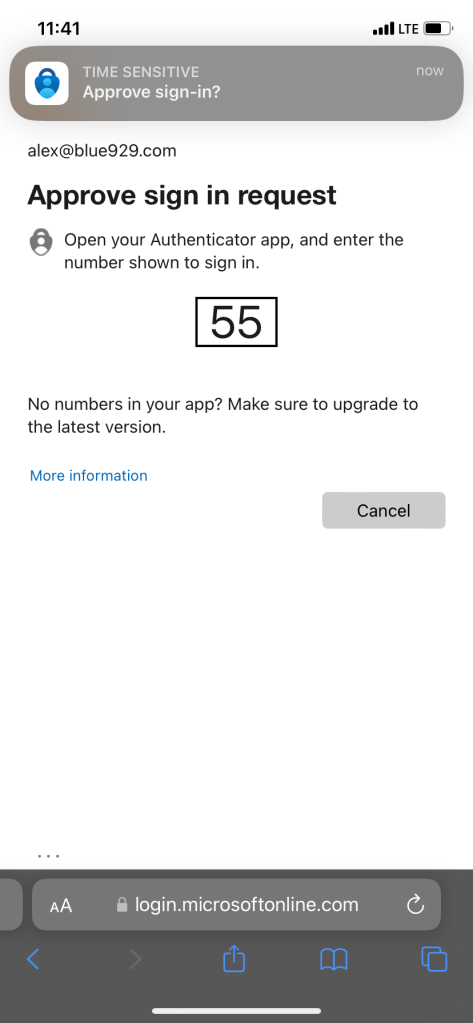
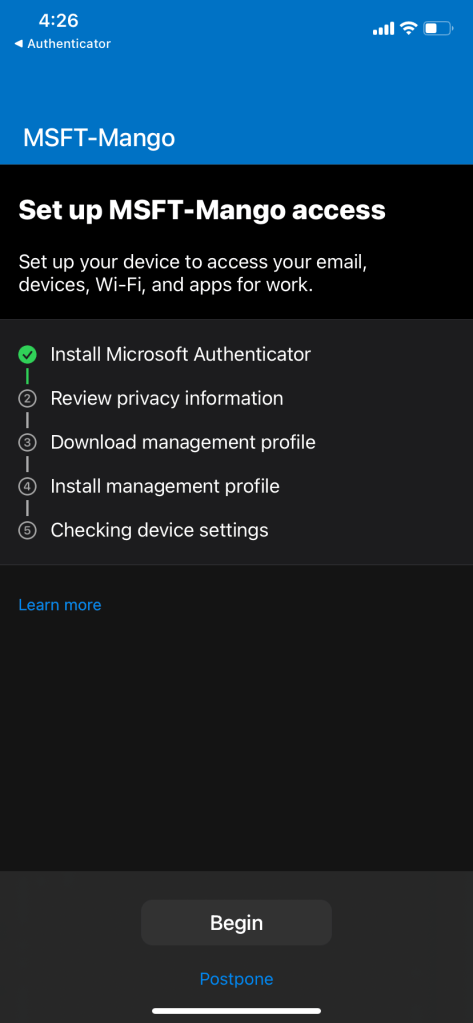
If user has already set up sign in methods, proceed to sign into the company portal. The user will be challenged with MFA to order to complete enrollment. Once the MFA requirement is met, user can proceed to install management profile and enroll device. Compliance is checked at the end.
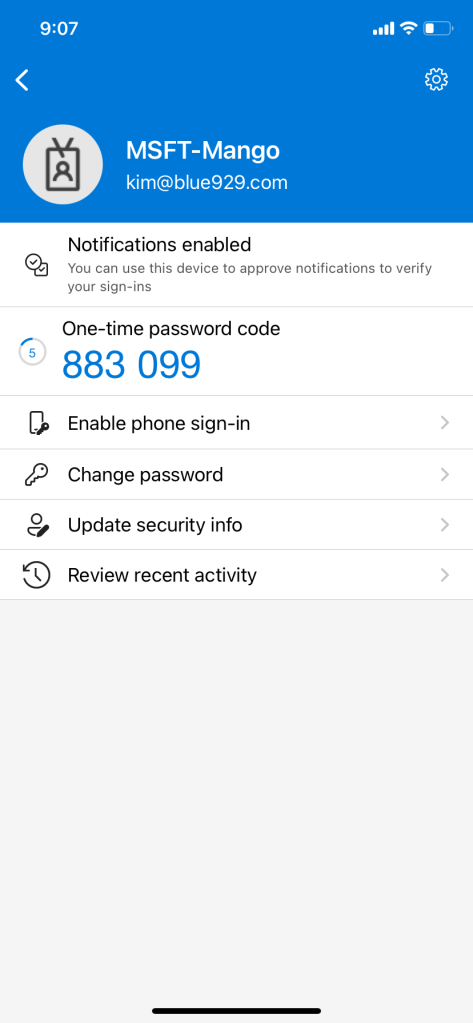
**If tenant only allows passwordless sign in, navigate to Microsoft authenticator and enable phone sign in before moving forward with company portal enrollment.
If phone sign in is NOT enabled, user will encounter this error
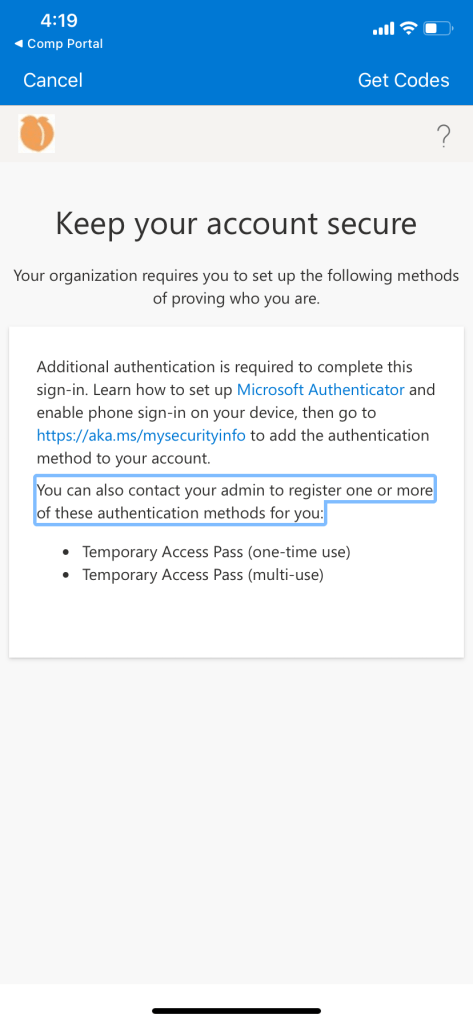
Navigate to Microsoft Authenticator, select the account and enable phone sign in
User experience – Corporate iOS device (Supervised)
Provision device with Apple Configurator 2. Once the setup assistant is done, deploy enrollment profile with user affinity, sign in using company portal app.
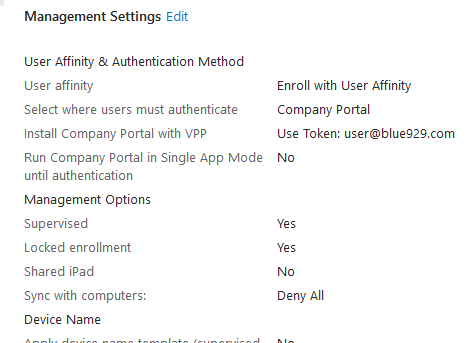
If user does not have a secondary device and MFA sign in method is required to be setup only on the corporate device, then a TAP must be used. Issue a TAP (Temporary Access Pass) for the user in order to proceed with device enrollment by signing into company portal. Once the device is enrolled with TAP, select Microsoft Authenticator > sign in with work account. Passwordless sign in will automatically be enabled.
• If user has registered for sign in methods, remove the TAP from user account once authenticator app is setup on the device.
• If user has not register for any sign in methods, proceed with combined registration process.
To issue a TAP for user: Navigate to User > authentication methods > add authentication methods > Temporary Access Pass

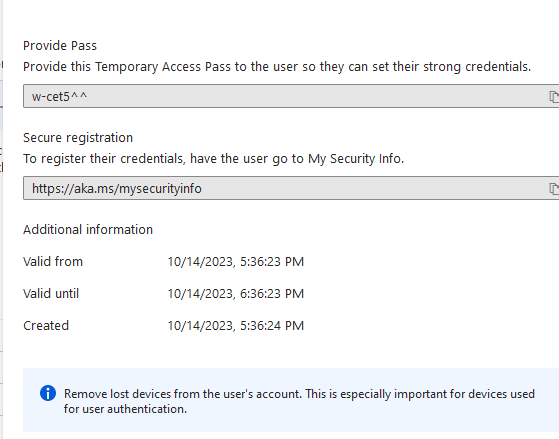
Once TAP has been issued to the user, they will encounter this prompt when trying to sign into company portal. TAP will fulfill MFA requirement.
If VPP is configured, sign into app store with “alex@blue929.com” in order to download all the necessary apps. This is only required once per enrollment.

Source:
https://learn.microsoft.com/en-us/azure/active-directory/conditional-access/overview
https://learn.microsoft.com/en-us/MEM/intune/enrollment/multi-factor-authentication
 Steven’s Knowledge Base