
This conditional access policy deploys a mobile application management (MAM) solution to users’ devices to allow only specific applications to be used. In this lab, we will require users to use only the Outlook app as their primary mail client on their personal and corporate phones.
Here are some reasons why you would want to use a conditional access policy that requires an app protection policy:
- To protect your organization’s data: App protection policies allow you to control how your organization’s data is accessed and used on mobile devices. This can help to protect your data from unauthorized access, even if the device is lost or stolen.
- To comply with regulations: Some organizations are required to comply with industry regulations that require them to protect sensitive data. App protection policies can help organizations to meet these requirements.
- To improve the user experience: App protection policies can help to improve the user experience by ensuring that users have access to the latest versions of your organization’s apps and that their devices are compatible with those apps.
Another way to prevent users from signing into third-party mail clients is to use the “requires approved app” grant control. However, this grant control will no longer be supported in 2026. Microsoft recommends moving to the “require app protection policy”. The purpose of this policy is to prevent the usage of a company account from being logged into third party browsers or apps to mitigate data loss and possibly account compromise.
Goal: Create a Conditional Access policy to prevent users from accessing any third-party app that does not have an app protection policy assigned to it. This will ensure that users only use approved apps that have data loss prevention policies in place.
Require App Protection policy for All Cloud Apps
This policy requires an app protection policy (APP) to be applied to a specific application before a user can access it. For example, if the administrator only wants users to access the Outlook app for their emails, an APP must be deployed for Outlook. Be sure to exclude Microsoft Intune and Apple Business Manager to avoid conflicts with enrollment process.
*If there are issues with Intune Enrollment, consider switching from all Cloud apps to Office365
To create the policy: Navigate to Intune portal > device > conditional access > policies > new policy.

Name: [iOS_Android_BYOD_COBO]_All_Cloud_App_Require_App_protection
Assignments:
Users:
Include: iOS_BYOD_Assigned, Android_BYOD_Assigned, iOS_COBO_Assigned, Android_COBO_Assigned
Exclude: Break glass group

Target resources:
Include: All Cloud apps
Exclude: Microsoft Intune, Apple Business Manager

Conditions:
Device Platforms: iOS, Android

Access control:
Grant: Require app protection policy
1. Policy checks browser, mobile apps, desktop clients and exchange ActiveSync clients and DOES NOT ALLOW signing into any third party client that does not have APP assigned.

2. App protection policy requires the device to be registered in Microsoft Entra ID which requires the identity broker application to be applied:

For iOS- Microsoft Authenticator
For Android - Company portal
What apps supports app protection policy?
The following client apps support this setting. This list isn’t exhaustive and is subject to change. The apps that users can use are:
- Adobe Acrobat Reader mobile app
- iAnnotate for Office 365
- Microsoft Cortana
- Microsoft Edge
- Microsoft Excel
- Microsoft Power Automate
- Microsoft Launcher
- Microsoft Lists
- Microsoft Office
- Microsoft OneDrive
- Microsoft OneNote
- Microsoft Outlook
- Microsoft Planner
- Microsoft Power BI
- Microsoft PowerApps
- Microsoft PowerPoint
- Microsoft SharePoint
- Microsoft Stream Mobile Native 2.0
- Microsoft Teams
- Microsoft To Do
- Microsoft Word
- Microsoft Whiteboard Services
- Microsoft Field Service (Dynamics 365)
- MultiLine for Intune
- Nine Mail – Email and Calendar
- Notate for Intune
- Provectus – Secure Contacts
- Viva Engage (Android, iOS, and iPadOS)
**If an app does not support Require app protection policy, end users trying to access resources from that app will be blocked.
User Experience
When a user attempts to sign into a third party mail client app that does not support app protection policy:
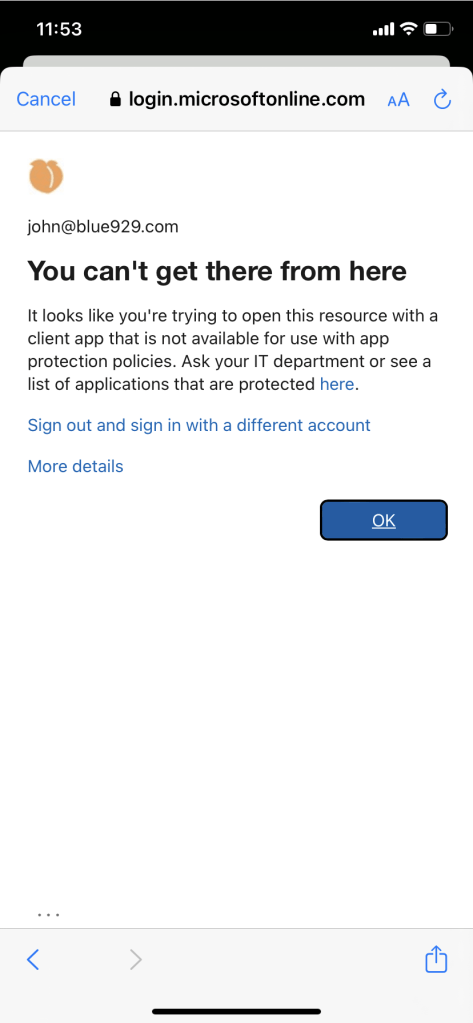
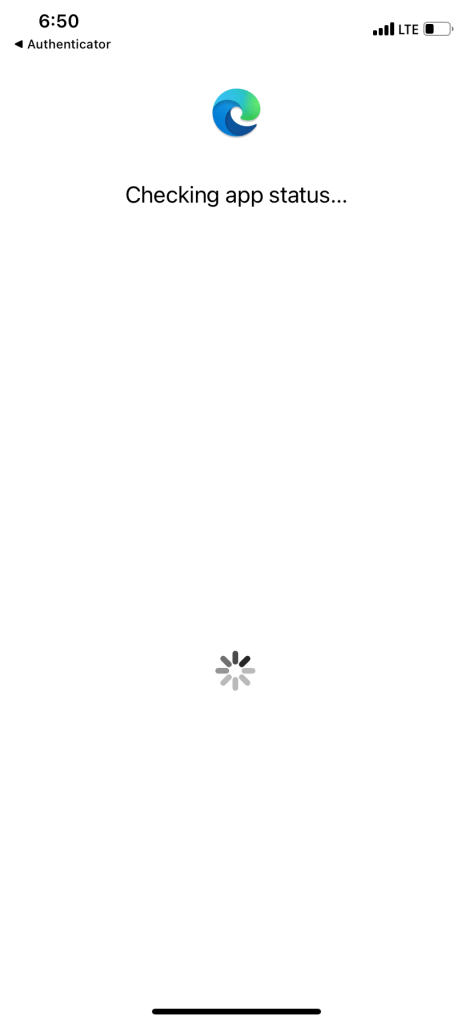
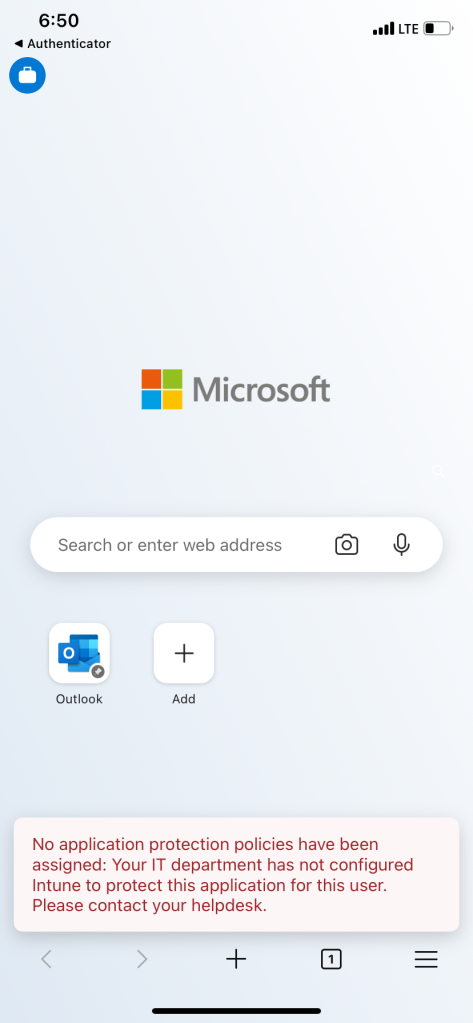
When user attempts to sign in from a third party browser (Safari, Chrome, etc..) that is not edge:

If there is no App protection policy set for Microsoft apps – Users will not be able to access 365 resources.
Notes:
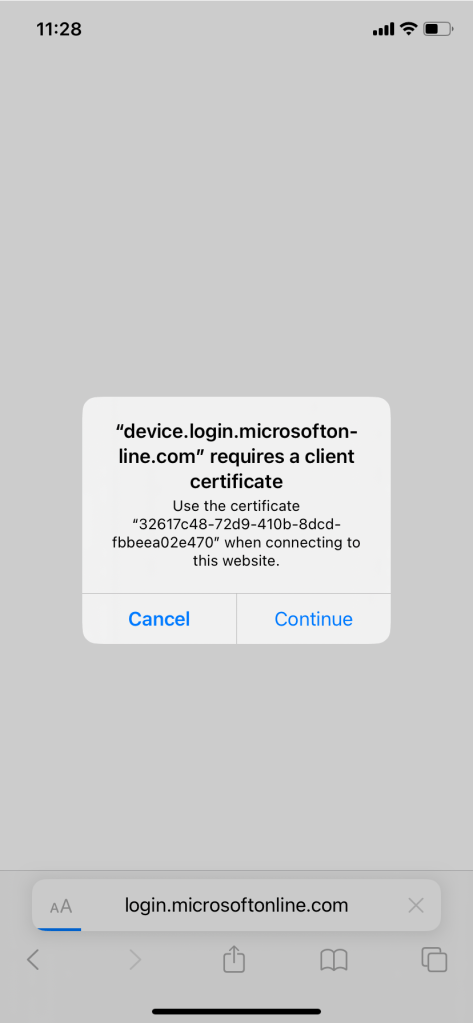
1. Why do I see a certificate prompt in the browser?
On Windows 7, iOS, Android, and macOS Azure AD identifies the device using a client certificate that is provisioned when the device is registered with Azure AD. When a user first signs in through the browser the user is prompted to select the certificate. The user must select this certificate before using the browser.
2. If device platform is set to NOT configured, it will impact all platforms. Potentially locking users out from signing into non-managed approved app
Source:
 Steven’s Knowledge Base