
This policy reduces the risk of Primary Refresh Token stealing attacks by disabling token persistence for the user session. It also modifies the sign-in frequency from 90 days to 8 hours for high-privilege accounts with the administrator role in Entra. The main purpose is to prevent administrator accounts from being signed into a session for a long period of time and removed any cookies or token caching when the session is closed. MFA is also layered on top in order to secure authentication. Consider deploying policy that requires compliant device or set a geographic lock when Admin try to sign into azure portal.
By creating session controls for administrators in a Conditional Access policy, you can help to protect your organization’s sensitive data, reduce the risk of data breaches, and comply with industry regulations.
It is also highly recommended that administrator accounts be separated from user accounts. Additionally, it is not recommended to assign privilege roles to the same IT user account that they would use for everyday tasks.
Goal: Deploy a policy to secure sign in frequency, browser session and require MFA for high privilege accounts in Entra ID.
Secure Administrator Sessions
Sign-in frequency defines the time period before a user is asked to sign in again when attempting to access a resource. The default is a window of 90 days. Asking for credentials too often could backfire as employee might unintentionally supply it without a second thought if they happen to land within a phishing site. The sign in frequency applies to first factor (password) as well as second factor MFA.
A persistent browser session allows users to remain signed in after closing and reopening their browser window. To avoid this, this will be modified to never stay persistent to avoid storage of token and cookies when browser is closed.
**Note: If the global administrator role is included in user assignment but the same account exist in the break glass group, which is excluded from the assignment. The policy will not apply since excluded group takes priority.
To create the policy: Navigate to Entra portal > Identity > Protection > conditional access > policies > new policy.
Name: 7. [Admins] [All Cloud Apps] Session Lockdown
Assignments:
Users:
Directory Roles:

Application Administrator
Application Developer
Authentication Administrator
Authentication Extensibility Administrator
B2C IEF Keyset Administrator
Billing Administrator
Cloud Application Administrator
Cloud Device Administrator
Conditional Access Administrator
Directory Writers
Exchange Administrator
Global Administrator
Global Reader
Helpdesk Administrator
Hybrid Identity Administrator
Intune Administrator
Password Administrator
Privileged Authentication Administrator
Privileged Role Administrator
Security Administrator
Security Operator
Security Reader
SharePoint Administrator
User Administrator

Exclude: Break glass group

Target resources:
Include: All Cloud apps

Grant:
Require authentication strength [Passwordless MFA + TAP]

Session:
Sign-in frequency - 8 Hours
Persistent browser session- Never persistent
User experience
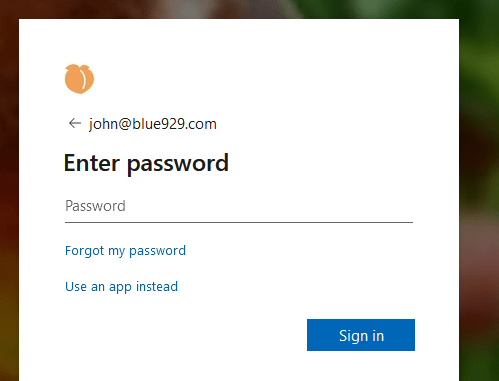
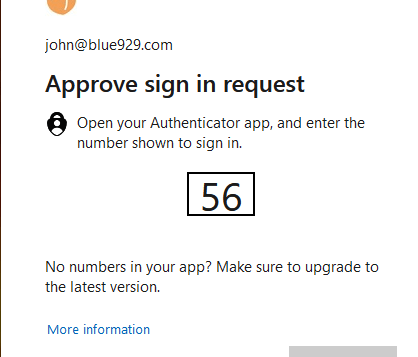
Intune administrator signing into intune admin portal will require MFA. If he browser is closed, they are require to sign in again.

Source
 Steven’s Knowledge Base