
This guide will review policies that can limit the privileges that users have when accessing Exchange or SharePoint from an unmanaged device. The best way to protect company resources would be to require users to use a compliant device, but this can be disruptive for many users. Other scenarios include employees who don’t want to carry an additional work laptop and prefer to use their personal laptop. Since we can’t control personal laptops, we can implement policies to limit what users can access on unmanaged devices without significantly impacting their workflow.
Goal: Configure a conditional access policy to prevent users from downloading, exporting, or saving files in a browser on unmanaged devices. Additionally, block users from using apps to access SharePoint Online and Exchange Online on unmanaged devices.
Configure Unmanaged device setting on Sharepoint Admin Center
1. Navigate to SharePoint admin center
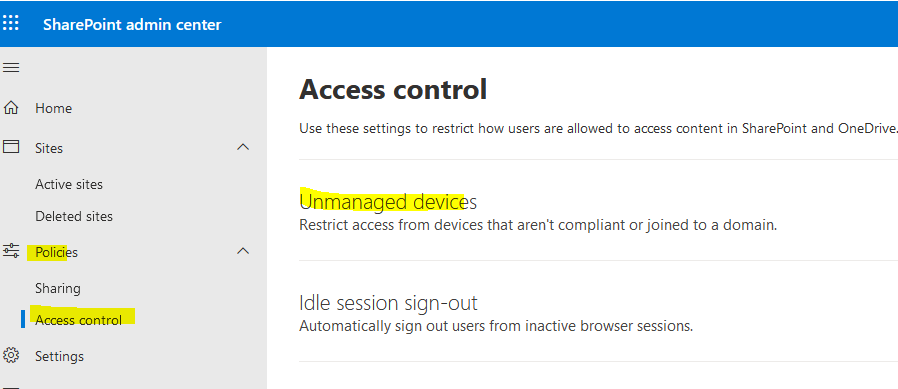
2. Go to Policies > Access Control > Unmanaged devices
3. Select Allow Limited, web-only access
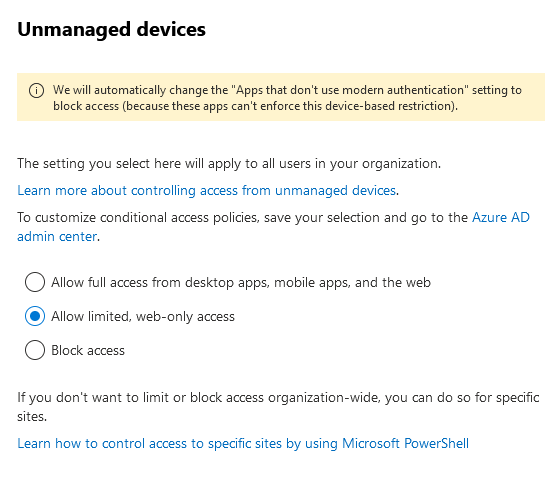
Result: The selection will generated two conditional access policies, which can be turned on. We will modify these two policies later.

Configure Exchange online
You can restrict the ability for users to download attachments from Outlook on the web on unmanaged devices. Users on these devices can view and edit these files using Office Online without leaking and storing the files on the device. You can also block users from seeing attachments on an unmanaged device.
The following commands will configure exchange online to be work with app-enforced restrictions related to conditional access policy. Without these commands, the CA app-enforced restriction does nothing if it targets office 365 Exchange app.
1. Install-Module -Name ExchangeOnlineManagement
2. Connect-ExchangeOnline -UserPrincipalName john@blue929.com
3. Get-OwaMailBoxPolicy | select-object ConditionalAccess*

4. If you want to allow viewing of attachments but no downloading, use this command:
Set-OwaMailBoxPolicy -Identity OwaMailboxPolicy-Default -ConditionalAccessPolicy ReadOnly

*** If you want to block attachments, use this command:
Set-OwaMailboxPolicy -Identity Default -ConditionalAccessPolicy ReadOnlyPlusAttachmentsBlocked
5. Disconnect-ExchangeOnline
Conditional access policies
1. Policy to block access to apps on unmanaged devices
Overview: This policy will block desktop app access to Exchange Online and SharePoint Online for users who are accessing these services from unmanaged devices.
Benefits: This policy will help to protect corporate data by preventing unauthorized access from unmanaged devices. Unmanaged devices are more likely to be infected with malware or other cyber threats. By blocking desktop app access from unmanaged devices, this policy helps to reduce the risk of an attacker gaining access to corporate data if they are able to compromise an unmanaged device.
Impact on users: This policy may have the following impact on users:
- Users will no longer be able to synchronize OneDrive and/or SharePoint sites with the OneDrive client from unmanaged devices.
- Users will not be able to sign in to Office apps like Word, Excel, and PowerPoint from unmanaged devices.
Name: SharePoint_Exchange_Block_Access_App_Unmanaged_Devices
Assignments:
Users:
Include: All Users

Target resources:
Include:
Office 365 SharePoint Online
Office 365 Exchange Online

Conditions:
Client Apps:
Mobile apps and desktop clients

Access control:
Grant:
Require device to be marked as compliant
Require Microsoft Entra hybrid joined device
2. Use-app-enforced restrictions for browser access
Overview: This policy limits the way users can work with Exchange Online and SharePoint Online from browsers.
Benefits: This policy will help to protect corporate data by preventing full access from unmanaged devices but still allowing limited access to resources with certain restrictions on the browser.
Impact on users: This policy may have the following impact on users:
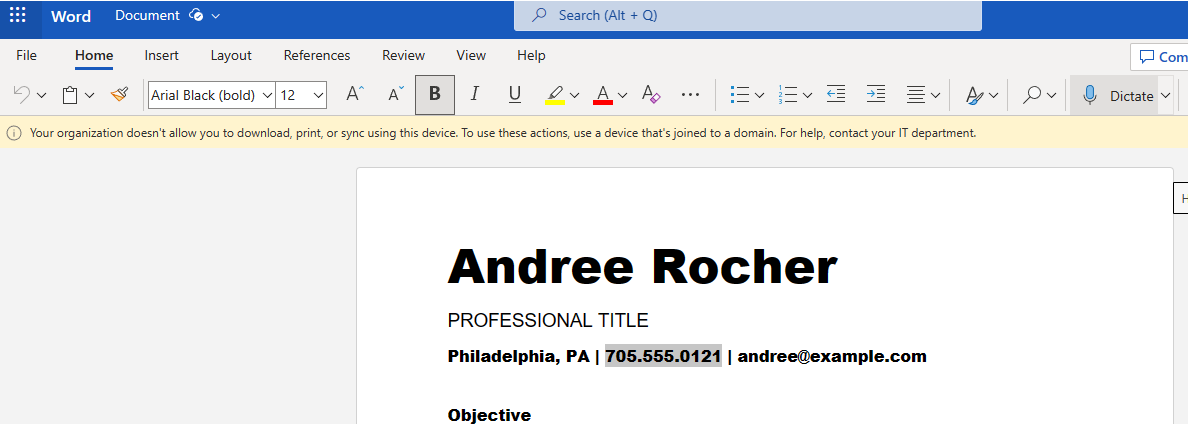
- Users are unable to download attachments, print or sync files from unmanaged devices.
- Users working from un-supported browsers that’s not Edge on managed devices will experience the same limited access controls as those on unmanaged devices.
- SharePoint sites with custom web parts or images won’t display for users on unmanaged devices.
Name: SharePoint_Exchange_App_Enforced_Restriction_Browser
Assignments:
Users:
Include: All Users

Target resources:
Include:
Office 365 SharePoint Online
Office 365 Exchange Online

Conditions:
Client Apps:
Browser

Access control:
Session:
Use App Enforced Restrictions
User Experience:
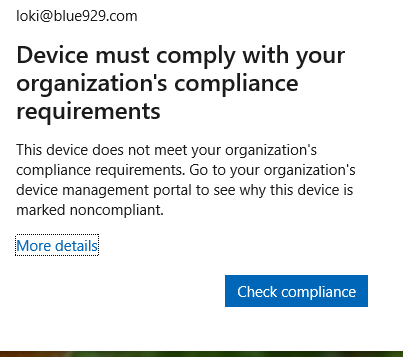
Policy to block access to sharepoint and exchange apps on unmanaged devices:
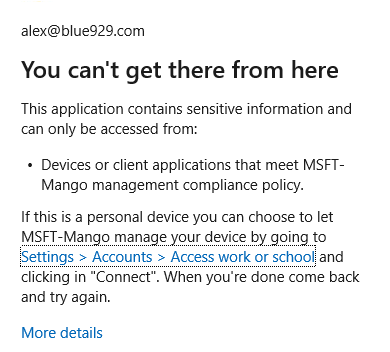
When user signs into teams

When user signs into office 365 app (including outlook)

When user sign into OneDrive
App-enforced restrictions for browser on unmanaged devices:
Onedrive on the web does not have download, print or sync option

Teams on the web does not have a download option
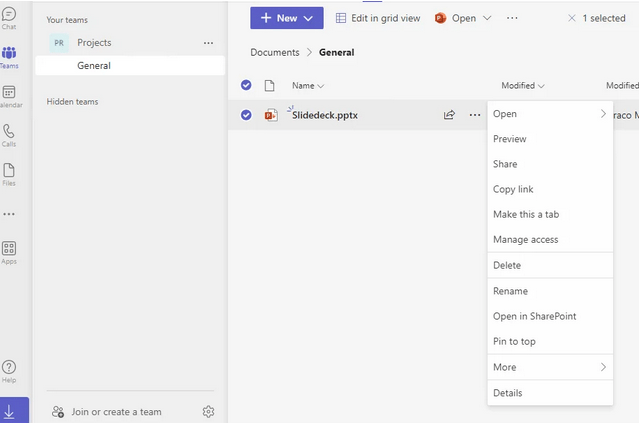
Outlook on the web does not permit downloading or printing attachments
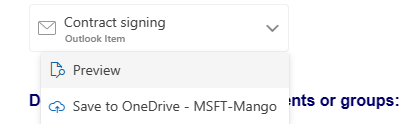
Word/Excel/Powerpoint on the web does not permit print, export , or download of files on unmanaged device
Notes:
**Users working from un-supported browsers that’s not Edge on managed devices will experience the same limited access controls as those on unmanaged devices once the CA app enforced restriction is on. For the policy, if client apps target is [Browser], CA will only support [Edge, Chrome, Firefox]. Chrome and Firefox both needs windows account or office extension so CA can be applied and give those browser full access on managed device instead of limited access. Another option is to enable SSO for Chrome and Firefox.
To configure sso here: https://myronhelgering.com/quick-guide-enable-single-sign-on-for-chrome-and-firefox/
**If devices are Azure AD registered, policy will also apply to those devices since block app access CA policy requires hybrid join. App enforced restrictions on browsers will get applied as well. If managed devices are entra joined but they are not compliant, restrictions will apply to those device. Devices MUST either be hybird joined or complaint.
Source:
https://learn.microsoft.com/en-us/sharepoint/control-access-from-unmanaged-devices
https://myronhelgering.com/configure-limited-access-for-unmanaged-devices-with-conditional-access/
 Steven’s Knowledge Base