
This policy targets unmanaged devices not enrolled in Intune. To protect corporate resources, it limits the sign-in frequency to 1 hour and clears cookies and the token cache when the browser is closed for unmanaged devices.
Here is a more detailed explanation of the benefits of this policy:
- Limits the risk of data breaches: Unmanaged devices are more likely to be infected with malware or other cyber threats. By limiting the sign-in duration for unmanaged devices, the policy helps to reduce the risk of an attacker gaining access to corporate resources if they are able to compromise an unmanaged device.
- Protects sensitive data: The policy also clears cookies and the token cache when the browser is closed. This helps to protect sensitive data that may be stored in the cookies or the token cache from being accessed by unauthorized individuals.
Goal: Create policy for unmanaged devices setting sign-in frequency to 1 hour and no persistent browser session.
Secure Unmanaged device Sessions
Sign-in frequency defines the time period before a user is asked to sign in again when attempting to access a resource. The default is a window of 90 days. The sign in frequency applies to first factor (password) as well as second factor MFA.
A persistent browser session allows users to remain signed in after closing and reopening their browser window. To avoid this, this will be modified to never stay persistent to avoid storage of token and cookies when browser is closed. If persistent browser session is not configured, user would have the option to click “stay signed in”
Condition to be met as “unmanaged” devices – if devices join is not hybrid or Entra joined, then those devices are considered “unmanaged”. The policy does not consider registered devices as managed since there are limitation on how those can be provisioned.
To create the policy: Navigate to Intune portal > device > conditional access > policies > new policy.
Name:[Unmanaged_Devices] [All Users] [All Cloud Apps] Session Control
Assignments:
Users:
Include: All users

Target resources:
Include: All Cloud apps

Conditions:
Filter for Devices
Configure-Exclude Filtered devices in policy

device.trustType -eq "ServerAD" -or device.trustType -eq "AzureAD"

Session:
Sign-in frequency - 1 Hours
Persistent browser session- Never persistent

User experience:
Session control policy excludes devices that are Hybrid or Entra joined in Entra ID. That means that it will only target NON hybrid joined or NON Entra Joined devices. If the device is Entra registered, it will apply.
1. A non-managed device will NOT see the “stay signed in?” prompt. If browser is closed, user will have to sign back in again as cookie and tokens are not saved.
2. A managed device may see the “stay signed in?” prompt. If browser is closed, user is still logged in if browser re opens.
Notes:
**If the device shows up in Entra portal and is Microsoft Entra Registered, that device is considered unmanaged and the session control will apply. The [Never persistent browser] will also break SSO for all browsers.
**Microsoft article uses negative operators are actually incorrect and does not apply the policy correctly. Using positive operator (Equals, StartsWith, EndsWith, Contains, In) works for unmanaged devices. The most important thing is to exclude the policy for already managed devices. Anything that does not match the properties of managed device will carry over to unmanaged devices.
**If you configure sign-in frequency for mobile devices: Authentication after each sign-in frequency interval could be slow, it can take 30 seconds on average. Also, it could happen across various apps at the same time.
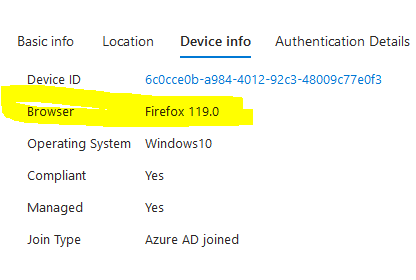
**The persistent session setting does not seem to work for chrome or firefox for hybrid or Entra joined devices. The sign in logs below shows a user signing into Chrome on Azure Joined device.
IF the policy is working correctly, the user sessions are saved to the browser and session is persistent.
However, Intune is not able to check the device platform, therefore, it does not know that the device is already joined to Entra. The policy applied incorrectly for third party browsers and did not create any persistent browser session.


The sign in logs below shows the policy sees the devices and its joined in Azure, it did NOT apply the policy so the user is able to have a persistent session. Once the browser closes and opens back, they are still logged in. The user is signed into Edge and policy applied correctly for Edge.
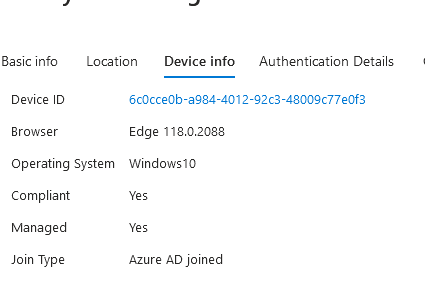


Solution: Configure SSO for Chrome with Windows account extension. Configure SSO for firefox with custom configuration profile using OMA-URI or configure it manually on firefox menu, click Settings, select Privacy & Security on the left, go down to the Logins and Passwords section and check the box next to the Allow Windows single sign-on … setting.
When SSO is enabled, Microsoft Intune is able to assess the device’s compliance status. Without implementing SSO, conditional access will consider the device as non-compliant while working from a third-party browser.

https://4sysops.com/archives/azure-conditional-access-policies-not-working-in-google-chrome/
https://www.stephenhackers.co.uk/azure-conditional-access-integration-with-google-chrome/
https://myronhelgering.com/quick-guide-enable-single-sign-on-for-chrome-and-firefox/
https://support.mozilla.org/en-US/kb/managing-firefox-intune
 Steven’s Knowledge Base