
Microsoft Entra Hybrid Join targeted deployment:
If the organization is not ready to hybrid join the entire forest , but rather go with the selective approach of only joining test devices to Entra, then following the selective target deployment.
This deployment will also enroll and have the device fully managed under Intune.
1. Clear the Service Connection Point (SCP) entry from Active Directory (AD) if it exists.
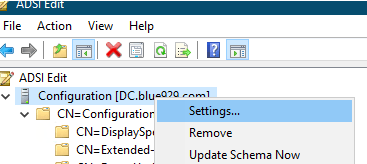
Navigate to AD ADSI edit > Right click > Connect to > Select Configuration

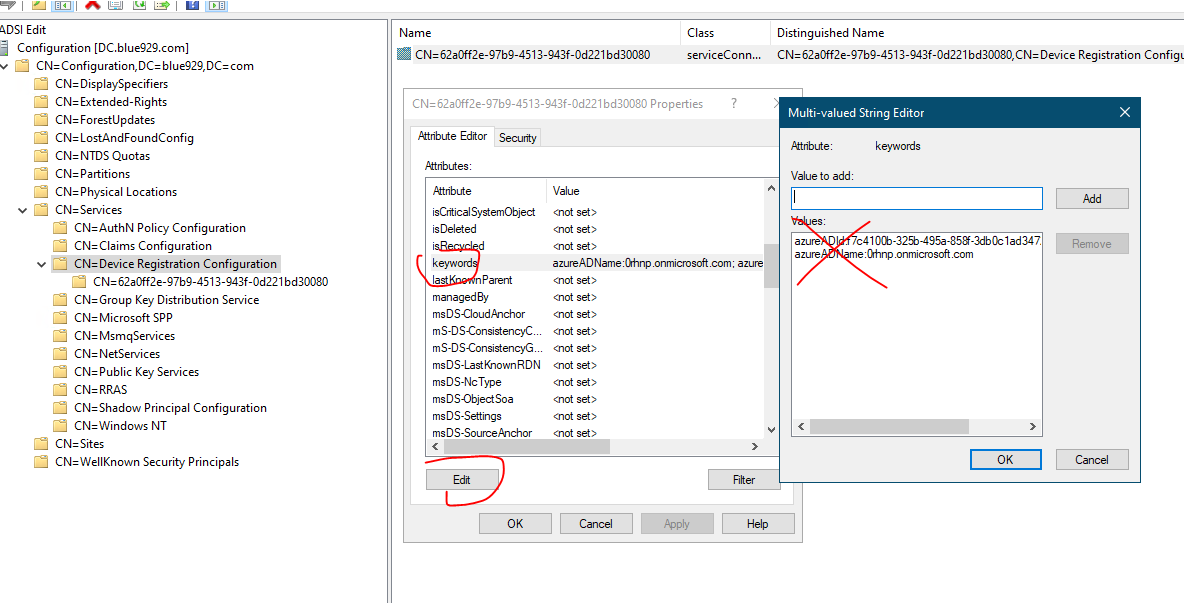
Go to CN=Services > Select “CN=Device Registration Configuration” > Properties > Select the values of azureADId and azureADName (one at a time) and select Remove.
2. Configure windows automatic enrollment from Intune portal with MDM user scope and assign it to TestPilot group (non-dynamic)

3. Configure GPO but modify security filter to only apply group policy to TestPilot group
○ In the Group Policy Management console, create a new Group Policy Object and open it in the Group Policy Management Editor.

○ Navigate to Computer Configuration > Policies > Administrative Templates > Windows Components > MDM.

○ The Group Policy setting which enables auto-enroll is enable automatic MDM enrollment using default Azure User credentials.

○ Add trusted sites: Go to User Configuration > Policies > Administrative Templates > Windows Components > Internet Explorer > Internet Control Panel > Security Page. Select Site to Zone Assignment List.

https://enterpriseregistration.windows.net
https://login.microsoftonline.com
https://device.login.microsoftonline.com
https://aadg.windows.net.nsatc.net
https://autologon.microsoftazuread-sso.com (If you use or plan to use seamless SSO)
4. Create Security group and add the device in there and make sure it has rights to ONLY that group and not authenticated users.

5. Configure client-side registry setting for SCP and deploy it using Powershell script with endpoint management software like SCCM or PDQ to corporate devices.
PowerShell-

reg add "HKEY_LOCAL_MACHINE\SOFTWARE\Microsoft\Windows\CurrentVersion\CDJ\AAD" /v TenantId /t REG_SZ /d xxxxxxxx_Tentant_IDxxxxxxxx /f

reg add "HKEY_LOCAL_MACHINE\SOFTWARE\Microsoft\Windows\CurrentVersion\CDJ\AAD" /v TenantName /t REG_SZ /d Blue929.com /f
6. Once those steps are configured, place test user in TestPilot group from Entra. (Give permission to enroll windows devices)
7. Add device object to TestPilot group in on premise AD (GP will register device to Intune)
8. Deploy the powershell script to the devices (Script will hybrid join the device to tenant)
9. Log in to the device as test user to enroll it into Intune
10. Check scheduled task of hybrid join- The main scheduled task for initiating and completing the Hybrid Join process is “Automatic-Device-Join” under \Microsoft\Windows\Workplace Join
** dsregcmd /status to check and verify join status

DSREGCMD switches
/? : Displays the help message for DSREGCMD
/status : Displays the device join status
/status_old : Displays the device join status in old format
/join : Schedules and monitors the Autojoin task to Hybrid Join the device
/leave : Performs Hybrid Unjoin
/debug : Displays debug messages

**If your Windows 10 or newer domain joined devices are Azure AD registered to your tenant, it could lead to a dual state of hybrid Azure AD joined and Azure AD registered device. We recommend upgrading to Windows 10 1803 (with KB4489894 applied) or newer to automatically address this scenario.
Source
https://cloudtech.nu/2020/03/09/configure-hybrid-azure-ad-joined-with-ad-connect/
https://learn.microsoft.com/en-us/entra/identity/devices/hybrid-join-control
 Steven’s Knowledge Base