
Installation for Microsoft Entra connect
Express settings are the default option to install Microsoft Entra Connect, and it’s used for the most commonly deployed scenario. For users installing it for the first time, express setting is fine.
- Sign in as Local Administrator on the server you want to install Microsoft Entra Connect on. The server you sign in on will be the sync server.
- Go to Download Azure AD Connect V2 from Official Microsoft Download Center and install the AzureADConnect installer. Execute the installer. (It will upgrade the AD connect if it finds an older version if previously installed)
- On Welcome, select the checkbox to agree to the licensing terms, and then select Continue
- On Express settings, select Use express settings.
- On the Connect to Microsoft Entra ID page, enter the username and password of the Hybrid Identity Administrator or global admin account, and then select Next.
- On Connect to AD DS, enter the username and password for an Enterprise Admin account. You can enter the domain part in either NetBIOS or FQDN format, like FABRIKAM\administrator or fabrikam.com\administrator. Select Next
- The Microsoft Entra sign-in configuration page appears only if you didn’t complete the step to verify your domains in the prerequisites
- On Ready to configure, select Install
- When the installation is finished, select Exit.
- Before you use Synchronization Service Manager or Synchronization Rule Editor, sign out, and then sign in again.
Once the express setting is completed- open Azure AD connect again:
Click configure > configure device options > next


On the connect to Azure AD page, enter global admin or hybrid identity admin account.
Select Configure Hybrid Azure AD join
Select Windows 10 or later domain joined computers. If you want to hybrid join windows 8 devices, check “Supported windows down-level domain-joined devices”

Under SCP configuration, use on premise enterprise admin account and make sure the forest is correct.
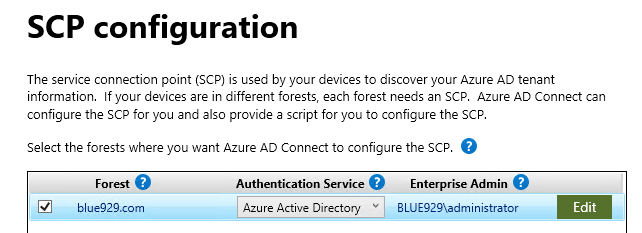
Click next and then configure. We are now done with setting up hybrid join on AD/Entra connect side. A MSOL_ service account gets generated and is responsible for syncing objects on premise to Entra
Verify SCP
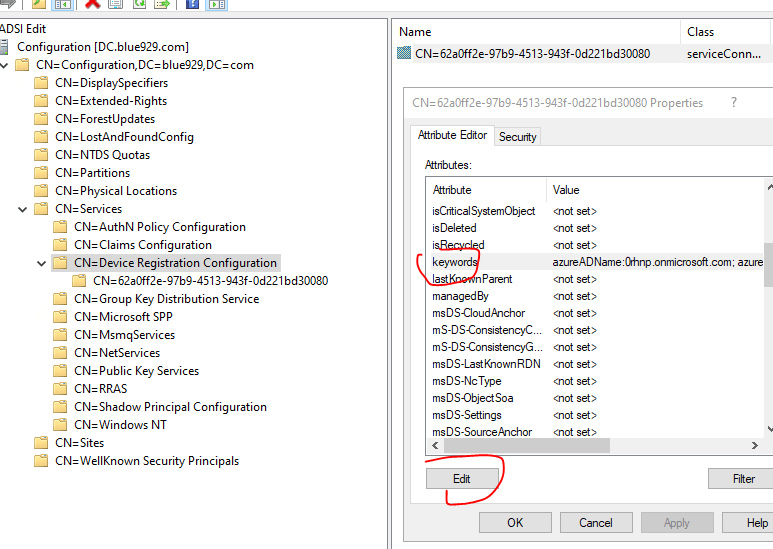
Navigate to ADSI edit > Right click > Connect to > Select Configuration


Go to CN=Services > Select “CN=Device Registration Configuration” > Properties > keywords should have the correct tenant name fulfilled.
Configure Group policy
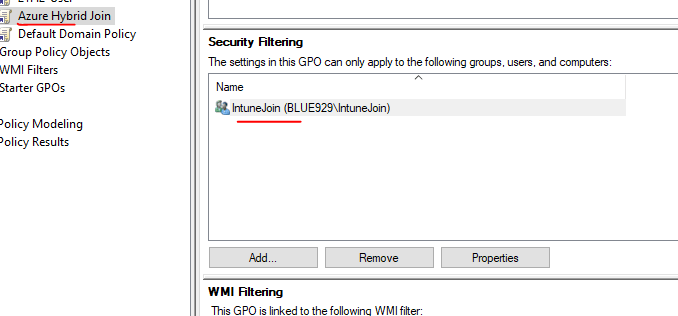
Once the forest is configured for Hybrid join, we will roll out group policy to target a specific group (IntuneJoin). That group contains devices that will be managed by Intune.
1. In the Group Policy Management console, create a new Group Policy Object and open it in the Group Policy Management Editor.
2. Navigate to Computer Configuration > Policies > Administrative Templates > Windows Components > MDM.
3. The Group Policy setting which enables auto-enroll is enable automatic MDM enrollment using default Azure User credentials.
4. Add trusted sites:
Go to User Configuration > Policies > Administrative Templates > Windows Components > Internet Explorer > Internet Control Panel > Security Page. Select Site to Zone Assignment List.

Hybrid Azure AD join requires devices to have access to the following Microsoft resources from inside your organization's network:

https://enterpriseregistration.windows.net
https://login.microsoftonline.com
https://device.login.microsoftonline.com
https://aadg.windows.net.nsatc.net
https://autologon.microsoftazuread-sso.com (If you use or plan to use seamless SSO)

5. Create Security group and add the device on there and make sure it has rights to apply group policy.
To review device join logs:
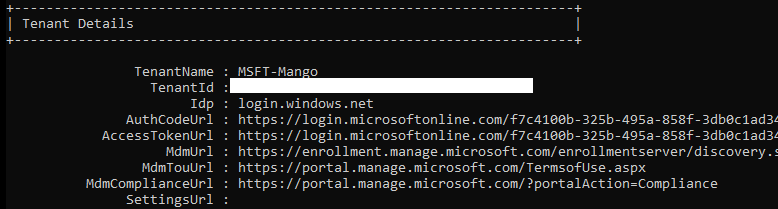
Event viewer > Applications and Services Logs > Microsoft > Windows > DeviceManagement-Enterprise-Diagnostic-Provider
Test
Sign into the domain computer and trigger gpupdate/force. It is also worth restarting if device is not enrolled. After some time:
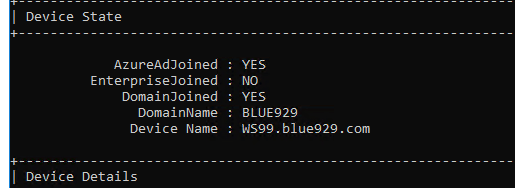
Open CMD and check status with the command: dsregcmd /status
A hybrid joined should have both AzureADJoined and DomainJoined set to YES
The device will show up in Entra ID device list first.

The device will initially show a pending state, and then it will appear in the Intune portal after a period of time. The image below shows an Intune-managed device and a co-managed device. The co-managed device is shown because I have configured a tenant attachment with SCCM/MECM in my lab. If SCCM is not being used, Intune is the MDM authority.

If you are also using SCCM/MECM to manage your devices, you can configure co-management to put those devices in a co-managed state. In the co-managed state, the workloads (compliance policies, Windows Update policies, resource access policies, endpoint protection, device configuration, Office Click-to-Run apps, and client apps) are split between Intune and SCCM/MECM. Co-managed devices are still considered hybrid joined.
Review logs: Event viewer > Applications and Services Logs > Microsoft > Windows > DeviceManagement-Enterprise-Diagnostic-Provider


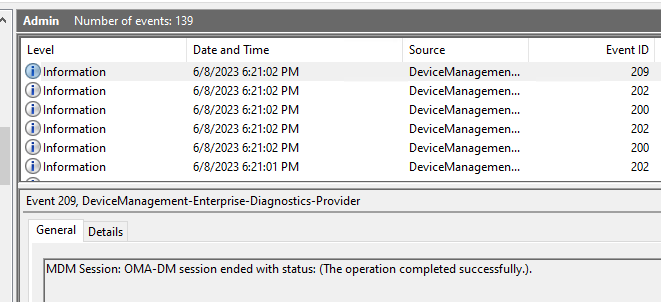
Done! The devices are ready to receive the benefits of both Entra and On premise policies.
**If you are prepping laptops or other devices for users before they are signed in, I highly recommend logging to those devices with a DEM account. A DEM can enroll up to 1,000 devices.
More info: https://learn.microsoft.com/en-us/mem/intune/enrollment/device-enrollment-manager-enroll
Tips and Troubleshooting
*AD Connect – User sign in:
Under AD connect > additional task > user sign in. There are multiple authentication methods made available. It is good to know how they work.

- Password hash sync: your AD password hashes get pushed to AAD so the user uses the same password on-prem and on the cloud. This works even if your AD is unreachable.
- Pass through authentication: this an alternative to the above where AAD authentication requests get passed on to AD. This won’t allow user to log on to Microsoft 365 if your AD is unreachable, but allows you to use your AD policies to control access (logon times, fine grained password policy, etc.).
- Seamless Single Sign-on (Password Hash/Pass through + Enable SSO) – this allows users to bypass most Microsoft 365 authentication prompts when connecting from AD joined computers with the appropriate polices configured. It uses the AD credentials of the user session for authentication, the user will at most be asked for their username (UPN) the first time access a Microsoft cloud service for the first time. Highly recommended as a time saver for your users. It also helps with Office 365 activation. Seamless SSO is NOT applicable to Active Directory Federation Services (ADFS). For Windows 7 and Windows 8.1, it’s recommended to use Seamless SSO. Seamless SSO needs the user’s device to be domain-joined, but it isn’t used on Windows 10 Microsoft Entra joined devices or Microsoft Entra hybrid joined devices.
- Primary Token refresh SSO – For Windows 10, Windows Server 2016 and later versions, it’s recommended to use SSO via primary refresh token (PRT). PRT works when a device is Microsoft Entra hybrid joined, Microsoft Entra joined or personal registered via Add Work or School Account. PRT takes precedence over seamless SSO if both are used.
*Error 76:
Error 76 can be caused by multiple factors showing a device credential failed, it is a very general error and to fix it, I would proceed with a process of elimination.
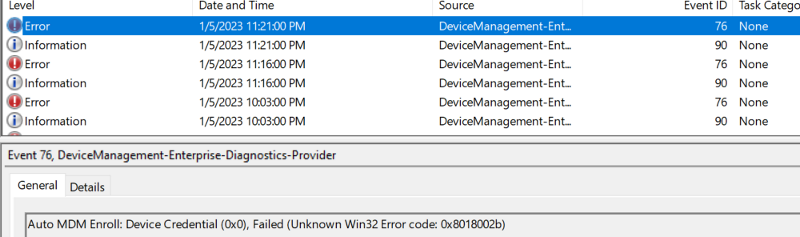
Possible causes for error 76:
- Make sure to have Azure AD Premium and Microsoft Intune License assigned to user
- Make sure GPO policy is NOT set to device credentials

- Sign out or restart device to test out user credentials
- Add xxxx.onmicrosoft.com via AD Domain and trust even if primary domain is blue929.com. Under Microsoft Entra Admin Center > domain names > there are still resources referencing the xxxx.onmicrosoft.com domain.
- Trigger Gpupdate then dsregcmd /join to test hybrid join on device and then dsregcmd /status to check. Ensure AzureAdJoined, DomainJoined and AzureAdPrt under dsregcmd /status are all YES
- Check scheduled task of hybrid join:
- The main scheduled task for initiating and completing the Hybrid Join process is “Automatic-Device-Join” under \Microsoft\Windows\Workplace Join.
- Possibly device limit for user, either rise the device limit for the user or remove a device. Alternative is to assign a DEM (Device enrollment manager) role to a spare account and log in using that account.
- Missing UPN suffixes AD domain and trust- Did not verify domain in Entra/Azure.
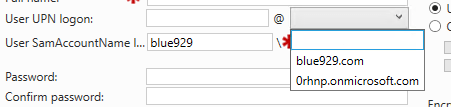
When I first set up my lab, I didn’t own the [Blue929.com] domain at that time , so I couldn’t verify the [Blue929.com] on Azure. This is fine for a lab, so I decided to use the [@0rhnp.onmicrosoft.com] domain that Microsoft generated as my Entra identity. This is a problem because my on-premises accounts are created with the Blue929.com UPN suffix. This means that I can’t sign in to the device with the [@0rhnp.onmicrosoft.com] UPN, only [Blue929.com]. This prevented MDM enrollment because the UPN suffixes from on-premises don’t match the UPN suffixes in Entra. The user must sign into the devices with Entra credentials. To avoid this issue, verify your domain in Entra first.
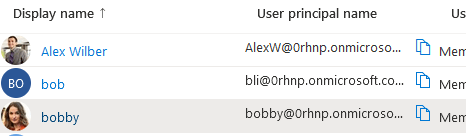
In this scenario, I would have to add @0rhnp.onmicrosoft.com under AD domain and trust so users are able to sign in using [user@0rhnp.onmicrosoft.com] in order to get rolled over under intune management.
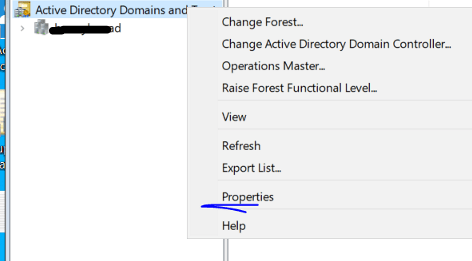
To create alias for domain UPN using domain and trust, go to AD domain and trust > properties > add the domain suffixes in there (0rhnp.onmicrosoft.com).

Once that is done, go back to azure ad connect and configure sync setting USING a new account created under 0hrnp.onmicrosoft upn. There should be no problem with hard/soft matching the attributes.
*The device is not appearing in Entra or in Intune:
According to Azure time, this may take a while for the device to be fully synced over to Entra. Depending on the amount of objects, give it at least 10 to 30 minutes.
The device object not found is normal since the object is not yet synced over yet.


*Pending state: When the registered state of a device is pending, the device can’t complete any authorization or authentication requests, such as requesting a Primary Refresh token for single sign-on
*If your Windows 10 or newer domain joined devices are Azure AD registered to your tenant, it could lead to a dual state of hybrid Azure AD joined and Azure AD registered device. We recommend upgrading to Windows 10 1803 (with KB4489894 applied) or newer to automatically address this scenario.
*Be aware there are some gotchas when you sync AD to AAD. You will only be able to modify some properties on-prem, particularly Exchange properties like ProxyAddresses (which defines the primary email and aliases). When you delete a user from AD or move to a non-synced OU or container it will delete from AAD, including the associated mailbox. There is a 30 day soft-delete period but it’s something you must plan for. Standard practice is to disable users in AD only.
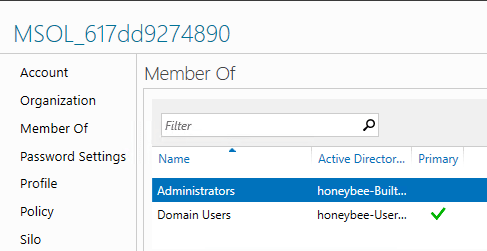
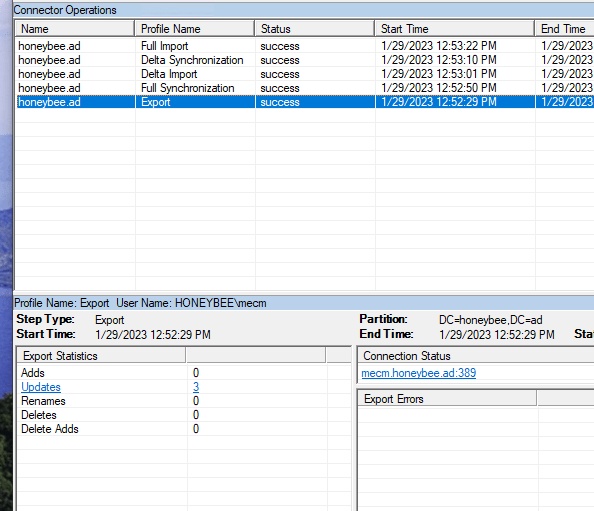
*If there are permission issues when synchronizing- provide the necessary permission to the service account on the AD Connect Server by adding the service account into the Administrators Group (Built-in OU).

Additional troubleshooting tips:
https://learn.microsoft.com/en-us/entra/identity/devices/troubleshoot-hybrid-join-windows-current
https://365bythijs.be/2019/11/02/troubleshooting-hybrid-azure-ad-join/
Source
https://learn.microsoft.com/en-us/troubleshoot/azure/active-directory/pending-devices
https://petri.com/how-to-automatically-hybrid-azure-ad-join-and-intune-enroll-pcs/
https://community.spiceworks.com/topic/2341368-login-to-pc-with-azure-ad
https://learn.microsoft.com/en-us/entra/identity/hybrid/connect/how-to-connect-install-custom
https://dirteam.com/sander/2022/01/27/todo-disable-soft-matching-in-azure-ad-connect/
https://learn.microsoft.com/en-us/entra/fundamentals/add-custom-domain
 Steven’s Knowledge Base