
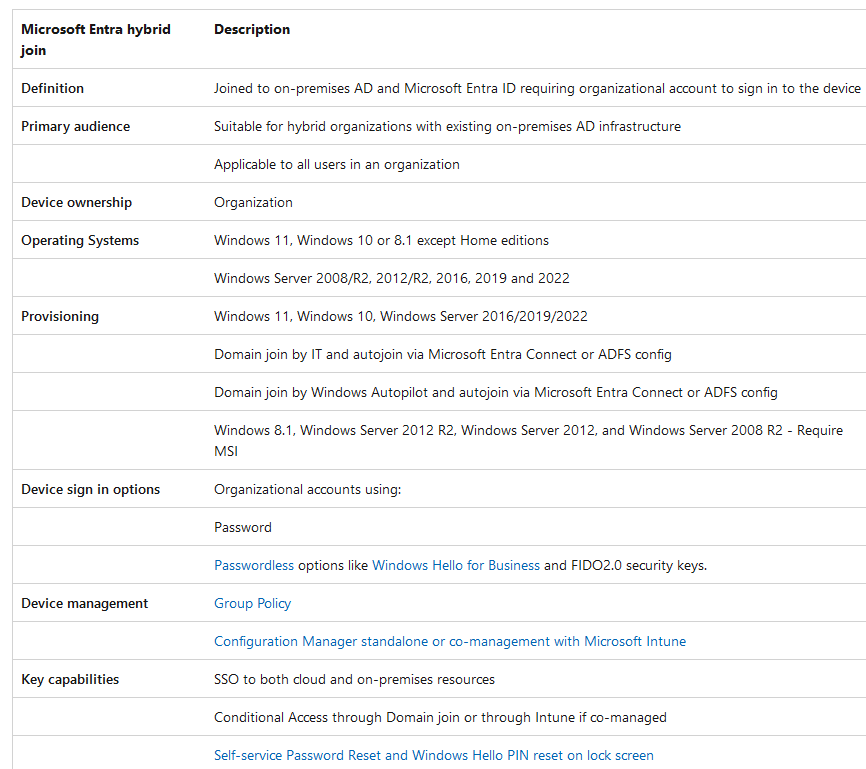
An Entra hybrid join environment is a configuration where Windows devices are joined to both an on-premises Active Directory domain and Microsoft Entra (Azure AD). This allows organizations to benefit from both cloud and on-premises resources, while also managing their devices more securely. This targets only windows devices and windows servers. For mobile devices that require access to company resources, it would have to go through Intune enrollment with the company portal app.
There are several reasons why organizations may want an Entra hybrid join environment:
- To provide users with SSO (Single Sign-on) using (Primary Refresh Token) to both cloud and on-premises resources. With Entra hybrid join, users can sign in to their devices with their Azure AD credentials and access both cloud and on-premises resources without having to enter their credentials multiple times. This can improve user productivity and reduce the number of support tickets that IT needs to handle.
- To manage devices more securely. Entra hybrid join enables organizations to use Azure AD security features, such as conditional access and multi-factor authentication, to protect their devices. This can help to reduce the risk of data breaches and other security incidents. The devices can also inherit compliance policy on Entra side to further ensure a tamper free workstation.
- To comply with regulations. Some regulations require organizations to store certain types of data on-premises. Azure hybrid join allows organizations to store this data on-premises while still providing users with access to it from the cloud.
- Cut down tickets with Self-service password reset and windows hello Pin reset for hybrid devices on lock screen.
Here are some specific scenarios where an Azure hybrid join environment may be beneficial:
- You need to support older devices running Windows 8.1 or Windows Server 2008/R2/2012/R2/2016.
- You want to keep using Group Policy to manage your devices’ configuration.
- You want to keep using your existing imaging solutions to deploy and configure your devices like SCCM.
- You have Win32 apps deployed to your devices that need Active Directory machine authentication and requires line of sight to either DC, SQL servers or any other on premise servers.
Overall, an Azure hybrid join environment provides organizations with several benefits, including improved user productivity, increased security, and compliance with regulations. There are few to no drawbacks to migrating on-premises AD to hybrid. It is a significant step forward when moving to the cloud and adopting modern management of corporate devices. Hybrid devices get the best of both worlds, as user authentication can be done on both on-premises AD and Entra ID because on-premises objects and passwords are synchronized to the cloud with a tool called “AD Connect.”
Goal: Set up Microsoft Entra hybrid join with AD Connect to sync on-premises objects to Entra. Once Entra Connect is configured, deploy a Group Policy object (GPO) to enroll the hybrid devices into Intune. This lab will only hybrid join windows 10 and later OS devices because Intune enrollment requires windows 10. Feel free to hybrid join older devices, they just wont be fully managed with an MDM.
Entra Hybrid Join Prerequisites
Any device that are targeted for hybrid join needs to be at least 8.1. Windows servers need to be at least 2008. However, in order to fully manage hybrid join devices with Intune, the devices must be Windows 11 or Windows 10 version 1809 or later. This guide will configure only managed domain and not federated domain as federated domain has a different setup.
AD Connect Prerequisites
To start the migration to Entra, you must install and configure Entra Connect on a Windows 2016 server or later. Entra Connect (formerly Azure AD Connect) synchronizes a variety of identity data, including users, groups, passwords, and device objects, between your on-premises AD environment and Entra. It can also be used to synchronize custom attributes. This object and identity synchronization essentially bonds your on-premises environment to the cloud, enabling you to use the tools that Entra identity and access management has to offer.
If you configure device/group writeback, any changes you make in Entra will also be reflected on-premises. However, it is recommended to create accounts on-premises first and then have them sync to Entra instead of creating objects in Entra and then syncing them back to on-premises.
Accounts required

• Have a Entra Global administrator or hybrid identity Administrator account for the tenant you want to integrate with. The account must be organization account and not a microsoft account.
• Have enterprise administrator account ready if express setting is used.
Microsoft Entra ID

• Add and verify the domain you plan to use in Microsoft Entra ID. For example, if you plan to use contoso.com for your users, make sure this domain has been verified and you're not using only the contoso.onmicrosoft.com default domain.
• A Microsoft Entra tenant allows, by default, 50,000 objects. When you verify your domain, the limit increases to 300,000 objects.
On-premises Active Directory

• The Active Directory schema version and forest functional level must be Windows Server 2003 or later.
• Using a read-only domain controller (RODC) isn't supported, and Microsoft Entra Connect doesn't follow any write redirects
• Using on-premises forests or domains by using "dotted" (name contains a period ".") NetBIOS names isn't supported.
• Ensure Powershell execution allow running of scripts. Recommendation are to require device to have scripts "RemoteSigned"
Entra Connect server

• Entra connect server needs DNS resolution for both intranet and internet. Requires network connectivity for all configured domains and forest. Use  Microsoft Entra Connect ports if intranet has firewall in place.
• Microsoft Entra Connect must be installed on a domain-joined Windows Server 2016 or later. We recommend using domain-joined Windows Server 2022.
• The minimum .NET Framework version required is 4.6.2, and newer versions of .NET are also supported.
• Microsoft Entra Connect can't be installed on Small Business Server or Windows Server Essentials before 2019 (Windows Server Essentials 2019 is supported).
• The Microsoft Entra Connect server must have a full GUI installed. Installing Microsoft Entra Connect on Windows Server Core isn't supported.
• If your Hybrid Identity Administrators have MFA enabled, the URL https://secure.aadcdn.microsoftonline-p.com must be in the trusted sites list.
• It is not supported to break and analyze traffic between Microsoft Entra Connect and Microsoft Entra ID. Doing so may disrupt the service.
***The above prerequisites are enough to get started for managed domain, more detailed prerequisites and recommendations here (AD FS, networking, etc..): https://learn.microsoft.com/en-us/entra/identity/hybrid/connect/how-to-connect-install-prerequisites
Recommendations
- Use Microsoft Entra Connect Health for checking up on Entra Connect sync status. If you decide to use connect health, ensure that the prerequisites are also met. For more information, see Microsoft Entra Connect Health agent installation.
- Enable TLS 1.2 encrypted communication for Entra Connect server – make sure you have the .NET 4.5.1 hotfix installed for your operating system. For more information, see Microsoft Security Advisory 2960358. For all operating systems, inject the the following registry key with powershell and restart the server.
- New-ItemProperty -Path HKLM:\SOFTWARE\Microsoft\.NETFramework\v4.0.30319 -Name SchUseStrongCrypto -PropertyType Dword -Value 00000001
- Harden the Entra connect server by restricting access only to admins, implement LAPS, enable MFA, disable soft match, disable hard match takeover.
- Disable Hard Match Takeover. Hard match takeover allows Microsoft Entra Connect to take control of a cloud managed object and changing the source of authority for the object to Active Directory. Once the source of authority of an object is taken over by Microsoft Entra Connect, changes made to the Active Directory object that is linked to the Microsoft Entra object will overwrite the original Microsoft Entra data – including the password hash, if Password Hash Sync is enabled. An attacker could use this capability to take over control of cloud managed objects. To mitigate this risk, disable hard match takeover:
Set-MsolDirSyncFeature -Feature BlockCloudObjectTakeoverThroughHardMatch -Enable $True

- Disable soft match. Soft match is a feature that matches objects, based on the userPrincipalName attribute and the primary email address (denoted with SMTP:in the proxyAddresses attribute) to Entra. Hard Matching matches objects on the source anchor attribute of the object in AD to the ImmutableID attribute of the object in Azure AD. Soft match triggers if hard match does not provide a match. Hard/soft match goal is to make sure that the on premise user object attributes is unique to Entra and there is no identical object in Entra when sync. The main objective is integrity. However, soft match can be abused by creating the same user account on premise and have it synced to Entra, which overwrites attributes like password with the values that attacker can create. This does NOT apply to accounts with privileged roles.
> Disable soft matching and only allow hard match to maintain user object integrity in the hybrid environment <
When signing in to the Windows Server running Azure AD Connect, make sure you use an account that is a member of the ADSyncAdmins group. When signing in to the Azure Portal, make sure you use an account that has the Global Administrator role in Azure AD.
Make sure your device has TLS 1.2 enabled and that you have the latest version of the MSOnline PowerShell Module installed on it.
1) Make sure that you have no synchronization errors. Perform the following steps:
• Sign into the Windows Server installation running Azure AD Connect with an account that is a member of the ADSyncAdmins group.
• Press Start.
• Search for the Synchronization Service and click on its search result:

The Synchronization Service Manager window appears, and the Operations tab will be selected. This tab shows a table with the last 7 days of synchronization cycles with their connector’s Name, the Run Profile Name, the Status, Start Time and End Time.

• In the Status column, make sure there are no run profiles with completed-*-warnings or completed-*-error as their status.
• Close the Synchronization Service Manager window.
• Sign out.
If there are run profiles with completed-*-warnings or completed-*-errors as their status, address these issues before disabling soft matching as these errors might prevent Azure AD Connect from writing to the source anchor attribute.

2) Getting your tenant’s current Soft Matching setting:
Perform these steps to get your Azure AD tenant’s current Soft Matching settings:
• Run the following line of Windows PowerShell:

Install-Module MSOnline
Connect-MsolService

• An Azure AD authentication window appears.
• Run the following line of Windows PowerShell:

Get-MsolDirSyncFeatures |Format-Table DirSyncFeature,Enabled

3) Disabling Soft Matching:
• Run the following line of Windows PowerShell:

Connect-MsolService

• An Azure AD authentication window appears. Sign in with Global Admin account.
• Run the following line of Windows PowerShell:

Set-MsolDirSyncFeature –Feature BlockSoftMatch –Enable $True

Review on-premise to cloud synchronization tools
There are two synchronization tools made available to admins that want to sync their environment to Entra. Both have their own pros and cons. If you are setting up cloud sync for the first time, Entra connect would be the most commonly used tool. Since we require hybrid device join, the lab will utilize Microsoft Entra connect. It is also good to know that other tools are made available depending on your use case.
1. Microsoft Entra connect- tool that has a heavy on-premise footprint. Often used for primary corporate site that has exchange environment and requires the whole cloud sync package. Entra connect offers the following features:
• Synchronization between
	○ Single forest, single Azure AD tenant.
	○ Multiple forests, single Azure AD tenant.
	○ Single or multiple forests, multiple Azure AD tenants (requires that each object is only represented once in all tenants).
	○ LDAPv3-compatible identity stores.
• Password Hash Synchronization (PHS) – use Azure AD as your organization’s identity provider by synchronizing password hashes to Azure AD.
• Pass-Through Authentication (PTA) – use your organization’s Domain Controllers as your identity provider without having to deploy a full-blown AD FS configuration.
• Federation integration with Active Directory Federation Services (AD FS).
• Health monitoring of both Active Directory and the synchronization process.
• Accommodating up to 10GB of database space (up to 100,000 objects) using LocalDB. If your organization exceeds this limit, use a full SQL Server.
• Organizational Unit, group, or attribute filtering.
• Exchange hybrid writeback capabilities for organizations with Exchange Server.
• Exchange Public Folder address synchronization for directory-based edge blocking.
• Password writeback capabilities to support self-service password reset (SSPR).
• Office 365 Group writeback to prevent email address overlaps.
• Directory extension attribute synchronization to extend the schema in Azure AD to include specific attributes consumed by LOB apps and Microsoft Graph Explorer.
• Robust synchronization rule editing capabilities.
• Seamless single sign-on (SSSO) capabilities that allow domain-joined users and computers to access Microsoft 365 workloads without being prompted to sign-in every time.
• Hybrid Azure AD Join capabilities.
• Device writeback capabilities that allow organizations to use on-premises conditional access and Windows Hello.
Synchronizing directory changes every 30 minutes and password changes almost immediately when using password hash sync.
2. Microsoft Entra Provisioning Agent for cloud sync – a lightweight tool to sync on premise but does not offer hybrid join or exchange hybrid writeback. Commonly used in mergers or acquisitions of companies. It offers the following capabilities:
• Lightweight agent installation model.
• Adds high availability using multiple agents.
• Allows connectivity to multiple disconnected on-premises AD forests
• Synchronizes directory changes more frequently than Azure AD Connect.
• Can be used in addition to Azure AD Connect.
• Does not support Exchange hybrid writeback.
• Does not support LDAPv3-compatible identity stores.
• Does not support device objects.
	○ No hybrid Azure AD join.
	○ No support for Windows Hello.
• Does not support directory attribute synchronization.
• Does not support Pass-Through Authentication (PTA).
• Does not support synchronization rule editing capabilities.
• Does not support writeback for passwords, devices, or groups.
• Does not support cross-domain references.
Source
https://learn.microsoft.com/en-us/entra/identity/devices/how-to-hybrid-join
https://learn.microsoft.com/en-us/entra/identity/devices/concept-hybrid-join
https://learn.microsoft.com/en-us/entra/identity/hybrid/connect/how-to-connect-install-prerequisites
https://practical365.com/how-to-decide-between-azure-ad-connect-and-azure-ad-connect-cloud-sync/
https://learn.microsoft.com/en-us/entra/identity/hybrid/cloud-sync/how-to-install
https://learn.microsoft.com/en-us/entra/identity/hybrid/install
 Steven’s Knowledge Base