
What is intrusion detection?
OPNsense Intrusion Detection (IDS) is your network’s vigilant security guard, constantly scanning incoming and outgoing traffic for malicious activity. Imagine it like a bouncer at a high-security club, checking IDs and suspicious behavior to keep unwanted guests out.
Powered by Suricata, a high-performance open-source engine, OPNsense IDS offers two main modes:
Detection (IDS): This mode passively monitors traffic and alerts you to potential threats, but doesn’t actively block them. Think of the bouncer noticing someone with a fake ID and calling the authorities, but not physically stopping them.
Prevention (IPS): This mode goes a step further, not only identifying threats but also actively blocking them to prevent harm. It’s like the bouncer apprehending the fake ID holder before they can cause trouble.
Benefits of using OPNsense IDS/IPS:

• Enhanced Security: Proactive protection against malware, botnets, port scans, denial-of-service attacks, and other threats.

• Early Warning: Timely alerts about suspicious activity allow you to react quickly and mitigate potential damage.

• Improved Network Visibility: Gain insights into your network traffic patterns and identify anomalies that could indicate security risks.

• Flexibility: Customize rules and settings to tailor the system to your specific needs and security posture.
Key Features of OPNsense IDS/IPS:

• Extensive Rule Sets: Includes pre-configured rules for a wide range of threats, and allows you to create your own custom rules.

• Real-time Monitoring: Continuously analyzes traffic for suspicious activity.

• Alerting and Logging: Provides detailed alerts about detected threats and logs all events for further analysis.

• Reporting: Generates reports to help you track trends and identify potential vulnerabilities.

• Integration with other OPNsense features: Can be combined with other security tools like firewall and VPN for a layered defense.
Goal: Enable IDS and IPS on LAN side to drop traffic to any blacklisted networks. Apply policy rulesets after enablement.
Requirement
- When using IPS mode make sure all hardware offloading features are disabled in the interface settings (Interfaces > Settings) or Suricata will crash the opnsense box.
- I do not recommend using Realtek NIC drivers as it will also crash Suricata IPS during random occasions. The generic FreeBSD driver by opnsense does not work well. If you are using RealTek driver, always download the realtek driver from opnsense portal > System > Firmware > Plugins > os-realtek-re

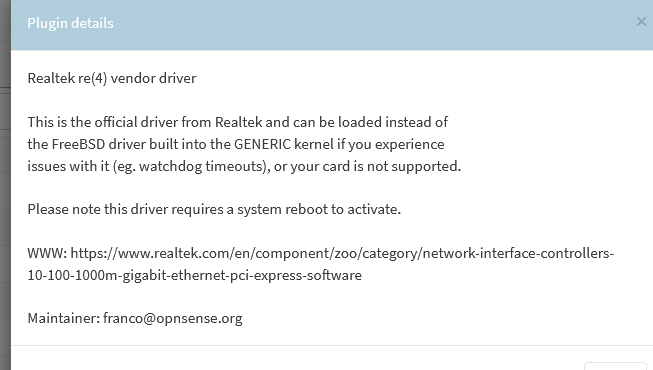
more info on IPS freezing:
https://github.com/opnsense/core/issues/4257
https://docs.opnsense.org/troubleshooting/network.html
Enable IDS and IPS
- Navigate to Services > intrusion detection > Administration
- Checkmark enabled
- Checkmark IPS mode
- Under pattern matcher- hyperscan is recommended but it will cause performance issues if streaming or playing games as the scan can be intensive on a regular windows box.
IPS will be enabled on LAN since we already have firewall rules that will drop incoming packets by default.

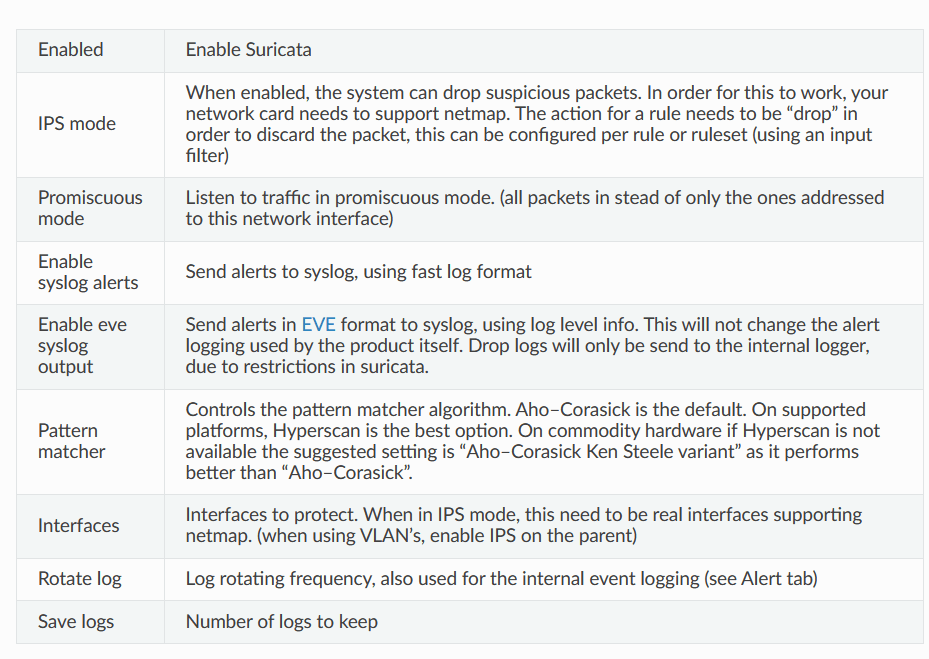
Enabling IPS ruleset
These public rulesets from third party vendors contains up to date database of malicious sites and fraudulent networks.
Once the rules are in place, IPS analyze network traffic for malicious activity and potential threats. They work like security scanners, examining data packets for suspicious patterns or signatures from the ruleset. Any signature matching the ruleset will be blocked.
- Under downloads > select the rulesets and enable it.
- Once the rule is downloaded is enabled, it can be enabled individually under “Rules” tab. However, it is better to enable the entire ruleset via policy instead.
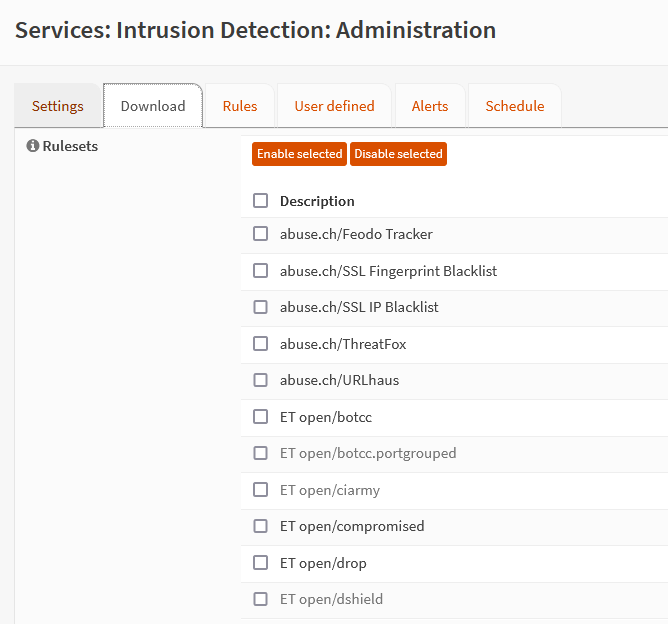
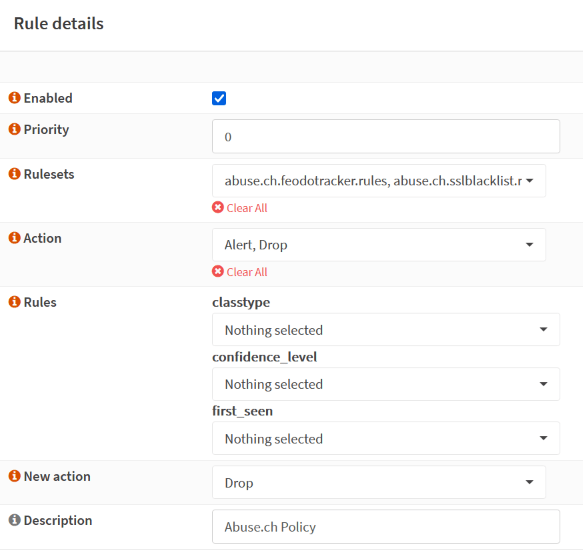
- In order to enable an entire ruleset, we must enable policy.
- Go to Intrusion detection > policy > click “Add” > under ruleset > add the enabled rules.
- Select action to alert and drop in block any malicious packets that matches the ruleset.
Set Cron job to automatically update ruleset
Services > intrusion detection > schedule >
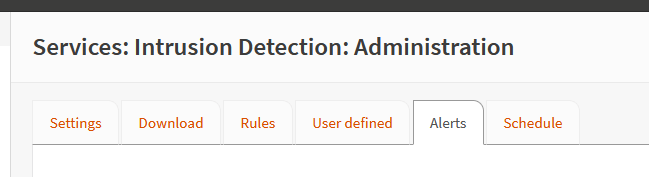
The following will update the ruleset every day at 12:30pm. I suggest updating more frequent rate to keep the rules up to date.

Test
One of the ruleset contains a list of websites here that will get blocked.
https://urlhaus.abuse.ch/browse/
https://urlhaus.abuse.ch/downloads/csv_recent/
Example of sites below that serves malware:
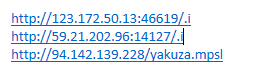
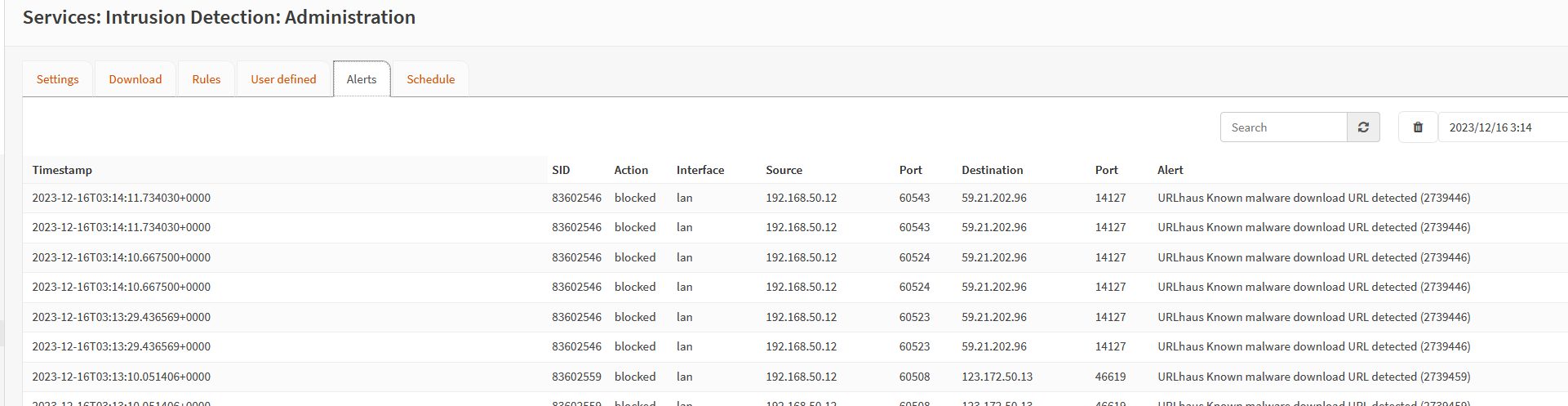
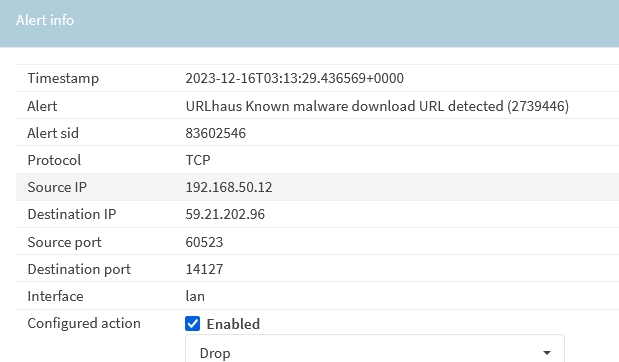
When user attempts to connect to site, it will fail to resolve. The alerts will show that any attempt to open the site will fail.
*Do note that if the ruleset is NOT updated, users are still able to open the most recent malicious sites before the update without getting blocked. It is very important to always set a schedule to keep the ruleset up to date.
Notes
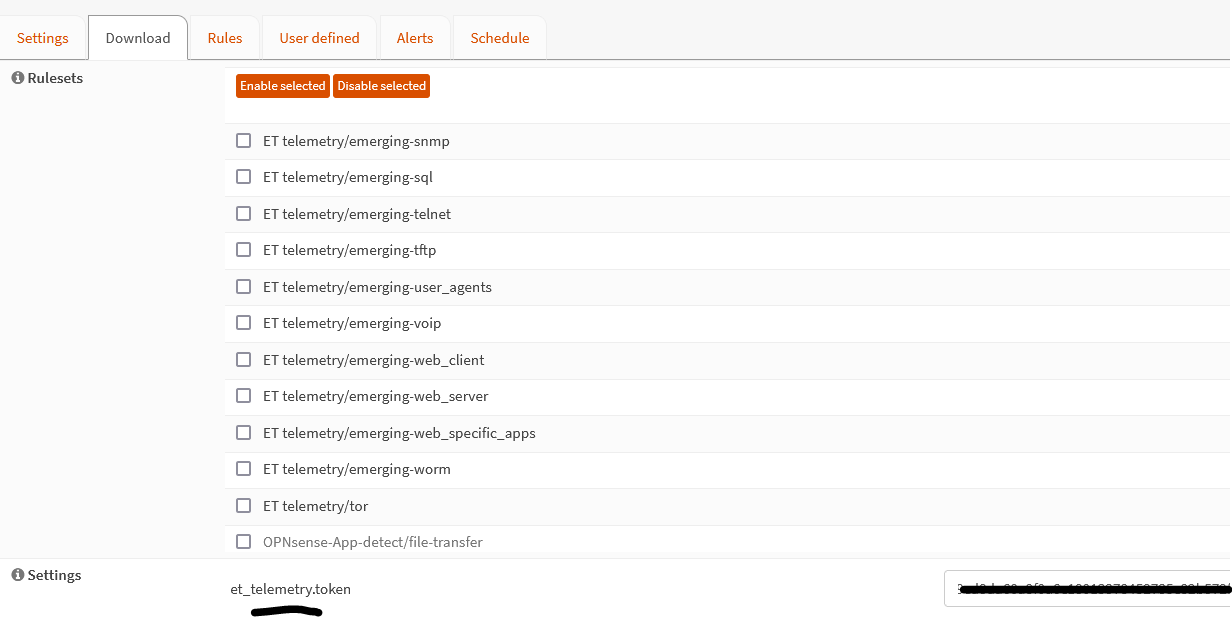
1. In order to get ET Pro telemetry version, navigate to opnsense store > search shop for ET pro telemetry > purchase the item and you will receive a registration token in the email.
2. Then go to system > firmware > plugins > os-etpro-telemetry > install it

3. Go to Services > Intrusion Detection > Administration. At the bottom of the page, insert the token.
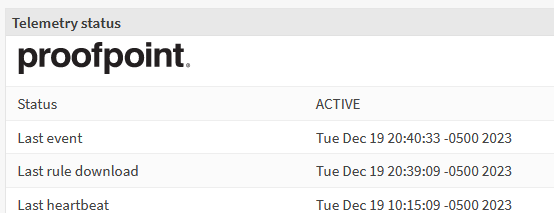
4. Validate the telemetry status
- Go to the dashboard Lobby ‣ Dashboard
- Click on “Add widget” in the top right corner, click “Telemetry status” in the list
- Close dialog and click “Save settings” on the right top of the dashboard
- Open Lobby and go to dashboard to refresh the content
Source
https://docs.opnsense.org/manual/ips.html
https://abuse.ch/
https://docs.opnsense.org/manual/etpro_telemetry.html
 Steven’s Knowledge Base