
What is DNS over TLS?
DNS over TLS (DoT) is a security protocol that encrypts communication between your device and a DNS server over port 853. It protects your privacy and ensure the integrity of the data. Imagine it like sending your DNS requests and responses in a sealed envelope instead of a postcard, making it much harder for anyone to intercept or tamper with them.
Here’s a breakdown of what DoT does:
- Uses TLS encryption: DoT uses the same Transport Layer Security (TLS) protocol that secures HTTPS websites, adding a layer of protection to your DNS traffic.
- Prevents eavesdropping: By encrypting the communication, DoT makes it impossible for anyone to snoop on your DNS queries and see what websites you’re visiting.
- Protects against man-in-the-middle attacks: DoT makes it much harder for attackers to intercept and manipulate your DNS requests and responses, preventing them from directing you to fake websites or stealing your data.
- Improves privacy: DoT helps to keep your browsing habits private from your internet service provider (ISP), government agencies, or anyone else who might be monitoring your network traffic.
DoT is especially important in situations where you’re using public Wi-Fi or accessing sensitive information online. It’s becoming increasingly popular as a way to improve overall internet security and privacy. Here’s a comparison of DoT with unencrypted DNS:
| Feature | Unencrypted DNS | DNS over TLS (DoT) |
| Communication | Plaintext | Encrypted |
| Privacy | Vulnerable to eavesdropping | Private and secure |
| Security | Susceptible to man-in-the-middle attacks | Protected from man-in-the-middle attacks |
| Suitable for | Casual browsing | Public Wi-Fi, sensitive information access |
What is the difference between DoT (DNS over TLS) and DoH (DNS over HTTPS)?
Both DNS over TLS (DoT) and DNS over HTTPS (DoH) encrypt your DNS traffic, but they have some key differences:
Underlying Protocol:
- DoT: Uses its own dedicated port (853) and the Transport Layer Security (TLS) protocol to encrypt communication between your device and the DNS server. Better management for Network security operations for viewing of logs and what is blocked.
- DoH: Hides within the existing HTTPS traffic (port 443) used for secure web browsing, leveraging the same HTTPS protocol for encryption. Better privacy for the users.
Visibility:
- DoT: Due to its separate port, network administrators or malicious actors can easily recognize and potentially block encrypted DNS traffic, although the content remains hidden.
- DoH: Blends seamlessly with regular HTTPS traffic, making it harder to detect and block, offering better privacy camouflage.
Performance:
- DoT: Generally offers faster performance due to its dedicated connection.
- DoH: May introduce slightly slower resolution times due to the additional layer of HTTPS tunneling.
Configuration:
- DoT: Often requires manual configuration on devices and operating systems.
- DoH: Gaining wider native support in browsers and operating systems, potentially requiring less manual setup.
Summary:
| Feature | DoT | DoH |
| Underlying protocol | TLS over dedicated port (853) | HTTPS over standard port (443) |
| Visibility | Easier to detect | Harder to detect |
| Performance | Faster | May be slightly slower |
| Configuration | Often manual | Increasingly automatic |
Goal: On Unbound DNS – Enable DNS over TLS to encrypt DNS traffic using Quad 9 as name server. Also enable DNSSEC which tags the queries with digital signature to verify authenticity during transport.
Enable DNSSEC
DNSSEC (Domain Name System Security Extensions) is a suite of protocols that strengthens the security of the Domain Name System (DNS). It’s like adding a digital lock and key to your DNS records, ensuring they’re authentic and haven’t been tampered with.
Navigate to Opnsense portal > Unbound DNS > General >Check “Enable Unbound” > Check “Enable DNSSEC Support“

Enable DNS over TLS
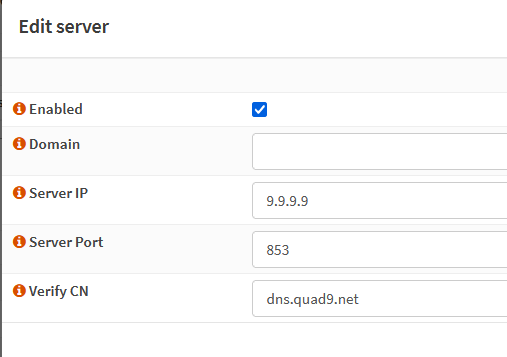
Under services > Unbound DNS > DNS over TLS > Click on “Add” >
Input the following Quad9 Name servers. These will be upstream resolver querying over port 853.
**Make sure use [Use System Nameservers] is not checked
**Go to System -> Settings -> General and uncheck the [Allow DNS to be overridden by DHCP/PPP on WAN]
**Go to System -> Settings -> General and make sure there is no other DNS servers being used
**Do NOT configure [Query Forwarding] section as this is considered a duplicate to the [DNS over TLS] section

Configure Firewall Rules
Since DNS over TLS uses port 853 to resolve queries, it is recommended to redirect request from port 53 to 853.
1. Redirect DNS requests on LAN to Unbound DNS using NAT port forwarding
If you wish to redirect all outbound DNS requests on port 53 to your local Unbound DNS resolver, you may create a NAT port forward rule on your LAN network. You will need to go to the “Firewall > NAT > Port Forward” page to add the redirect rule. Consider a rule each physical interfaces or vlan are being used.
| Option | Value |
| Interface | LAN |
| Protocol | TCP/UDP |
| Source | any |
| Source Port | any |
| Destination / Invert | Checked |
| Destination | LAN net |
| Destination Port | 53 (DNS) |
| Redirect target IP | 127.0.0.1 |
| Redirect target port | 53 (DNS) |
| Description | Redirect external DNS requests to local DNS resolver |
| Filter rule association | Add associated filter rule (or Pass) |
Result:

Rule for LAN gets generated:

Create a rule to block queries to port 53
It is recommended to block OUTBOUND request to port 53, forcing those queries to go over DoT port 853 instead. Do not block INBOUND as this can result in clients not being able obtain a host name within internal network.
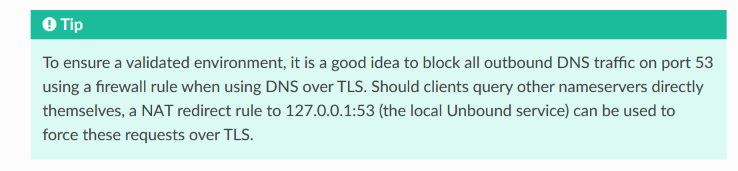
Source https://docs.opnsense.org/manual/unbound.html
Results: Since firewall rules are processed on first match basis, put the block rule on top first. Anything else that doesn’t match this rule will get redirected or pass. Always put the [Default Allow LAN to any] rule last.

Test
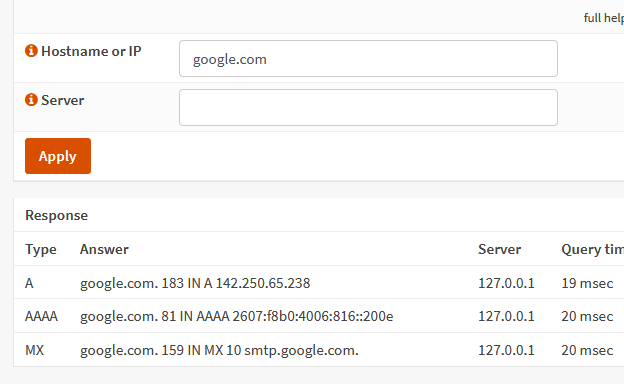
1. Go to Interfaces > Diagnostics > DNS Lookup.
127.0.0.1 should be the correct location as this points to the unbound dns
2. Verify if Quad9 is being used by going to https://on.quad9.net/

3. Verify on firewall logs that port 53 request are going to loopback and destination port request to 853 is live.


Source
https://www.cloudflare.com/learning/dns/dns-over-tls/
https://www.cjross.net/dns-security-and-adblock-with-opnsense-part-1/
https://docs.opnsense.org/manual/unbound.html
OPNsense Firewall Rule “Cheat Sheet” (homenetworkguy.com)
 Steven’s Knowledge Base