
Remote Desktop Access, in the realm of Windows administration, is like a mighty gatekeeper controlling who can and cannot enter the castle (remote access to a computer) through the secret passage (Remote Desktop Protocol). Through group policy, it allows you to manage and configure various aspects of remote desktop connections on multiple computers within a domain or local network, all from a central location.
In order to securely allow remote desktop access to only domain users within a specific group, we will utilize restricted group.
By the end, admin or users are will be able to remote into their workstations internally or externally VPN is present.
Goal – Only allow group [Remote_User_Blue929] local remote desktop access.
Part 1- Enable Remote desktop service and require NLA
Enable RDS:

In the Group policy management editor, navigate to Computer Configuration > Policies > Administrative Templates > Windows Components > Remote Desktop Services > Remote Desktop Session Host > Connections.

Right-click the policy setting “Allow users to connect remotely by using Remote Desktop Services” and select Edit. Now enable this policy setting by selecting Enabled. Click Apply and OK.
Require NLA:

Network Level Authentication (NLA): This is a security feature in Microsoft Windows that allows users to authenticate themselves to remote systems before establishing a connection. It's used with protocols like Remote Desktop Protocol (RDP) and improves security by preventing unauthorized access.

In the Group policy management editor, navigate to Computer Configuration > Policies > Administrative Templates > Windows Components > Remote Desktop Services > Remote Desktop Session Host > Security.

Right-click the policy setting “Require user authentication for remote connections by using Network Level Authentication” and click Edit. Enable this policy setting by selecting Enabled. Click Apply and OK.
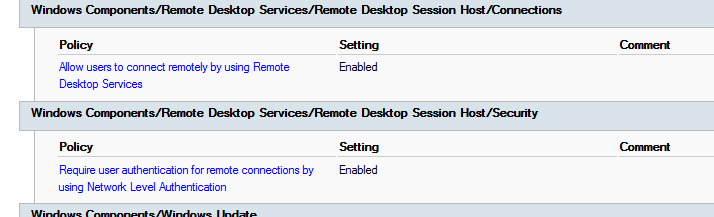
Verify:

Part 2- Allow Port 3389 on Windows Firewall
Since remote desktop protocol go through encrypted channel with TCP on port 3389, we must permit this traffic via the firewall.
In the Group Policy Management Editor, go to Computer Configuration > Windows Settings > Security Settings > Windows Defender Firewall with Advanced Security.
We want to allow the incoming RDP connection to all computers (TCP 3389 port). Right-click the Inbound Rules section and select New Rule > Select Port > select TCP > specific local port: 3389 > Allow the connection > Select all profiles.

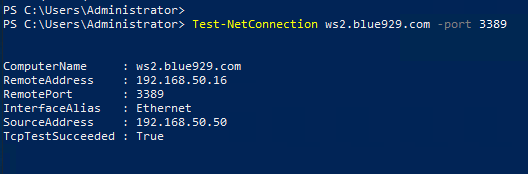
Verify with Test-NetConnection cmdlet that port 3389 port is opened to WS2 [192.168.50.16]. If RDP is permitted, the TCPTestSucceeded will result in True.
Part 3- Create restricted group – Remote Desktop User group
By default local groups can be manipulated and any members can be added as long as user has administrative privilege. In order to prevent any modification to local users and groups on a workstation, restricted groups must be used. When a restricted group policy is enforced, any current member of a restricted group that isn’t on the members list is removed, except for administrator in the Administrators group. That means no matter how many members gets added to the local [Remote desktop User] group, all of them will be wiped except for the group that admin will allow via group policy.
In order to create restricted group, go to Computer Configuration > Windows Settings > Security Settings > Restricted Groups
- Right-click Restricted Groups and then click Add Group.
- Click the Browse button, type Remote and click the Check Names and you should see [Remote Desktop Users] come up.
- Click OK in the Add Groups dialog.

- Once the [Remote Desktop Users] has been added to the restricted group, feel free to add a group/user under members of this group tab.
- Click Add > type the name of the domain group, then click the Check Names button, then click OK to close this box.
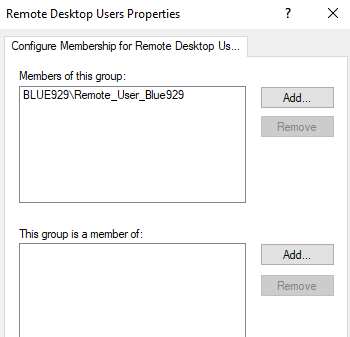
6. Click OK to close this box which will complete the addition of the domain group to the Remote Desktop Users group. Members under this group now has obtained remote desktop privileges.

Verify that the group has been added to under Computer Management > Remote Desktop User group.
If there were any other members added besides [Remote_User_Blue929], they are removed after Gpupdate.

Source:
https://learn.microsoft.com/en-us/answers/questions/673832/how-to-allow-local-user-group-for-remote-desktop-u
https://softwarekeep.com/help-center/how-to-enable-remote-desktop-on-windows
https://social.technet.microsoft.com/wiki/contents/articles/20402.active-directory-group-policy-restricted-groups.aspx
https://learn.microsoft.com/en-us/troubleshoot/windows-server/group-policy/description-of-group-policy-restricted-groups
 Steven’s Knowledge Base