
An AD account lockout occurs when a user account in an Active Directory (AD) domain becomes temporarily inaccessible due to repeated unsuccessful login attempts. This is a security measure designed to prevent unauthorized access by attackers who might be trying to crack the user’s password through a brute-force attack, where they systematically try multiple password combinations.
What triggers it:
1. Exceeding a predefined threshold of incorrect password attempts within a specific time frame.
2. Entra ID smart lockout policy.
**The Microsoft Entra password policy doesn’t apply to user accounts synchronized from an on-premises AD DS environment using Microsoft Entra Connect, unless you enable EnforceCloudPasswordPolicyForPasswordSyncedUsers.

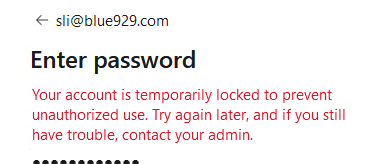
3. This threshold is configurable in the AD password protection policies or fine grain password protection policy from AD Administrative center and typically involves settings like:
Number of allowed bad attempts (default often around 5)
Timeframe within which those attempts must occur (default often around 2 minutes)
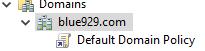
**The account lockout policy will ONLY work if set on [default domain policy] object.



Hybrid environments can complicate lockout troubleshooting. This guide offers tools for pinpointing the issue. Lockout accounts that keep getting locked within a short time frame require a meticulous elimination process to uncover the root cause.
Goal: Review steps to review account lockouts on a hybrid environment.
Part 1:
Below is a list of first items that admin can check on the users front end to make sure no applications are reusing old password:
- Disconnected Terminal Server sessions and restart device. Have user sign in with new password.
- Check all browsers like Edge, Chrome or firefox. Erase history to clear any cached sessions with cookies or clear any saved passwords from password manager. Some applications/webpages utilized LDAP with cached credentials so clearing saved passwords from browsers are important.
- Navigate to Credential Manager and clear any credentials that is not recognized.
- Or Start > Run > rundll32 keymgr.dll, KRShowKeyMgr > OK
- Or from CMD > cmdkey /list
- If user has a mobile devices assigned to them, remove or edit the password from MDM application.
(Intune company portal/Outlook app) (Airwatch ONE boxer) (Sophos Secure Email) (Native app via ActiveSync)
- Check users recent activity logs: https://mysignins.microsoft.com/
Part 2:
If the items from part 1 does not resolve lockout issue, resort to part 2 for in depth troubleshooting.
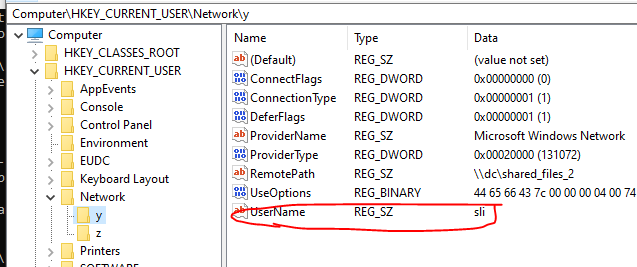
- Check Persistent drive mappings with expired credentials. The expired credentials will remain after restarting.
Mapped drives are assigned a drive letter in the registry, under HKEY_CURRENT_USER\Network. Note that network drive mapping and a manual persistent mapping will not work together if its under same user.
The UserName key reveals which user is used for persistent mapping. The one with no user is running under user context from GP.

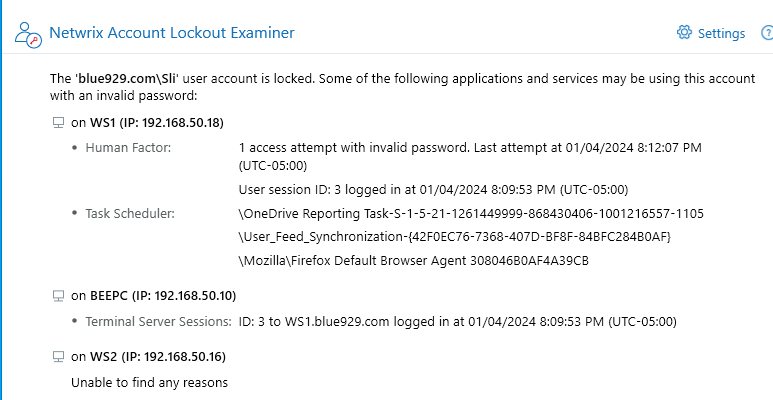
- Install Netwrix lockout examiner to check Service Accounts using cached passwords and Scheduled tasks with expired credentials as well as human error.
For the task under task scheduler, the task are usually triggered when user has successfully log into workstation.
The sample used here is actually caused by human error on WS1 as I have triggered a wrong password more than 3 times on that workstation. It also reviews the host computer (BeePC) that is accessing a guest VM(WS1).
View the results here: C:\ProgramData\Netwrix Account Lockout Examiner\Results
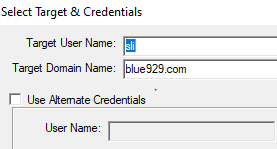
- Aside from Netwrix, Lockoutstatus.exe by Microsoft is also a very useful tool to detect the source of the machine and which DC it is authenticating against.
The files are located here:
Download Account Lockout and Management Tools from Official Microsoft Download Center
Click file > select target > input “Sli”
The results will show you where the lock is originating from. From that point on, open event viewer and connect to DC. Select windows logs > security > filter event ID number 4740 , 4625, 4776 for failed authentications.


Event ID 4740:

Event ID 4625:
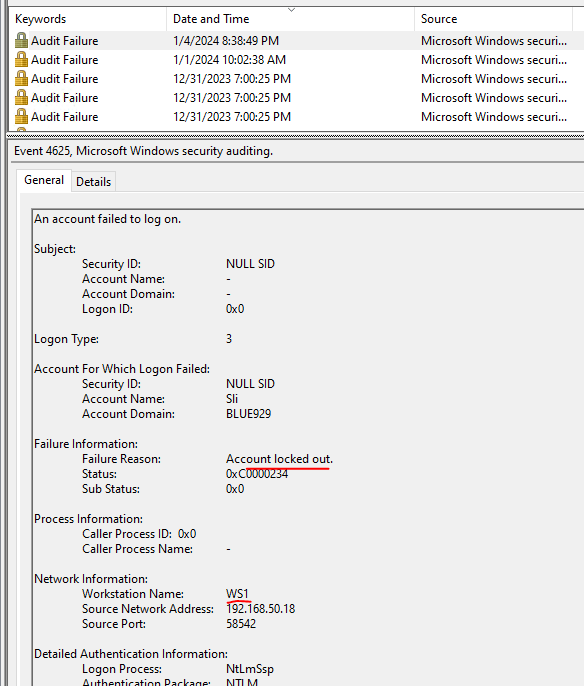
- Utilize ALTools with Alockout.dll to figure out which process is triggering the lockout. The account management tool and other tools can be installed here:
Download Account Lockout and Management Tools from Official Microsoft Download Center
ALTools.exe includes:
ALockout.dll. On the client computer, helps determine a process or application that is sending wrong credentials. Caution: Do not use this tool on servers that host network applications or services. Also, you should not use ALockout.dll on Exchange servers, because it may prevent the Exchange store from starting.
Once its installed > select Alockout.zip folder >

1) Copy alockout.dll to system32 directory on machine sending bad credentials.
2) Run the appinit.reg script to add the dll to the Appinit_DLL key.
3) Restart machine
4) Wait for account to lockout on that machine
5) The output (Alockout.LOG) will be created in the winnt\debug directory
- Use powershell to get source lockout
#Get a list of locked out users and source from event ID 4740:

# Getting the PDC emulator DC
$pdc = (Get-ADDomain).PDCEmulator
# Creating filter criteria for events
$filterHash = @{LogName = "Security"; Id = 4740; StartTime = (Get-Date).AddDays(-1)}
# Getting lockout events from the PDC emulator
$lockoutEvents = Get-WinEvent -ComputerName $pdc -FilterHashTable $filterHash -ErrorAction SilentlyContinue
# Building output based on advanced properties
$lockoutEvents | Select @{Name = "LockedUser";
Expression ={$_.Properties[0].Value}}, `
@{Name = "SourceComputer"; Expression = {$_.Properties[1].Value}}, `
@{Name = "DomainController"; Expression = {$_.Properties[4].Value}}, TimeCreated
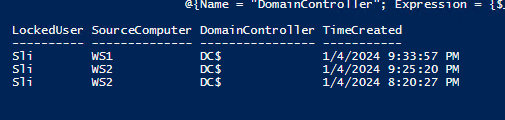
#Get list of which process is triggering the lockout

# Creating filter criteria for events
$filterHash = @{LogName = "Security"; Id = 4625; StartTime = (Get-Date).AddDays(-1)}

# Getting lockout events from the source computer
$lockoutEvents = Get-WinEvent -ComputerName DC -FilterHashTable $filterHash -MaxEvents 1 -ErrorAction 0

# Building output based on advanced properties
$lockoutEvents | Select @{Name = "LockedUserName"; Expression = {$_.Properties[5].Value}}, `
	@{Name = "LogonType"; Expression = {$_.Properties[10].Value}}, `
	@{Name = "LogonProcessName"; Expression = {$_.Properties[11].Value}}, `
	@{Name = "ProcessName"; Expression = {$_.Properties[18].Value}}

To get more info on logon type and logon process name -reference this:
https://www.ultimatewindowssecurity.com/securitylog/book/page.aspx?spid=chapter5
Type 3 – NTMLSSP- Might anonymous authentication or interactive login
Type 3- Advapi – Processname- lsass.exe- Web-based logon: IIS processes logon requests through the advapi process. If the logon was to a Windows resource and authenticated via Kerberos, the Logon Process field would list “Kerberos.”
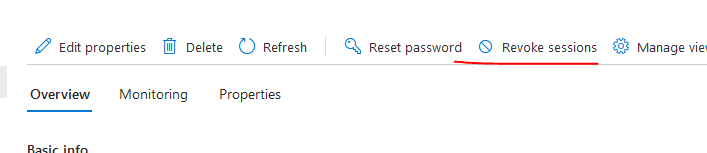
- For hybrid environment, navigate to Entra ID > Users > select user > revoke session.
This will sign user out of all applications that they were signed into with their domain account. It revoke all primary refresh tokens (PRT), which in turn will invalidate any active session once the access token expires (up to 1 hour delay).
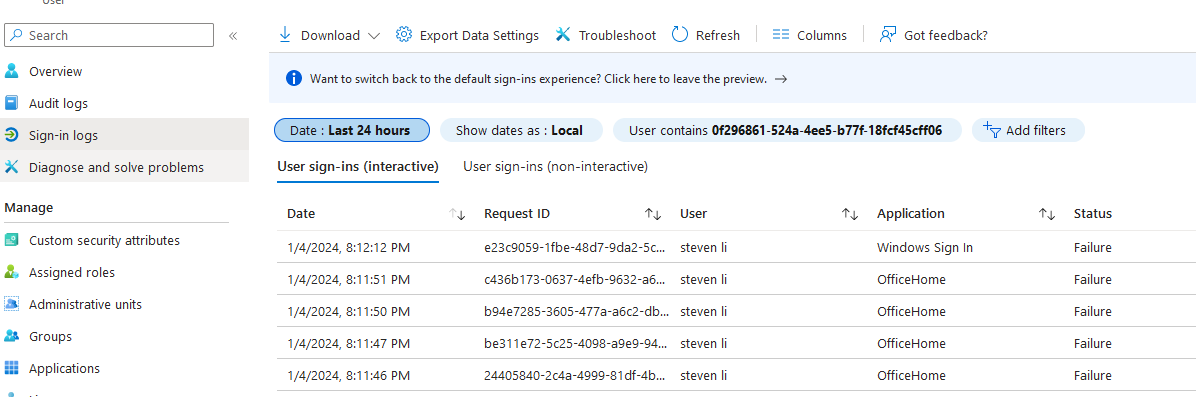
- Review the interactive and non-interactive sign in logs to determine what application is triggering the failed sign in under Entra ID > Users > select user > Sign in Logs.

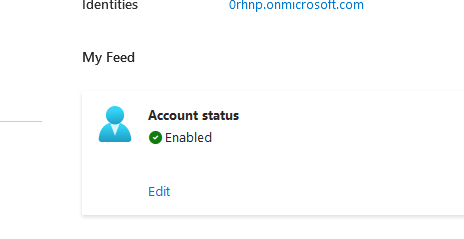
Unlock user from Entra:
Review if account status is enabled. Click edit and check enabled.
Method 3: Remove the cached account identities
Important: Follow the steps in this section carefully. Serious problems might occur if you modify the registry incorrectly. Before you modify it, back up the registry for restoration in case problems occur.
- Start Registry Editor.
- Locate the following registry subkey:
HKEY_CURRENT_USER\SOFTWARE\Microsoft\Office\16.0\Common\Identity - Right-click Identity, and then select Delete.
Note: If you have Shared Computer Activation enabled, also remove the following registry subkey:
HKEY_USERS\<user_SID>\SOFTWARE\Microsoft\Office\16.0\Common\Identity
To get the SID of the currently signed-in user, run the whoami /user command at a command prompt. If the issue persists, go to Clear prior activation information manually, expand “Section A: Remove Office licenses & cached accounts,” and then follow the steps in “Part 1: Remove previous Office activations” and “Part 3: Remove Office credentials stored in Windows Credential Manager.”
If you still experience the issue, follow these steps to remove the folders that contain cached credentials:
- Sign out of OneDrive.
- Remove all subfolders in the following folders:
- %localappdata%/Microsoft/OneAuth
- %localappdata%/Microsoft/IdentityCache
Notes:
*gpresult /v /scope computer >c:\temp\gpo.txt
Retrieve lockout policy:
Get-ADDefaultDomainPasswordPolicy| select LockoutDuration, LockoutObservationWindow, LockoutThreshold

*Account lockout group policy must be enabled on default domain policy. The link has to be under domain level [Blue929.com] and not any OU since it’s a domain policy.
Source:
https://learn.microsoft.com/en-us/entra/identity/authentication/howto-password-smart-lockout
https://learn.microsoft.com/en-us/entra/identity/domain-services/troubleshoot-account-lockout
https://github.com/MicrosoftDocs/entra-docs/blob/main/docs/identity/authentication/concept-sspr-policy.md
 Steven’s Knowledge Base