
SNMP (Simple Network Management Protocol) is a widely used protocol for managing and monitoring network devices. It enables network administrators to remotely access and control devices such as routers, switches, printers, and servers within a network. Operating at the application layer of the TCP/IP protocol suite, SNMP allows for the exchange of data between devices across large-scale networks. CentreWare Web (CWW) supports SNMP versions 1, 2, and 3, with version 3 being recommended for better security, provided the devices are compatible.
Common Use Cases of SNMP:
Alerting and Troubleshooting: Devices can send traps to the SNMP manager, alerting administrators to issues and enabling quicker resolution.
Network Monitoring: SNMP is extensively used to monitor the performance and status of network devices (routers, switches, servers).
Device Configuration: SNMP allows for remote configuration of network devices, including adjusting settings and updating firmware.
SNMP v1: The original version of SNMP, with minimal security (only community strings for authentication).
SNMP v2c: An improved version of SNMP v1, offering more features and performance improvements but still using simple community-based security.
SNMP v3: This version adds strong security features, including authentication and encryption, to ensure secure communication between the manager and agent.
v3 Notes (…)
There are many factors that can affect response time including network bandwidth, topography, meter data sizes, device models, etc. For these reasons we recommend smaller groups when the communication technology is SNMP v3 vs SNMPv1/v2.
Recommendations:
Xerox® Versalink® Devices – no more than 500 devices per group
Xerox® Altalink® Devices – no more than 600 devices per group
Xerox® ConnectKey® 2.0 Devices – no more than 500 Devices per group
Use the above group sizes as a starting point to find a group size that works best for your environment. If you adhere to these recommendations and still notice long communication times that result in timeouts, continue to reduce the size of the groups until the issue is resolved.
The Role of SNMP in Xerox Printers:
1. SNMP Manager (CentreWare Web - CWW):
• The SNMP manager is the software that manages and monitors the devices on the network. In the case of Xerox printers, CentreWare Web (CWW) acts as the SNMP manager.

• The SNMP manager sends polling requests to the devices (printers) on the network to collect data about their status, performance, and configuration.

2. SNMP Agent (Xerox Printer):
• Each managed device (e.g., a Xerox printer) has an SNMP agent running on it. The agent is responsible for gathering and storing information about the device, such as toner levels, print job status, device health, and configuration settings.

• This information is stored in a MIB (Management Information Base), which is a structured collection of data that defines the types of information available from the device. For example, MIB might include device status, paper tray status, print queue, and more.

3. Polling and Data Collection:
• The SNMP manager (CWW) regularly polls the SNMP agent on the Xerox printer by sending SNMP requests (like GET requests) for specific data stored in the MIB.

• Once the data is retrieved, the SNMP agent on the printer responds with the requested information, such as the status of the printer (online/offline), toner levels, page counts, etc.

• SNMP traps can also be configured on the printer to send power events, Error event and Unauthorized SNMP access

4. Displaying Data:
The collected data from the SNMP agent is then displayed on the CentreWare Web interface, giving administrators real-time insights into the printer's performance, health, and status. This makes it easier for administrators to manage and troubleshoot networked printers remotely.
Configure SNMP on CWW
This project will configure SNMP v1/v2. Once you retrieve the community string, simply input it into CWW SET and GET column. Once it is there, there should be no issue with printer discovery.
- Go to administration > Discovery > SNMP v1/2 > input device SNMP string of device.
Best Practices for SNMP Community Strings:
To ensure basic security and effective device management, SNMP community strings should:
- Be at least 20 characters long.
- Contain a mix of character types, including:
        Uppercase (A-Z)
        Lowercase (a-z)
        Digits (0-9)
        Special characters (e.g., $, %, @, #).
- Avoid using common or easily guessed words.
- Ensure that Public and Private strings are distinct (they should not match).
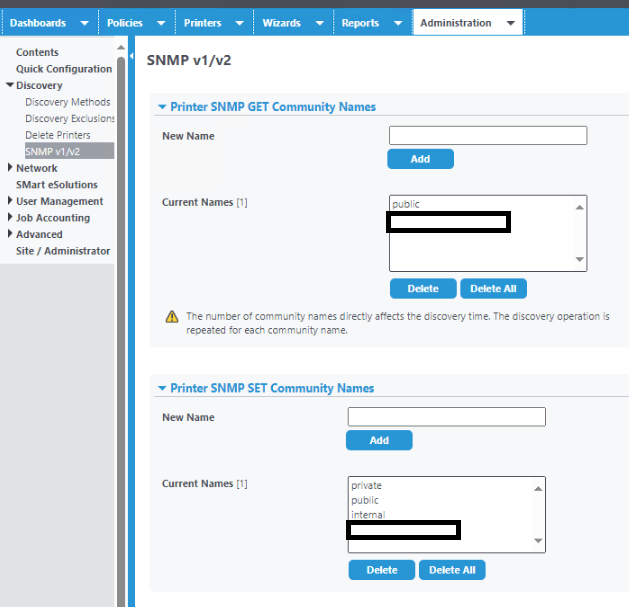
SNMP GET: The GET operation is used by the SNMP manager(CWW) to request specific information from the SNMP agent(Printer).

SNMP SET: The SET operation is used by the SNMP manager(CWW) to change or modify the configuration of an SNMP-enabled device (e.g., printer, router, or server).
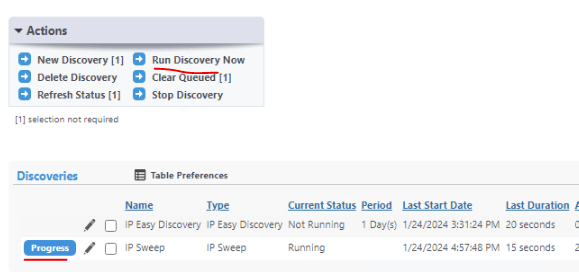
Make sure the SNMP string for the printers matches what is in Discovery > SNMP (Get and Set). To run now, check the box by the discovery, and click Run Discovery Now. The Status changes from Not Running to Running and a Progress button appears.
– Click Progress to show the current status of the sweep.
– To stop a discovery, click Stop Discovery. This leaves an uncompleted discovery queued.
– To remove a queued discovery click Clear Queued or click Delete to delete the discovery

Notes:
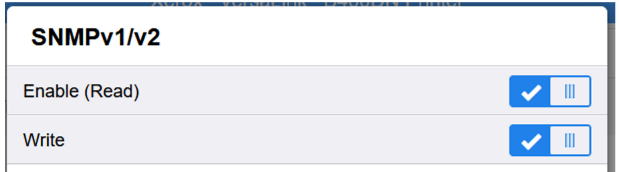
If Admin is unable to reset the printer with the following error:

Make sure the SNMP write is enable on device. Once both read/write is on – the reset will work.
Source:
 Steven's Event Log