
The Centreware Web Server enables you to query a Windows® Global Catalog server and an Active Directory® Partition for those network printers that have associated Windows-based print server(s).
Centreware Web automatically queries the Global Catalog server and provides a list of available Active Directory Partitions. You can then select the appropriate Active Directory Partitions you want to check for network printer/queues.
Adding or Deleting a Directory:
Use one of the following procedures to add or delete a directory from your system:
1. Verify that you have administrative privileges for any active directories that will be added in this test.

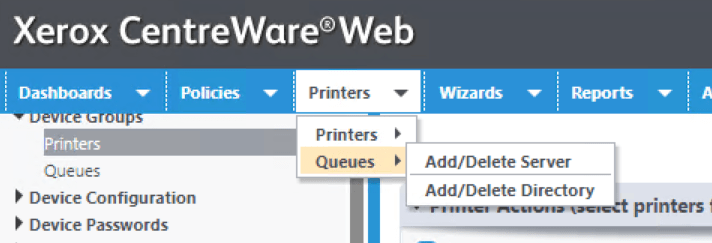
2. Select Printers > Queues > Add/Delete Directory

3. Enter an Active Directory name in the Manual Entry field.

4. Verify that the new Directory now appears in the Active Directories portion of the Managed Print Server navigation tree.
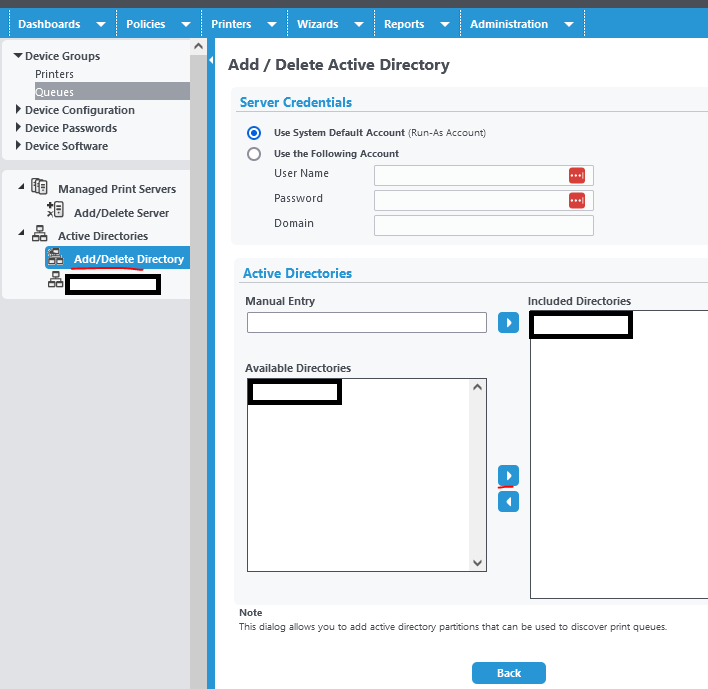
Note: You can also select the directory from the Available Directories list, and click the right arrow. The Active Directory will have been added and is queried. Depending upon the number of printers, it may take several minutes for the detailed information about the printers to display. Select the added directory to view the contents.
** When you configure the Centreware Web Run As user (System Default account) with administrative privileges for remote servers, any authenticated Centreware Web user can perform queue administration on those servers. This includes print-driver installation and print-queue deletion. When enabling the Run As account for remote print server administration, use care when adding users to the Centreware Web Users Group.
Domain or Local System Security Policies that mandate password updates will also affect this account.

If possible, exclude Centreware Web Run As (System Default Account) from these policy. Treat it as service account since password expiration impacts the Run as account.
 Steven’s Knowledge Base