
What are groups?
Centreware Web leverages the technology of device discovery and interrogation with the capabilities of ordering this information into visual management units, or Groups. A group is a container into which devices are explicitly selected for inclusion (Static Grouping) or by specifying simple rules, automatically selected (Dynamic Grouping).
Groups can separate:
- Geographically distinct devices (such as devices on the first floor from those on the second floor, or devices in Paris, Texas from those in Paris, France)
- Devices needing service from those that are fully operational
- Devices requiring on-site service from those requiring a toner replacement.
- Effective fleet management uses Groups to organize and simplify the processes for alerting, upgrading and configuring sets.
To create static group (Manually add/remove devices):
Select printers > Printers >new group > name group > modify polling time (You can put printers in these group. Can create group based on department or Model number or location etc)
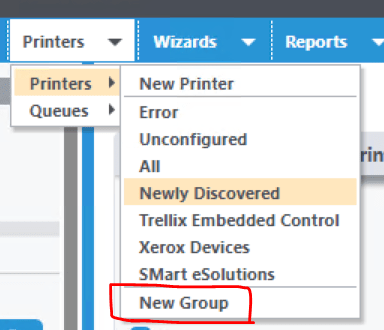
Static group created here with full status retrieval (contains alerts and metering status and more)


To create dynamic group (Automatically add devices by membership rules):
Create the static group first then configure membership filter to set it as dynamic group.
Select group > membership filter > configure > new impression

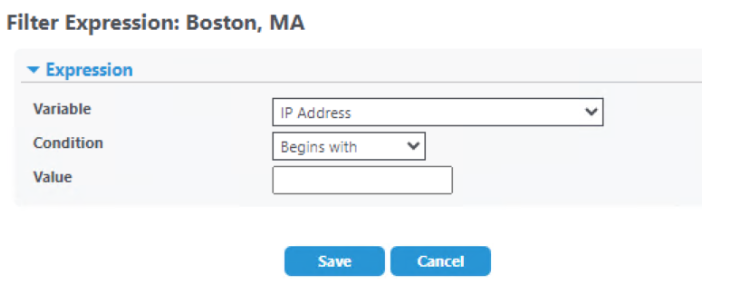
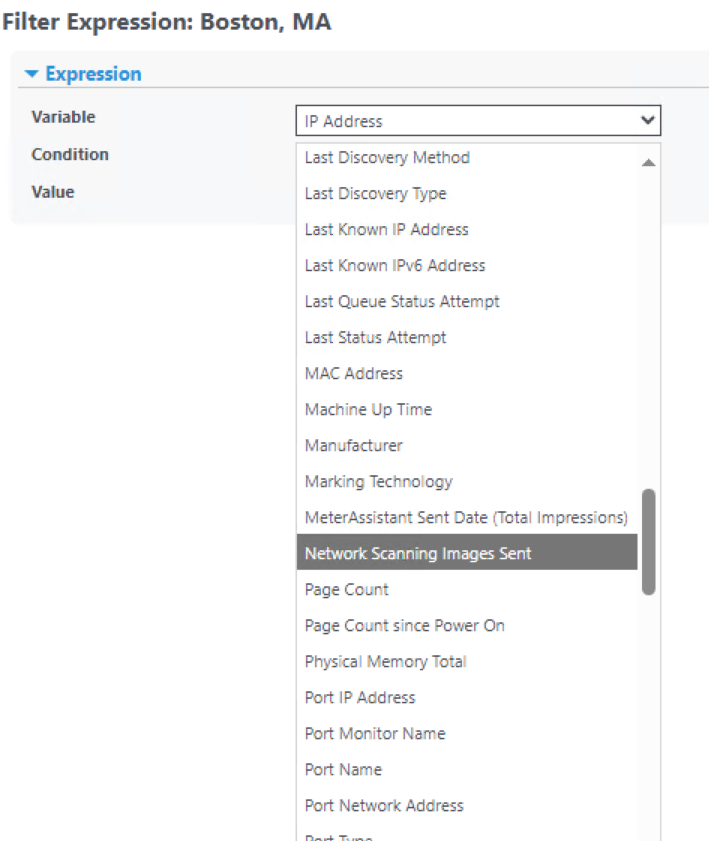
Filter by IP Example:
Example 1: (Create membership filter to find devices with IP address starting with 13.62.100-199.X)

This is translated as:
Match all IP addresses where
The first octet is exactly 13 and the second octet is exactly 62 and the third octet begins with “1” and is between 100 and 199
(Note - there are two “_” characters)
The fourth octet can be any value.” (“%”)

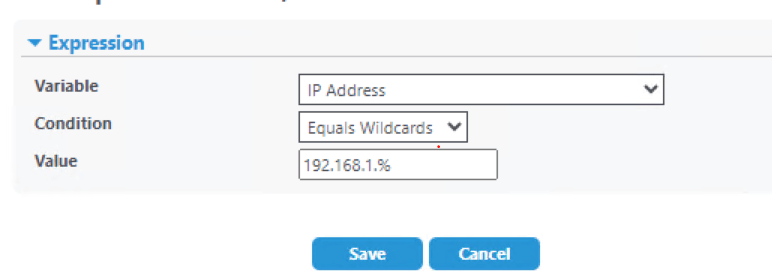
Example 2: 192.168.1.% (Filters IP address starting with 192.168.1.X) with X being anything from 1-254
Filter by Model:

To create alerts for group (This group action is ONLY for specific group):
Select the group under printers > status alerts > new profile


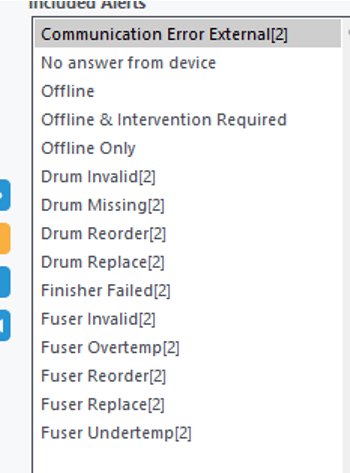
Device alert profile – Select what events on the printer must be sent to recipient (Fuser/drum/offline events will get sent as shown below) 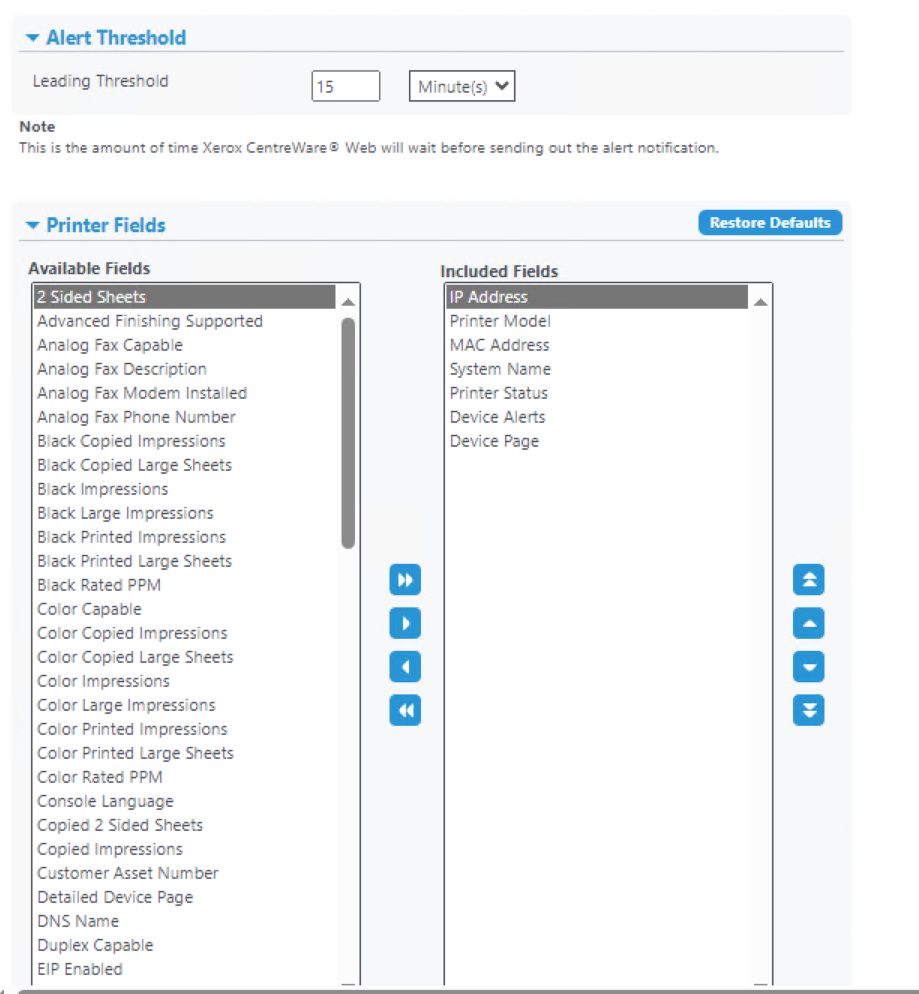
Printer Fields – select what to show on the email for alerts and how often to trigger notification. 
E-mail Alerts – Type in distribution list of single email to send the alerts to.
Important Notes:
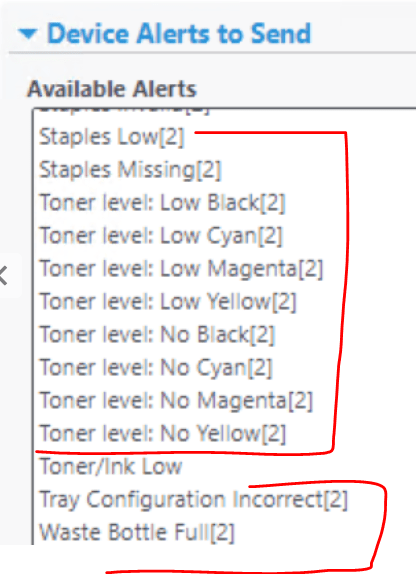
1. If user see the error- group not configured for full status retrieval, it means the “Included alerts” has a value of 2 cannot be selected if full status retrieval is not set up. Alerts like Staples low, toner, waste bottle has value of 2 next to them. Status Toner/Ink Low has value of 1.

**Alerts with a [1] require a device with RFC 2790 2-byte alert compliance.
**Alerts with a [2] are Extended Status Alerts– These items are only supported when the group is configured for Full Status retrieval.
2. In addition to the standard device-generated alerts, Centreware Web also supports extended alerts
that are derived from the device status for Xerox printers and provide greater insight into a printer’s
condition. In order to turn on Extended alerts:
Select group > Group action > Configuration > configure > Status Retrieval > enable “Basic Status Plus”.

Once “Basic Status Plus” is enabled, extended alerts [2] can be included under alerts profile.
Group Limitations:
- Deleting a group does not delete the members from the Centreware Web database. If the devices exist in any other Groups (they at least exist in the All Group), they remain.
- Deleting devices does completely delete any data about them from the database. They no longer exist. They can be rediscovered, but any Page Usage or Alert History data is lost.
- You can have both Statically placed and Dynamically filtered devices in the same Group.
- You cannot remove a device that is included in from dynamic group. You must exclude it on the basis of additional parameters in the Filter Expression.
- Filter Expressions for groups constructed for status polling have a performance impact on the Centreware Web server, as they are re-evaluated each time a status poll is run against the group.
- You cannot remove devices from the All group. You can remove devices from the Newly Discovered group. This provides a simple method of checking for new or changed IP devices by examining the Newly Discovered Group—Remove all devices from Newly Discovered before a Discovery process.
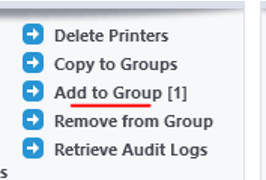
To move device to group – select the new group > add to group > select printer
 Steven’s Knowledge Base