
Once data is polled into CWW from SNMP, we want to get alerts about low toner, error message or any printers that may be offline via email alerts. This guide will look into setting up SMTP for Xerox Centreware Web.
Configuring E-Mail Server for alerts and notifications:
Under administration > Network > Email and external server

1. Enter the mail server SMTP address or DNSname.
2. Click Test Connection to confirm that the server is visible. If Test returns an error condition, the returned message should help in correcting the problem.
3. If SMTP security is required, complete this section. The Test E-Mail Destination allows a complete simulated test for e-mailing from Centreware Web. Typically, use your own e-mail address for testing.

Make sure to test SMTP twice so it works fine. IT Admin should get a email validating setup.

**Configuring SMTP Via the Quick Wizard may not work** (Instead, configure SMTP from administration panel)
Types of alerts:
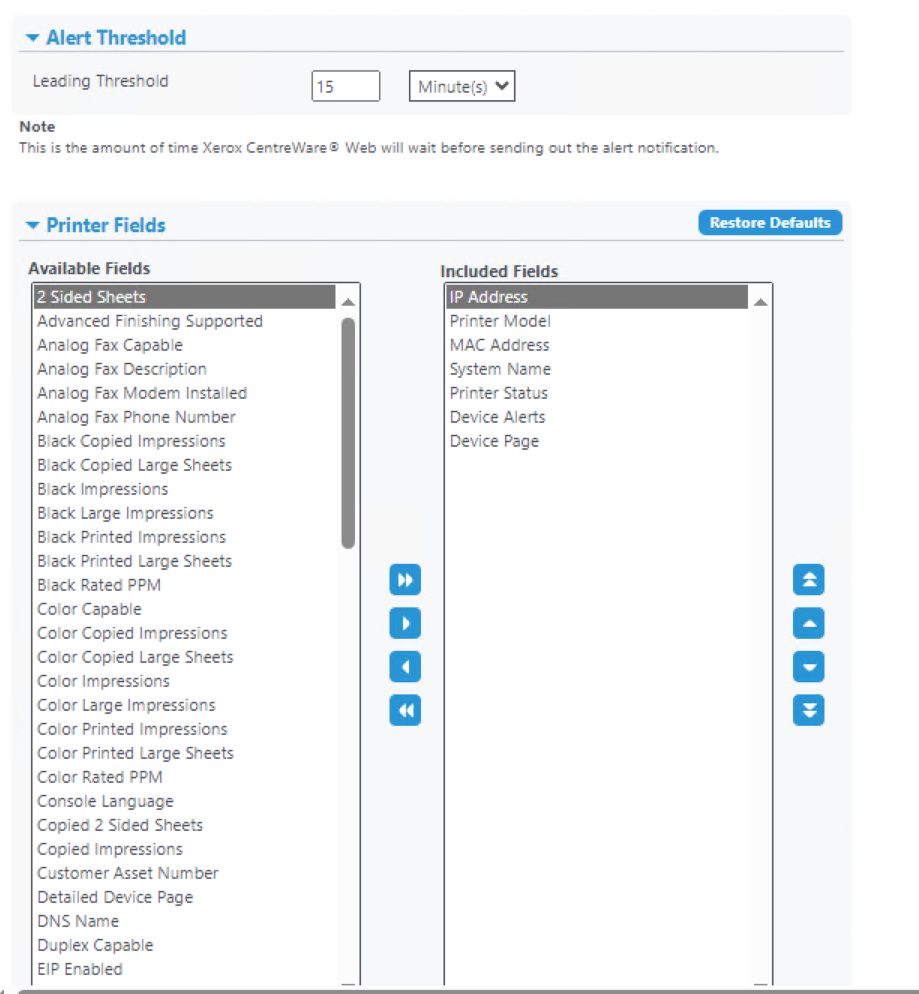
Select the printer groups > group action > status alerts (Alerts can be configured ONLY for the specific group and/or for ALL printers).
Device alerts to send – (Toner level, fuser error, stapples, waste bottle, offline and many more)
Alert Threshold – how often to trigger second email if error still persist
Printer field – what to include in the alert email



Results:

If SMTP keeps failing, it may be the provider rejecting the message due to CWW being unable to encrypt the message pre transit.

SendMail caught exception.
Error in processing. The server response was: 5.7.3 STARTTLS is required to send mail [MN2PR07CA0017.namprd07.prod.outlook.com 2024-03-26T20:09:17.313Z 08DC4B61EE6175D4]
   at System.Net.Mail.MailCommand.CheckResponse(SmtpStatusCode statusCode, String response)
   at System.Net.Mail.MailCommand.Send(SmtpConnection conn, Byte[] command, MailAddress from, Boolean allowUnicode)

or

The SMTP server requires a secure connection or the client was not authenticated. The server response was: Authentication required.

Solution:
The CWW software only supports basic/legacy SMTP authentication and is not compatible with modern methods like OAuth2 used by Microsoft and Gmail. A workaround is to use a different service provider, create a dummy account with 2FA and an app password, or relay SMTP through a third-party service like SMTP2Go will work fine.
The following SMTP servers support app passwords: (Tested)
SMTP.GMAIL.COM (port 587)
SMTP-MAIL.OUTLOOK.com (port 587)
 Steven’s Knowledge Base