
A firmware upgrade policy gives you the ability to manage and deploy firmware changes to an entire fleet of printers in order to improve printer capabilities and functions. The Firmware Version Policies pages have a streamlined look and additional functionality, such as scheduling retries for failed upgrades, and adding options to restart only failed upgrades.
In addition to the standard method of updating firmware on your devices, CWW also offer a hub and spoke model for firmware deployment for Xerox® Altalink® devices. CWW is also compatible with Fleet Orchestrator.
Firmware upgrades can:
• Supply corrective actions
• Enable new features
• Extend support capabilities for existing print devices
• support updating Xerox printers, HP printers, and HP JetDirect cards, Lexmark, and Honeywell

Centreware Web provides a simple procedure to:
• Organize printer firmware upgrade files
• Select a population of devices for upgrade
• Schedule the upgrade
• Report back on the success or failure for each device
• Schedule retries for failed upgrade and restart upgrades that have failed.
To order in enact a firmware policy, IT admin must download the firmware file and store it in software file repository first.
Step 1: Upload the firmware file to CWW Repository
Use the Software File Repository to house the files you need to support upgrades. Generally, these files can be downloaded from the device manufacturer’s site.
1. Click Software File Repository to view the Software File Repository grid.
2. If the appropriate upgrade file is not available, in the action menu select Add File and click Apply.

3. Select the Manufacturer from the drop-down list. A link to the manufacturer’s website displays.
4. Click Browse next to Upgrade File. You can now upgrade the uncompressed file.
5. Highlight the file and select [Open] in the Choose File box. [Make sure the zip file is extracted first with either .bin or .DLM extension]


*On altalink device - extract and upgrade BOTH the .DLM files.
A.Upgrade [746306v4.dlm] first
B.Upgrade [SW#12001000ENG_MOD.dlm] Second

6. By default, Qualify is set to Off for all upgrade files. When Qualify is off, the upgrade file may only be sent to one device at a time. You may also change the Qualify setting from the Firmware File Repository grid. Change Qualify to On – if you want to send the file to any number of devices simultaneously.
7. If there is relevant documentation associated with this particular upgrade, select Attachment, and then select the appropriate file. You should attach Word (.doc), text (.txt), PowerPoint (.ppt) or Adobe (.pdf) files.
8. Click Save to return. To delete an upgrade file, select it from the grid, in the action menu select Delete File, and click Apply. Confirm your selection
Step 2: Create new Firmware policy
Once the firmware is uploaded to the repository, a policy must be created to target that software. This section describes how to create a firmware policy. When a policy is created, a task will automatically get created.
To create a firmware policy:
1. Select Policies > Software > Firmware Policies. The Firmware Version Policies screen displays.
2. In the Action menu select New and click Apply. The New Firmware Policy screen displays. Complete the Identity, Assign, and Schedule tabs.
Identity:
Type:
Monitor Only: Monitors the firmware upgrade for the desired versions.
Schedule Upgrade Only: This allows you to upgrade the firmware to the desired version without any monitoring.
Monitor and Automatically Upgrade: Monitors the firmware version and attempts to upgrade if the version is not on the desired version. Note, you cannot downgrade firmware remotely.
Use Fleet Orchestration: Method only supports altalink devices- skip it
Upgrade: The file will be from the repository that was uploaded in the first stage.
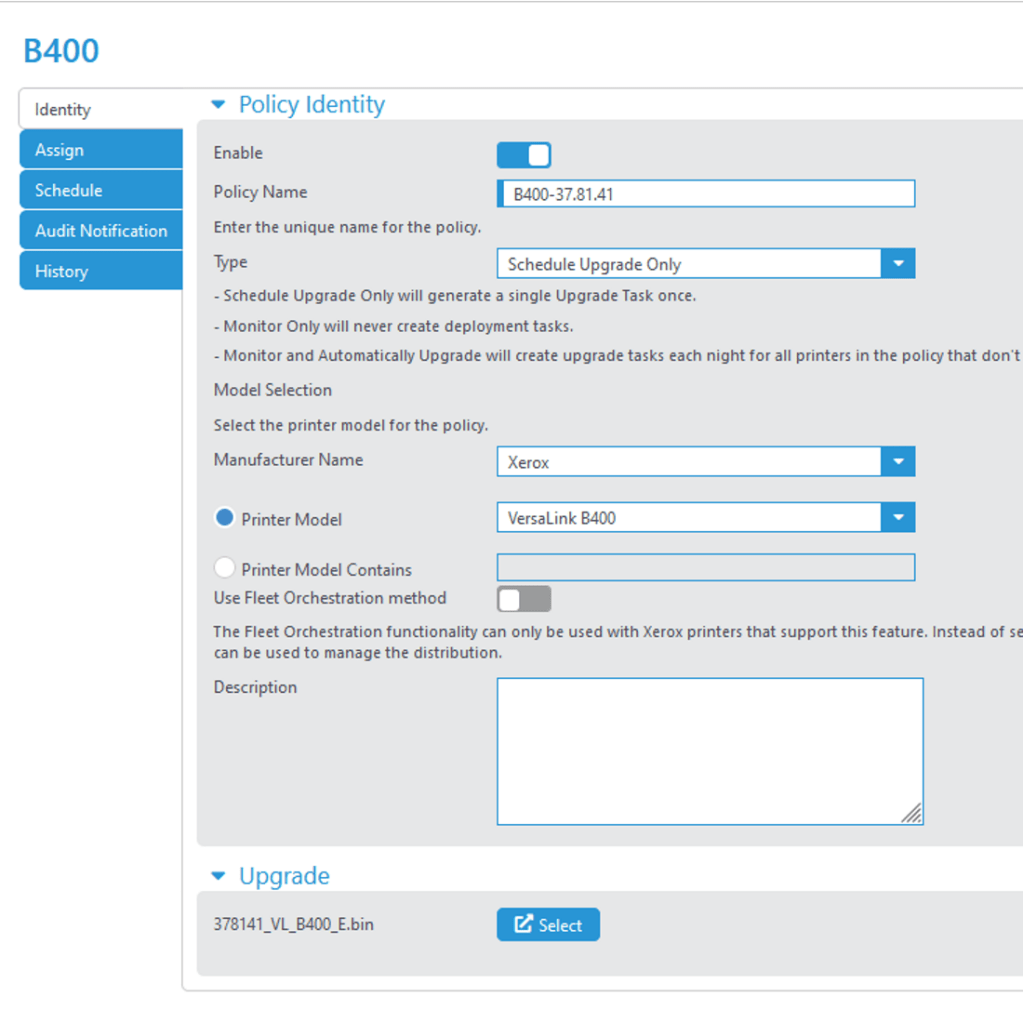
Assign:

Schedule (Schedule now or later):

Audit Notification (notify of any changes, success or failure):

Monitoring Deployment Tasks
Each deployment task is associated with a single policy.
**When the policy is Monitor only or Monitor and Upgrade Only, no Deployment Task is created.
For any other case, there should always be one task for each policy. Think of the deployment task being created or updated as a way to enforce the firmware policy. The table below tracks the results of the policy.

Notes:
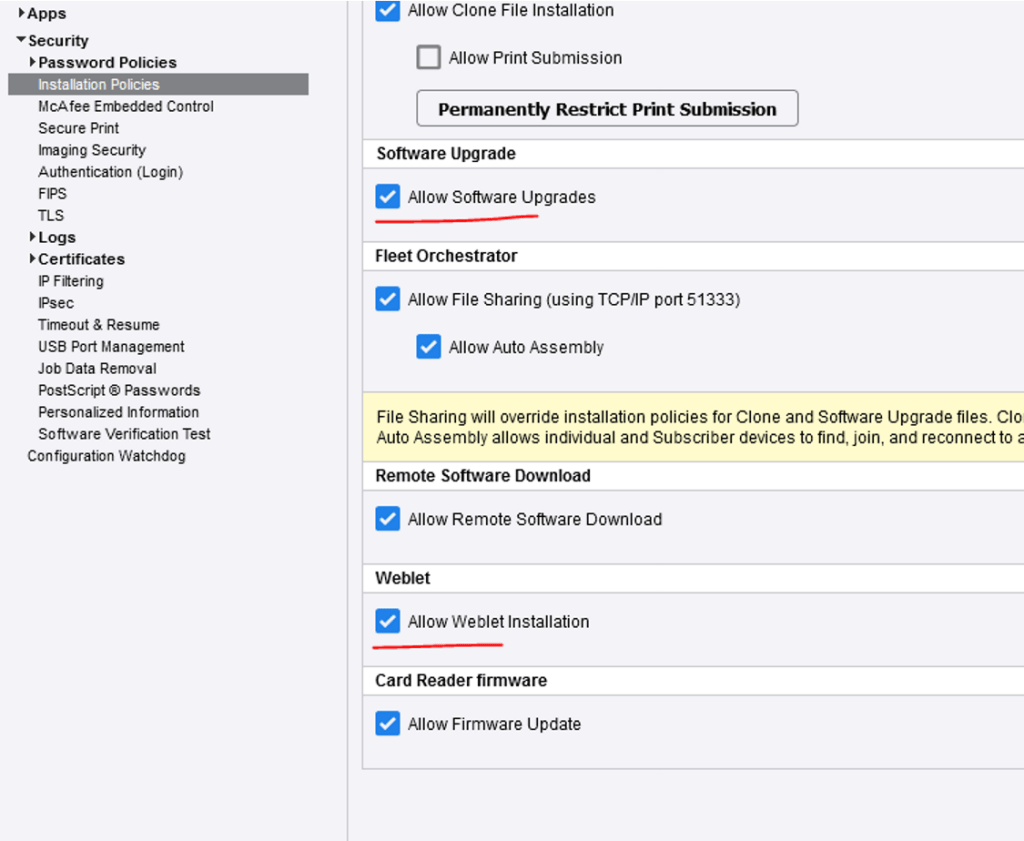
If there are issues with obtaining updates – on Altalink model, make sure the allow software upgrade option is checked or firmware update will fail.
 Steven’s Knowledge Base